Download FreePhoneTracker & set it up in about two minutes
Create your free account, add your child, install the app on their Android phone, and link the two with a single pairing code. Nothing is monitored until you do — and your child can see exactly what’s shared.
Works on Android. Free to set up. No credit card.
A free parent account
You’ll set this up first, on this site, in your browser.
Your child’s phone, for a few minutes
To install the app, type the code, and grant permissions together.
Seven small steps, start to finish
The first two are on your side, in the browser. The middle ones connect the two phones. The last confirms it’s working.
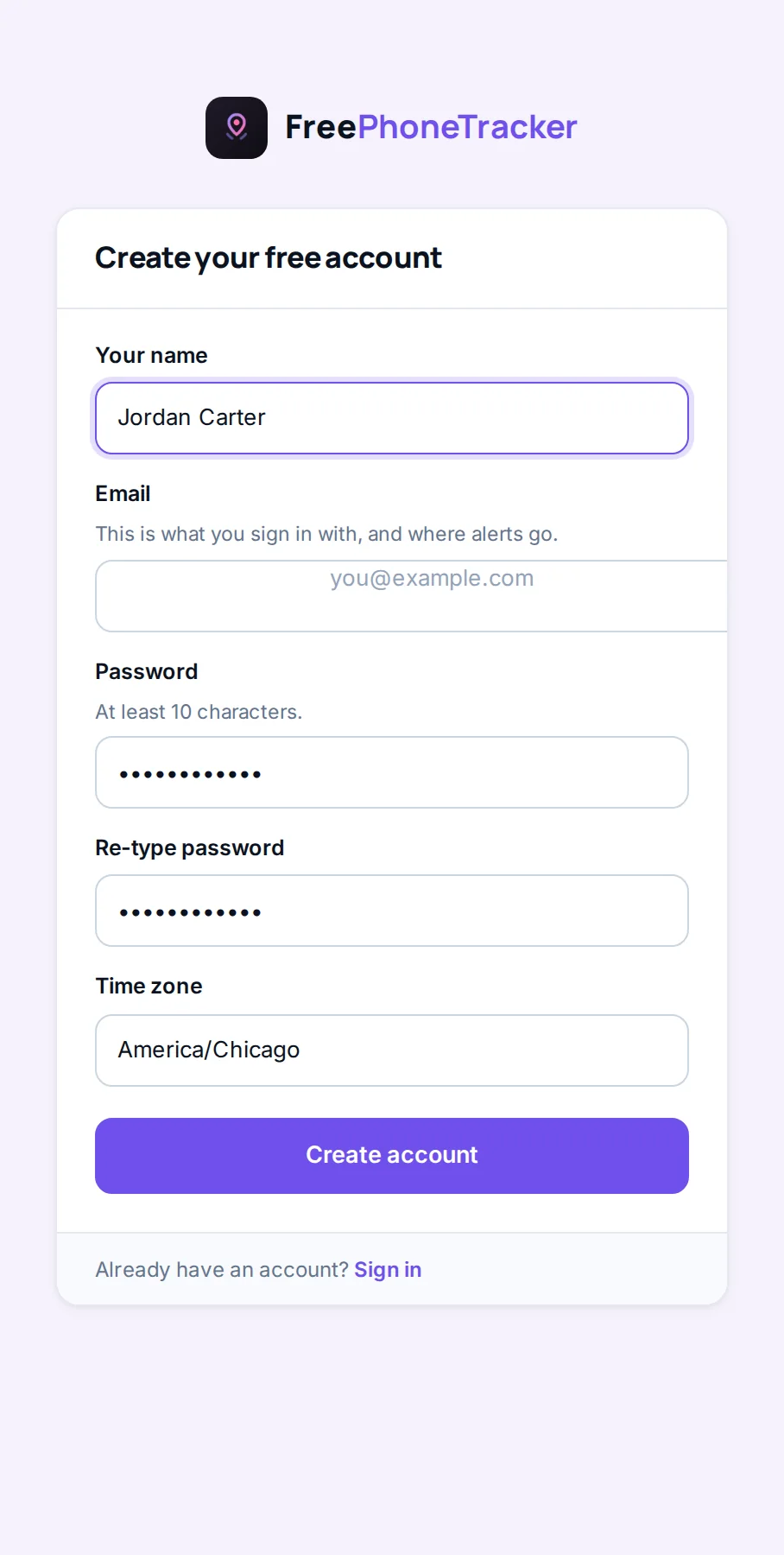
Create your account
Sign up with your email and a password. You’re taken straight into your panel — no confirmation email to wait for. Your email is how you sign in and where alerts go.
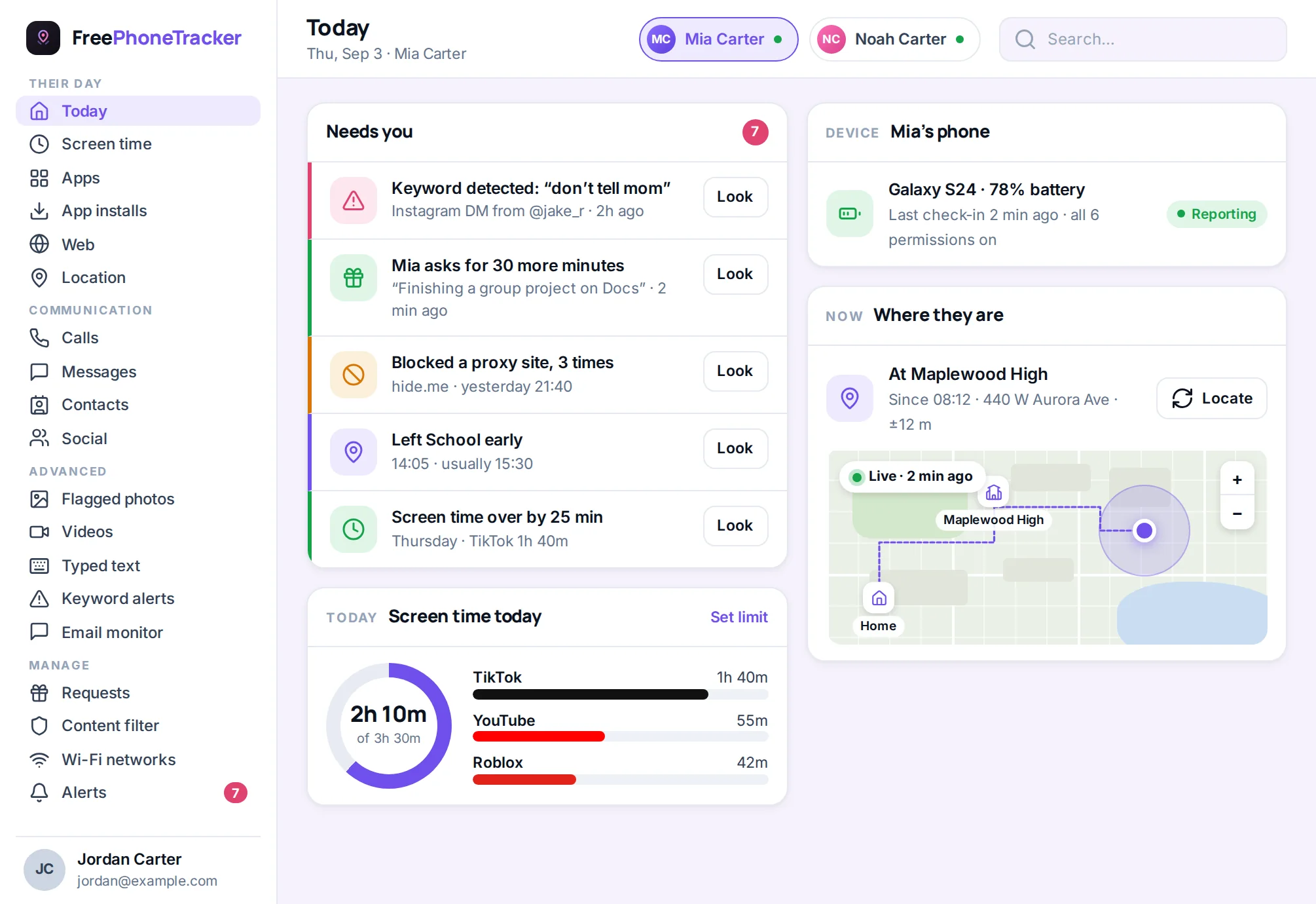
Add your child
Give their name and birthday. The birthday sets sensible starting points for daily limits and bedtimes — you can change everything later. Add one child now and more any time; everything in the app is about a named child, not just an account.
Install the app on the child’s phone
On the phone you want to watch over, open this page in its browser and tap the download button. It takes under a minute. Then open the app — it will ask for a pairing code, which you make in the next step. If you download from the web, Android asks once whether the browser may install apps; allow it and the install carries on.
One pairing code links the two together
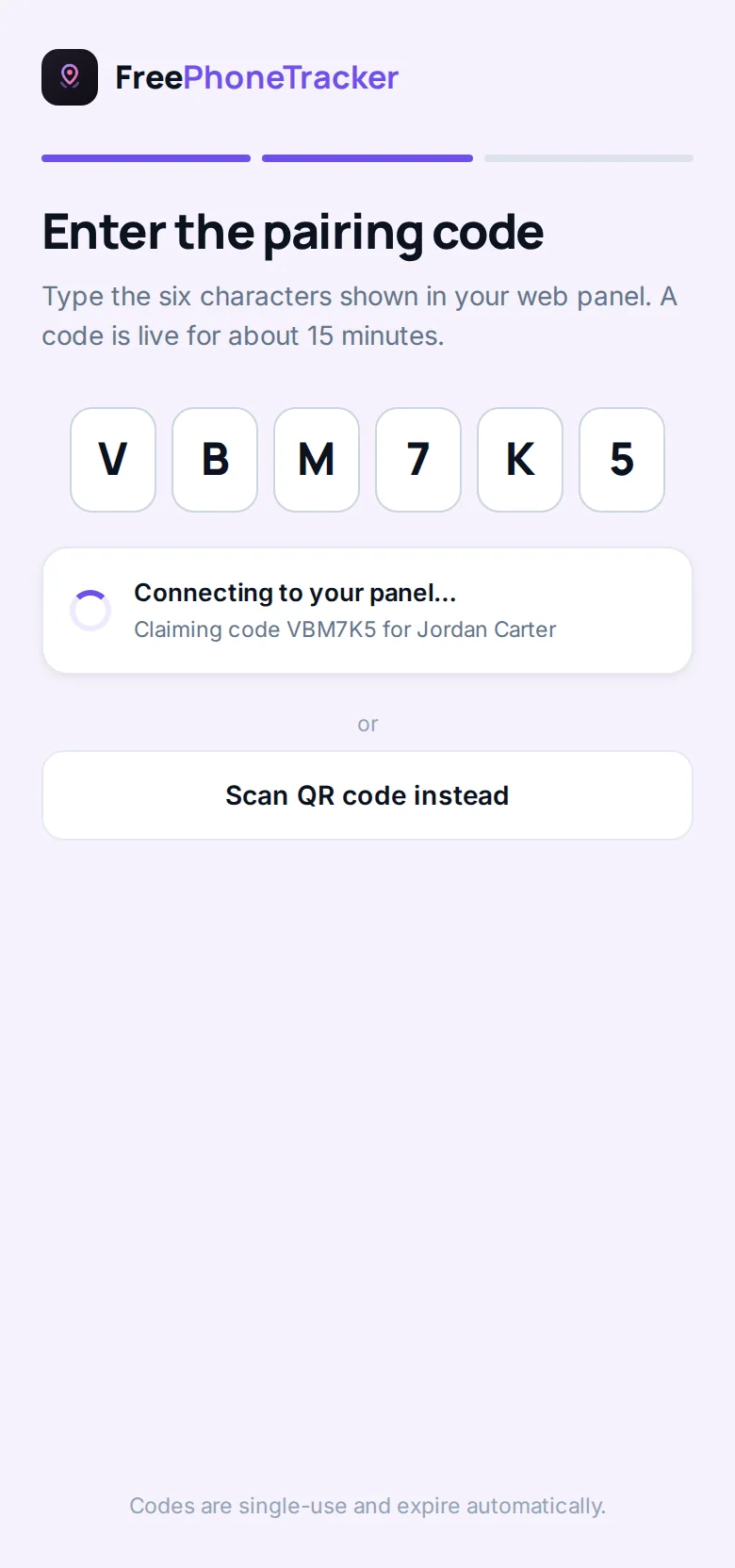
This is the moment the whole thing hinges on. Your panel makes a short code; you type that same code into the app on your child’s phone. From then on, the two are linked — the phone reports to your panel, and your settings reach the phone.
Codes are single-use and expire quickly, so a code that leaks can’t be reused.
Open your child’s page and tap “Add phone.” A fresh code appears. Keep the panel open.
In the app, type the six characters and tap connect. The phone links to that child.
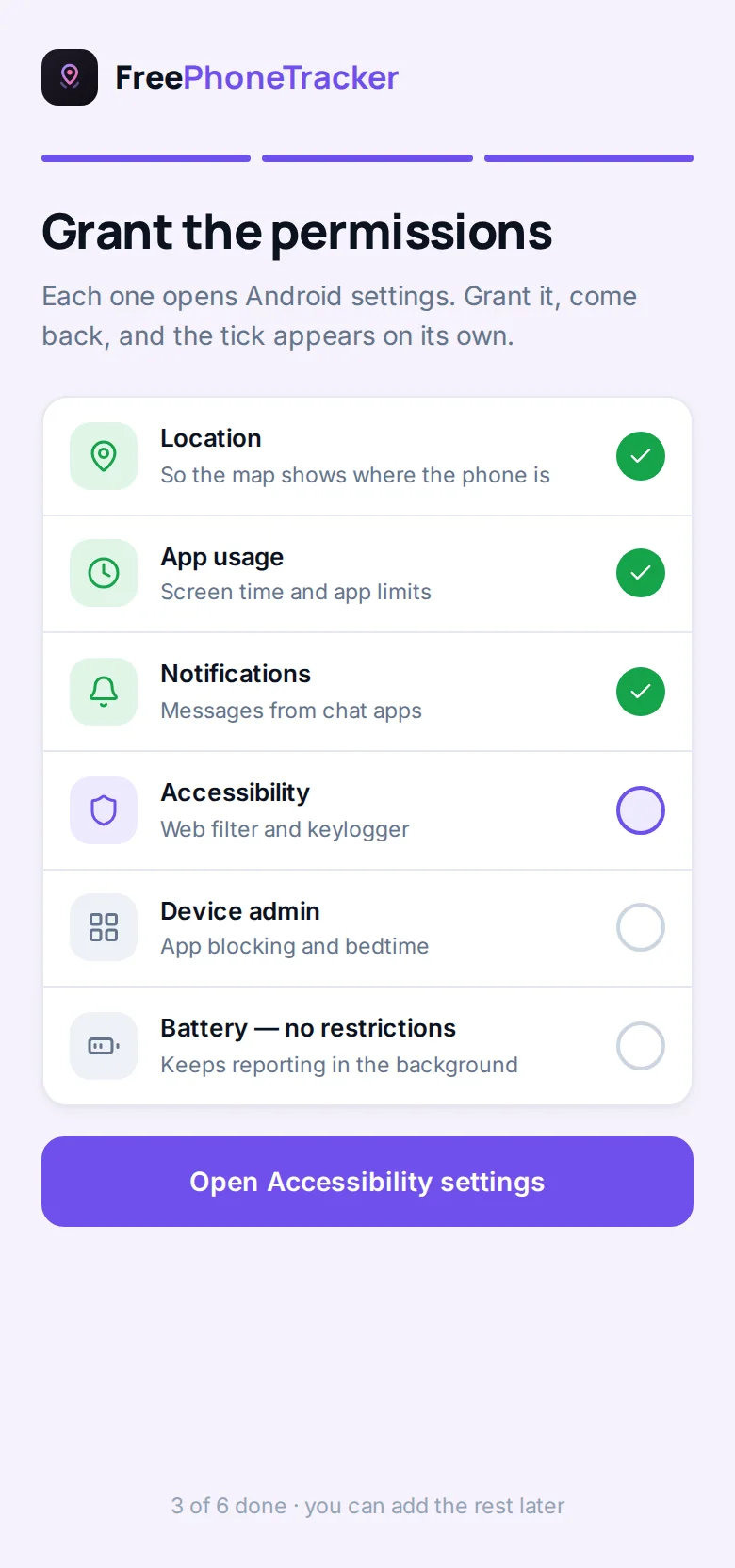
Turn on the permissions
Android asks before each one — location, usage access, notifications, accessibility. The app explains what each is for, and you tap Grant and follow the prompt. Do these together; it takes a minute. Because the permissions are granted openly, they’re reliable and survive Android updates.
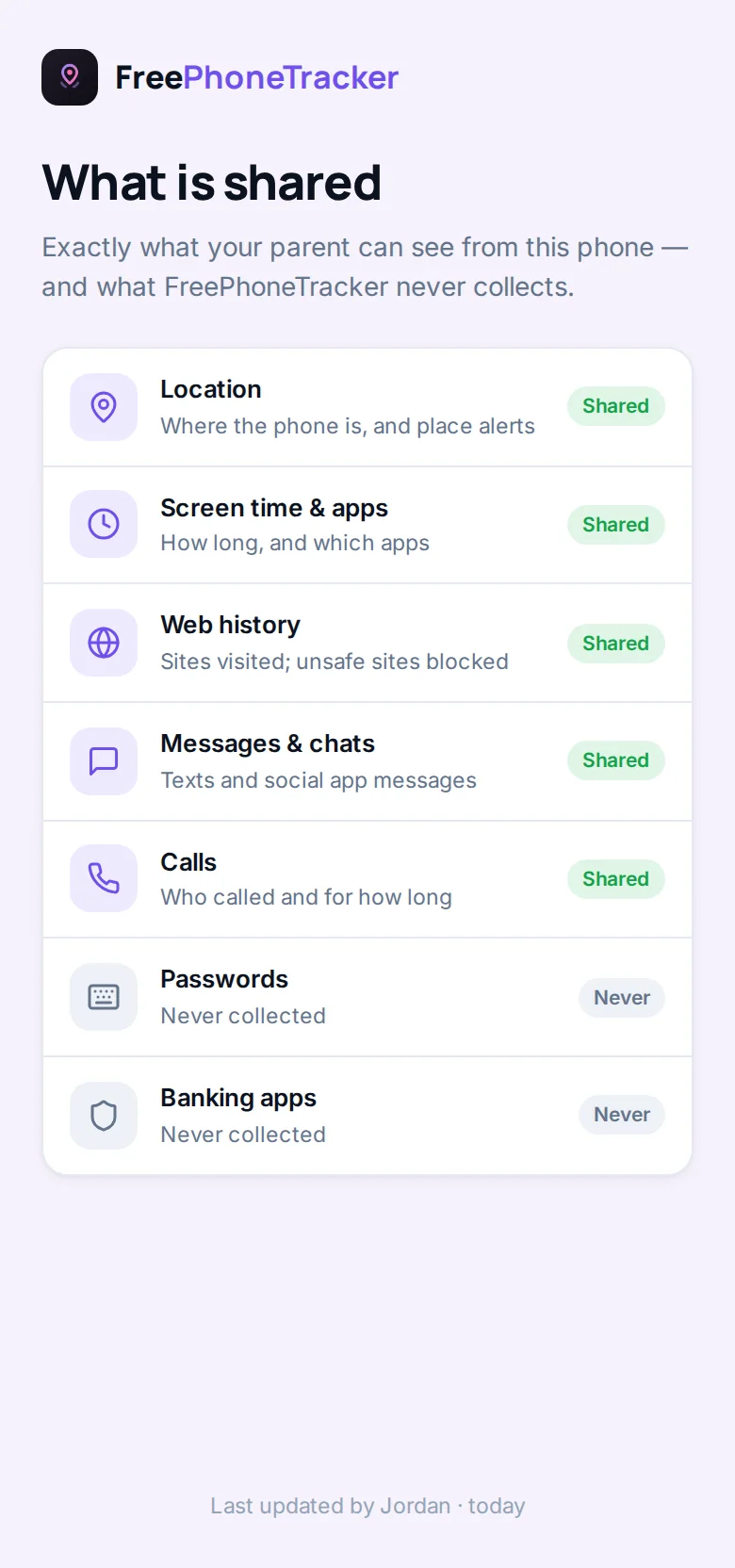
Review what’s shared, together
The app shows a transparency screen that lists exactly what it collects. Go through it with your child — this is the honest conversation that makes the whole thing work. They can open this screen any time, so nothing about the monitoring is a secret.
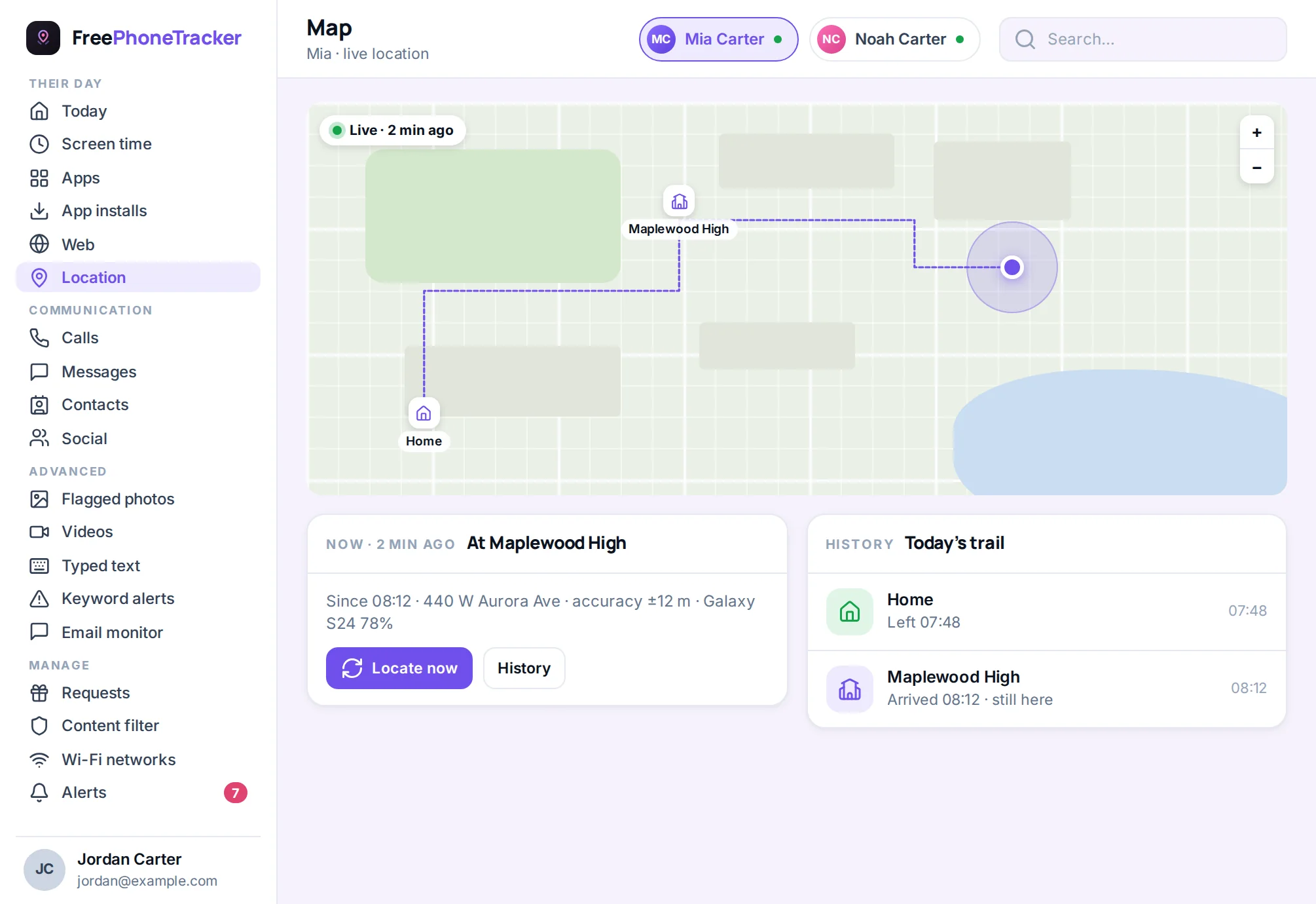
You’re connected
Within a few minutes the phone starts reporting. The map fills in, the day begins to populate, and your alerts switch on. From here, everything happens in your panel — you won’t need the child’s phone again unless you want to change what’s on it.
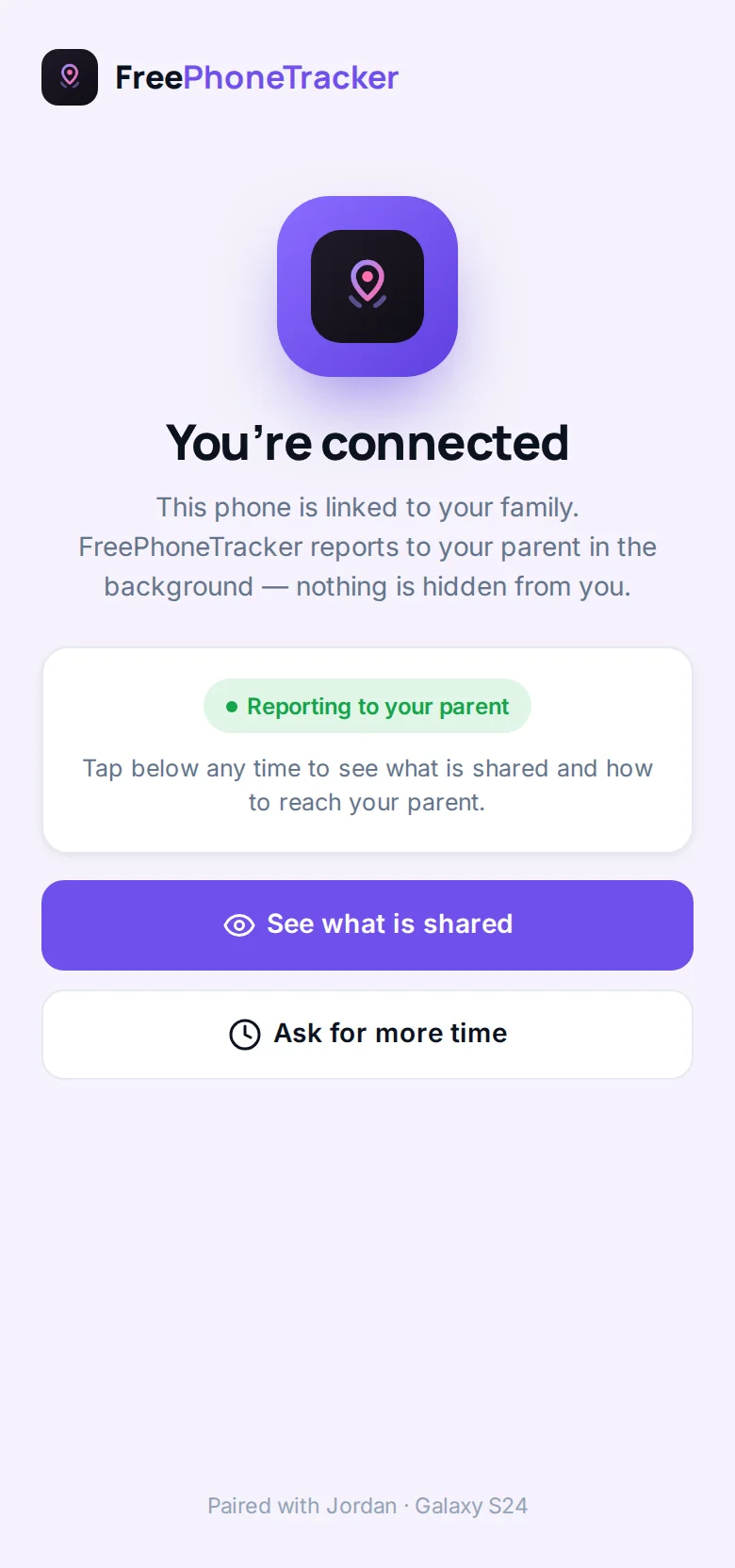
Get the app
FreePhoneTracker installs on the child’s Android phone. Your parent panel runs in any modern browser, so there’s nothing to install on your own device — you can watch from a laptop, a tablet, or your own phone.
What you’ll need
- An Android phone for your child, running a recent version of Android.
- A few minutes with that phone, to install and grant permissions.
- Your own device with a browser, to run the panel — phone, tablet or laptop.
Two builds, one choice
The Play Store build and the direct-download build are the same app. The direct download is there for phones without Google Play, or when you want the newest version before the store catches up; you pick based on what is convenient. The advanced features stay off until you turn them on and consent is given on the phone.
What happens after you’re connected
The pairing is the hard part, and it’s over in a couple of minutes. From then on, FreePhoneTracker settles into the background of both phones. Your child’s phone reports in on a schedule; your panel fills in. Within the first few minutes you’ll see the location pin appear and the dashboard begin to populate, and over the first day the fuller picture builds — screen-time totals, the call and message history, the apps in use. There’s nothing to keep running and nothing to restart. You open the panel when you want to check in, and it’s up to date.
Changing what’s collected is just as easy, and always from your side. Turn a feature on or off, tighten a screen-time budget, add a place, block an app — the change travels to the phone on its next check-in, usually within minutes. You won’t need your child’s phone in your hands again unless you want to grant a new permission for a feature you’re switching on. Everything else is a setting in your browser.
Setting it up the right way
The setup screens matter for more than getting connected — they’re where the tone of the whole thing gets set. Doing step seven properly, going through the transparency screen together, is what turns monitoring from something done to your child into something done with them. It only takes a minute, and it pays off for years. Kids who understand why the app is there, and can see exactly what it shares, treat it as the safety tool it is rather than a betrayal to be worked around. That single conversation is the difference between a tracker that builds trust and one that erodes it.
A few practical tips for a smooth setup: do it when you both have ten unhurried minutes, not on the way out the door; make sure the child’s phone has a decent battery and a wi-fi or data connection; grant each permission when Android asks rather than skipping to “later”; and add your key places (home, school) in the panel right away so the arrival alerts start working from day one. Get those right and the app does the rest.
Getting-started questions
How long does setup take?
About two minutes. Create an account, add your child, install the app and type in one pairing code. The steps above walk through each screen.
Do I need to install anything on my own phone?
No. Your panel runs in a browser. Only the child’s phone needs the app.
What if I download from the web instead of the store?
Android will ask once whether your browser may install apps. Allow it, and the install continues. This is normal for apps distributed outside the Play Store.
Can I add more than one child?
Yes. Add as many children as you like and pair a phone to each. Everything in the panel is organised by child.
Is it really free to set up?
Yes. Download, account and core tracking are free. Advanced features unlock as you complete simple tasks — see pricing.
Ready in two minutes
Create your free account and connect the first phone today.