Parental content filter for phones
Block adult and unsafe website categories automatically, keep search results clean, and see every attempt that was stopped. The content filter is the safety net that works even when you’re not looking.
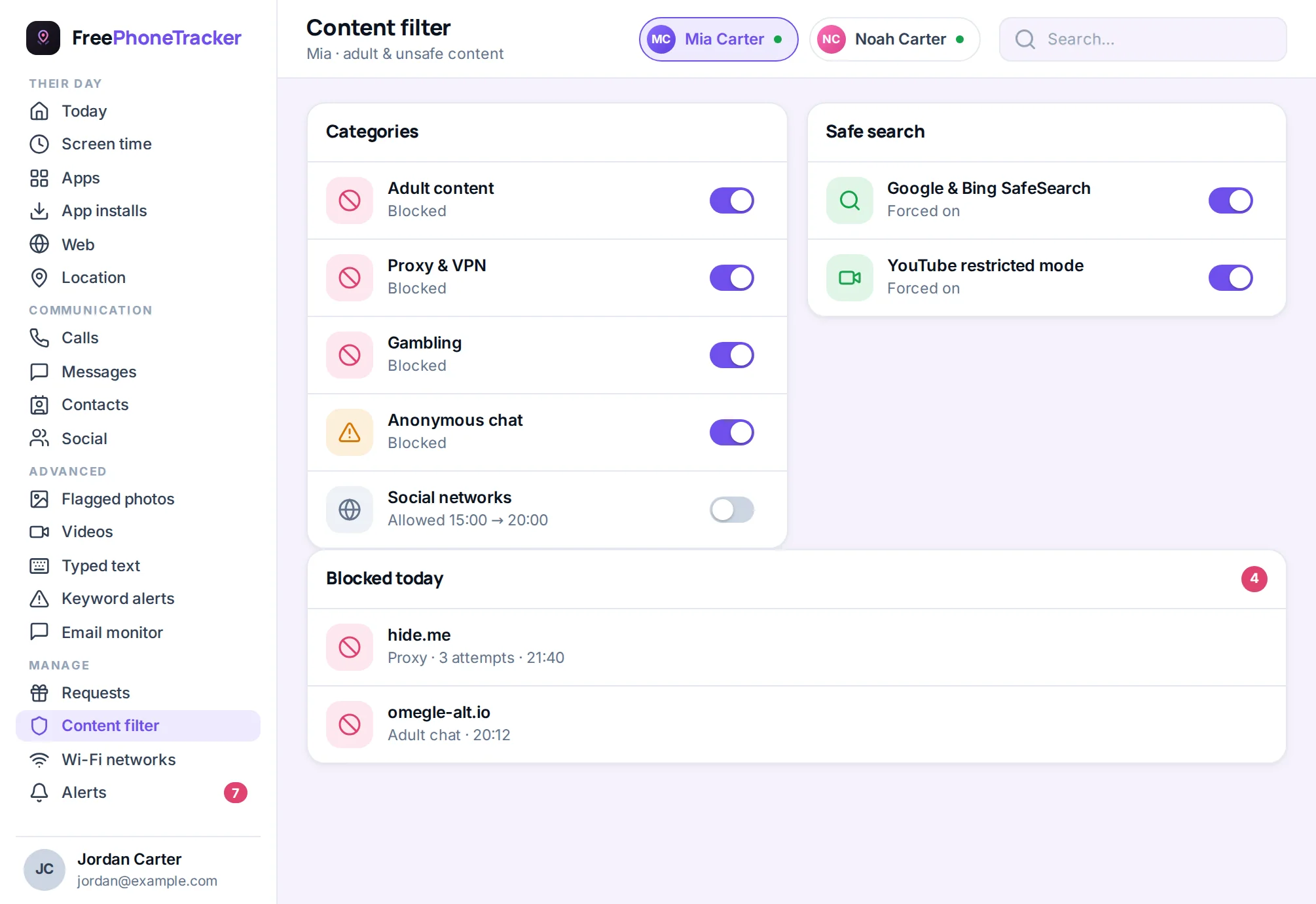
You can’t blocklist the entire internet by hand. New sites appear every day, and a determined kid can find a fresh one faster than you can add it. A content filter solves that by working on categories instead of individual addresses: turn on “adult content” and the phone blocks anything that matches, whether the site existed yesterday or launched this morning.
Block by category, not one site at a time
FreePhoneTracker groups the web into the categories parents actually worry about and lets you switch them on with a toggle. It’s the difference between playing whack-a-mole with URLs and drawing a clear line once. The filter then holds that line automatically, across the browsers on the phone.
- Adult and explicit content — the category most parents turn on first.
- Gambling and other high-risk categories — off-limits with a tap.
- Safe search — keep image and web search results clean where supported.
- Custom additions — pair with the website blocker for specific sites.
The safety net for everything else
Where the website blocker is your explicit “no” list, the content filter is the default protection underneath it. It catches the sites you’d never think to add because you’d never want to type them into a search box in the first place. It works automatically in the background, and most of the time you’ll only know it’s working because of what your child doesn’t stumble into.
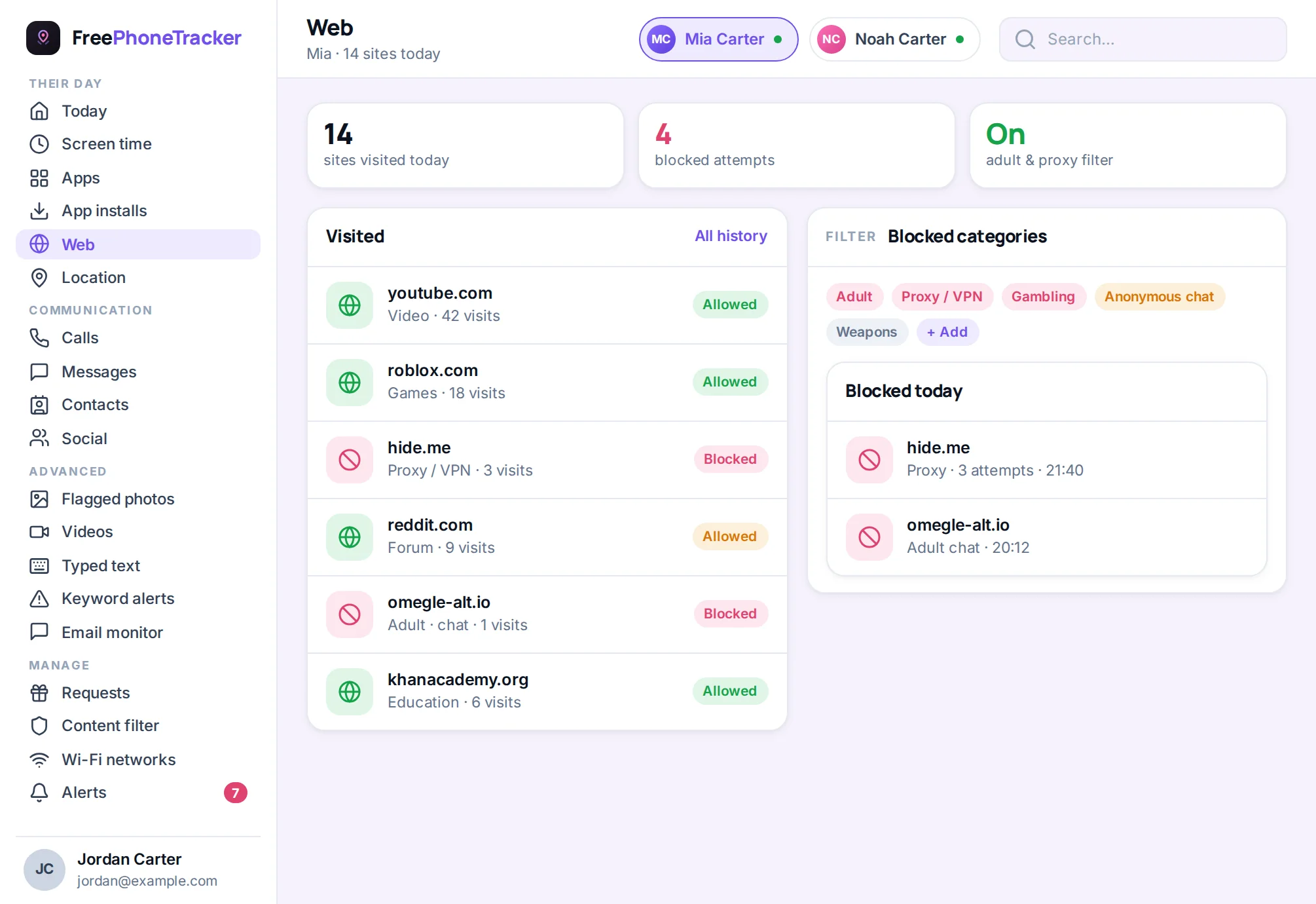
See what it stopped
A filter that works silently can feel like it’s doing nothing — until you see the log. FreePhoneTracker records the attempts the filter blocks, so you have proof it’s protecting the phone and a heads-up when your child is repeatedly reaching for something they shouldn’t. Repeated attempts on an adult site aren’t a reason to panic; they’re a reason for a calm, well-timed conversation, and the filter gives you the timing.
How it works
The filter checks web requests on the phone against the categories you enable and blocks matches before the page loads. It’s part of the same app, using the same open permissions — no separate profile to install, nothing for your child to switch off. Turn a category on or off in your panel and the change reaches the phone within minutes.
Why a category filter beats a blocklist
Trying to protect a child by listing bad websites is like trying to empty the sea with a bucket. There are millions of them, thousands more appear every day, and the ones you’d most want to block are the ones you’d least want to go looking for to add. A category filter flips the problem. You don’t name the sites; you name the kind of content — adult, gambling, and other high-risk categories — and the filter blocks anything that fits, forever, including sites that didn’t exist when you set it up. One decision covers a category that would take a lifetime to blocklist by hand.
This is the difference between a control that ages badly and one that keeps working. A blocklist is out of date the moment you finish it. A category filter stays current on its own.
The protection that works while you sleep
Most of what a content filter does, you’ll never see — which is exactly the point. It’s the layer that catches the accidental click, the misspelled search that lands somewhere ugly, the link a “friend” sends as a joke. Kids stumble into things far more often than they seek them out, and the filter is there for the stumble. It runs on the phone around the clock, and the first sign that it’s working is usually the absence of a problem you’d otherwise have had to handle.
Safe search and the quieter protections
Explicit sites are the obvious target, but a lot of exposure happens one step earlier, in search results and image feeds. Where supported, FreePhoneTracker keeps search results clean so a broad query doesn’t return things a child shouldn’t see. Combined with category blocking and your own blocklist, it forms a layered defence: safe search trims the results, the filter blocks the categories, and the blocklist handles the specifics. No single layer is perfect; together they’re strong.
A filter is a tool, not a parent
We’re honest about the limits. No filter catches everything, and a determined teenager will eventually test one. That’s not a reason to skip it — it’s a reason to pair it with conversation. The filter buys you time and cuts the accidental exposure to near zero; the talks you have about what they see online do the rest. FreePhoneTracker is built to support those talks, not to replace them, and the blocked-attempts log is often the perfect, low-drama opening for one.
- Set the categories once — the filter keeps them enforced automatically.
- Turn on safe search for an extra layer at the search box.
- Use the log as a prompt for a calm conversation, not a confrontation.
- Adjust with age — what’s right at ten isn’t right at sixteen.
Questions about content filtering
Can I block adult content on my child’s phone?
Yes. Turn on the adult category and matching sites are blocked automatically, across the phone’s browsers, without you listing them one by one.
Does the filter cover new websites?
Yes — because it works on categories, not a fixed list, it blocks sites that match even if they launched recently.
Can I see what was blocked?
Yes. Blocked attempts are logged in your panel so you can see the filter working and spot repeated attempts.
Will it slow the phone down?
No. Filtering happens on the device with negligible overhead, and there’s no separate app or VPN to keep running.
Set the line once, keep it there
Turn on the categories that matter and let the filter hold them automatically.