Your control panel, explained properly
The panel is the half of FreePhoneTracker you actually use. It runs in a browser — yours, at freephonetracker.net/my — and it is where everything the phone reports arrives, and where every limit, block and answer you send back begins. This page is the full tour: what each part of the screen is, what to look at first, and how to change something on your child’s phone from where you are sitting.
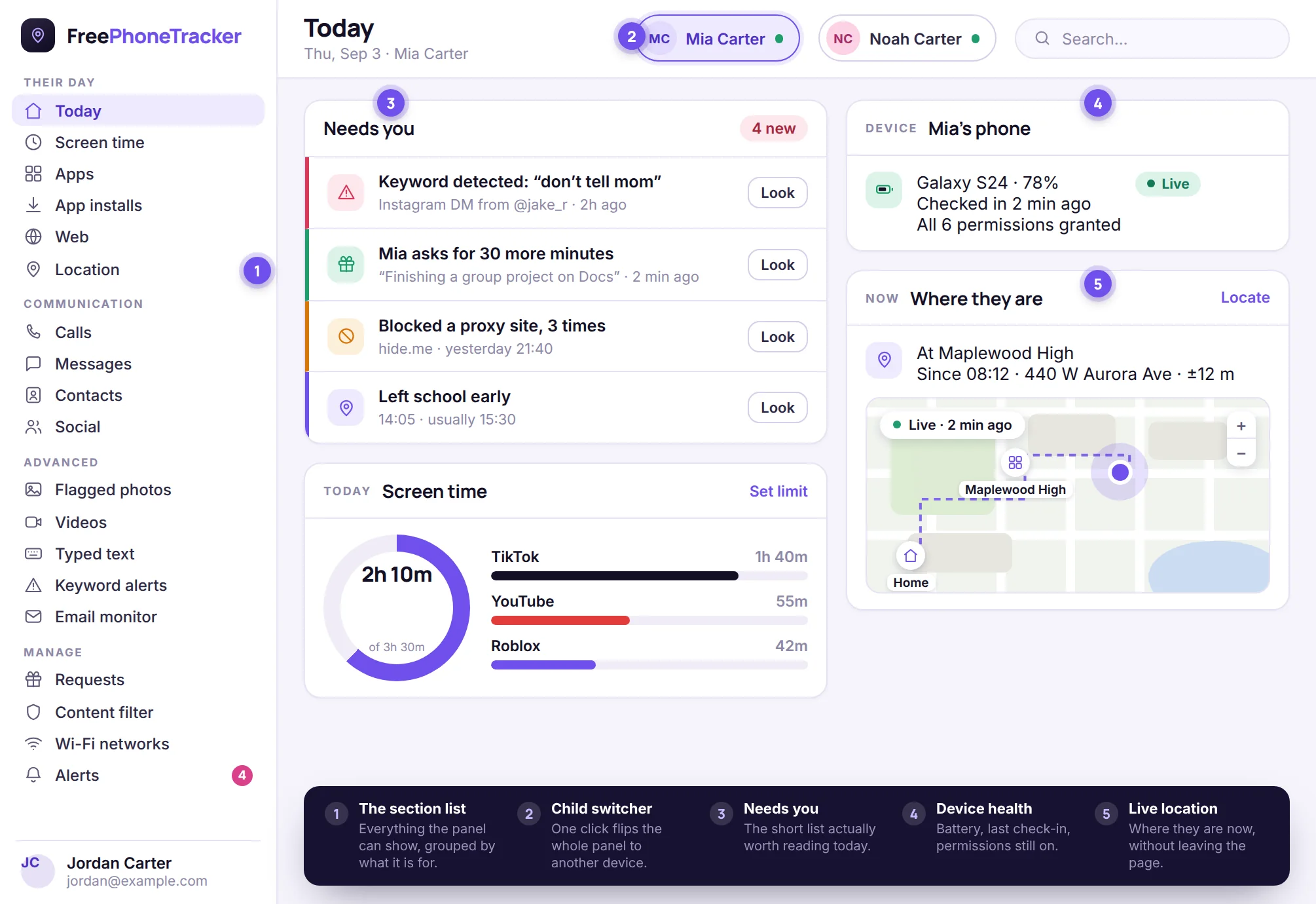
Five regions, and that is the whole layout
The panel never rearranges itself. Once you know these five areas you know where everything is, on every screen, for every child.
1 · The section list
Down the left, always visible. Sections are grouped by what they are for — Their day, Communication, Advanced and Manage — rather than by which part of the app produced them. The number beside Alerts is the count you have not opened yet.
2 · The child switcher
Along the top. One click flips every section to another child’s phone. Nothing is merged and nothing is shared between them: what you are looking at always belongs to exactly one named device.
3 · Needs you
The centre column of the Today screen, and the only list you have to read. Everything else in the panel is available on demand; this is the short list the panel thinks is worth your attention right now.
4 · Device health
Top right. Battery, the time of the last check-in, and whether the app still has the permissions it needs. If this card is green, everything else on the page can be trusted. If it is grey, start here.
5 · Live location
Under it, the current position with a timestamp, so the most-asked question of the day is answered before you have clicked anything. The full map, trail and places are one click deeper.
And the search box
Top right corner. Type a name, a phone number, an app or a word and the panel searches calls, messages, contacts, installed apps and visited sites at once, rather than making you guess which section it lives in.
It is a web page, not a program you install
There is nothing to download on your side. The panel is a website you sign in to, which has three practical consequences most parents notice within a week.
- Any device you happen to be holding. A laptop at home, a work desktop, a tablet, or your own phone in a car park. The same account, the same data, no syncing to think about.
- It never needs updating. New features simply appear. There is no app on your phone to keep current, and no version of the panel that goes stale.
- Signing out is complete. Close the tab on a shared computer and sign out and nothing is left behind — no cached child data, no app icon on the home screen for someone else to open.
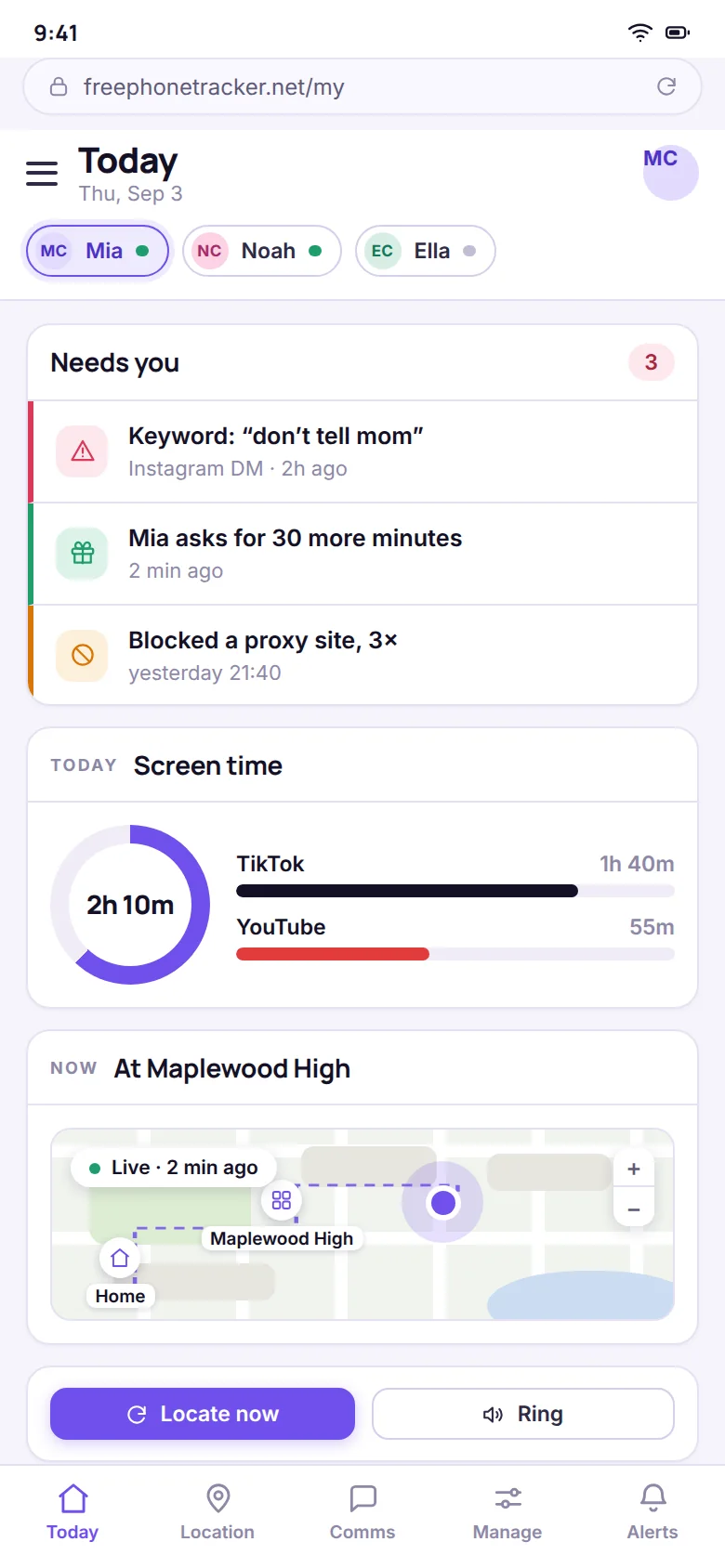
On a phone the panel reshapes itself: the section list becomes a menu, the cards stack, and the sections you reach for most sit in a bar along the bottom. It is the same panel with the same data, not a cut-down mobile version — you can set a limit or ring a lost phone from a bus stop exactly as you would from a desk.
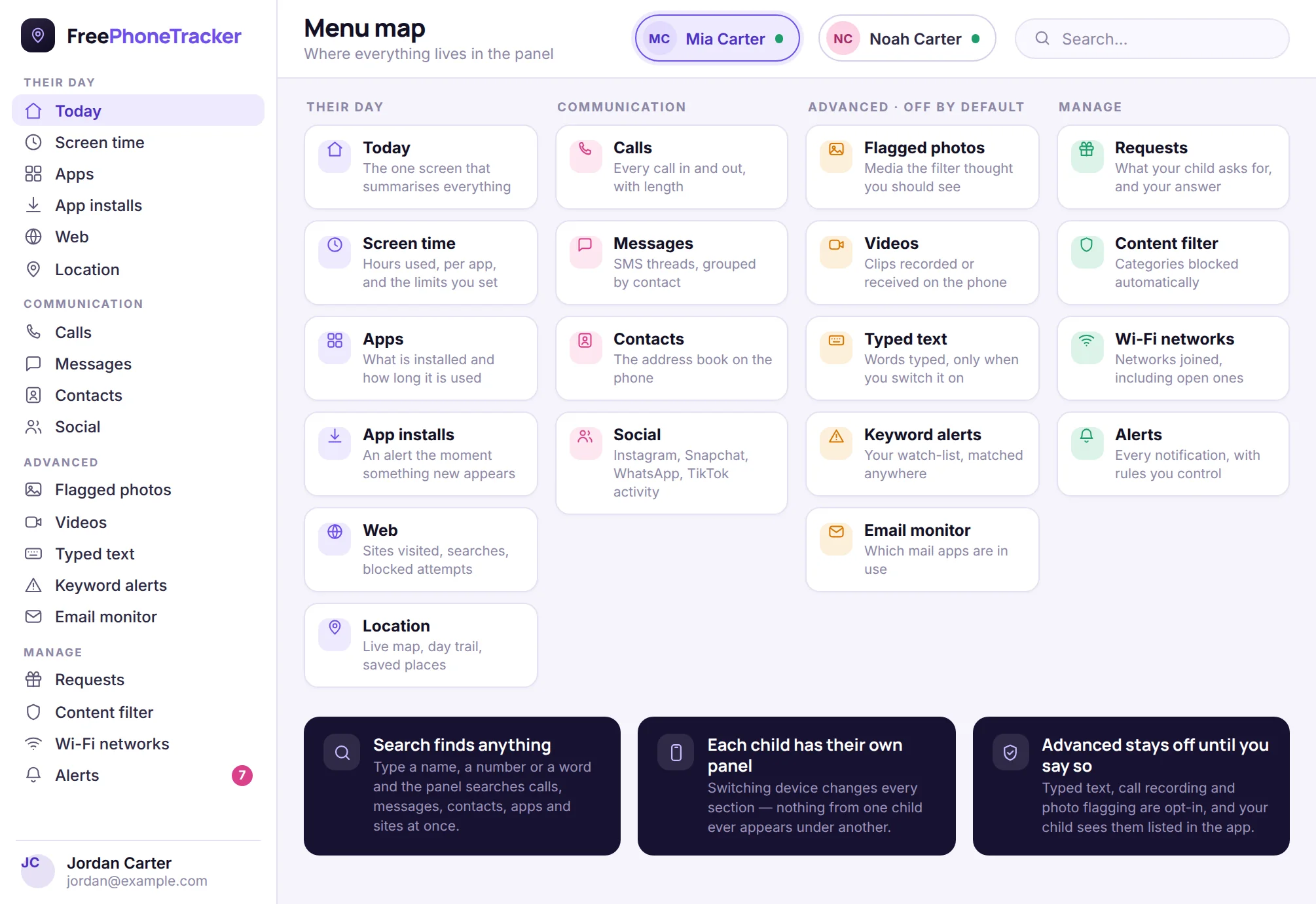
Where everything lives
Nineteen sections sounds like a lot until you see them grouped. Their day is what happened; Communication is who they spoke to; Advanced is the sensitive material that stays off until you switch it on; Manage is where you change things.
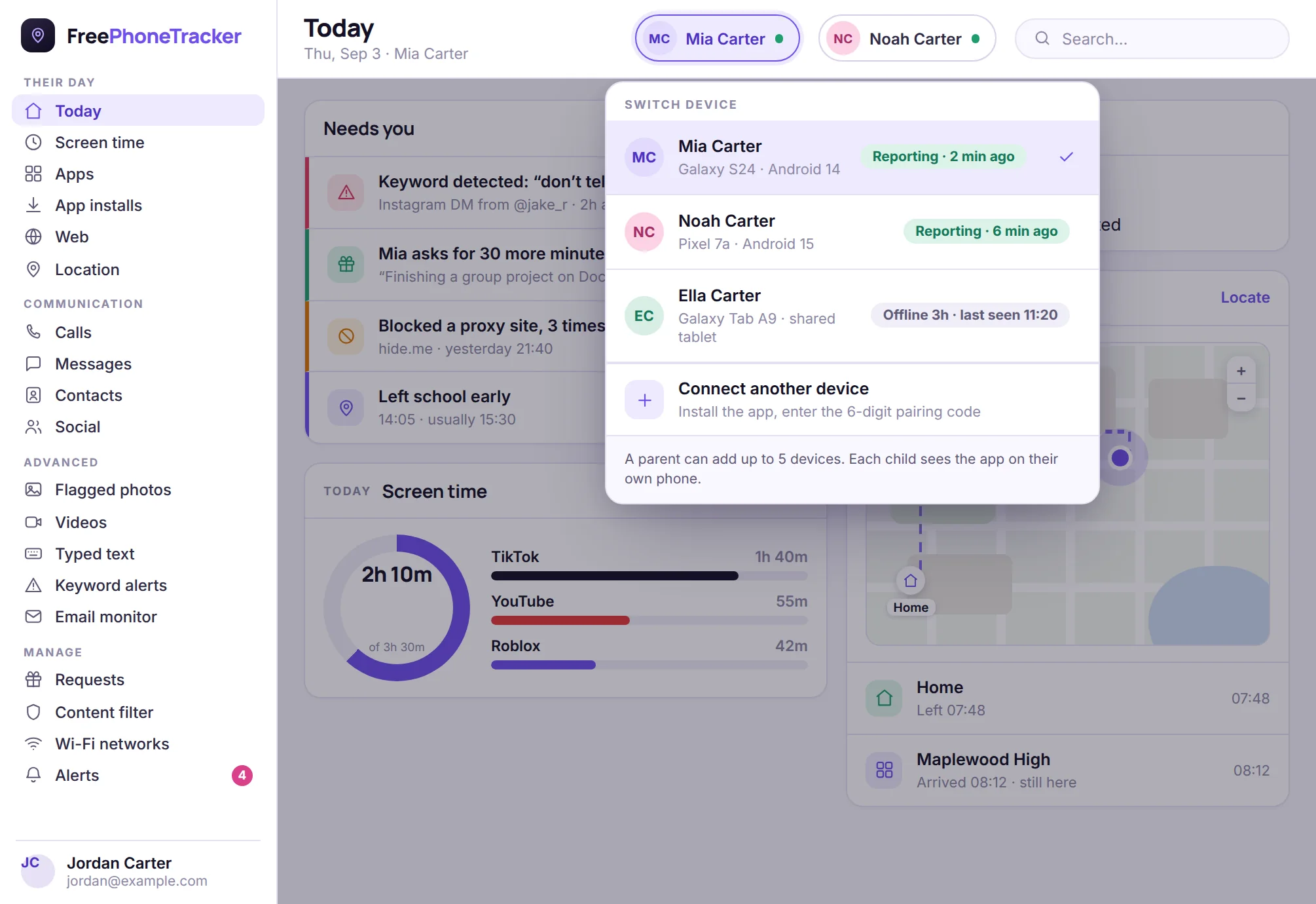
One account, one panel per child
Click the name at the top and you get every device on your account, each with the one thing you actually want to know at a glance: is it reporting, and when did it last check in.
Switching is a whole-panel change, not a filter. Open Messages after switching and you are reading that child’s messages; the limits you edit apply to that child’s phone only. This sounds obvious, and it is exactly the mistake other tools make — a merged family feed where you are never quite sure whose Instagram notification you just read.
A device that has gone quiet shows how long it has been quiet, which is usually the whole answer. A flat battery, a phone left in a locker on airplane mode, or an app that has been force-stopped all look different here, and the panel tells you which one you are dealing with instead of just showing stale data as though it were current.
You can add up to five devices, and a second parent can be invited with their own sign-in — either with full access, or view-only, so they get the alerts without being able to change the limits you agreed on.
The two-minute routine
The most common mistake with any monitoring tool is reading everything for a fortnight and then nothing for a year. The panel is built so that a short, regular look works better than a long one.
Open Today
Not Messages, not the map. Today is the summary, and if nothing there needs you, nothing does.
Check the device is green
Battery and last check-in. Ten seconds, and it is the one thing that invalidates everything else if it is wrong.
Clear “Needs you”
Open each item, decide, move on. An item you have looked at leaves the list; an item you ignore is still there tomorrow.
Close the tab
That is the routine. Go deeper only when something in it points you somewhere.
Reading a child’s messages line by line every evening is not monitoring, it is surveillance, and it tends to end the same way — you stop, they notice you stopped, and the whole arrangement quietly lapses. The panel is designed around the opposite: let the alerts find the handful of things that matter, and leave the rest unread. It is there when you need it.
Doing something about it, from here
Seeing is half of it. The other half is the settings that travel the other way — from your browser to the phone in your child’s pocket, usually within a minute.
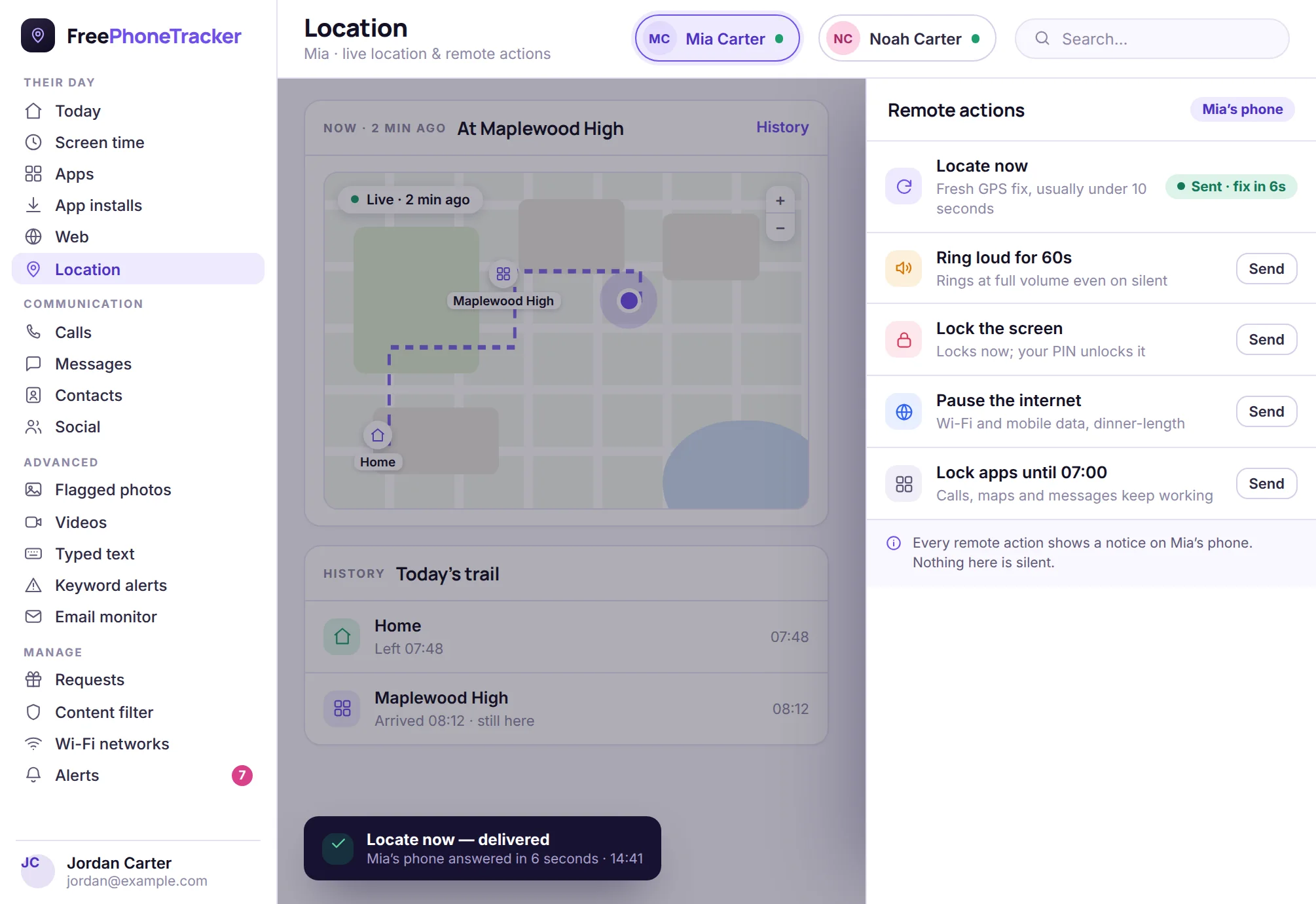
The five things you send in a hurry
Locate now asks the phone for a fresh GPS fix instead of showing you the last one it volunteered — the difference between “somewhere near the park at 4pm” and “here, ten seconds ago”. Ring loud plays at full volume for a minute even if the phone is on silent, which finds it under a sofa cushion far faster than calling it does.
Lock the screen ends the argument now and reopens with your PIN. Pause the internet cuts Wi-Fi and mobile data for a set stretch — dinner, homework, a family drive — while calls and texts keep working. Lock apps does the same to games and social while leaving the phone useful.
Each one shows you when it was delivered and when the phone acknowledged it, so you are never guessing whether it landed. And each one puts a plain notice on the phone saying what happened and who did it. Nothing in this drawer is silent, by design.
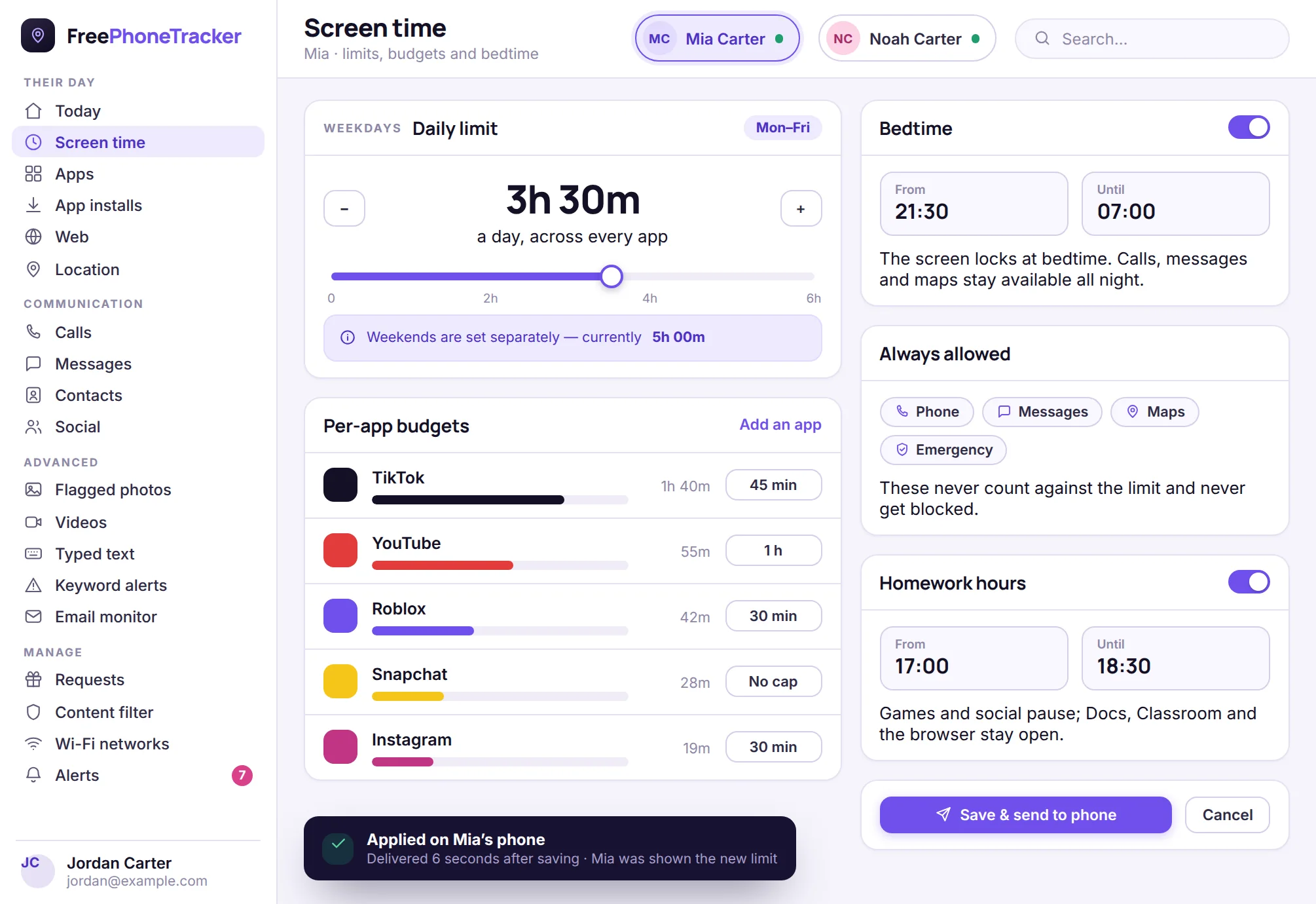
Setting the rules, not just watching them break
The daily limit is one slider, set separately for weekdays and weekends. Under it sit per-app budgets, which are the setting that does the real work: a blanket “three and a half hours” is easy to argue with, while “forty-five minutes of TikTok, and the rest is yours” is specific enough to feel fair.
Bedtime and homework hours are windows rather than totals. During them the phone locks itself down to the essentials — and the always allowed list is the part worth getting right. Phone, messages, maps and emergency calling never count against a limit and are never blocked by one, at any hour. A limit that could stop your child calling you would not be a limit worth having.
When you save, the panel tells you the moment the phone confirms the change, and your child sees the new limit on their side rather than discovering it when something stops working.
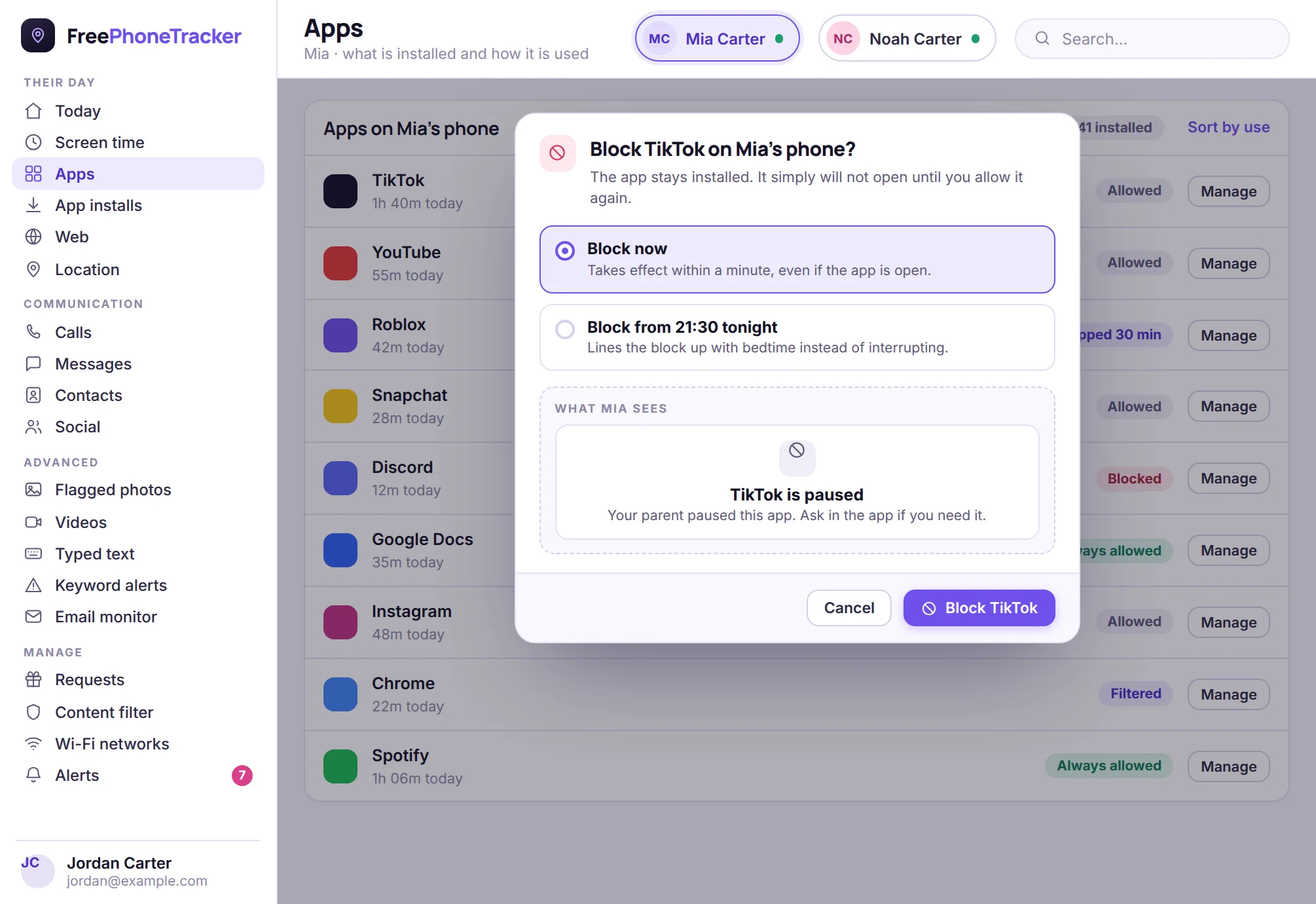
Blocking an app, and what your child sees
Every installed app is listed with its real usage, so the decision is made against evidence rather than a hunch. Blocking one does not delete it or hide it — the app stays on the phone and simply refuses to open, which matters, because an app that vanishes overnight starts a very different conversation than one that says it is paused.
Before you confirm, the panel shows you the exact screen your child will get. You can also line the block up with bedtime instead of applying it mid-sentence, which is the difference between a rule and an ambush. There is a third option that is often better than either: cap the app rather than block it, and let them spend the time they have on it.
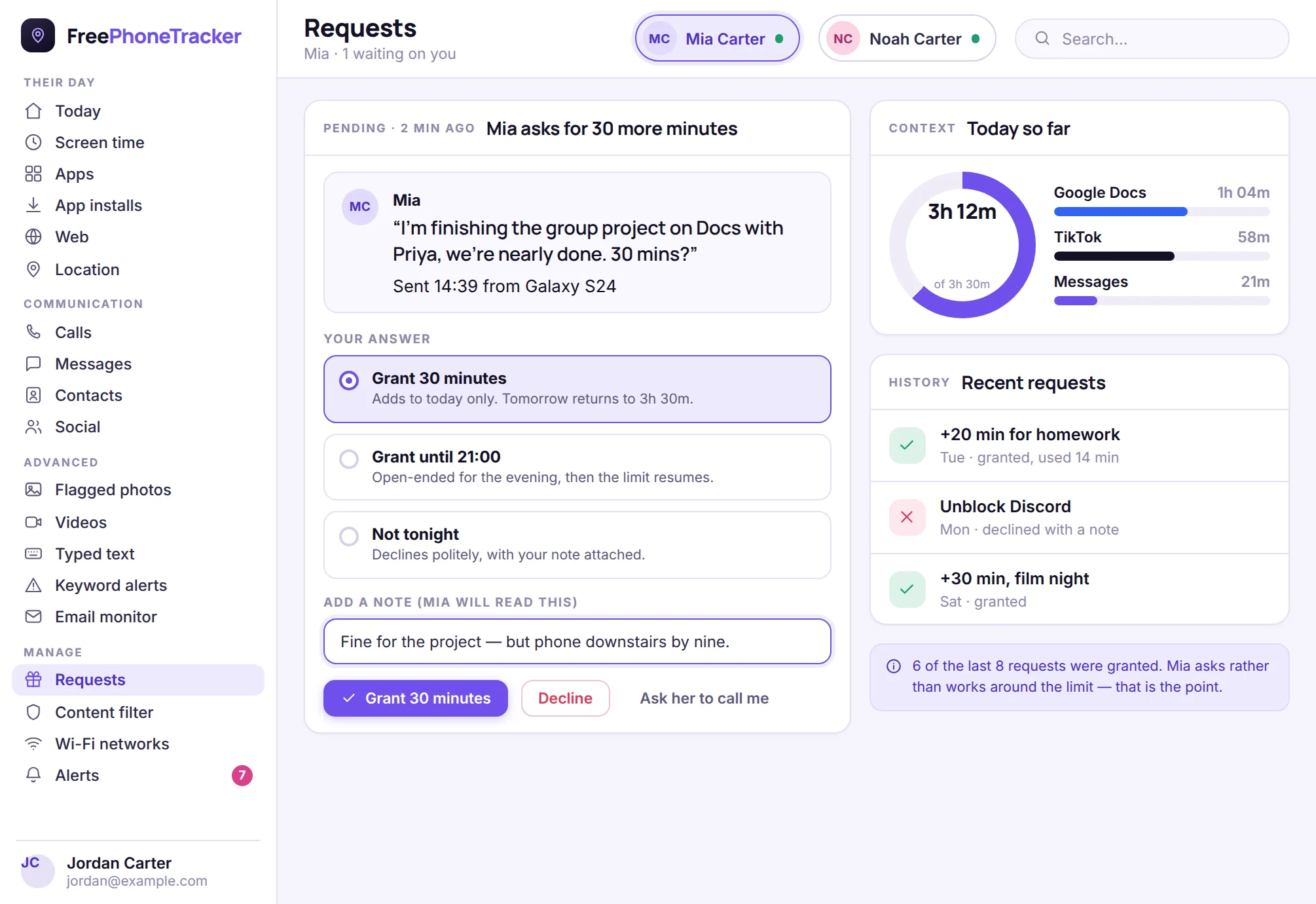
The channel that goes the other way
Your child can ask for something from their app — more time, an app unblocked, a contact added — and it arrives here with the reason attached.
This is the feature parents underestimate and then rely on. A limit with no way to appeal it becomes a puzzle to solve: a borrowed tablet, a second account, a friend’s hotspot. A limit with a request button becomes a negotiation, and negotiations leave a record. The panel shows you the last several requests and what you decided, which is a surprisingly honest picture of how the arrangement is going.
You can grant a fixed amount, grant until a specific time, or decline — and in every case you can attach a note that your child reads on their phone. “Fine for the project, but phone downstairs by nine” does more for a Thursday evening than any block.
Alongside the request the panel shows the context you would otherwise have to go looking for: how much has been used today, and on what. Thirty extra minutes reads differently when the last hour was Google Docs than when it was TikTok.
Tuning what reaches you
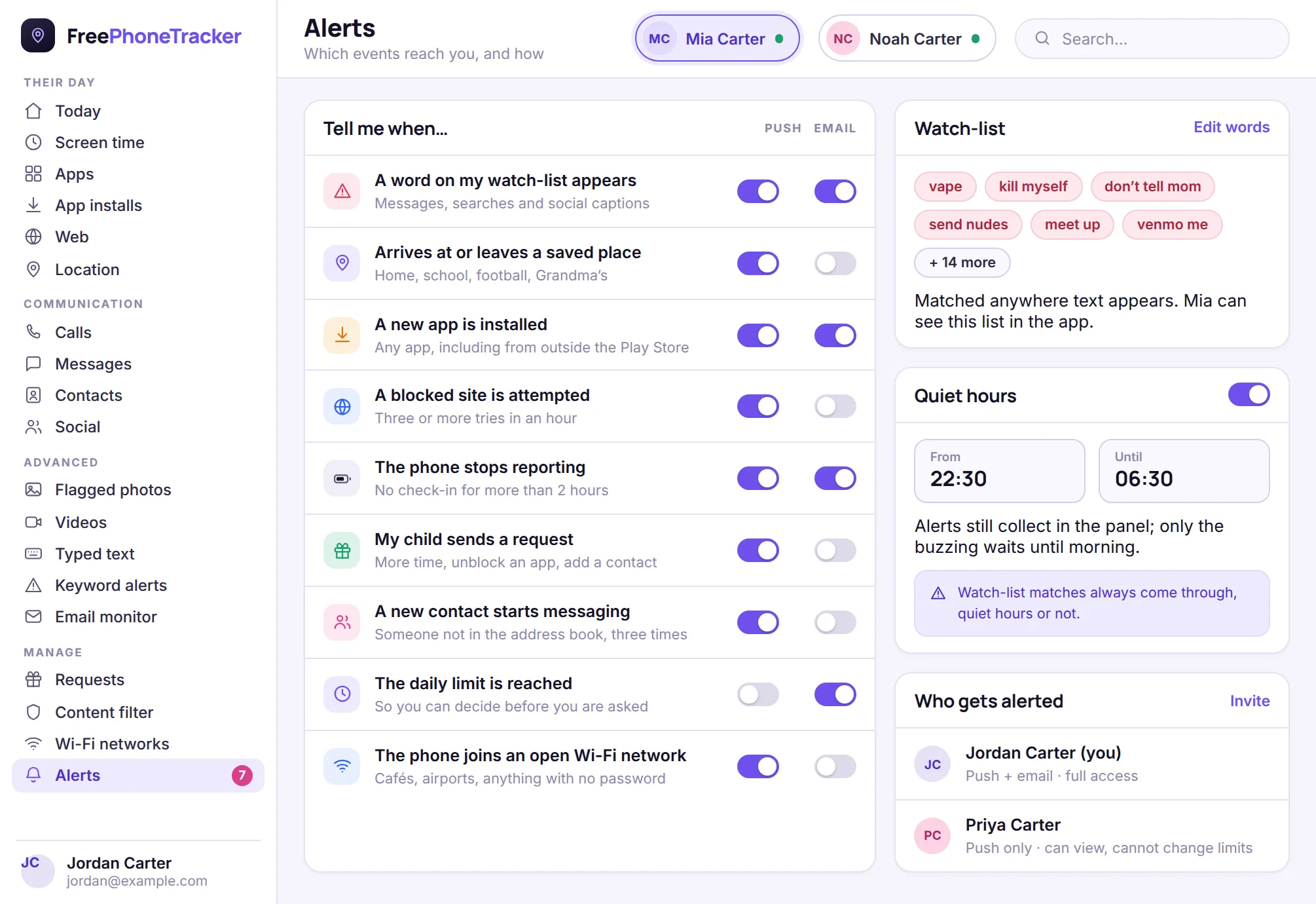
Alerts are the panel’s most useful feature and the easiest one to ruin. Switch on everything and within a week you will be dismissing them without reading — which is worse than having none.
Each event has its own push and email switch, so you can send the urgent ones to your pocket and let the rest arrive as a quiet daily email. Most parents end up with three on push — the watch-list, a new app installed, and the phone going quiet — and everything else on email.
The watch-list is yours to write: words and phrases that should always find you, matched wherever text appears, including notification text from apps whose messages disappear. It is worth keeping it short and specific. Your child can read the list in their app, and the fact that they know it exists is part of why it works.
Quiet hours stop the buzzing overnight without stopping the collecting — everything still lands in the panel, it just waits until morning. Watch-list matches are the deliberate exception and always come through.
The weekly report is the part that changes anything
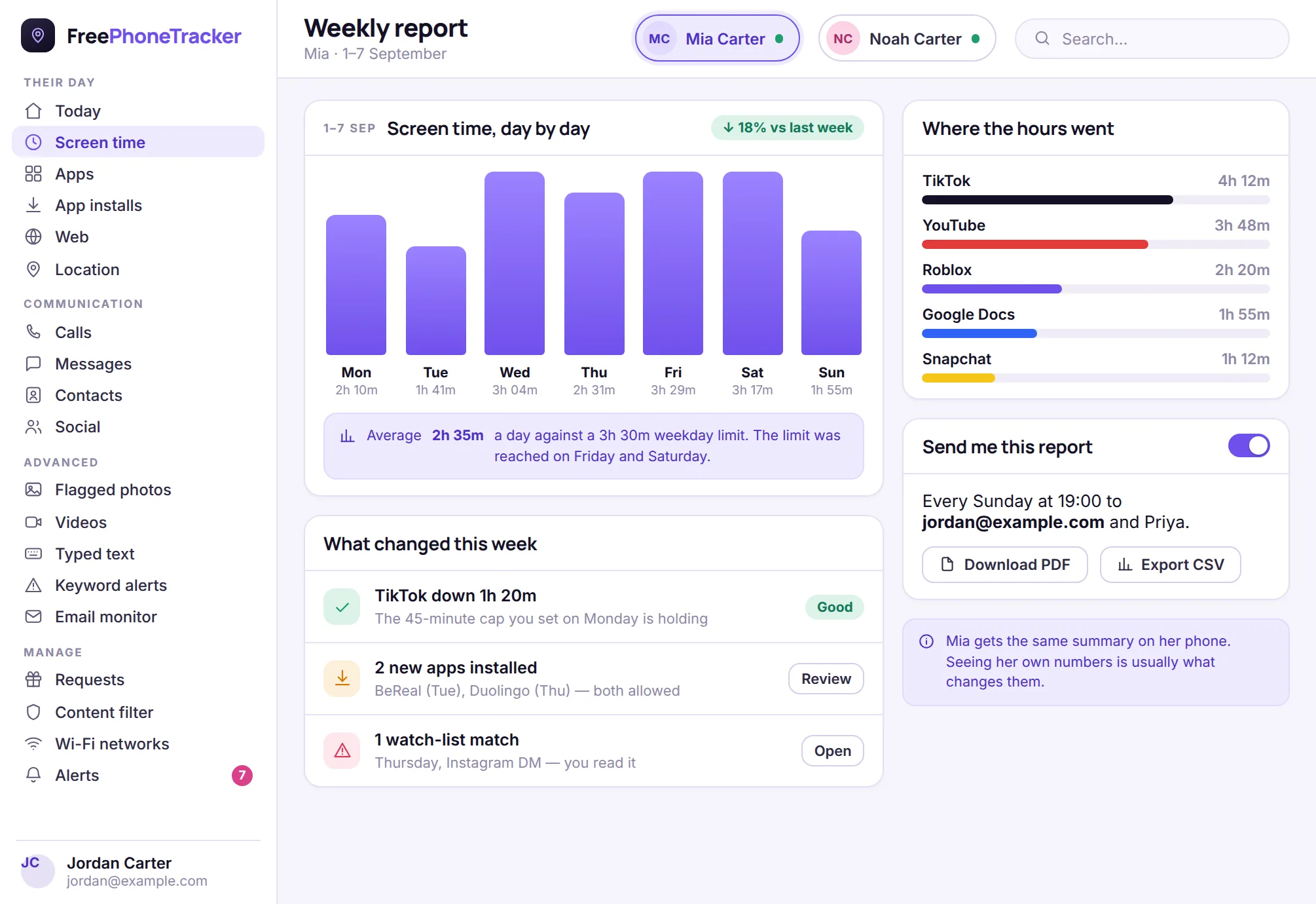
Day-to-day numbers are noisy. A week is long enough to show a pattern and short enough to still be about this week.
Trend, not verdict
Seven bars against the limit. You are looking for the shape — creeping up, holding steady, or two heavy weekend days dragging an otherwise sensible week.
What changed
New apps, watch-list matches, and whether the caps you set last week actually held. This is the section that tells you if an intervention worked.
Shared, on purpose
Email it to yourself and a second parent every Sunday — and your child gets the same summary. Seeing their own numbers is usually what moves them.
What the panel deliberately will not do
It is worth being clear about the boundaries, because they are choices rather than gaps. The panel has no hidden mode. There is no setting that removes the app’s icon, silences its notifications, or stops the transparency screen from listing what is collected. If you are looking for a tool your child cannot detect, this is not it, and honestly it should not be — covert monitoring of a teenager tends to be discovered eventually, and the discovery costs more than the monitoring ever gained.
It will not read messages inside apps that encrypt them end to end. What you see from Signal or a locked chat is the notification text the phone itself displays, not the contents of the conversation. Any product that claims otherwise on an unrooted Android is either exaggerating or doing something to the phone that will break at the next system update.
It will not track a device you have not paired, and it cannot locate a phone by number alone. Pairing needs physical access to the handset and a code that expires quickly, which is inconvenient exactly once and is the reason nobody can quietly point this panel at someone else’s phone.
And it will not make the parenting decisions. The panel is very good at telling you that your daughter left school at two, that a new messaging app appeared on Tuesday, or that the phrase you were worried about turned up in a DM on Thursday. What you do with any of that is the part no dashboard can help with.
Signing in, staying signed in, and staying safe
Your email address is your sign-in, and it is also where alerts arrive, so it is worth using an address you actually read. Use a password you have not used elsewhere: this panel holds a genuinely sensitive picture of a child’s life, and the most likely way that picture leaks is a password reused from a website that got breached three years ago.
Sessions stay signed in on a device you mark as yours and expire on one you do not, which is the right default for a shared family laptop. You can see the browsers currently signed in and end any of them from your account settings — useful after using a work machine, or if a laptop goes missing. Ending a session does not touch the phone or the monitoring; it only signs that browser out.
If you invite a second parent, think about which access they need. Full access can change limits, turn advanced features on and off, and unpair a device. View-only sees everything and receives alerts but cannot change the arrangement — which, in a separated family, is often the setting that keeps the arrangement working at all.
When something looks wrong
Almost every “the panel has stopped working” turns out to be one of three things, and the device card names all three. If the last check-in is hours old but the battery was fine, the app was probably force-stopped or put to sleep by Android’s battery optimiser; opening the app on the phone once fixes it, and switching it to unrestricted battery use stops it recurring. If a permission has turned itself off — Android occasionally revokes permissions for apps it thinks are unused — the card says which one, and the app on the phone walks through granting it again.
If the phone is genuinely offline, the map still holds the last known position with its timestamp, and the trail still shows where it went before it went quiet. That is usually enough to work out whether you are dealing with a flat battery or something worth worrying about. And if a phone is lost for good, unpairing it from the panel stops it reporting immediately, whoever ends up holding it.
One system, seen from the other end
Everything on this page is the same product described on the features page, viewed from the side you spend your time on. The app on the phone collects and enforces; the panel shows and instructs; and because they are two halves of one system rather than a bundle of separate tools, a limit you set here reaches the phone in about a minute and a location the phone records reaches you just as fast. That is the whole reason the Today screen can put location, screen time, requests and alerts side by side — they were never separate in the first place. Once the routine settles into a couple of minutes a day, the panel stops feeling like software you have to manage and starts being what it is meant to be: the calm, honest answer to the question every parent of a phone-owning child ends up asking.
About the panel itself
Do I need to install anything to use the control panel?
No. The panel is a website. You sign in at freephonetracker.net/my in any modern browser on any computer, tablet or phone. The only app involved is the one on the child’s phone.
Can I use the dashboard on my phone?
Yes, and it is designed for it. The layout reshapes for a small screen — the section list becomes a menu and the sections you use most sit in a bottom bar — but it is the same panel with the same data and the same remote actions. Adding it to your home screen from the browser menu makes it open like an app.
How quickly do changes I make reach the phone?
Normally within a minute while the phone has a connection, and immediately for urgent actions like ring or lock. If the phone is offline, the change queues and applies the moment it comes back. The panel shows you when the phone confirmed it, so you are never left guessing.
Does my child know what I can see?
Yes. The app on their phone has a transparency screen listing exactly what is collected and what is not, and it updates whenever you switch a feature on or off. Remote actions — locating, ringing, locking, blocking — each show a notice on the phone. There is no hidden mode in this product.
Can two parents use the same panel?
Yes. Invite a second parent with their own email and password, either with full access or view-only. View-only sees everything and gets the alerts but cannot change limits or unpair devices.
How many children can one account cover?
Up to five devices on one account. Each one is a separate panel that you switch between from the top of the screen; nothing is merged and nothing is shared between children.
What happens to the data if I stop using it?
Unpair the device and the phone stops reporting straight away. Deleting a child from the panel removes their collected history with it. You can also export or download what you have first — it is your family’s data, and it is never sold or shared.
Is the connection between the phone and the panel secure?
Everything between the app and the panel travels over an encrypted connection, and pairing needs a single-use code that expires quickly, so a code that leaks cannot be reused. The most important security step is on your side: a strong, unique password on the account.
Open your own panel
Create a free account, connect the first phone, and the screens on this page become yours in about two minutes.