Screen time limits that actually stick
Give entertainment apps a daily budget, set a bedtime, protect homework hour — and let calls, maps and messages keep working the whole time. FreePhoneTracker turns the nightly screen-time argument into a setting you configure once.
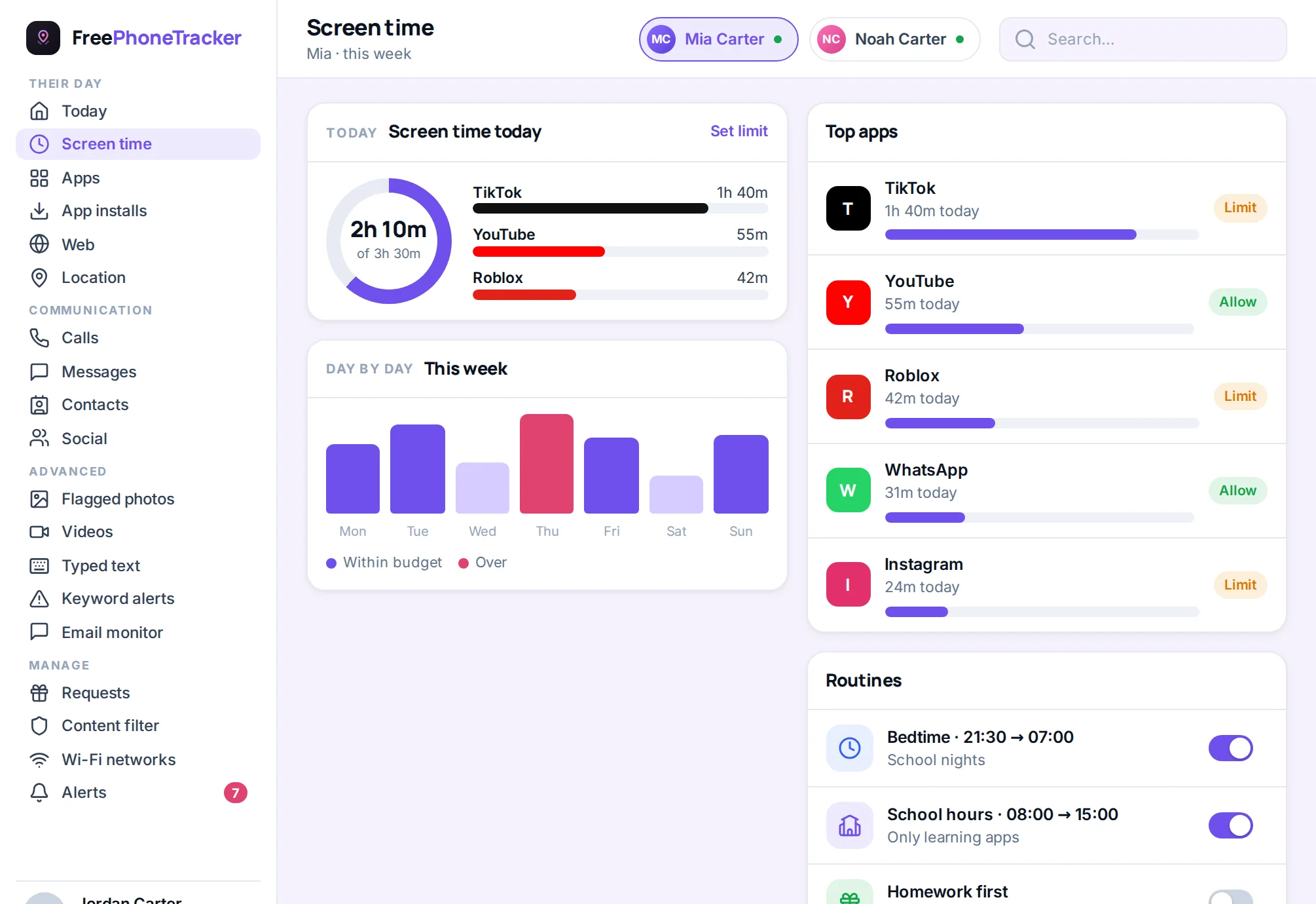
“Five more minutes” is the most-broken promise in the house. The problem was never your child’s willpower — it’s that a phone gives no natural stopping point. Screen time limits put one back. FreePhoneTracker lets you set a daily budget for the apps that eat the hours, and when the budget’s gone, it’s gone, without you having to be the timer.
Budgets for the time-sinks, not the phone
This is the important part: the limit is on entertainment, not on the phone itself. Games, video and social get a daily budget. Calling, texting, maps and the school apps don’t — they keep working after the budget runs out, because a kid who can’t reach you isn’t safer, they’re stranded. It’s the difference between a curfew and a lockdown.
- Daily budget for discretionary apps, in minutes you choose.
- Weekdays and weekends apart — school nights can be tighter than Saturdays.
- Essentials stay on — calls, messages and maps are never on the clock.
- A clear countdown your child can see, so the end of time isn’t a surprise.
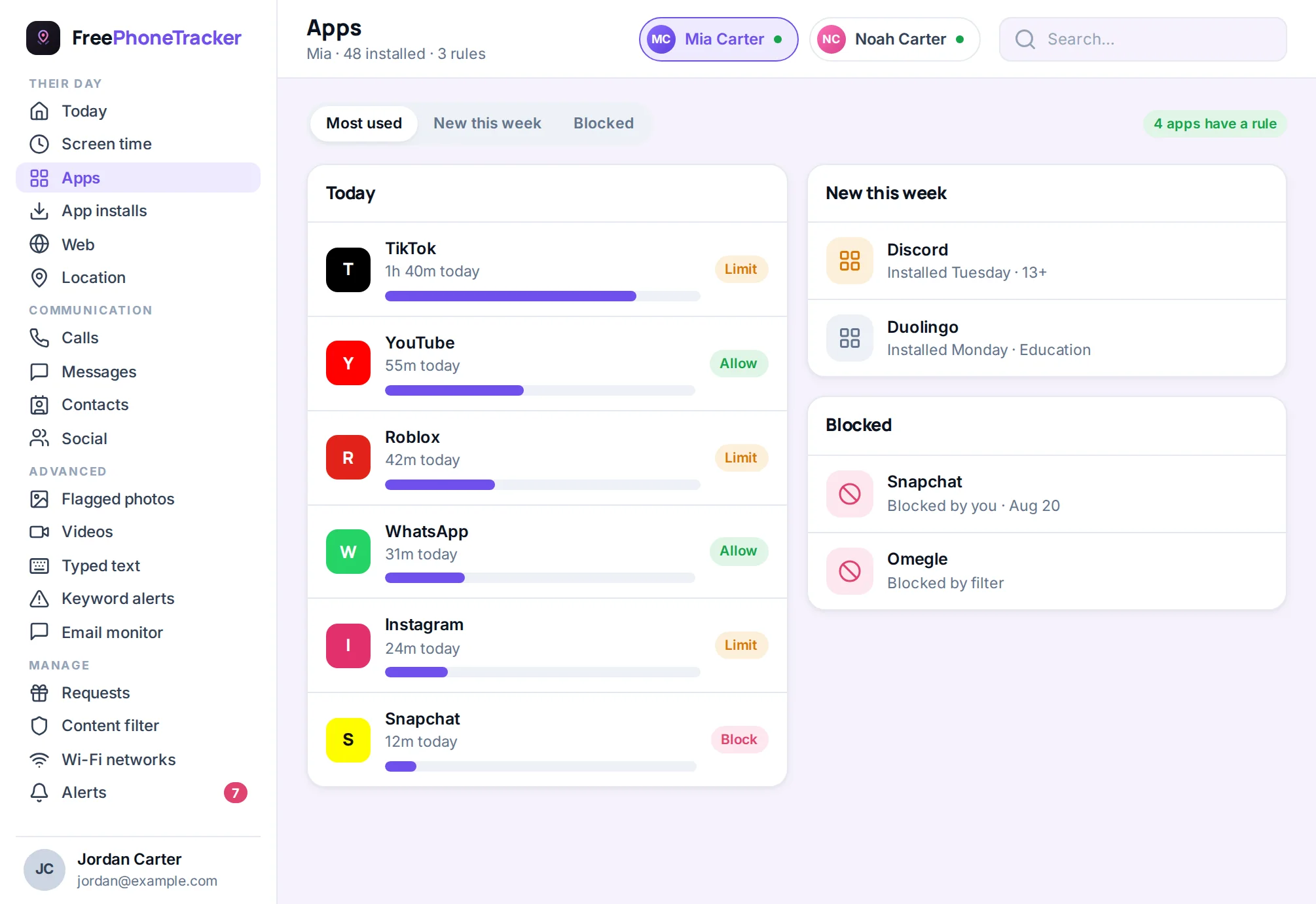
Bedtime and homework hour
Some limits are about the clock, not the total. Bedtime switches the fun off at a set time so the phone stops being a 1am problem. Homework hour does the same for a window after school — the distractions pause, the tools you allow stay on. You set the schedule once and it repeats automatically, every day.
Asks and extra time
Real life doesn’t fit a fixed budget, so FreePhoneTracker builds in a pressure valve. When your child hits the limit, they can ask for more — and the ask lands on your dashboard with a tap to grant fifteen minutes, thirty, or nothing. You stay in control without having to police it minute by minute, and they learn to ask instead of sneak.
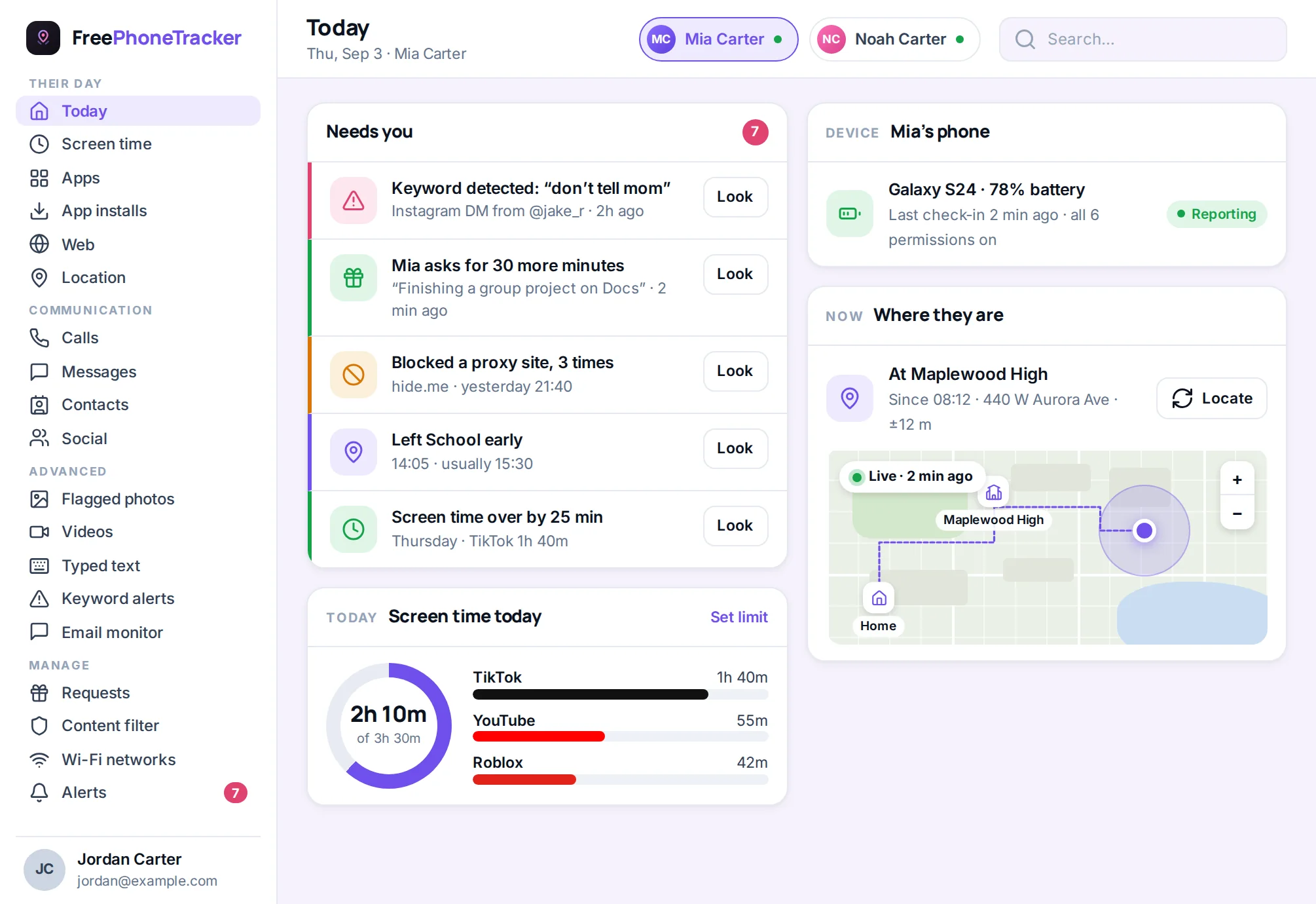
See where the hours actually went
At the end of the week, guessing gets replaced with a report. FreePhoneTracker shows how much time went to which apps, day by day, so the conversation is grounded in fact rather than a feeling. Often it’s a surprise on both sides — and a much better starting point than “you’re always on that thing.”
How it works
The app measures how long each app is actually used on the phone and enforces the limits you set, using Android’s own accessibility and usage tools — granted openly during setup. Because it’s not fighting the system or hiding, the limits hold reliably and survive updates. Your settings reach the phone within minutes of you making them.
Why “just put it down” never works
Telling a kid to get off their phone is asking them to out-willpower a device engineered by thousands of people to be impossible to put down. It’s not a fair fight, and losing it nightly wears everyone out. Screen-time limits change the terms. Instead of you being the off switch, the phone has one built in — a budget that runs down and a bedtime that arrives whether or not anyone’s watching. The nagging stops because the rule isn’t coming from you in the moment; it was set once, calmly, in advance.
That shift matters for the relationship as much as the routine. When the limit is a setting rather than a standoff, you stop being the villain who confiscates the phone and go back to being the parent. The phone becomes the thing with the boundary, and your evenings get quieter.
Limits that fit a real week
A good screen-time setup mirrors how your family actually lives. School nights are tighter than Fridays. Homework hour is protected, but the group project chat stays reachable. Bedtime is firm, but an early-morning alarm and calls still work. FreePhoneTracker lets you shape all of that rather than forcing one blunt number on every day. The aim isn’t the smallest possible screen time — it’s the right screen time, with the fun on a budget and the essentials always on.
- School nights vs weekends — different budgets, set per day.
- Bedtime — fun off at a set hour, alarms and calls still on.
- Homework hour — distractions paused, tools you allow left running.
- Earned extra time — a request-and-approve valve for the nights it’s warranted.
The report changes the conversation
The weekly report is the quiet hero of screen time. “You’re always on that thing” is an argument; “you spent nine hours on this app this week — is that where you want it?” is a conversation. Seeing the numbers together, without blame, often does more than any limit. Kids are frequently surprised by their own totals, and that surprise is the start of them managing it themselves — which is the real goal. Limits are training wheels; the report is how they learn to ride.
Getting the most from screen time
- Start generous, then tighten. A budget that’s obviously unfair invites workarounds; one that’s reasonable gets accepted.
- Protect the essentials deliberately. Make sure calls, maps and the apps they truly need are never on the clock.
- Use the report as a monthly check-in, not a weapon.
- Pair with the app blocker for the apps that shouldn’t be there at all.
Questions about limits
Can I set different limits for school days and weekends?
Yes. Budgets are set per day, so weekdays can be tighter than weekends, and you can adjust any day at any time.
Will limits block calls and messages?
No. Only the entertainment apps you choose are on the budget. Calls, texts, maps and the apps you mark essential keep working after the budget runs out.
Can my child earn more time?
They can request extra time, which appears on your dashboard for you to grant or decline. You decide how much, if any.
Does it show what they spent time on?
Yes. A weekly report breaks down time by app and by day, so you can see exactly where the hours went.
Can I just block an app entirely?
Yes — see the app blocker. You can cap an app with a budget or block it outright.
End the “five more minutes” fight
Set a fair budget once and let FreePhoneTracker hold the line for you.