App blocker & app usage tracker
See every app on your child’s phone, how long each one is used, and block the ones that don’t belong there. When a new app is installed, FreePhoneTracker tells you — so nothing slips on unnoticed.
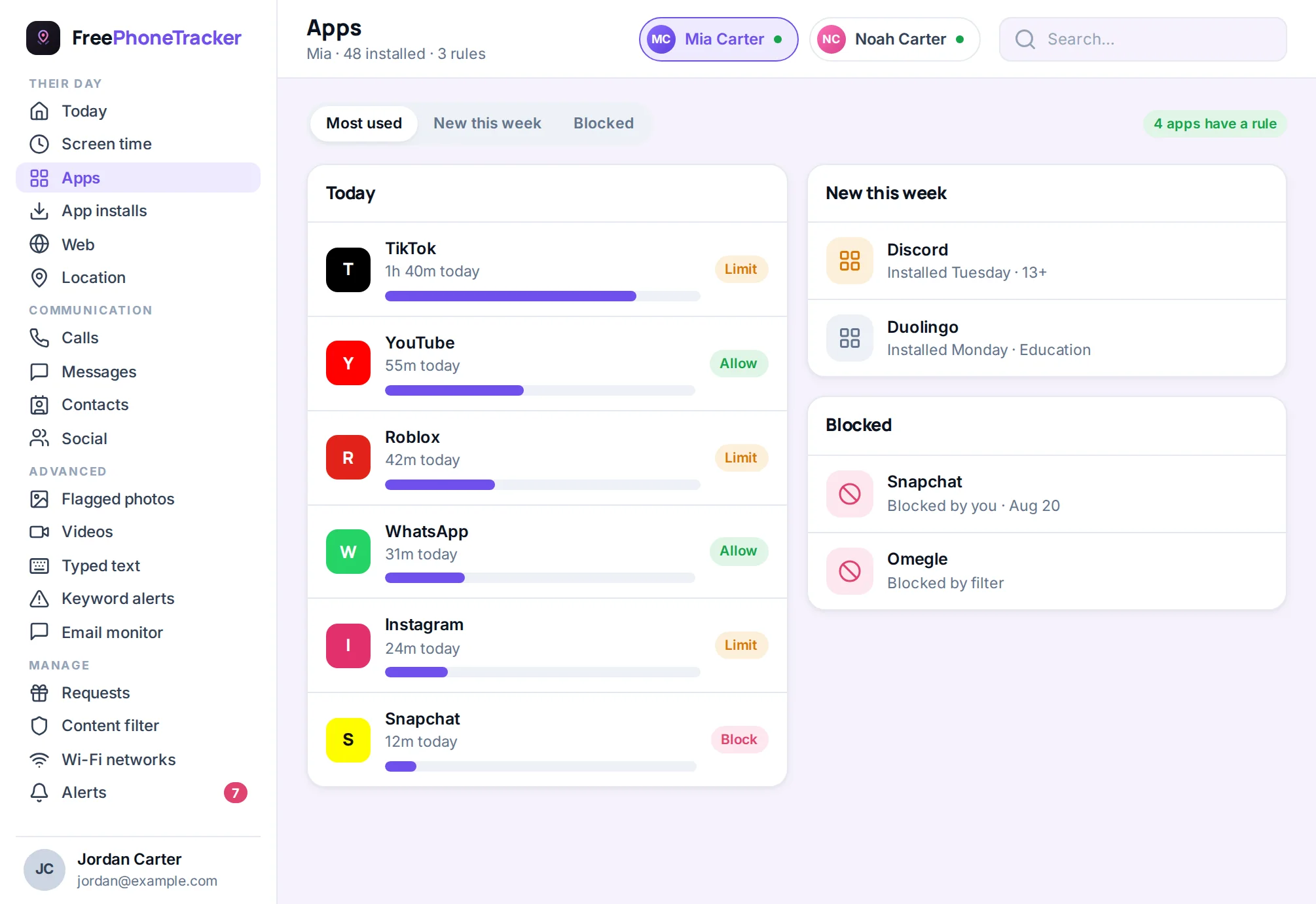
Every phone is a drawer full of apps, and not all of them earn their place. A dating app on a twelve-year-old’s phone. A game that’s really a casino. A social app you’d agreed was off-limits. An app blocker lets you deal with those directly — see what’s installed, decide what stays, and switch off the rest.
Every app, sorted by impact
FreePhoneTracker lists every app on the phone and groups them by what they are — the time-sinks, the essentials, the social apps, the ones that are fine. Next to each is how much it’s actually being used, so you can tell the difference between an app that’s installed and an app that’s a problem. The daily driver stands out immediately; so does the thing that appeared last week and is already eating hours.
- Full app inventory, with real usage time beside each one.
- Grouped by type, so the ones worth attention rise to the top.
- Block or cap — switch an app off completely, or hand it a daily budget.
Block an app in one tap
When you want an app gone, you don’t uninstall it or negotiate — you block it from your panel and the phone enforces it. The app stops opening. You can lift the block just as easily when they’ve earned it back or the reason has passed. It’s control without the confrontation of standing over their shoulder.
Know the moment something new appears
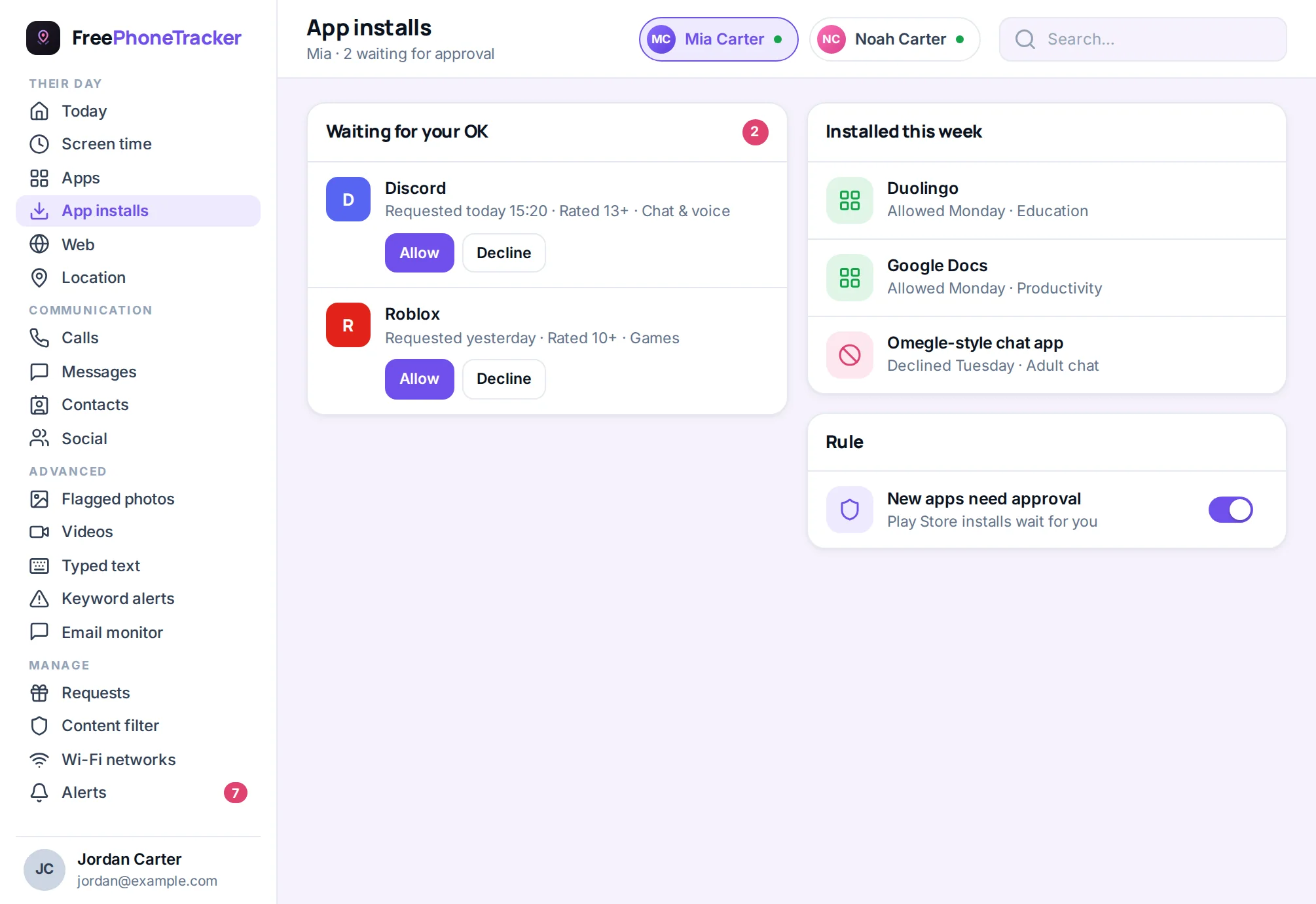
The apps you didn’t approve are the ones that matter most, and they usually arrive without anyone mentioning them. FreePhoneTracker keeps a record of installs and sends an alert when a new app shows up — including ones sideloaded from outside the Play Store, which is exactly how the apps kids don’t want you to see tend to get on. You find out on day one, not when it’s already a habit.
Works with screen time
App blocking and screen time are two settings on the same dial. Block the apps that have no business being there; put a daily budget on the ones that are fine in moderation; leave the essentials alone. Together they let you tune the phone to your child rather than reaching for all-or-nothing.
How it works
The app reads the phone’s installed-app list and usage stats through Android’s usage-access permission, granted openly at setup, and enforces blocks through the accessibility service. Because those permissions are held honestly rather than through a hidden trick, blocking is reliable and survives system updates.
The apps you’d never approve tend to arrive unannounced
A phone doesn’t stay the way you set it up. Kids install things — some harmless, some not, most somewhere in between. The dating app a twelve-year-old is far too young for. The “calculator” that’s really a hidden photo vault. The game stuffed with loot boxes that’s teaching them to gamble before they can spell it. The anonymous chat app where the whole point is that no one knows who they’re talking to. These rarely announce themselves; they appear between one week and the next, and without an app tracker you find out by accident, if at all.
FreePhoneTracker’s install alert is the fix. The moment a new app lands — including one sideloaded from outside the Play Store, which is exactly how the riskiest apps get on — you know. You can look at what it is, decide whether it stays, and block it in a tap if it doesn’t. You’re dealing with it on day one, while it’s a curiosity, not on day ninety, when it’s a habit.
Block, cap, or allow — the right tool per app
Not every app deserves the same treatment, and all-or-nothing controls force bad choices. FreePhoneTracker gives you three responses. Block the apps that have no business on a child’s phone. Cap the ones that are fine in moderation with a daily budget, so the game they love doesn’t become the game that eats their evening. Allow the essentials outright. Tuning the phone app-by-app is how you land on something that fits your actual child instead of a one-size rule that they’ll spend all their energy trying to beat.
- Block — the app won’t open, and you can lift it any time.
- Cap — a daily budget via screen time keeps a fun app in its lane.
- Allow — phone, messages, maps and the tools they need stay untouched.
Usage data ends the guessing
Blocking is only half the value; seeing real usage is the other half. When every app shows the actual minutes it’s used, the picture stops being a hunch. The app you thought was the problem might barely register, while a quiet one you’d never noticed is eating three hours a day. That’s not a reason to overreact — it’s information, and it makes every decision you take about the phone a better one.
Getting the most from app control
- Review new-install alerts promptly — the first day is the easiest time to say no.
- Watch usage before you block. Sometimes a cap is fairer and works better than an outright ban.
- Explain the block. “This one’s not for your age yet” beats a silent disappearance.
- Re-check monthly. Kids grow; an app that was off-limits at eleven may be fine at fourteen.
Questions about app control
Can I block an app on my child’s phone remotely?
Yes. Block any app from your panel and the phone stops it from opening. Unblock it just as easily.
Will I know if they install something new?
Yes. FreePhoneTracker records installs and alerts you when a new app appears, including apps installed from outside the Play Store.
Can I see how long each app is used?
Yes. Every app shows its real usage time, so you can tell a background app from one that’s taking over the day.
Can I limit an app instead of blocking it?
Yes. Give it a daily budget with screen time, or block it outright — your choice, per app.
Take back the app drawer
See every app, block what shouldn’t be there, and get told when something new lands.