Website blocker & browsing history
See the sites your child visits, block the ones you don’t want, and keep the block working across every browser on the phone. No more clearing history to hide where they’ve been.
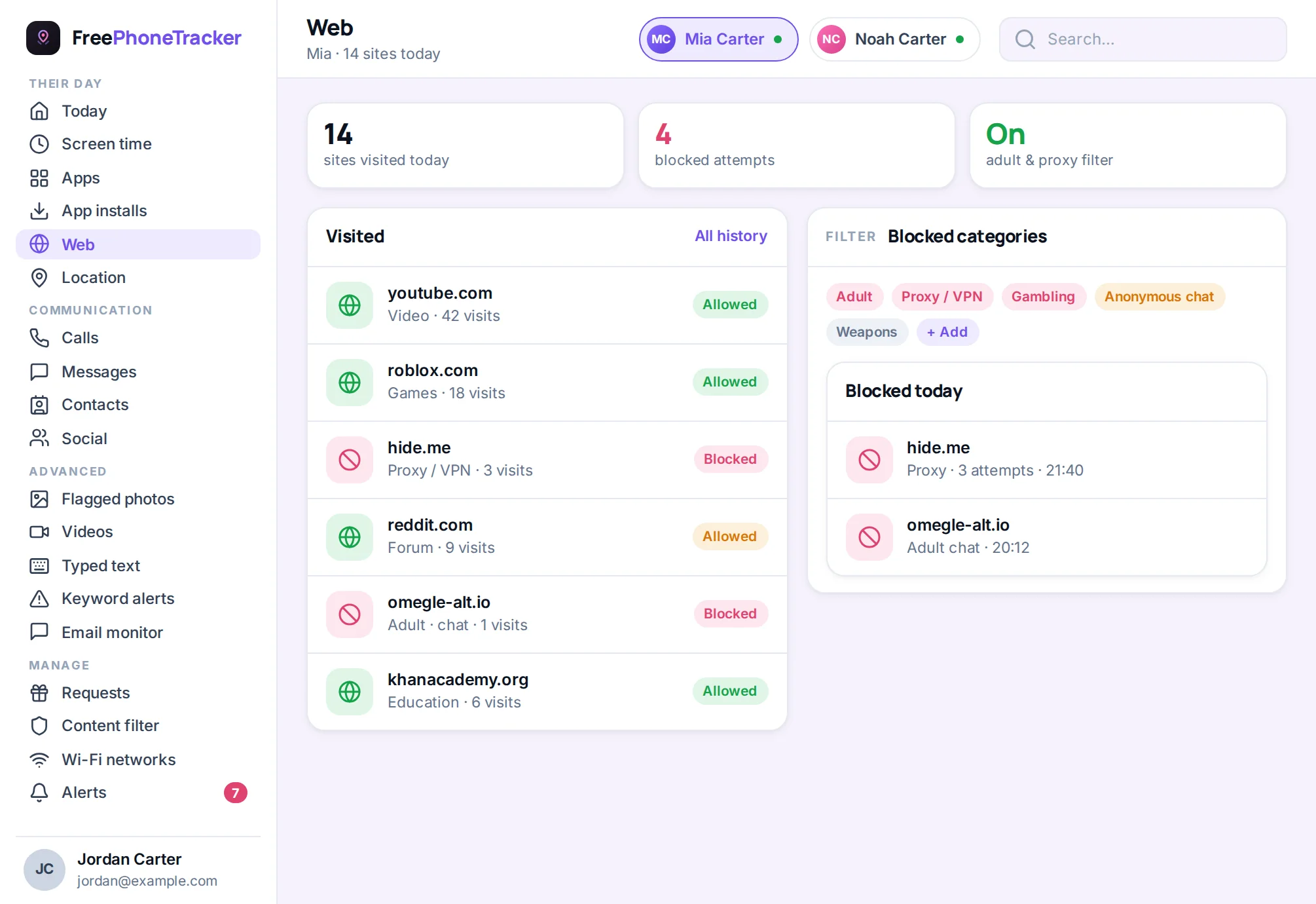
The browser is the back door on any phone. An app you’ve blocked can often be reached as a website; content you’ve filtered from one app is a search away in another. A website blocker closes that door — it works at the level of the sites themselves, so a rule holds no matter which browser your child opens.
Browsing history you can trust
FreePhoneTracker shows the sites the phone visits and how often, so you can see the shape of their browsing without reading over their shoulder. It records which website was reached, not every private detail — the point is to spot the pattern that needs a conversation, like an adult site visited repeatedly, not to build a dossier. And because it syncs to your panel, clearing the phone’s own history doesn’t erase what you’ve already seen.
- Sites visited, with a count so repeats stand out.
- Blocked attempts logged, so you know when a rule did its job.
- Survives history clearing on the phone.
Block sites, not just apps
Add a site to the blocklist and the phone stops loading it. Because the rule lives below the browser, switching from Chrome to another browser doesn’t get around it. You can block a specific site outright, and pair that with the content filter to knock out whole categories at once.
See what was stopped
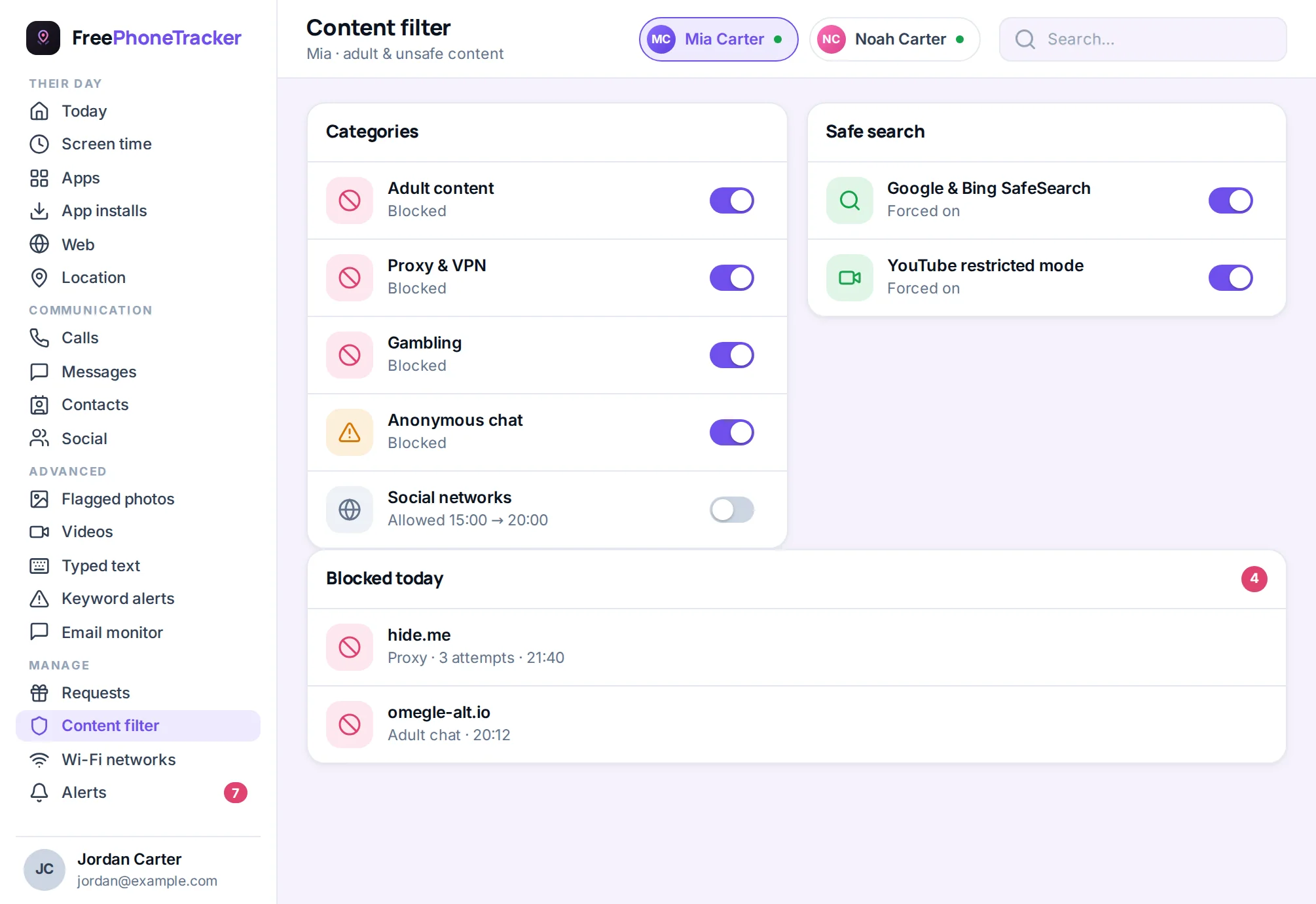
A filter you can’t see feels like guesswork. FreePhoneTracker logs the attempts it blocks, so you know the protection is real — and you learn something too. A string of blocked attempts on an adult site is a signal worth a calm, early conversation, and you’d never have known without the log.
How it works
The web filter runs on the phone and checks requests against your blocklist and the categories you’ve enabled, granted through the same open permissions as the rest of the app. There’s no separate VPN app to keep alive and nothing for your child to toggle off. Rules you set reach the phone within minutes.
The browser is the loophole in every other control
You can block an app, but a lot of what an app does is reachable as a website. You can filter one browser, and a child opens another. You can set a rule, and the incognito tab quietly ignores it. The browser is where careful parental controls go to leak, because it’s a single door to the entire internet. A website blocker that works below the browser closes that door for good — the rule follows the site, not the app, so switching browsers or opening a private tab doesn’t get around it.
That’s the practical difference between a filter that looks strict and one that actually holds. FreePhoneTracker enforces blocks at the level of the request the phone makes, which is why a blocked site stays blocked no matter how your child tries to reach it.
History that survives the delete button
Every kid learns the same trick early: clear the history, and the afternoon never happened. Except with FreePhoneTracker it did, because browsing activity syncs to your panel as it occurs. Clearing the phone’s own history afterward changes nothing on your side. You’re not trying to catch them out — you’re making sure that “I wasn’t on anything” can’t quietly erase a pattern worth a conversation. And because the record is about which sites were reached and how often, not the innards of every page, it stays proportionate: enough to spot a problem, not a transcript of their whole life online.
Blocklists and the filter, working together
Two tools cover two jobs. The blocklist is your explicit “absolutely not” — specific sites you name and shut off. The content filter is the safety net underneath, catching entire categories like adult or gambling content, including sites that launched this morning and that you’d never think to list. Run them together and you get both precision and breadth: the exact sites you want gone, plus automatic protection against the vast, ever-changing rest.
- Blocklist — name a site, it stops loading, across browsers.
- Content filter — whole categories off with a toggle.
- Blocked-attempt log — proof it’s working, and a heads-up when it matters.
Getting the most from web filtering
- Turn on the adult category first — it does the heavy lifting automatically.
- Add specific sites you want gone to the blocklist for precision.
- Check the blocked-attempts log occasionally — repeated attempts are a signal, not a scandal.
- Revisit as they age — loosen categories that no longer fit an older teen.
Questions about web filtering
Can I block a website on my child’s phone?
Yes. Add a site to the blocklist and the phone stops loading it, across the browsers on the device.
Can they get around it by switching browsers?
No. The filter works below the browser, so a rule holds whether they use Chrome or something else.
Does it show browsing history if they clear it?
Yes. Activity syncs to your panel as it happens, so clearing the phone’s own history doesn’t remove what you’ve already seen.
Can I block whole categories like adult content?
Yes, with the content filter — turn on categories such as adult or gambling and matching sites are blocked automatically.
Close the browser back door
See where they browse and block what shouldn’t load — on every browser at once.