Every app asks for permissions, and far too many ask for more than they need. A flashlight that wants your contacts, a game that wants your microphone. Checking and trimming app permissions takes ten minutes and quietly plugs a lot of privacy leaks. This guide shows what to look for and how to lock it down.
- Review permissions by category — see every app that can use the camera, mic or location.
- Revoke anything an app doesn’t genuinely need.
- Prefer “while using” over “always,” and deny by default.
- Recheck after updates and delete apps you no longer use.
Permissions worth checking
A handful of permissions carry most of the privacy risk. Start with these.
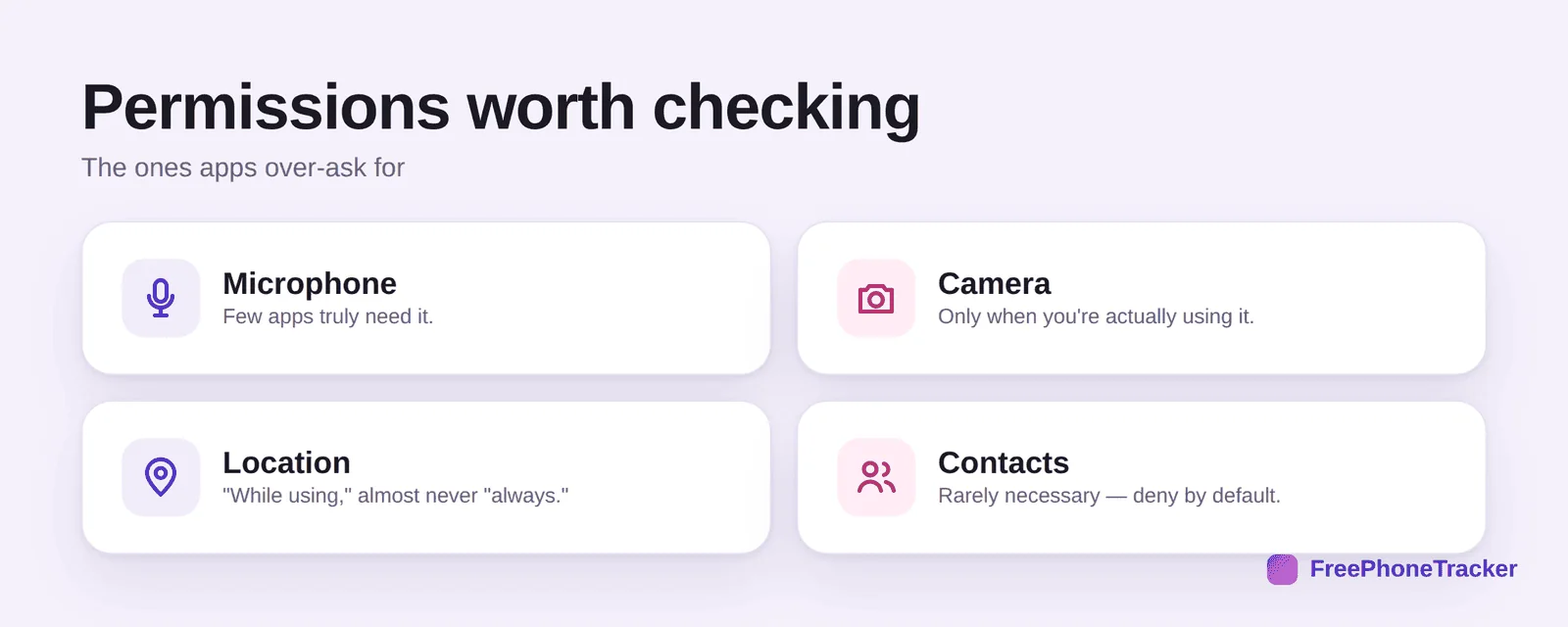
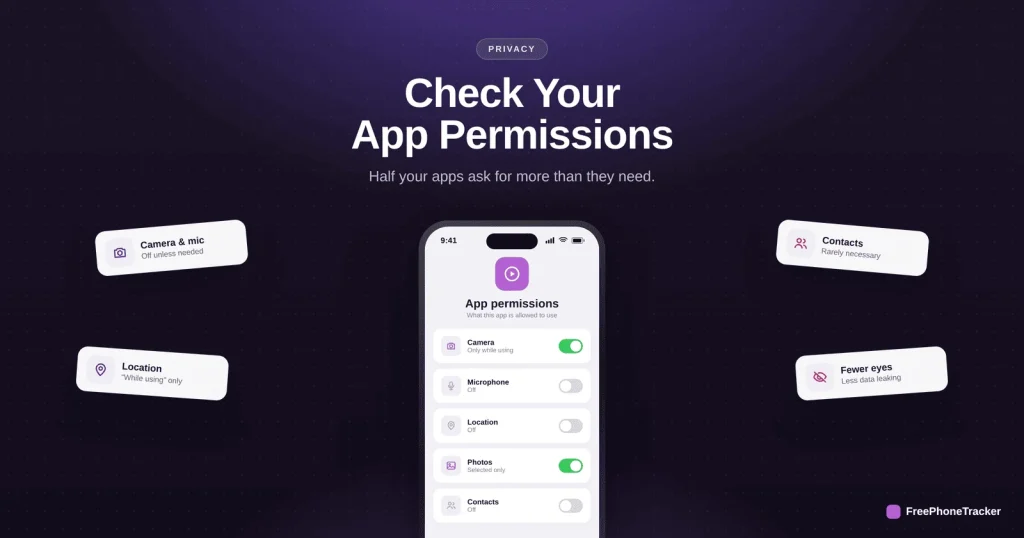
Check microphone (few apps truly need it), camera (only while you’re using it), location (“while using,” almost never “always”), and contacts (rarely necessary, deny by default). If an app’s request doesn’t match what it does, that’s your cue to turn it off.
How to review them
Both iPhone and Android let you review permissions by category, which is the fast way to catch over-reach.
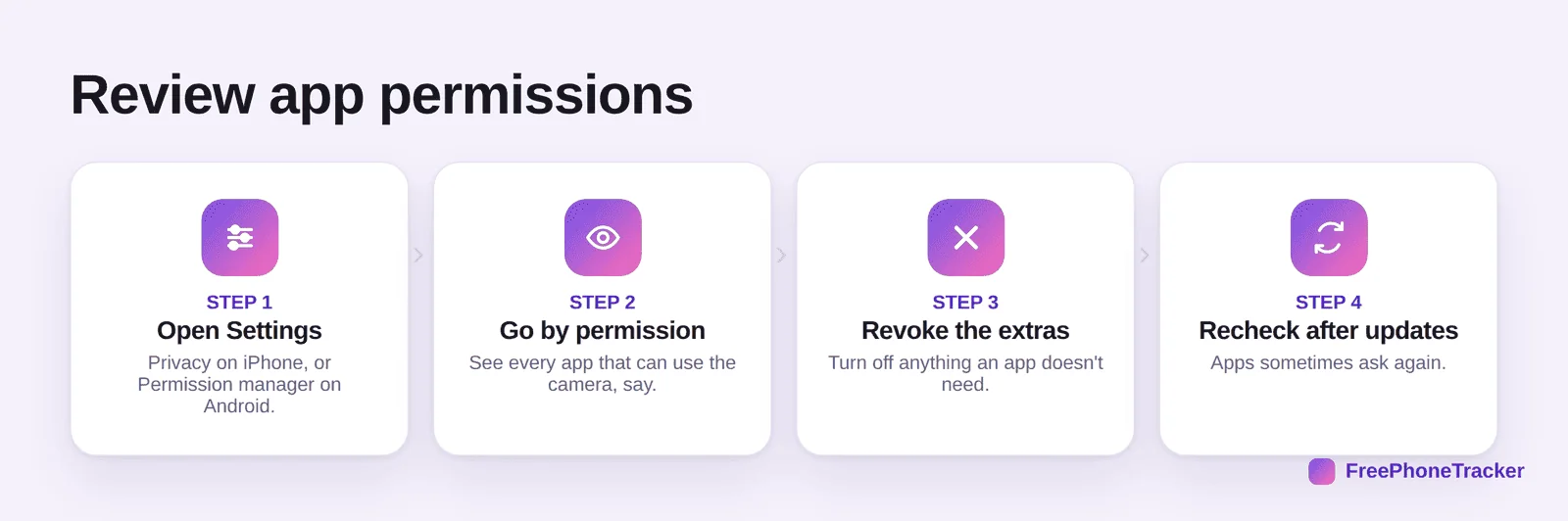
Open Settings (Privacy on iPhone, Permission manager on Android). Go by permission, so you see every app that can use the camera at once. Revoke the extras an app doesn’t need. And recheck after updates, since apps sometimes ask again.
Keep it tidy
A few habits keep permissions under control without much effort.
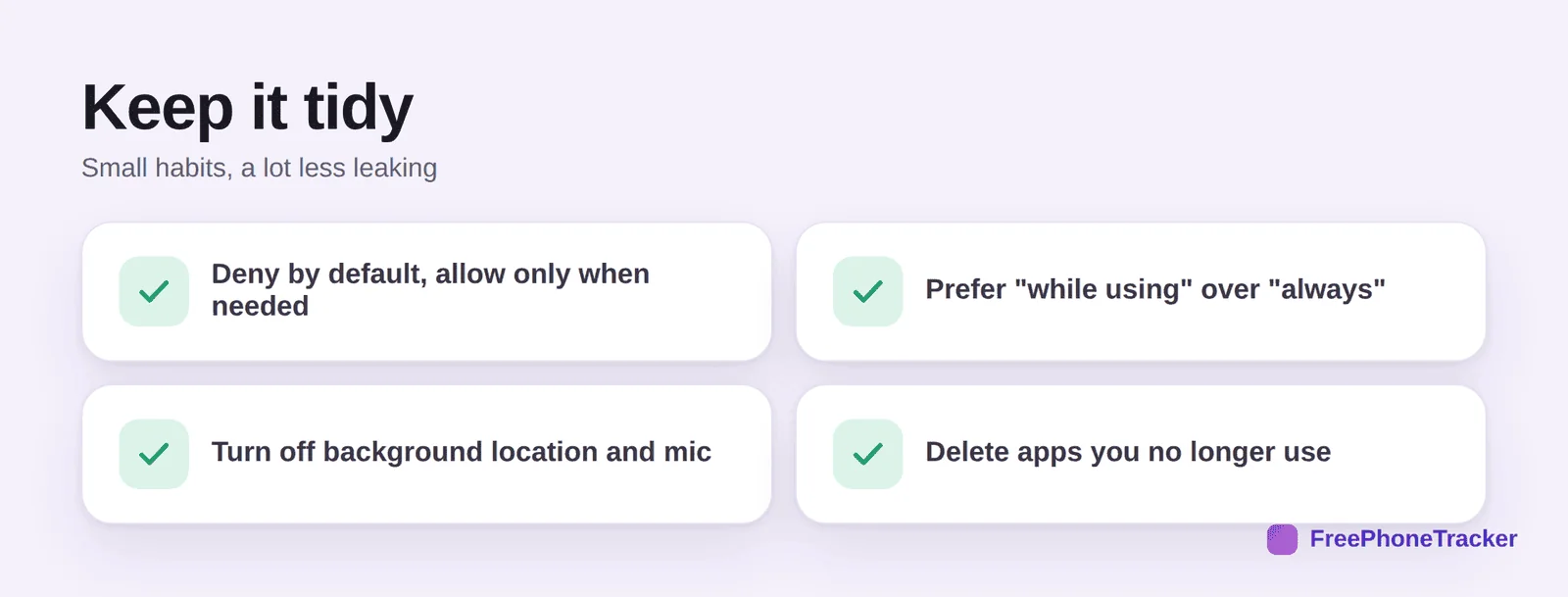
Deny by default and allow only when needed. Prefer “while using” over “always.” Turn off background location and mic. And delete apps you no longer use, an unused app with broad permissions is pure risk.
On a child’s phone
Kids install apps quickly and grant whatever they’re asked. A periodic permissions check is worth building into the routine.
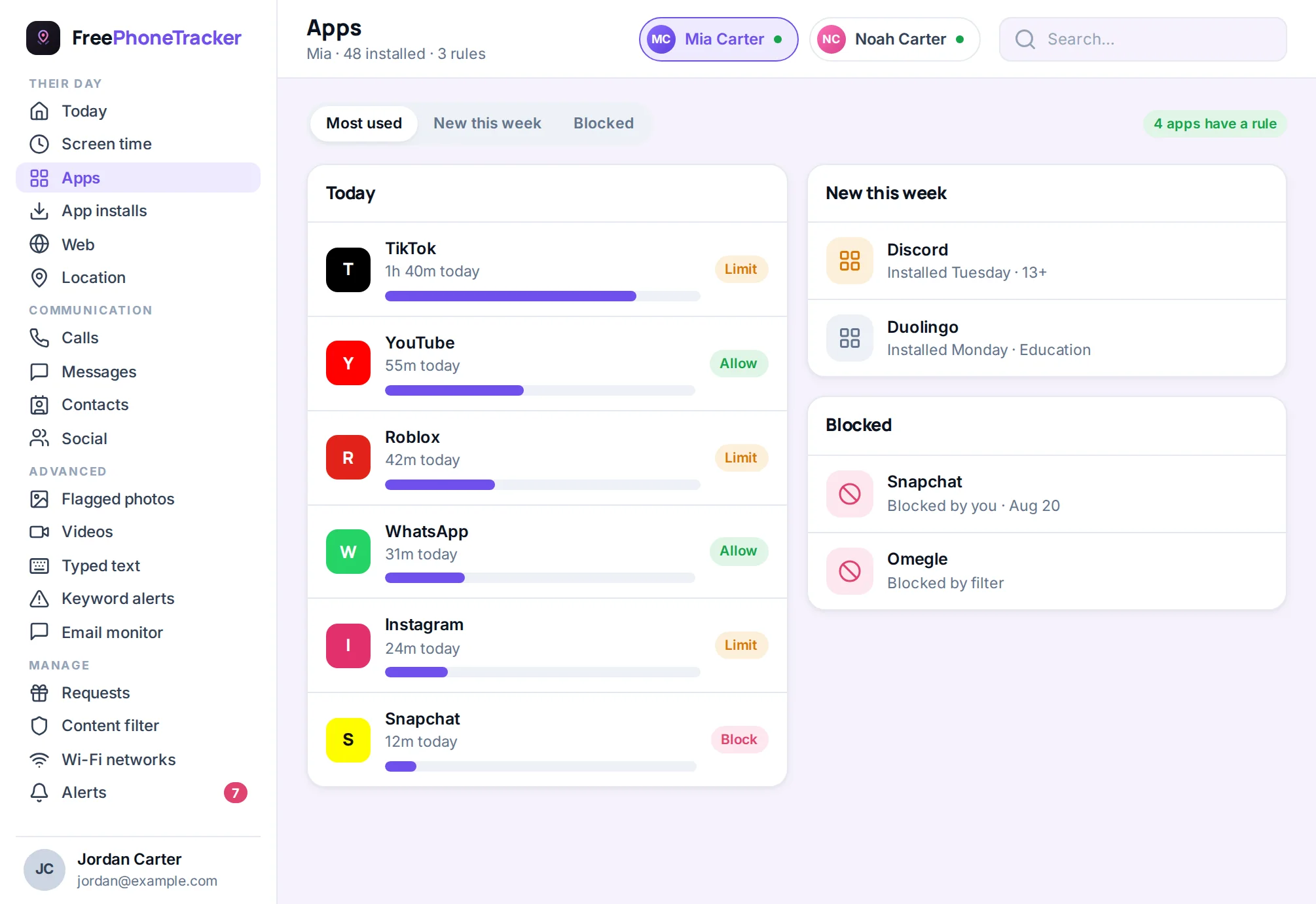
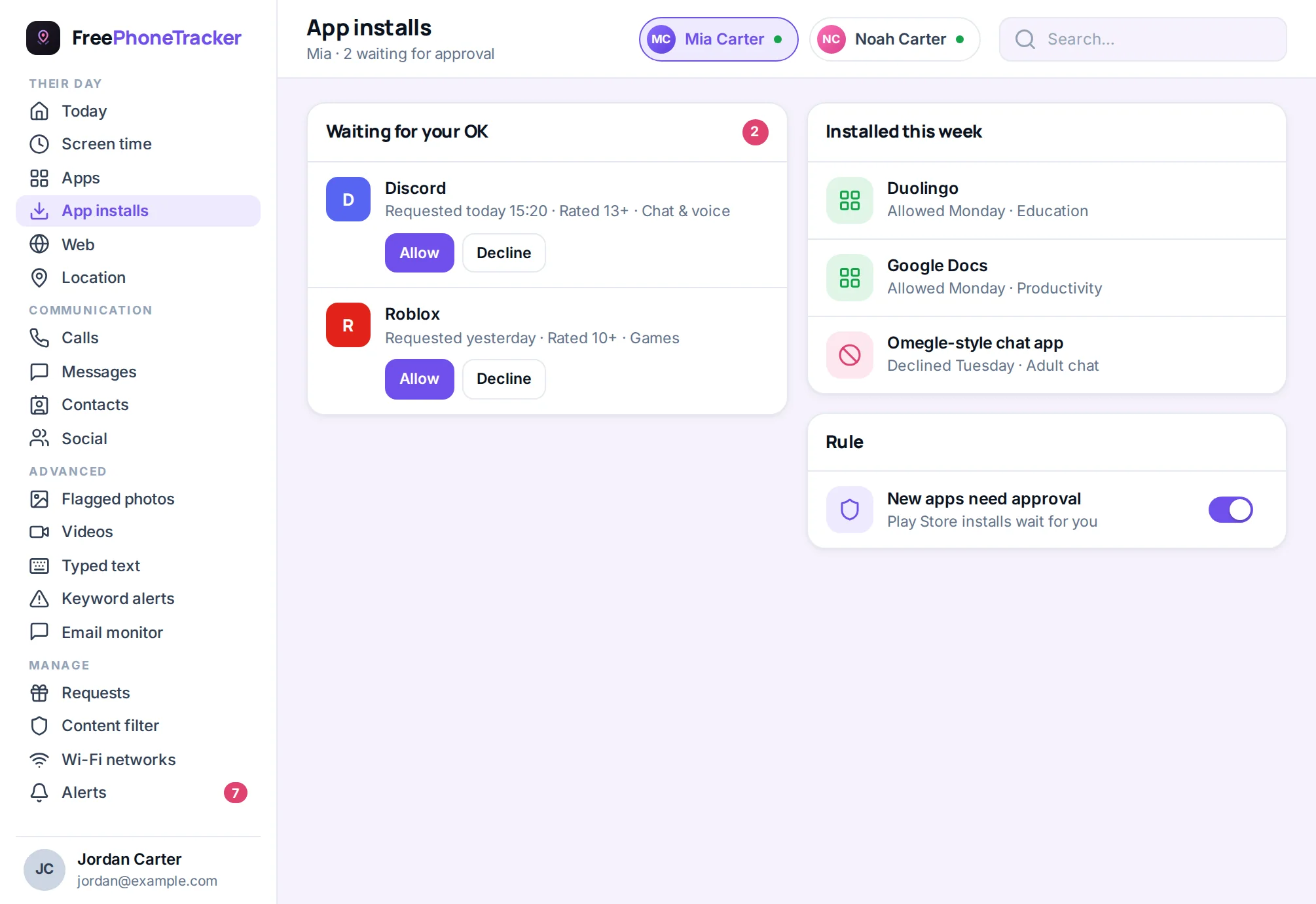
Review permissions on your child’s phone together, and treat a permission that doesn’t fit an app as a reason to look closer. A view of installed apps helps you notice new or risky ones, and pairs with our guide to hidden apps.
Common questions
Will turning off permissions break my apps?
Sometimes a feature stops working (a camera app needs the camera), but the app will prompt you when it genuinely needs access. Start by revoking the clearly unnecessary ones.
What’s the difference between “while using” and “always”?
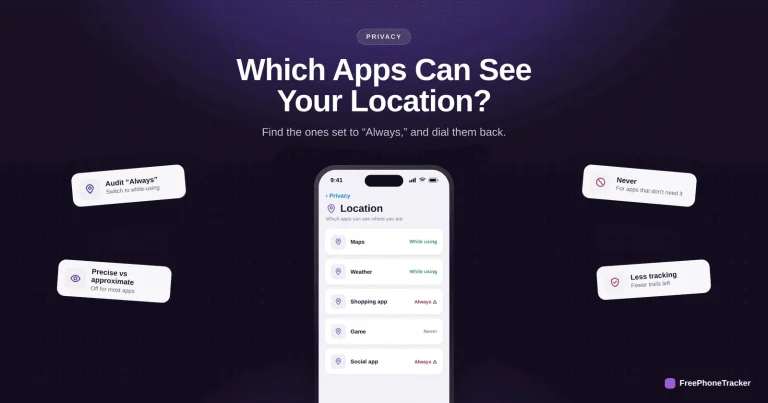
“While using” grants access only when the app is open on screen. “Always” lets it run in the background, including location, which very few apps truly need.
Why does a simple app want so many permissions?
Often for advertising and data collection, not core features. If a request doesn’t match what the app does, deny it, or find a better app.
How often should I check permissions?
A quick review every few months, and after big updates or a batch of new installs. It only takes a few minutes once you know where to look.
Should I check my kid’s app permissions?
Yes, do it together. It’s a good habit and catches over-reaching or unfamiliar apps. See our guide to location access too.
App permissions are quiet privacy leaks you can plug in minutes, review by category, revoke the extras, prefer “while using,” and delete what you don’t use. Do it for your phone and your kids’. Get started free, and check which apps can see your location next.