Your location is one of the most sensitive things your phone knows, and a surprising number of apps quietly track it in the background. A quick audit shows you exactly who can see where you are, and lets you dial the noisy ones back. This guide walks through checking and tightening location access on iPhone and Android.
- Open your location settings to see every app and its access level.
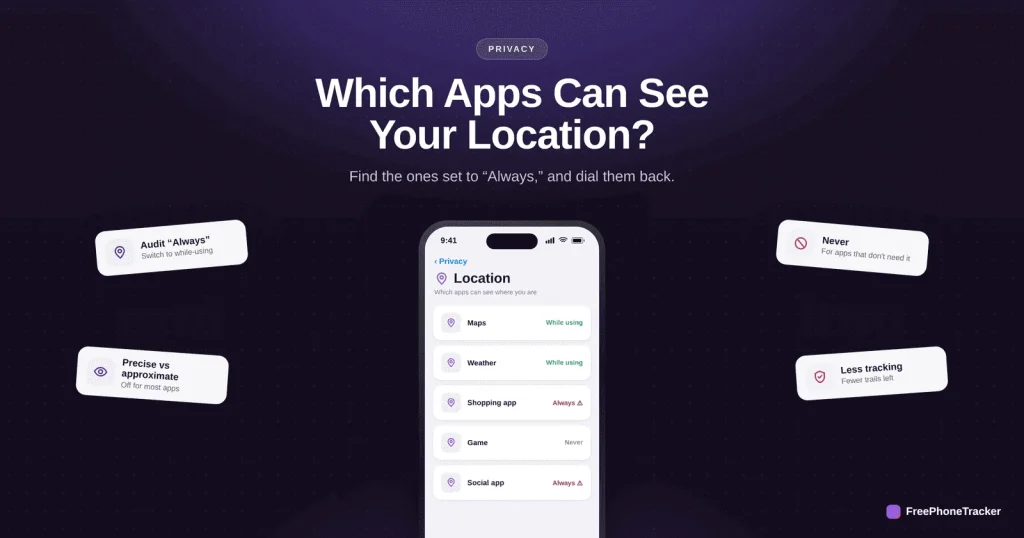
- Look for anything set to “Always” — most apps don’t need it.
- Switch apps to “While using” or “Never,” and turn off precise location where you can.
- Recheck after big updates, which sometimes re-enable access.
Red flags to look for
As you scan the list, a few things should jump out as unnecessary.
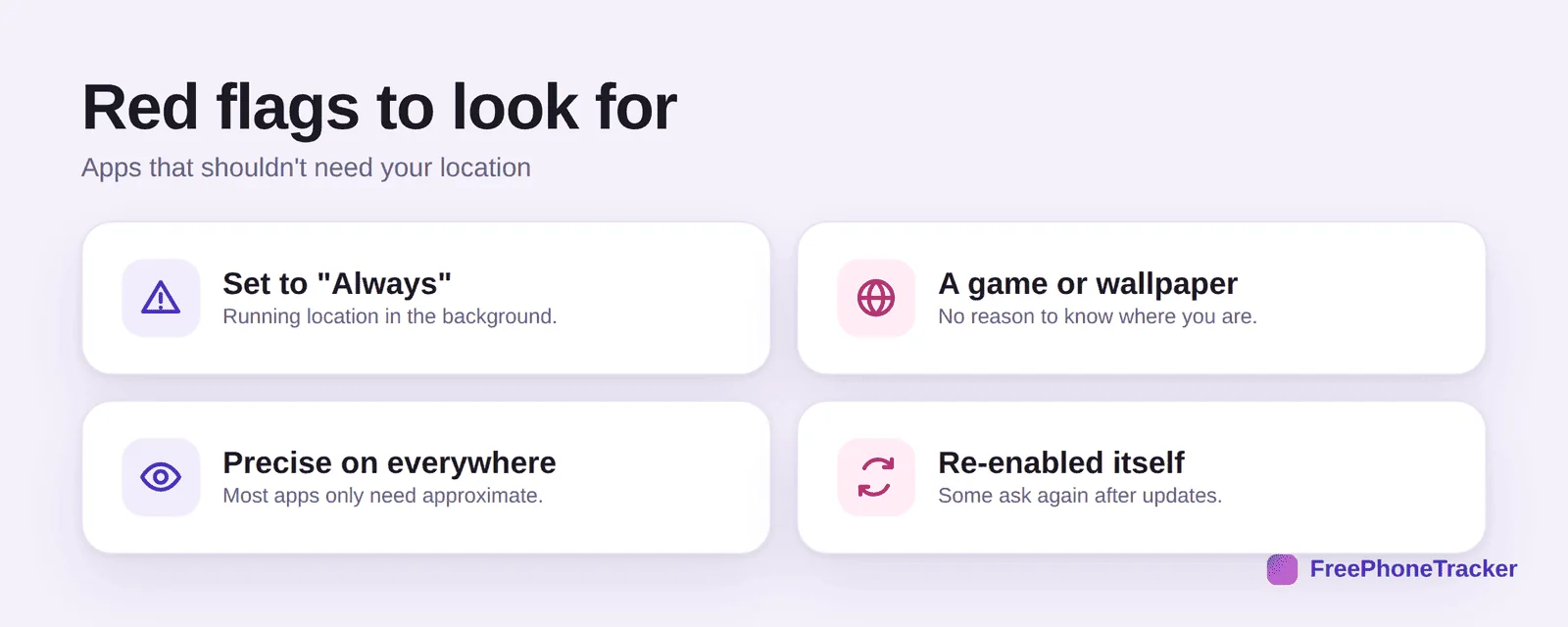
Watch for apps set to “Always” (running location in the background), a game or wallpaper that has no reason to know where you are, precise location switched on everywhere, and access that re-enabled itself after an update. Each is a chance to tighten things up.
How to check location access
Both platforms make this easy once you know where to look.
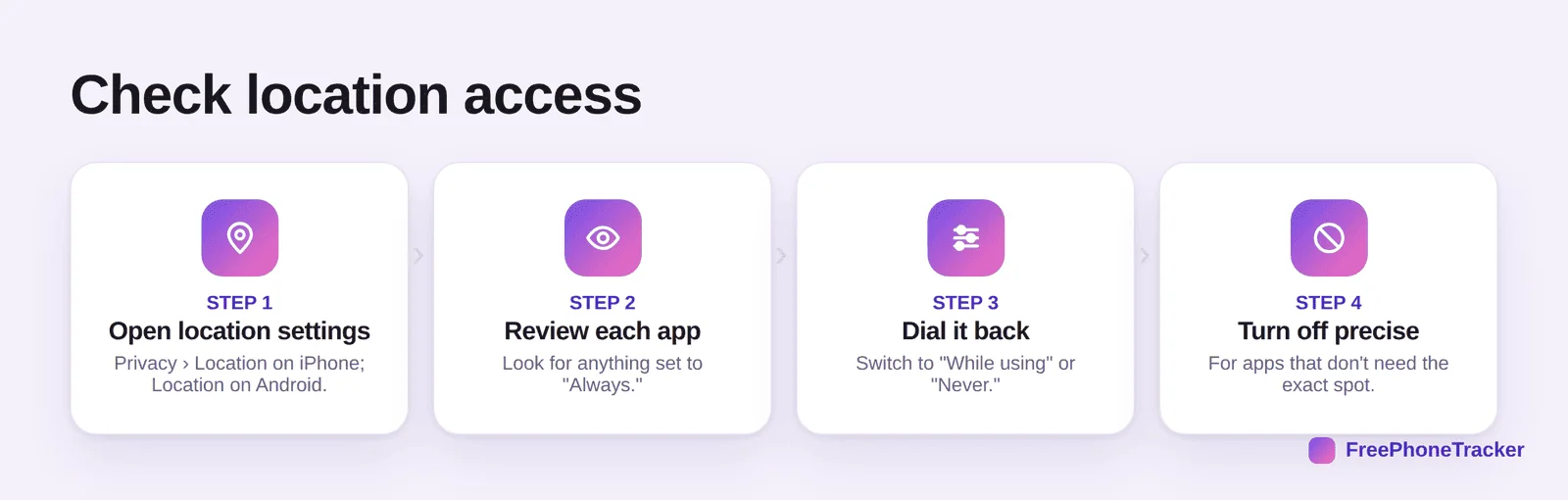
Open location settings (Privacy › Location Services on iPhone; Location on Android). Review each app and look for “Always.” Dial it back to “While using” or “Never.” And turn off precise location for apps that only need your rough area, like weather or news.
Share location on purpose
The goal isn’t zero location sharing, it’s sharing only with the apps that earn it.
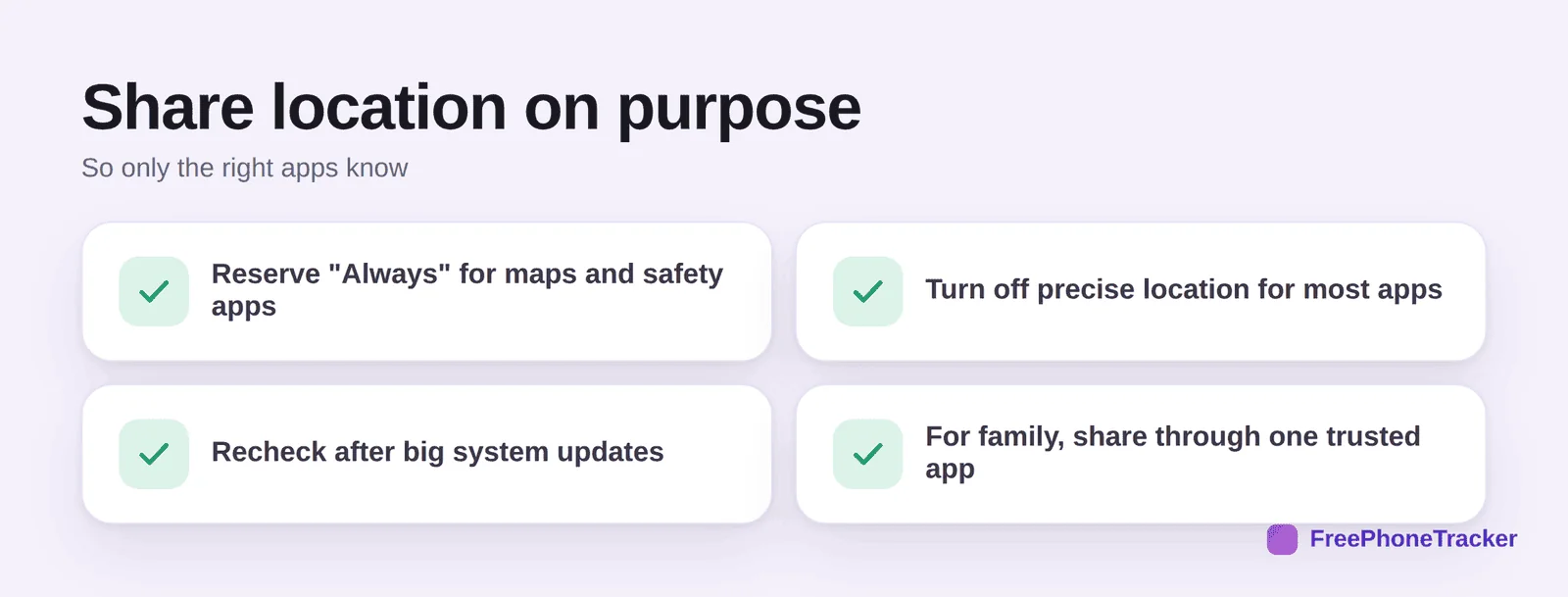
Reserve “Always” for maps and genuine safety apps. Turn off precise location for most others. Recheck after big system updates. And for family, share through one trusted app rather than leaving it on across dozens, our family location sharing guide covers that.
On a child’s phone
The same audit matters even more on a kid’s device, where an over-permissioned app can broadcast their whereabouts.
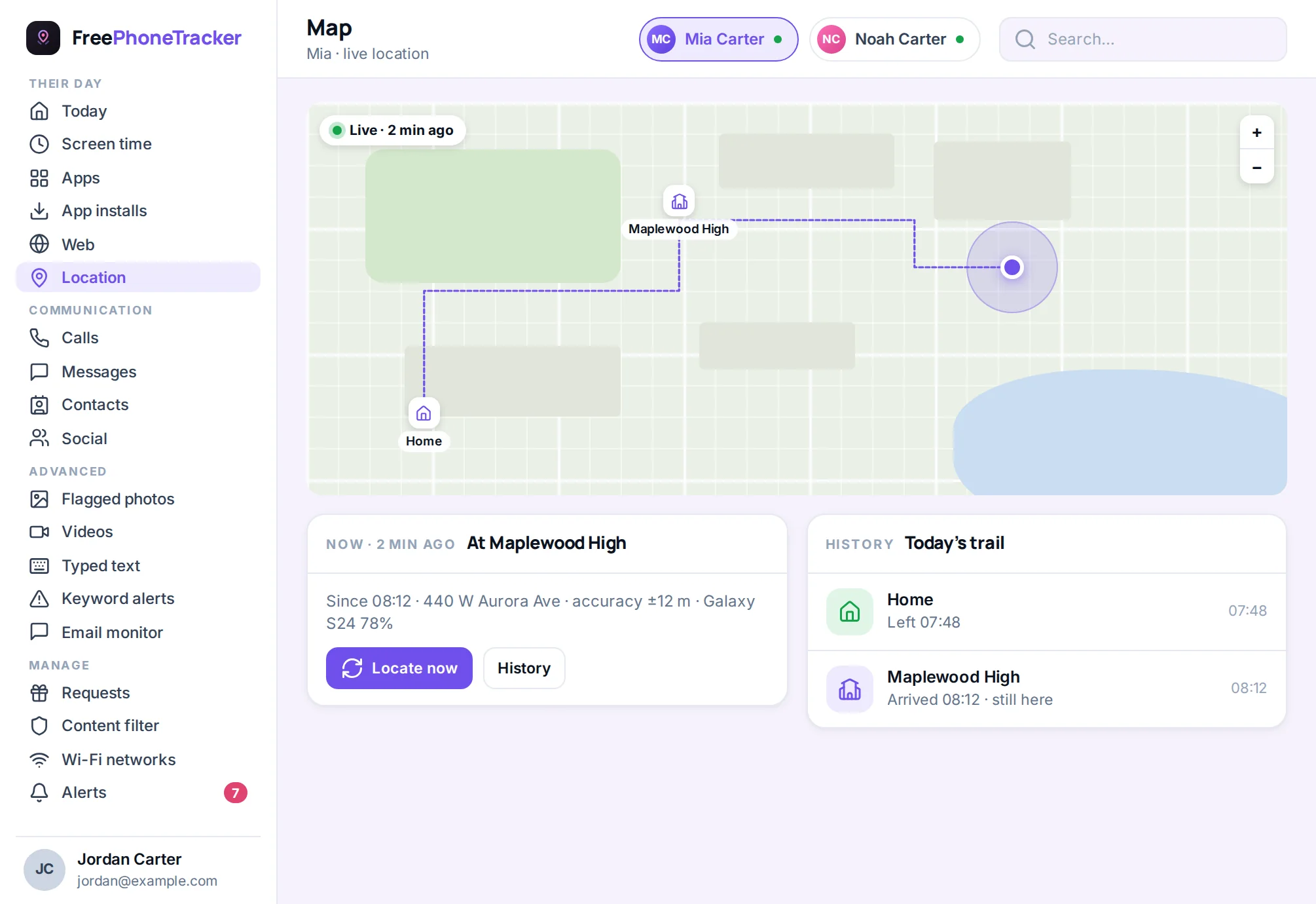
Trim which apps can see your child’s location, then keep the location you actually want through a single trusted tool rather than a dozen random apps. It’s also worth checking, if you’re worried about being tracked yourself, our guide to spotting tracking.
Common questions
Which apps genuinely need “Always” location?
Very few, maps for navigation, and real safety or family-tracking apps you’ve chosen. Almost everything else works fine on “While using.”
What is precise vs approximate location?
Precise gives an app your exact spot; approximate gives a rough area. Weather, news and most apps only need approximate, so turn precise off for them.
An app re-enabled location after an update — normal?
It happens. Some apps re-prompt or reset preferences on major updates, which is why a periodic recheck is worth doing.
Does turning off location save battery?
Often, yes. Background location is a real battery drain, so trimming “Always” apps can help your battery as a bonus.
How do I keep tabs on my child’s location safely?
Trim random apps, then use one trusted location tool openly. See our family location sharing and geofence alerts guides.
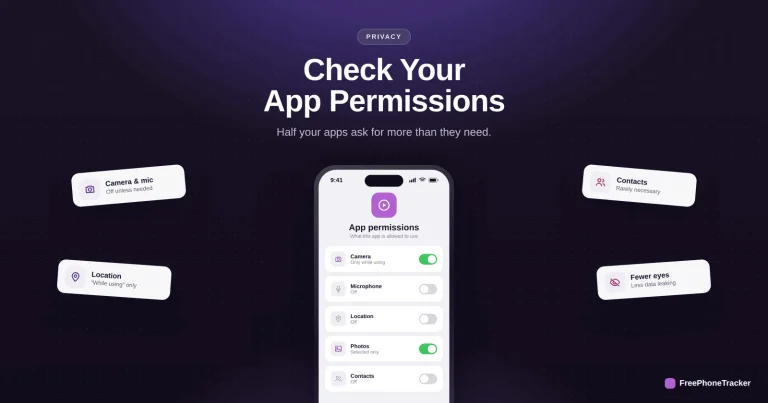
You probably have more apps watching your location than you realize, a two-minute audit fixes it. Reserve “Always” for maps and safety, turn off precise where you can, and share family location through one trusted app. Get started free, and review your app permissions while you’re at it.