A missing iPhone isn’t necessarily a lost one. Find My puts it on a map, makes it ring even on silent, and — if it’s really gone — lets you lock or wipe it from anywhere. The catch is that it only works if you turned it on beforehand. This guide covers using it, and setting it up so it’s ready.
- Open Find My on another device or in a browser, and pick the phone.
- See it on a map, play a sound, or use Lost Mode to lock it.
- As a last resort, erase it remotely.
- It only works if Find My was switched on before it went missing.
What Find My iPhone can do
It’s more than a dot on a map — there are four things you can do remotely.
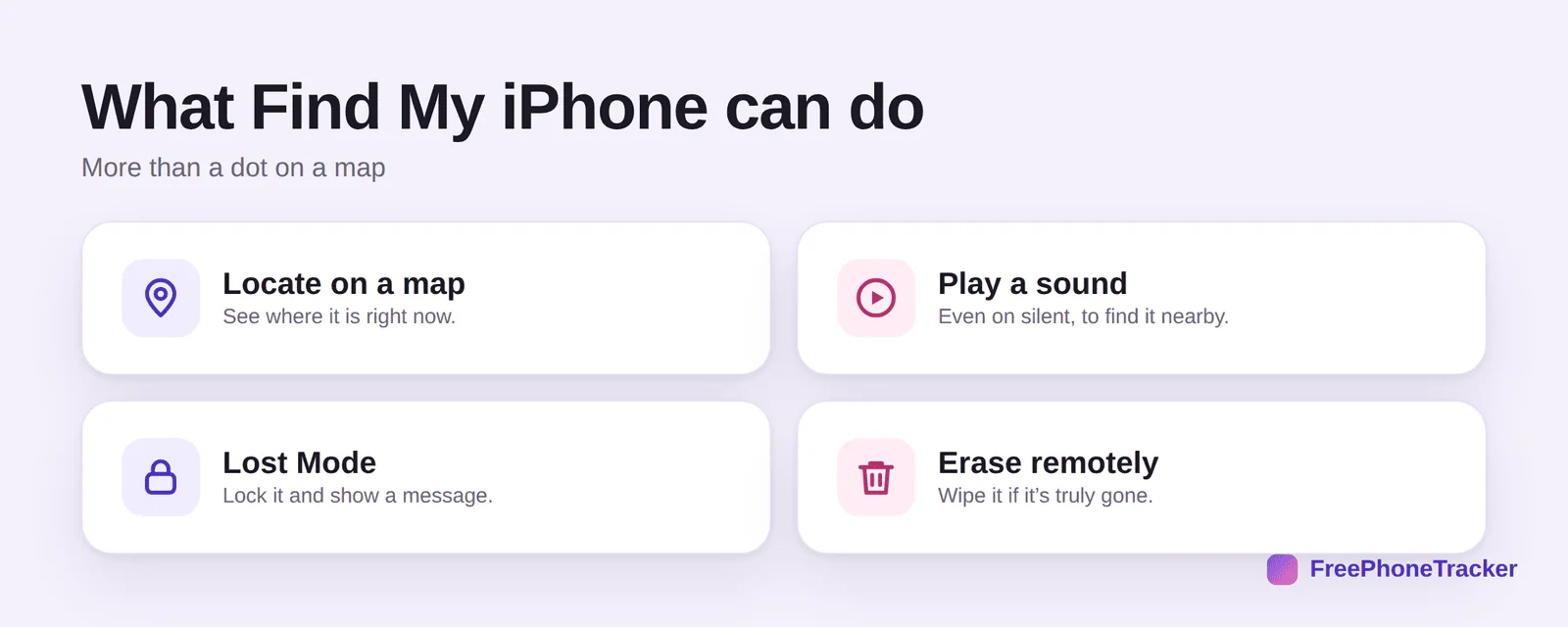
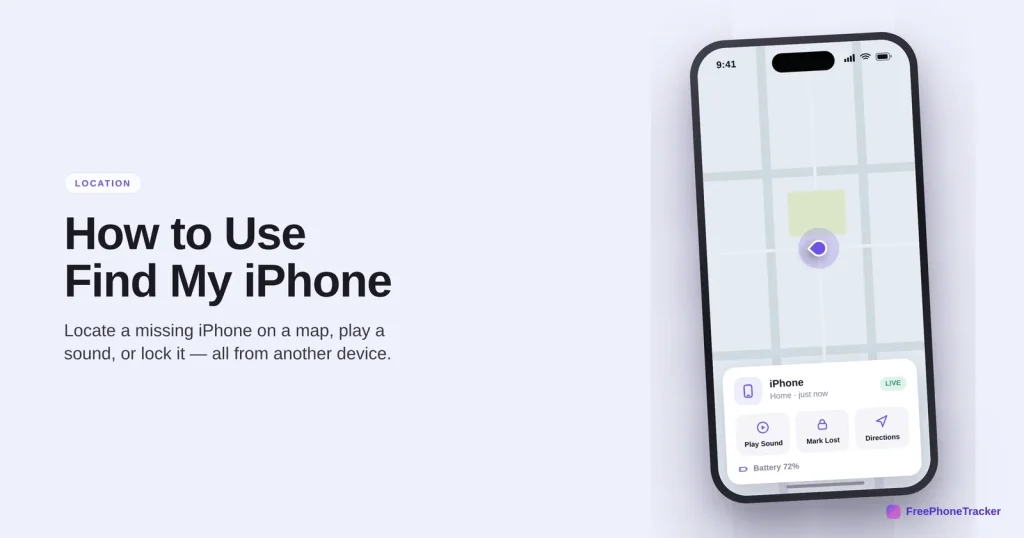
Locate on a map shows where it is right now. Play a sound makes it ring even on silent — perfect when it’s down the back of the sofa. Lost Mode locks it and shows a message with a contact number. And erase remotely wipes it if it’s truly gone.
Find a missing iPhone
The steps are the same whether you’re on a laptop, another phone, or the web.
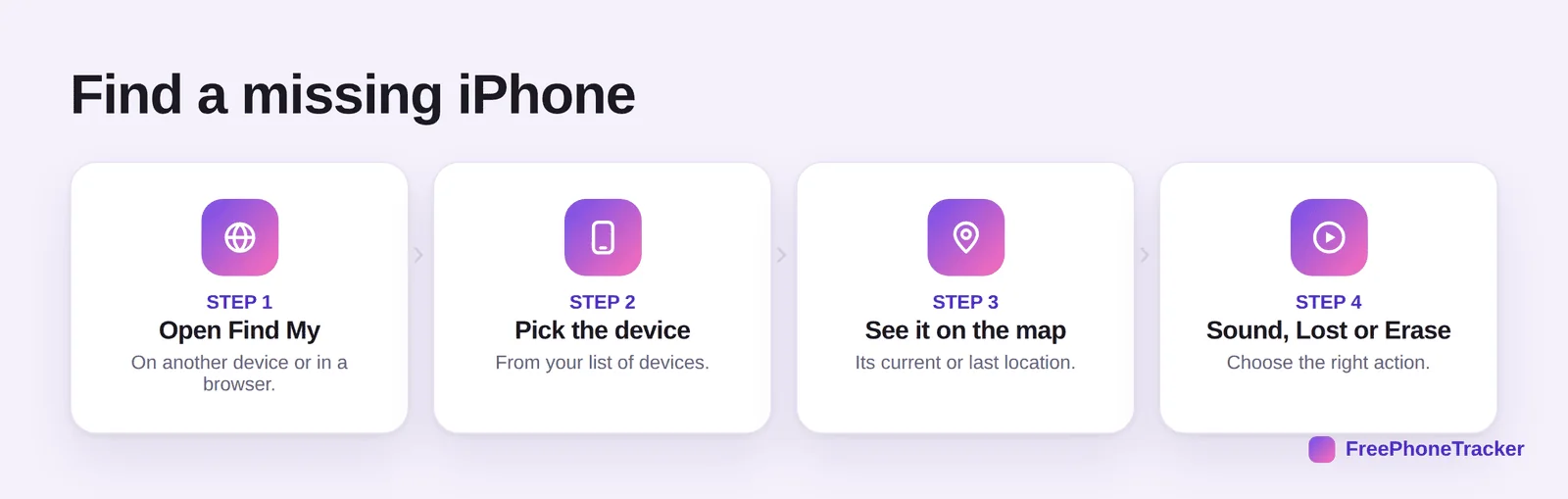
Open Find My on another Apple device, or sign in at the iCloud website in any browser. Pick the device from your list. See it on the map — its current spot, or its last known one if it’s offline. Then choose Sound, Lost Mode or Erase depending on the situation.
Set it up before you need it
This is the part people skip — and then it’s too late. Turn it on now.
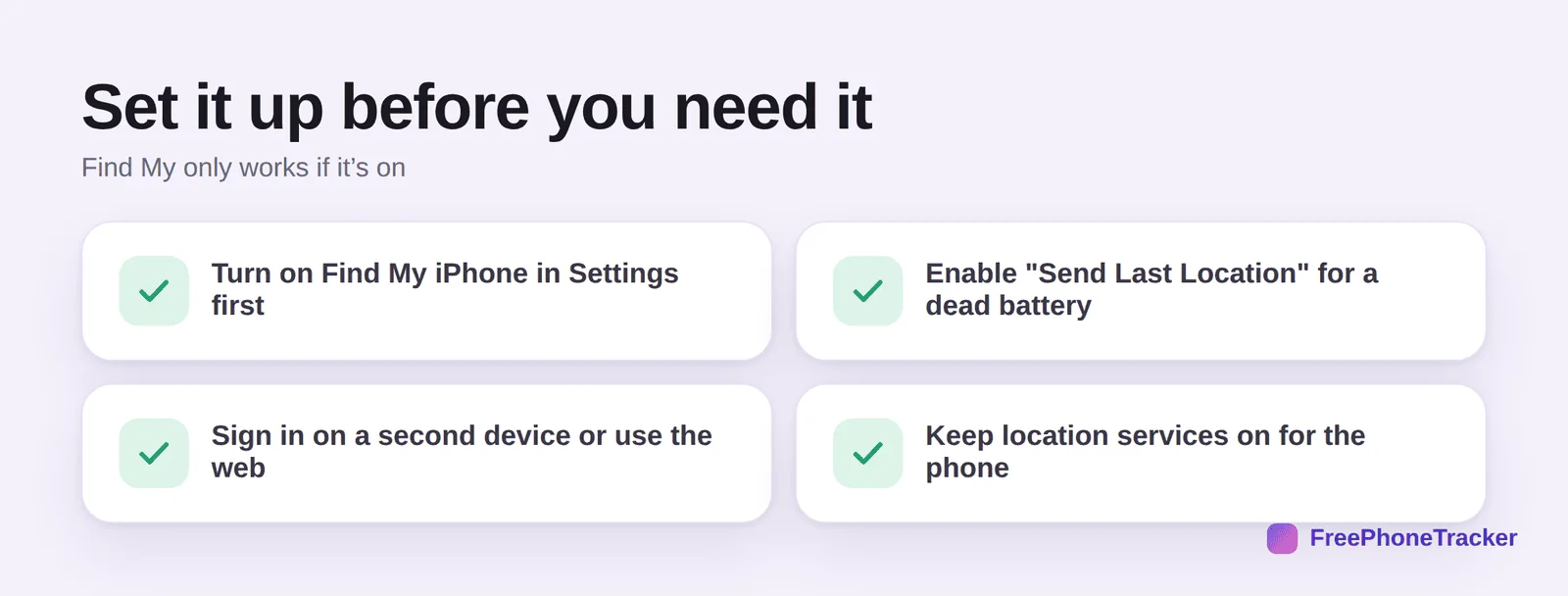
Turn on Find My iPhone in Settings under your name. Enable “Send Last Location” so it reports its spot when the battery hits critical. Sign in on a second device or bookmark the web version. And keep location services on for the phone, or there’s nothing to find.
Common questions
Can I find my iPhone if it’s turned off?
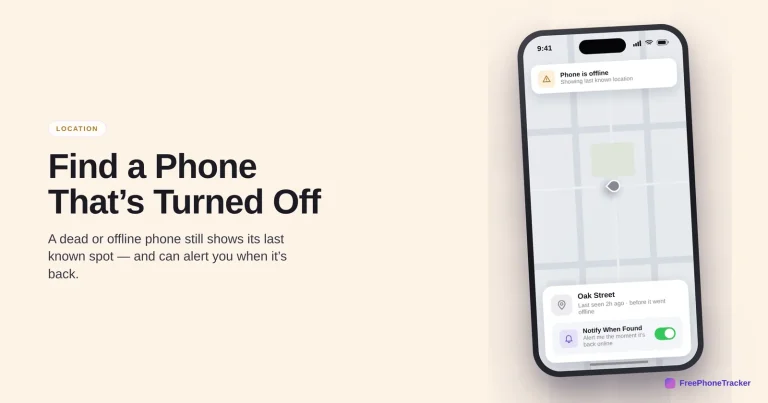
You’ll see its last known location before it powered down. If you enabled “Send Last Location,” it reports its spot as the battery dies. Turn on Notify When Found to get an alert when it comes back online. See our guide to finding an off phone.
Does Find My work without the person knowing?
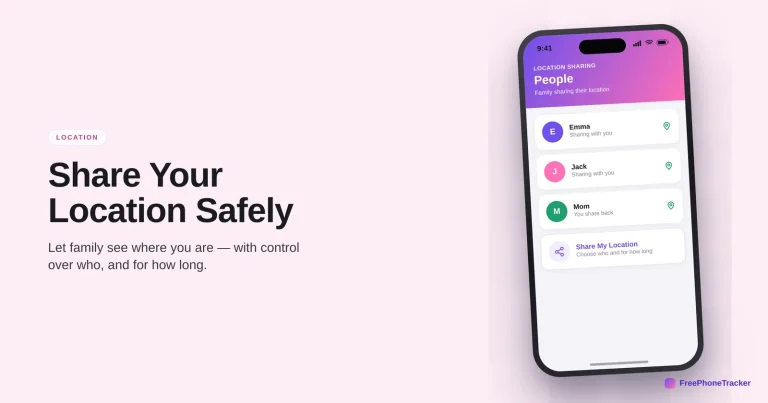
The phone’s owner can see Find My is on and who they share location with. For finding your own device it’s just a tool; for a child’s phone, set it up together so it’s open and agreed.
How do I play a sound on my iPhone?
In Find My, select the device and tap Play Sound. It rings at full volume even if the phone is on silent, which is the fastest way to find it nearby.
What is Lost Mode?
Lost Mode locks the phone, suspends payment cards, and displays a custom message with a number to reach you. It’s the right step if you think the phone is gone but recoverable.
Will erasing my iPhone stop me finding it?
Erasing wipes the data but can leave Activation Lock on, so it stays tied to your account. Only erase when you’ve given up on recovery or the data is sensitive.
Find My iPhone is genuinely powerful — locate, ring, lock, or wipe from anywhere — but only if it’s switched on ahead of time. Take two minutes to enable it and Send Last Location today. Get started free, and read our guides to Find My Device on Android and finding a lost phone.