WhatsApp deletes are easy to do by accident and painful to undo. Recovery almost always comes down to one thing: a backup. If you had one running, restoring is straightforward. If you didn’t, options thin out fast. This guide covers how to restore, what comes back, and how to stop losing chats.
- WhatsApp restores from a Google Drive (Android) or iCloud (iPhone) backup.
- You restore by reinstalling WhatsApp and tapping Restore during setup.
- Everything up to the last backup comes back — anything after is gone.
- Disappearing messages aren’t in backups; a live copy keeps them anyway.
How to restore a backup
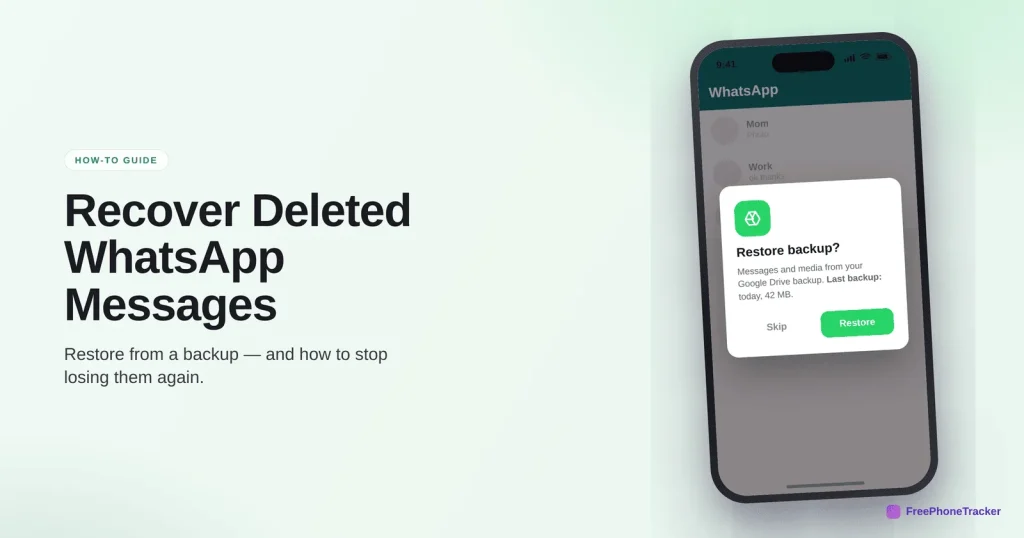
The restore only happens during a fresh install, so the steps feel odd but they work. Make sure you actually have a backup first.
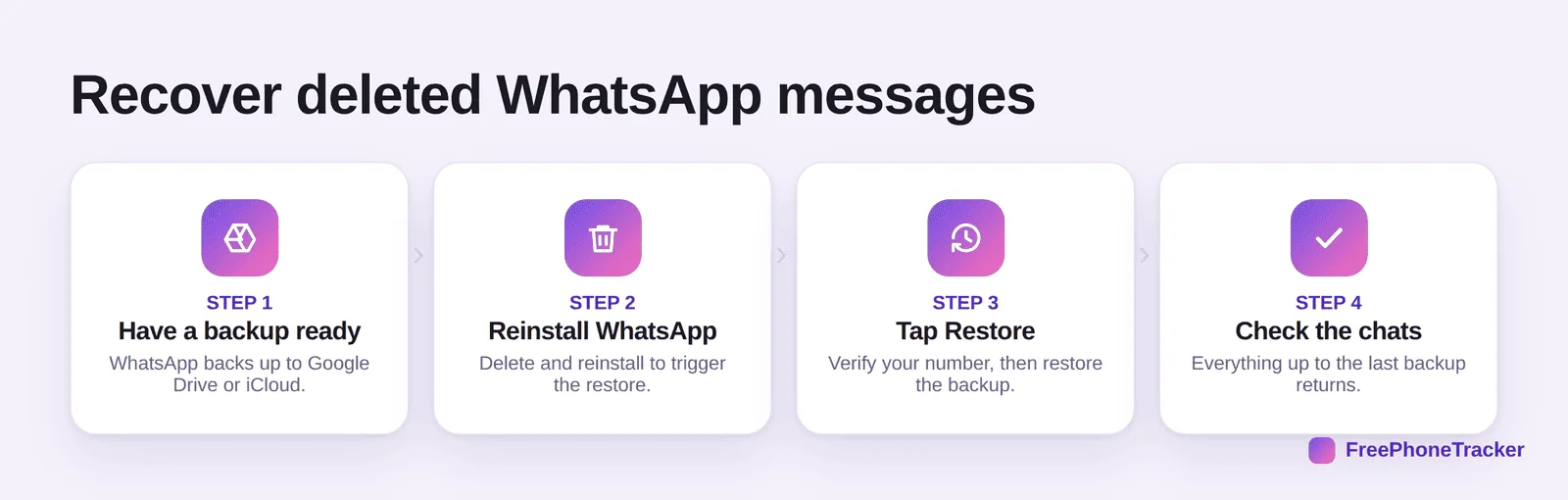
Confirm a backup exists in WhatsApp › Settings › Chats › Backup. Then delete and reinstall WhatsApp, verify your number, and tap Restore when prompted. Your chats return up to the moment of that backup. Don’t reinstall before checking the backup, or you may overwrite it.
What restores — and what won’t
Restoring isn’t magic. Timing decides what you get back.
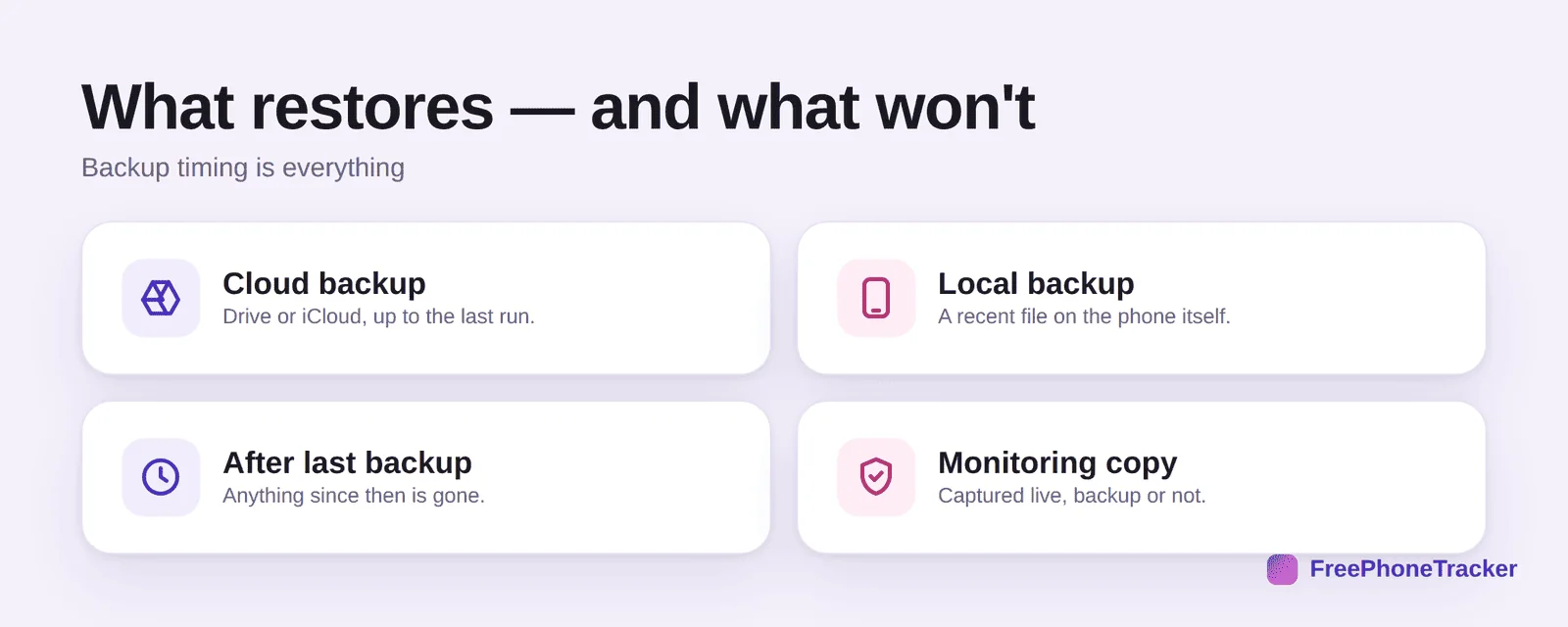
A cloud backup brings back everything up to its last run. A local backup file on the phone can be even more recent. But anything sent after the last backup is gone, and disappearing messages aren’t included at all. If a monitoring tool was running, though, the messages were captured live, backup or not.

Stop losing WhatsApp chats
Two habits and one safety net cover almost every case.
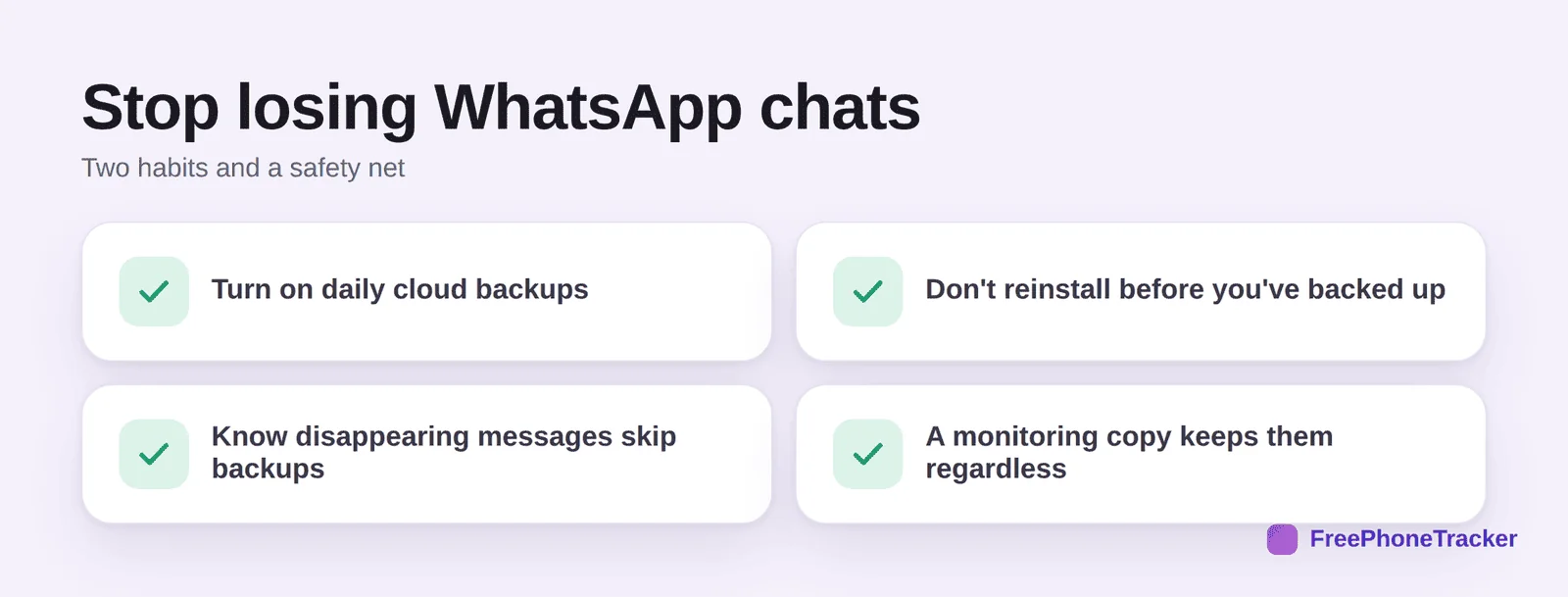
Turn on daily cloud backups so the last one is never far behind. Don’t reinstall before you’ve backed up. Know that disappearing messages skip backups by design. And for chats that truly matter, a monitoring copy keeps them regardless of backups or disappearing timers. See our monitoring guide for the full setup.
Common questions
Can I recover WhatsApp messages without a backup?
Rarely. WhatsApp leans entirely on backups, so with no cloud or local backup and no live copy, deleted chats are usually gone. Third-party “recovery” tools mostly don’t work.
Will restoring overwrite my current chats?
Restoring replaces the current chats with the backup’s version, so you lose anything sent after that backup. Back up first if the newer messages matter.
Can I recover a message someone deleted for everyone?
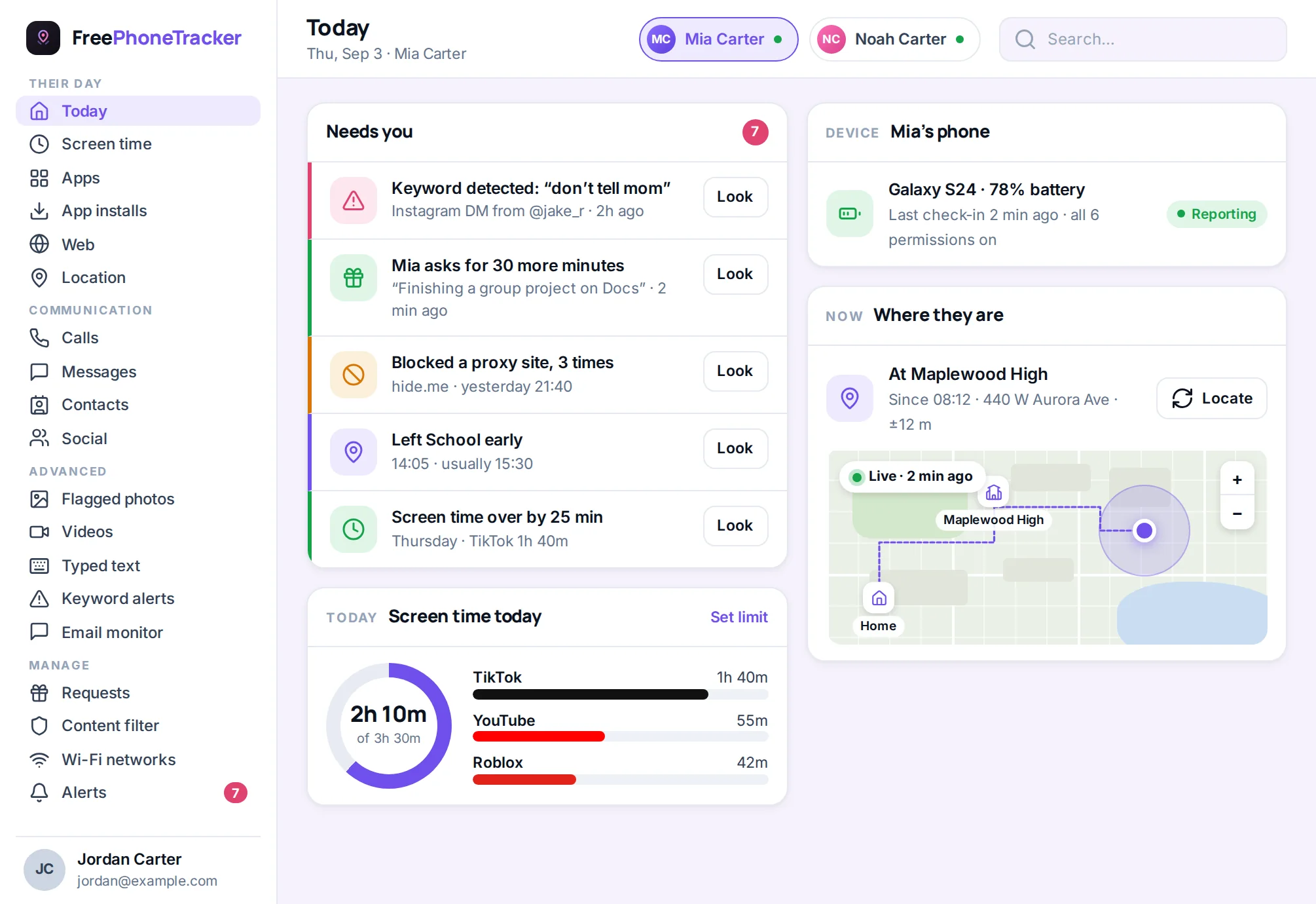
Not through WhatsApp itself, it removes the content. A notification-based monitoring tool may have captured the text before it was recalled, which is a different mechanism.
Do disappearing messages get backed up?
No. They’re designed to vanish and aren’t included in backups. Only something that captured them live would still have them.
How do I stop losing WhatsApp chats for good?
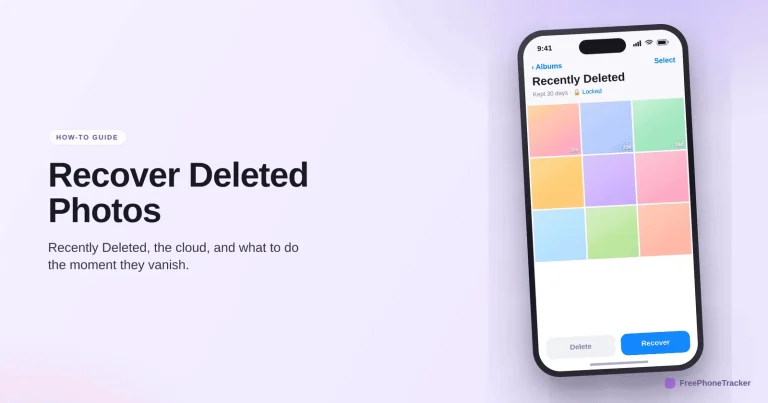
Daily backups plus a live copy. The backup covers accidents; the live copy covers deletes and disappearing timers. See our photo recovery guide for media specifically.
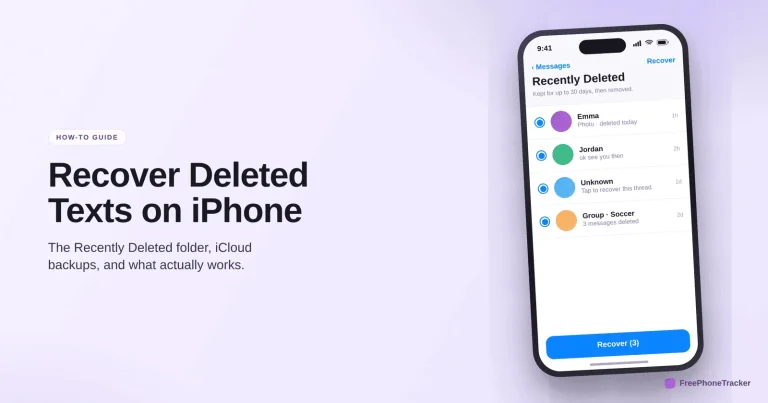
WhatsApp recovery is really backup recovery, so the win is having one running before you need it, then reinstalling to restore. For chats that matter, or ones set to disappear, a live copy is the only thing that always has them. Get started free, and read our iPhone and Android text recovery guides too.