Checking a map all day is exhausting and a little pointless. Geofencing flips it around: you draw a zone once, and the app pings you when your kid arrives or leaves. Set it for school, home, or a friend’s place and you stop watching the dot entirely. This guide explains how geofencing works and how to set it up.
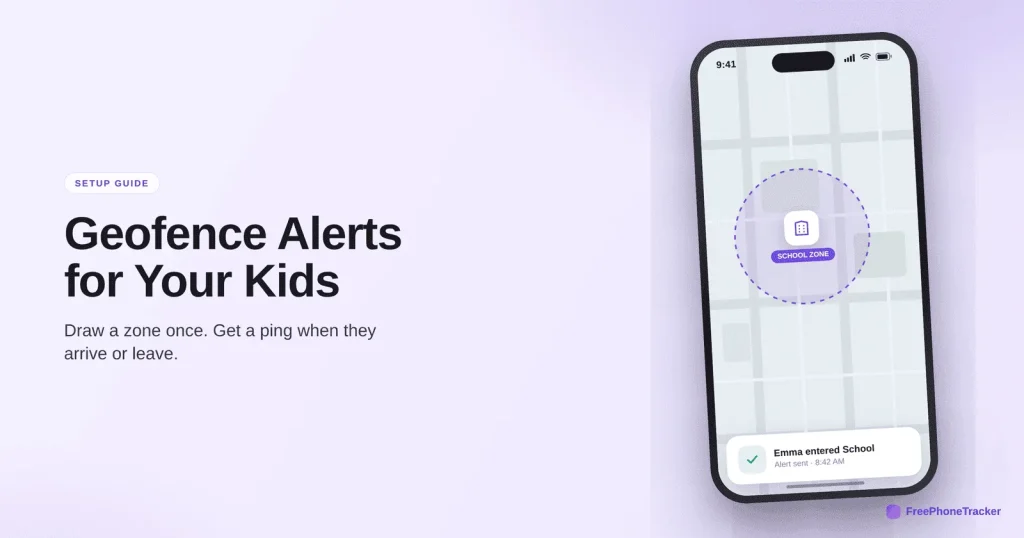
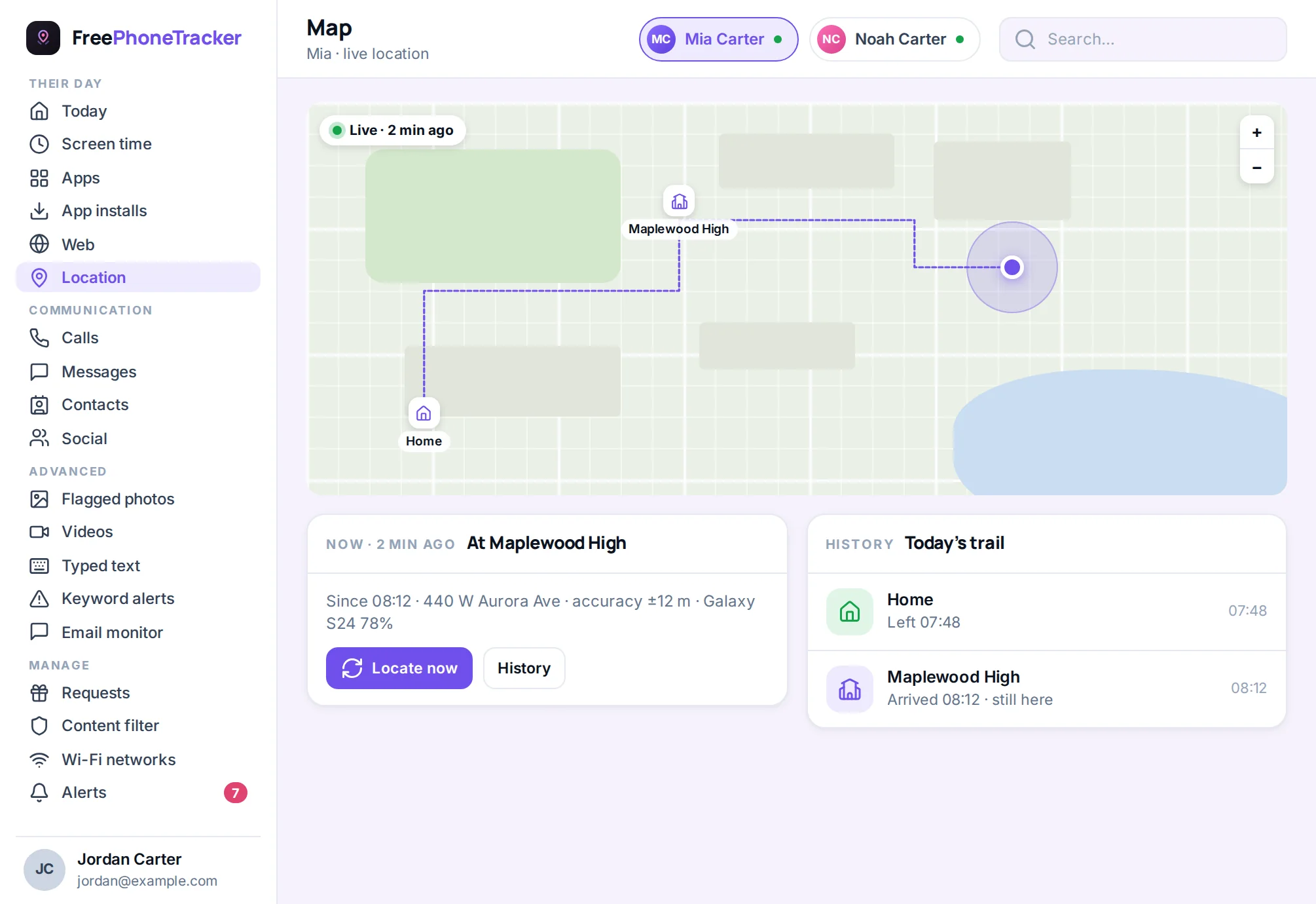
- A geofence is a virtual zone you draw around a place on the map.
- When your child’s phone enters or leaves it, you get an alert.
- Set zones for home, school, practice, or areas that are off-limits.
- It runs in the background — no more refreshing the map to check.
How geofencing works
The idea is simple. You pick a place, draw a circle around it, and choose what should trigger an alert.
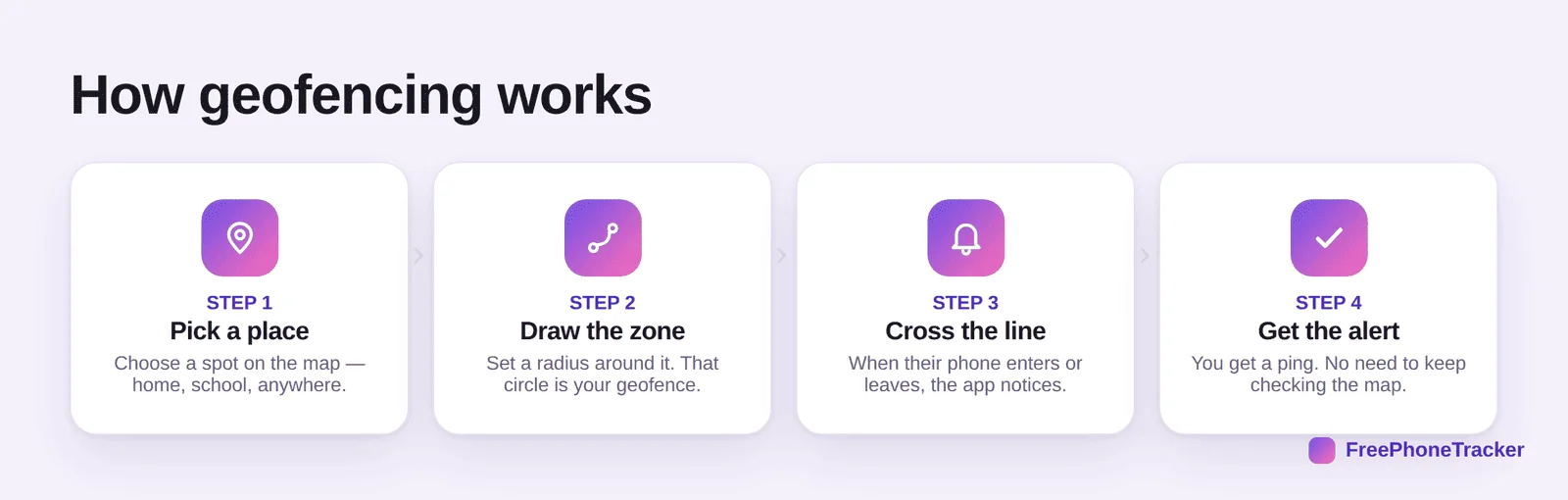
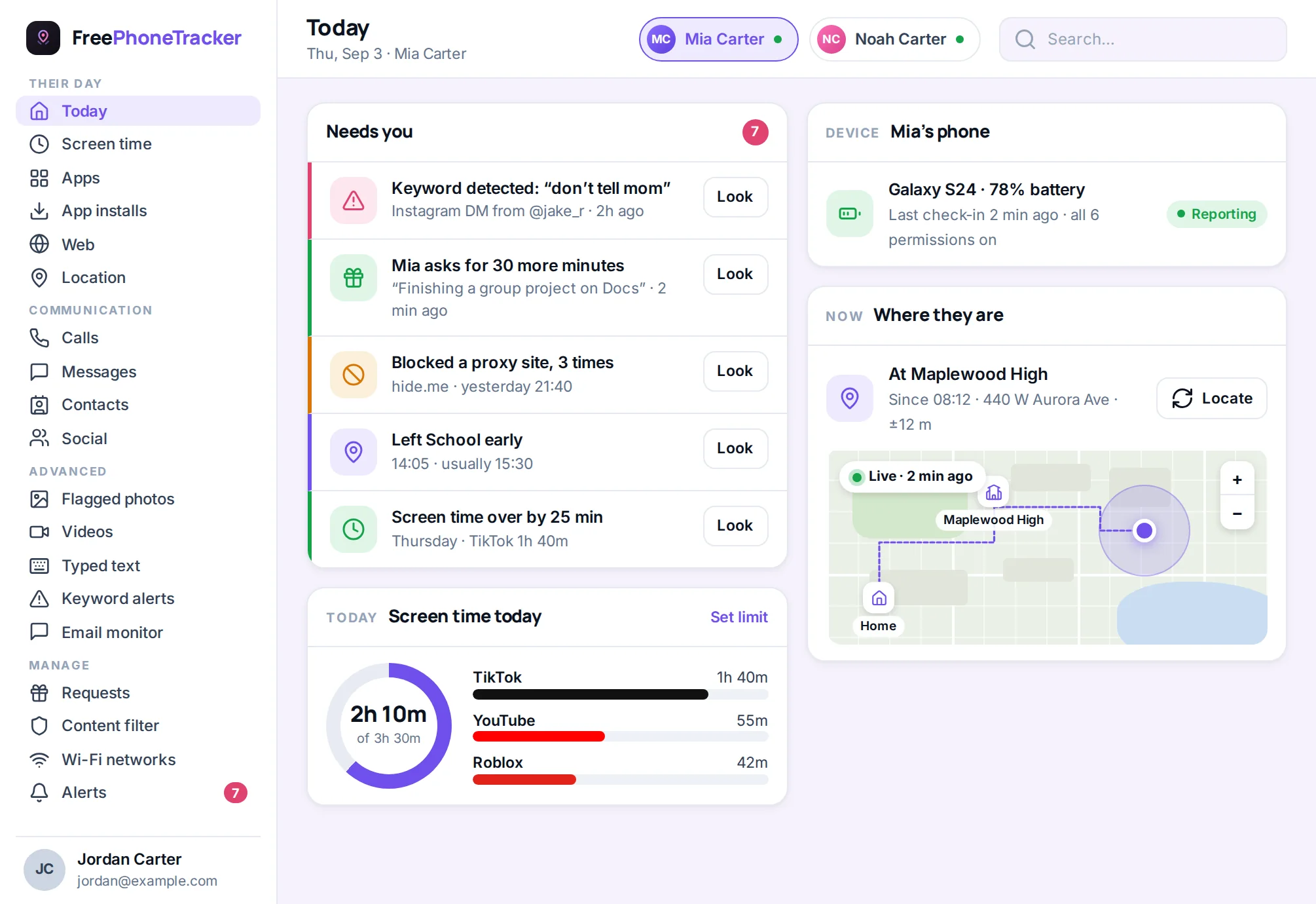
Once the zone is set, crossing its edge is what matters. When the phone enters or leaves, the app notices and sends you a ping. You’re not tracking every step, you’re just told when something worth knowing happens. It’s the quiet backbone of good location tracking.
Zones worth setting
You don’t need dozens. A handful of well-chosen zones covers most of family life.
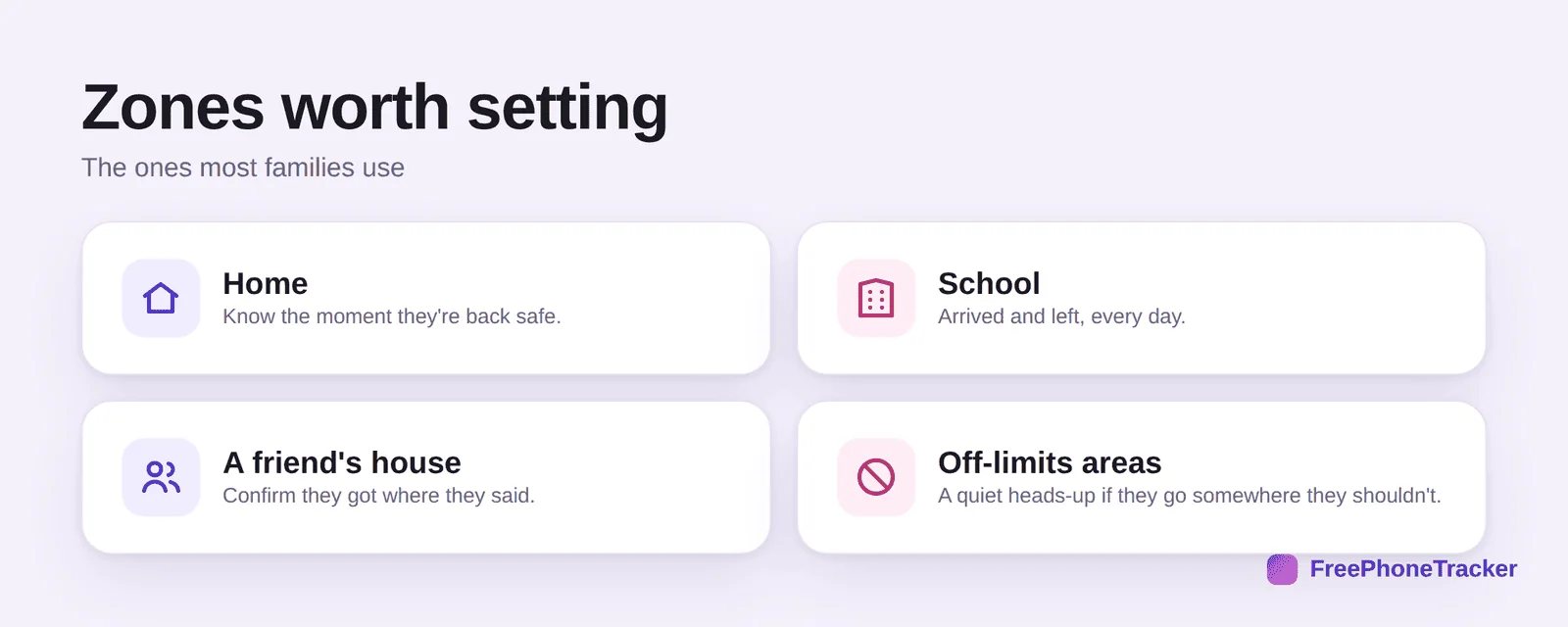
Set home so you know the moment they’re back. Set school for arrived-and-left, every day. Add a friend’s house to confirm they got where they said. And mark any off-limits areas for a quiet heads-up if they turn up somewhere they shouldn’t.
Setting one up
It takes about a minute per zone, and you only do it once.
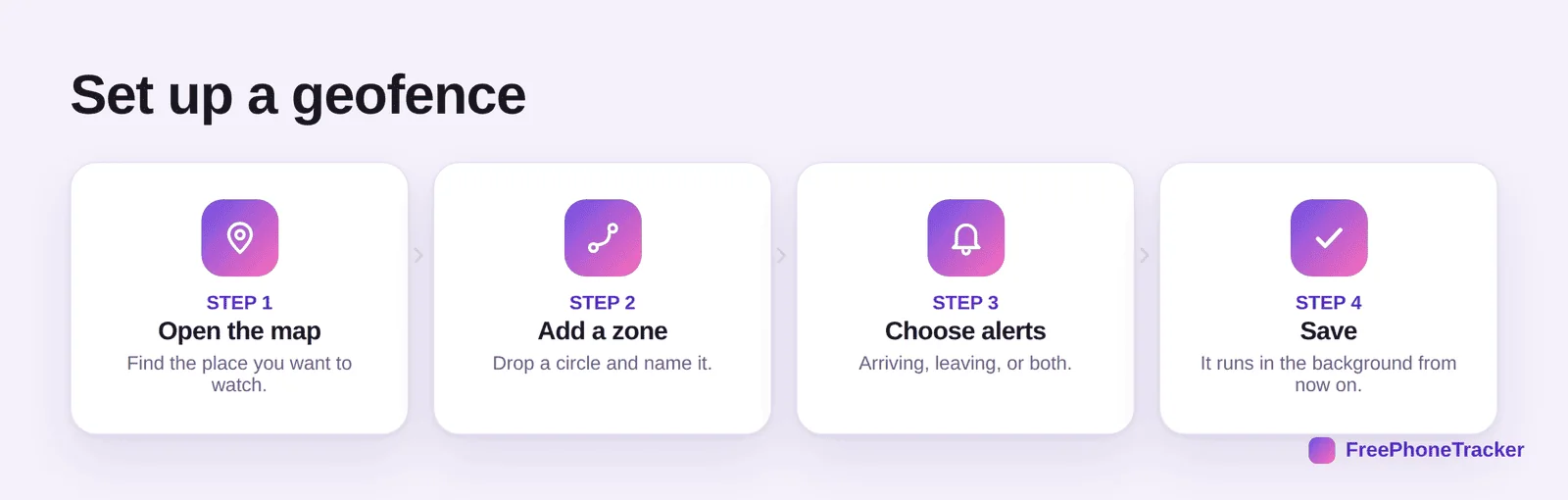
Open the map, find the place, drop a circle and name it, then choose whether you want alerts for arriving, leaving, or both. Save it and it runs quietly from then on. Pair it with arrival alerts and you’ve replaced the whole “are you there yet?” routine.
Getting it right
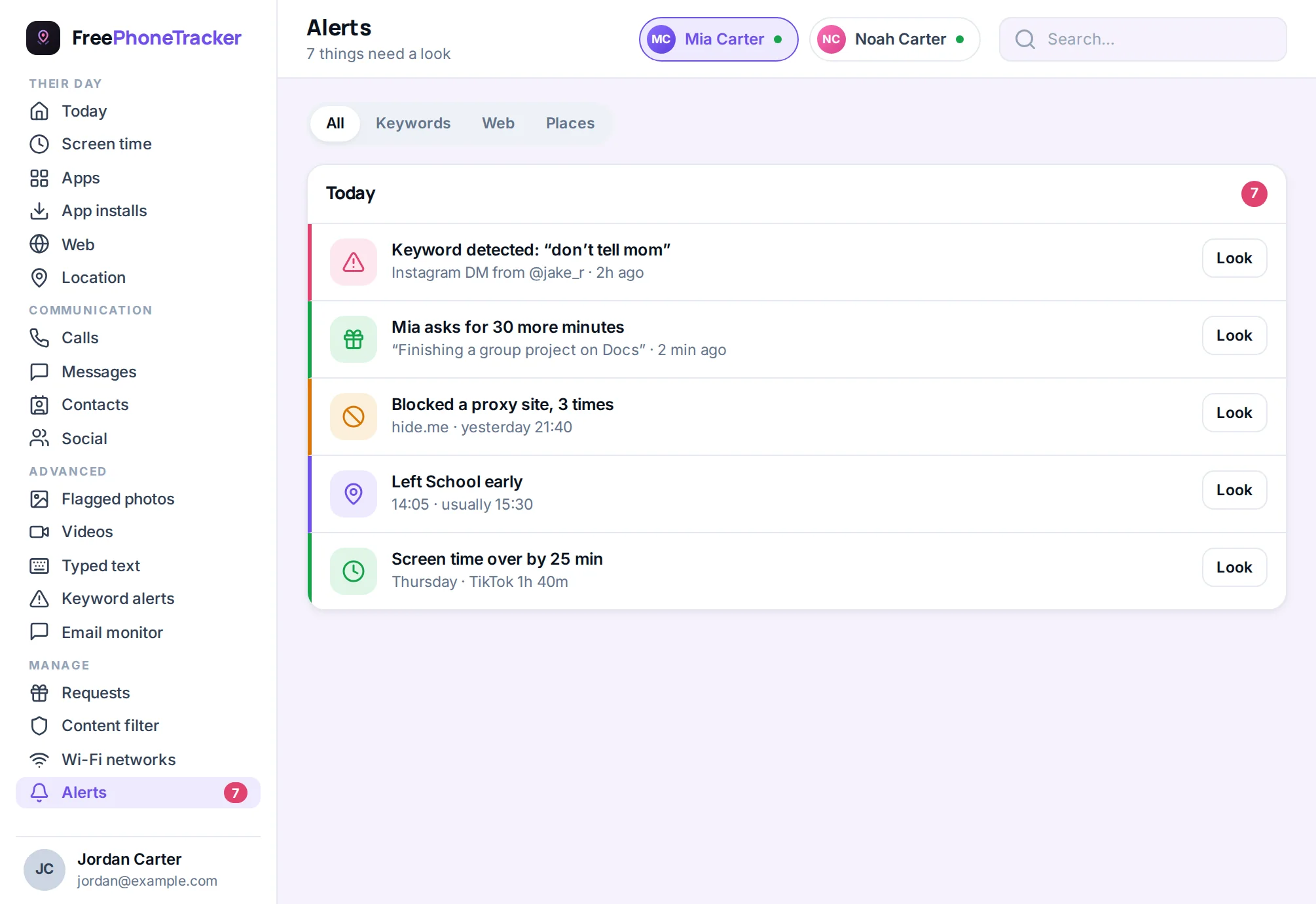
A few tips. Keep the radius sensible, too tight and you get false alarms near the edge, too wide and it triggers late. Set it up openly with your kid so it’s about safety, not sneaking. Start with two or three zones that matter and add more only if you need them. And review them now and then, the way our GPS tracking guide suggests.
Common questions
How accurate are geofence alerts?
Accurate enough for real places, usually within a block. Keep the radius reasonable and you’ll avoid the edge cases. Indoors and in dense cities it can lag a little, that’s normal for any GPS.
Will my child know about the alerts?
They should. Geofencing works best set up together and openly. It’s for coordination and safety, not catching them out, and our respectful monitoring guide covers how to frame it.
How many zones can I set?
Plenty, but you rarely need many. Home, school and one or two regular spots cover most families. More zones mean more pings, so add them only when they’re useful.
Does it work on both iPhone and Android?
Yes. A dedicated app handles both, so a mixed-device family gets the same alerts either way. See family location sharing for the whole-family setup.
What if the phone is off or out of battery?
No location tool can report a phone that’s off. You’ll get the last known location and a low-battery alert beforehand, which is exactly why battery warnings matter.
Geofencing is the setting that turns location tracking from a chore into a quiet safety net, draw a few zones, choose your alerts, and let the phone tell you what matters. Set it up openly, keep the radius sensible, and you’ll stop watching the map. Get started free, and read how arrival alerts work to finish the setup.