“Storage almost full” is the most annoying message your phone shows, and it blocks photos, updates and app installs until you deal with it. The fix is quick once you know where the space actually goes. This guide clears gigabytes without touching the photos and messages you want to keep.
- Open storage settings to see what’s using the most space.
- Offload unused apps — it frees space but keeps your data.
- Back up photos to the cloud, then thin them off the phone.
- Clear caches, downloads and old message attachments.
Where your storage goes
Almost everyone’s storage is eaten by the same few things. Check these first.
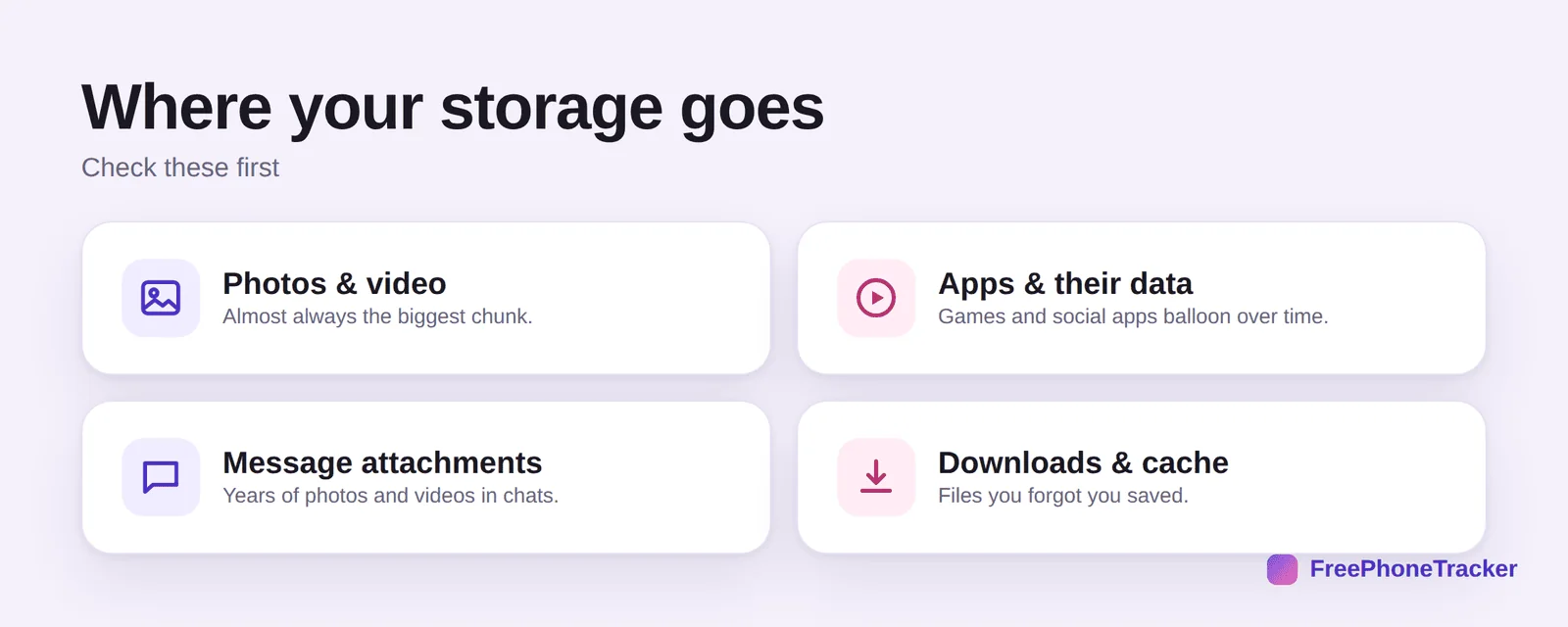
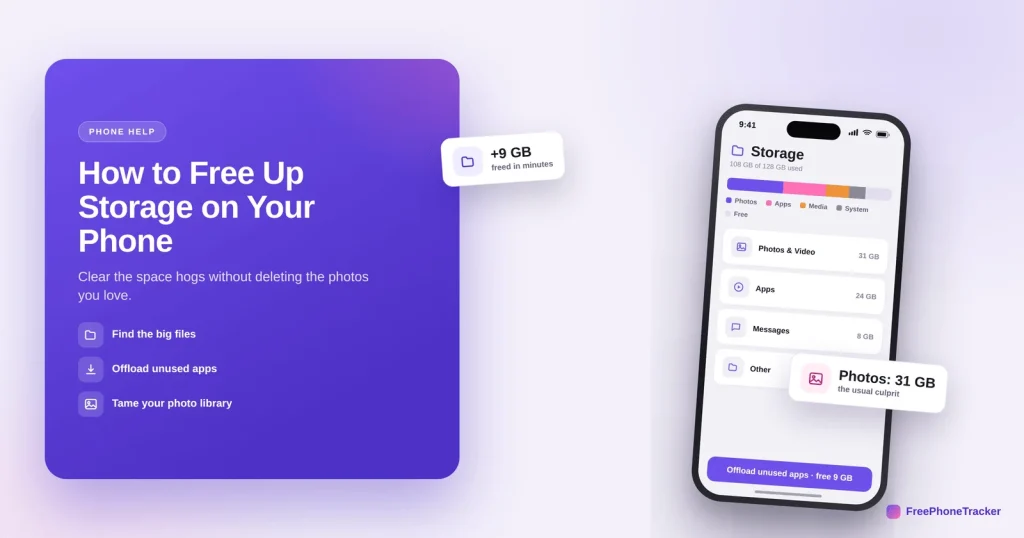
Photos and video are almost always the biggest chunk. Apps and their data balloon over time, games especially. Message attachments pile up years of shared photos and videos. And downloads and cache are files you forgot you saved. Tackle the biggest one first for the fastest win.
Free up space
These steps clear the most, with the least regret.
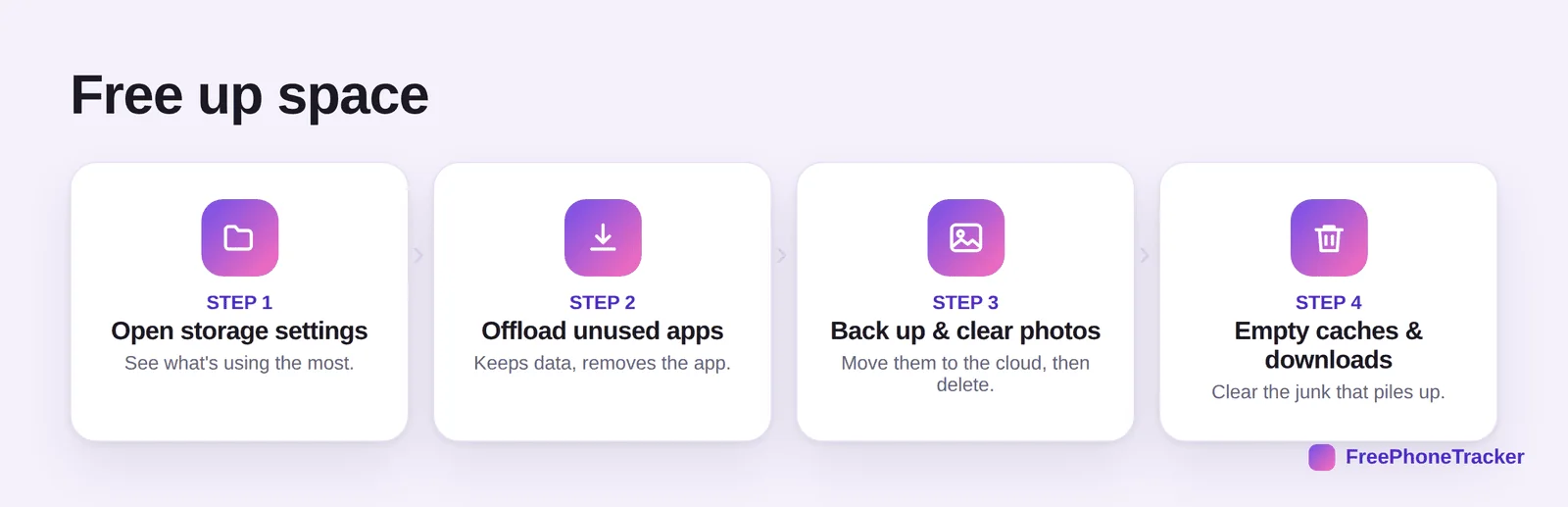
Open storage settings to see the breakdown. Offload unused apps, which removes the app but keeps its data, so you can reinstall later with nothing lost. Back up and clear photos, move them to the cloud, then delete from the phone. And empty caches and downloads for the junk that piles up.
Keep it clear
A few habits stop “storage full” from coming back next month.
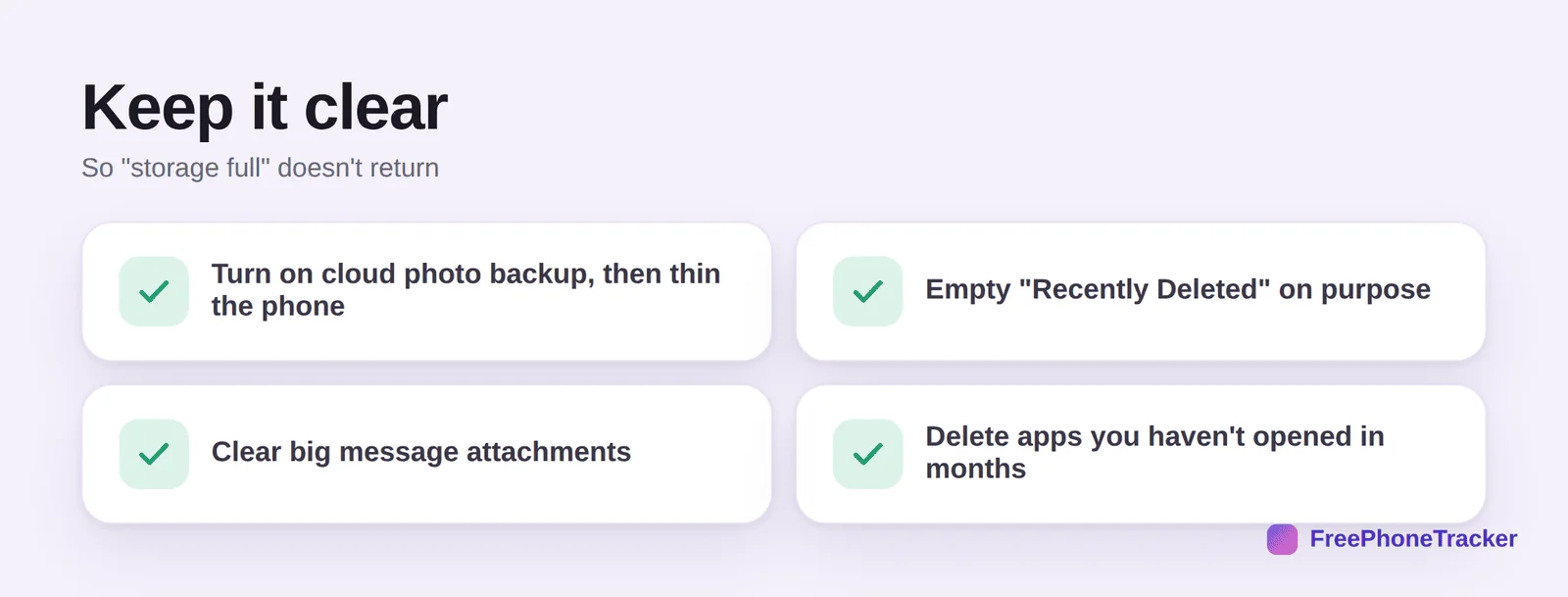
Turn on cloud photo backup, then thin the copies on the phone. Empty “Recently Deleted” on purpose once you’re sure. Clear big message attachments. And delete apps you haven’t opened in months. If you clear photos, do it carefully, our photo recovery guide is there if something goes wrong.
The chat-app trap
WhatsApp, Telegram and Messenger are the storage hogs people overlook, because their media does not live in the Photos app. Every meme, video and voice note in every group is saved to the phone by default, and a few active family groups can add gigabytes a year. In WhatsApp, open Settings → Storage and data → Manage storage to see the largest files and forwarded-many-times media, and delete them in bulk; then switch Media auto-download to Wi-Fi only or off so it stops refilling.
Two more big wins: offload photos to Google Photos or iCloud with Optimise storage turned on, which keeps small previews on the phone and the originals in the cloud, and delete the offline downloads inside Spotify, Netflix and podcast apps, which can quietly hold several gigabytes each. Do these three and most “storage full” warnings disappear without uninstalling anything you use.
Common questions
What’s the difference between offloading and deleting an app?
Offloading removes the app but keeps its data and documents, so reinstalling restores everything. Deleting removes both. Offload big apps you might use again; delete ones you won’t.
Will backing up photos to the cloud let me delete them safely?
Yes, once they’re safely backed up and you’ve confirmed it, you can remove the on-device copies. Keep the backup running so new photos are protected too.
What is “Other” or “System Data” using so much space?
It’s mostly caches, logs and temporary files. Clearing app caches, restarting the phone, and offloading heavy apps usually shrinks it.
Why can’t I install updates?
Updates need free space to unpack. Free up a few gigabytes first, then the update will install. Aim to keep 10–20% of your storage free.
I deleted a photo by mistake — can I get it back?
Usually, check “Recently Deleted” and your cloud trash quickly. See our recover deleted photos guide.
Freeing up storage is a ten-minute job once you know the culprits, offload unused apps, move photos to the cloud, and clear the caches and attachments. A little upkeep keeps the dreaded message away. Get started free, and read our guides to speeding up a slow phone and fixing battery drain.