Your phone’s wallet does far more than hold cards. Boarding passes, concert and cinema tickets, coffee loyalty cards, gift cards, transit passes — all of them can live in one place, ready to scan, with no printing and no digging through your email at the gate. Once you start adding passes, you stop losing them. This guide shows how to add and use them on iPhone and Android.
- Add passes from an email or app with “Add to Wallet.”
- Boarding passes, tickets, loyalty and gift cards all work.
- Passes work offline — no signal needed at the gate.
- Turn on notifications for gate changes and reminders.
What you can add
Nearly anything you’d otherwise print or carry.
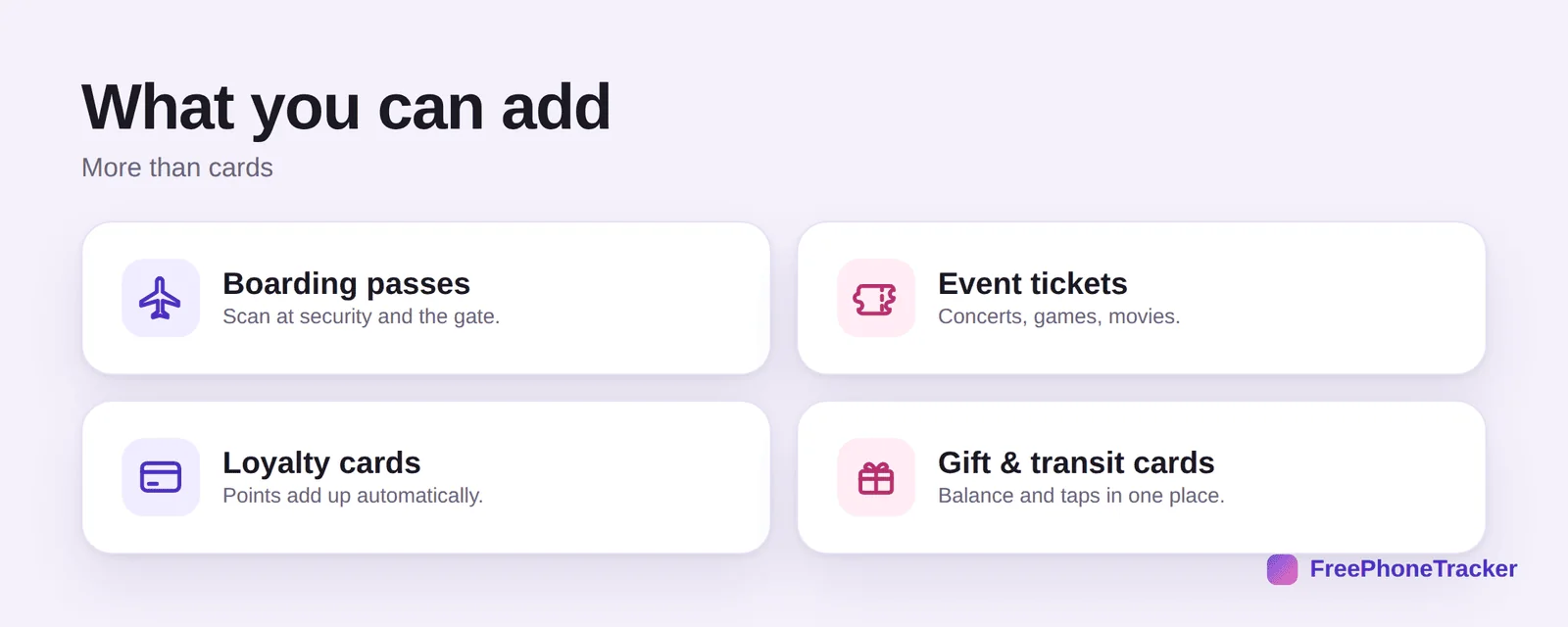
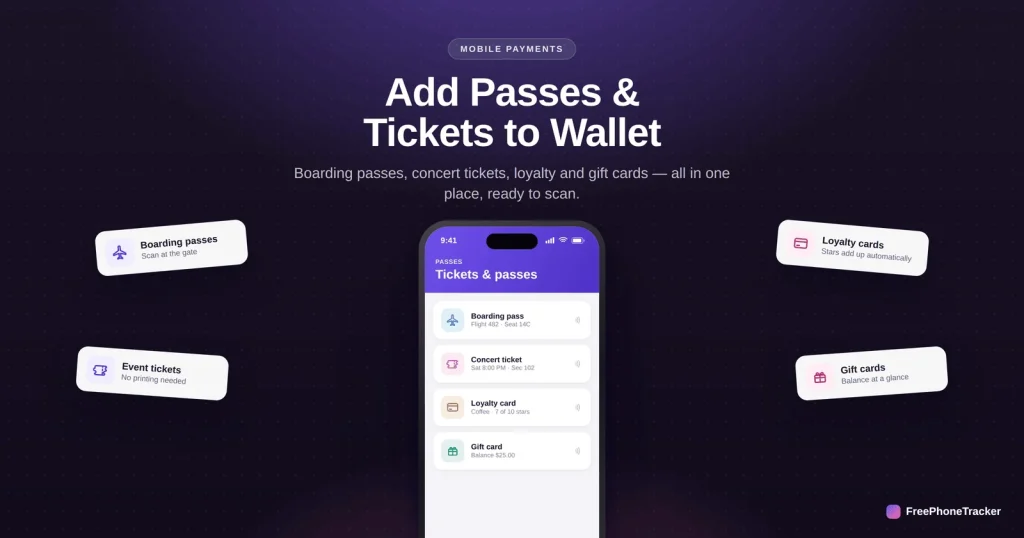
Boarding passes scan at security and the gate. Event tickets — concerts, games, movies — replace the paper stub. Loyalty cards track your points automatically. And gift and transit cards keep your balance and taps in one place.
Add a pass
Most passes are one tap away.
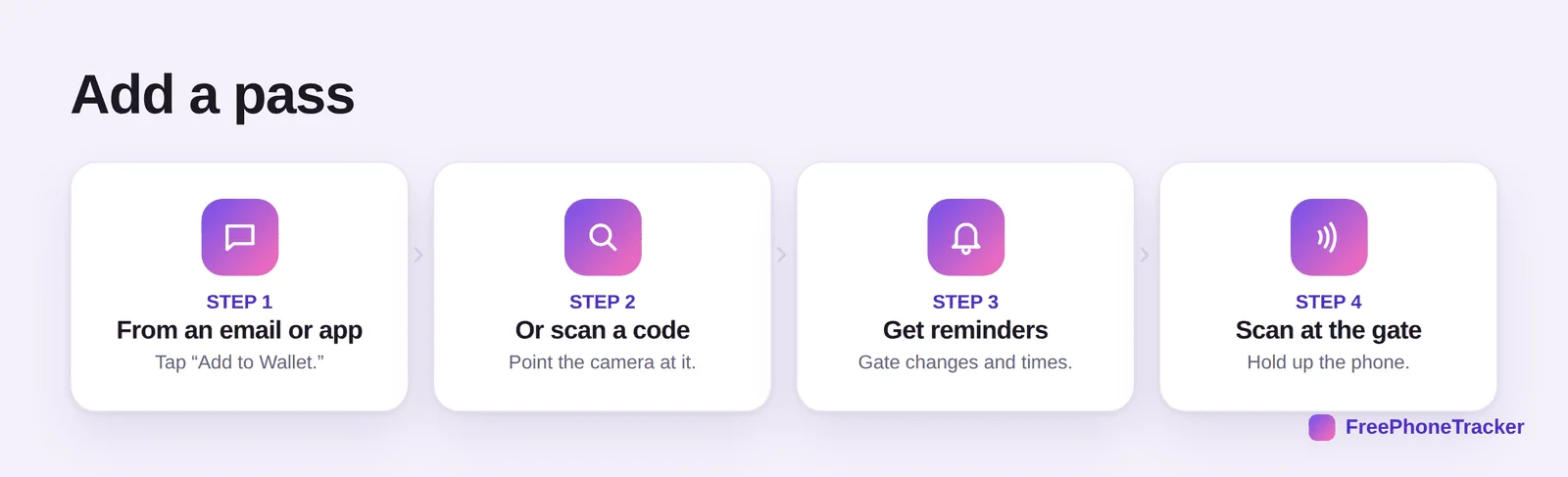
From an email or app, tap “Add to Wallet.” Or scan a code — point your camera at the QR or barcode. Once it’s in, you’ll get reminders for gate changes and start times. Then simply scan at the gate by holding up your phone.
Passes made painless
A little prep makes travel and events effortless.
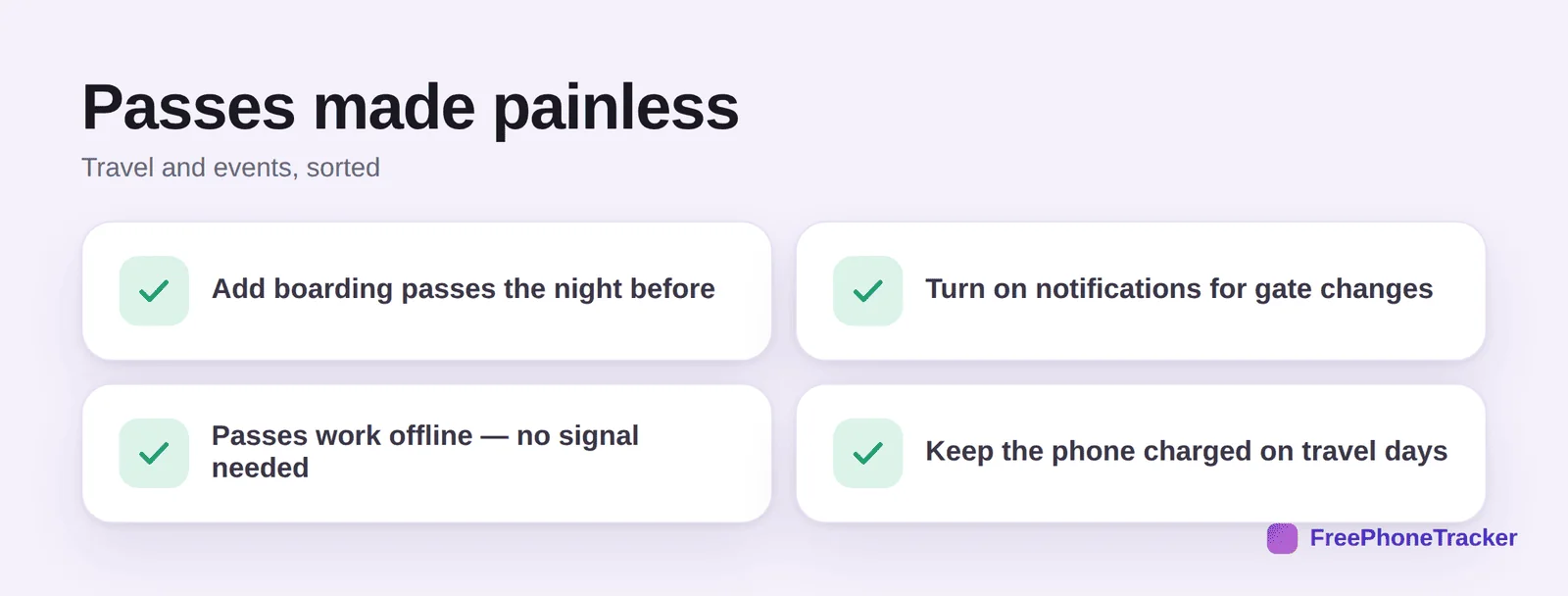
Add boarding passes the night before so they’re waiting for you. Turn on notifications for gate changes and delays. Remember passes work offline — no signal needed to scan. And keep the phone charged on travel days, since a dead phone can’t show your pass.
Common questions
How do I add a boarding pass to my wallet?
After checking in, most airline apps and confirmation emails show an “Add to Apple Wallet” or “Add to Google Wallet” button — tap it and the pass appears in your wallet. If not, you can often scan the boarding pass’s QR code with your camera. Do it the night before so it’s ready at the airport.
Do digital passes work without internet?
Yes — that’s one of their best features. Once a pass is in your wallet, it displays and scans without any signal, so a dead zone at the airport, stadium or subway won’t leave you stranded. Just make sure the pass is added before you lose signal.
Will I get notified about gate changes?
Often, yes. Many boarding passes and event tickets update automatically and send a notification if a gate, time or seat changes — provided you’ve allowed notifications for the wallet. It’s worth turning them on for travel days so you’re never caught out by a last-minute change.
Can I keep loyalty and gift cards there too?
Absolutely. Coffee shops, supermarkets and airlines let you add loyalty cards so your points accrue with a tap, and gift cards show their remaining balance at a glance. It clears the clutter of plastic cards and paper coupons from your actual wallet.
What if I have several tickets for one event?
You can add multiple tickets and swipe between them at the gate, or share individual tickets with the friends coming with you — most ticketing apps have a “share” option that sends each person their own pass. That way everyone scans their own phone and no one waits on you.
Digital passes are the quiet upgrade that makes travel and events smoother: add them ahead of time, turn on notifications, and enjoy scanning your phone while others hunt for paper. And because they work offline, a weak signal never leaves you stuck. Get started free, and read our guides to setting up a mobile wallet and keeping your phone safe while traveling.