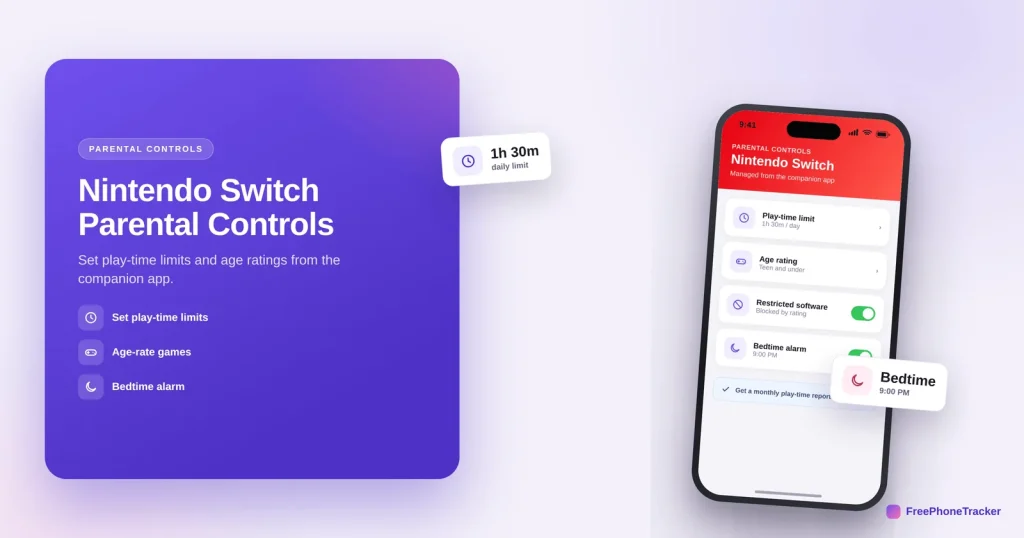
The Nintendo Switch has one of the friendliest parental control setups going — you manage most of it from a free phone app, not by fiddling on the console itself. You can set daily play-time limits, filter games by age, and get a monthly report of what your kids played. This guide walks through it.
- Manage everything from the free Parental Controls phone app.
- Set a daily play-time limit with an on-screen alarm.
- Filter games and eShop by age rating.
- Check the monthly report of what and how long they played.
What Switch controls do
Four things, all managed from your phone once it’s linked.
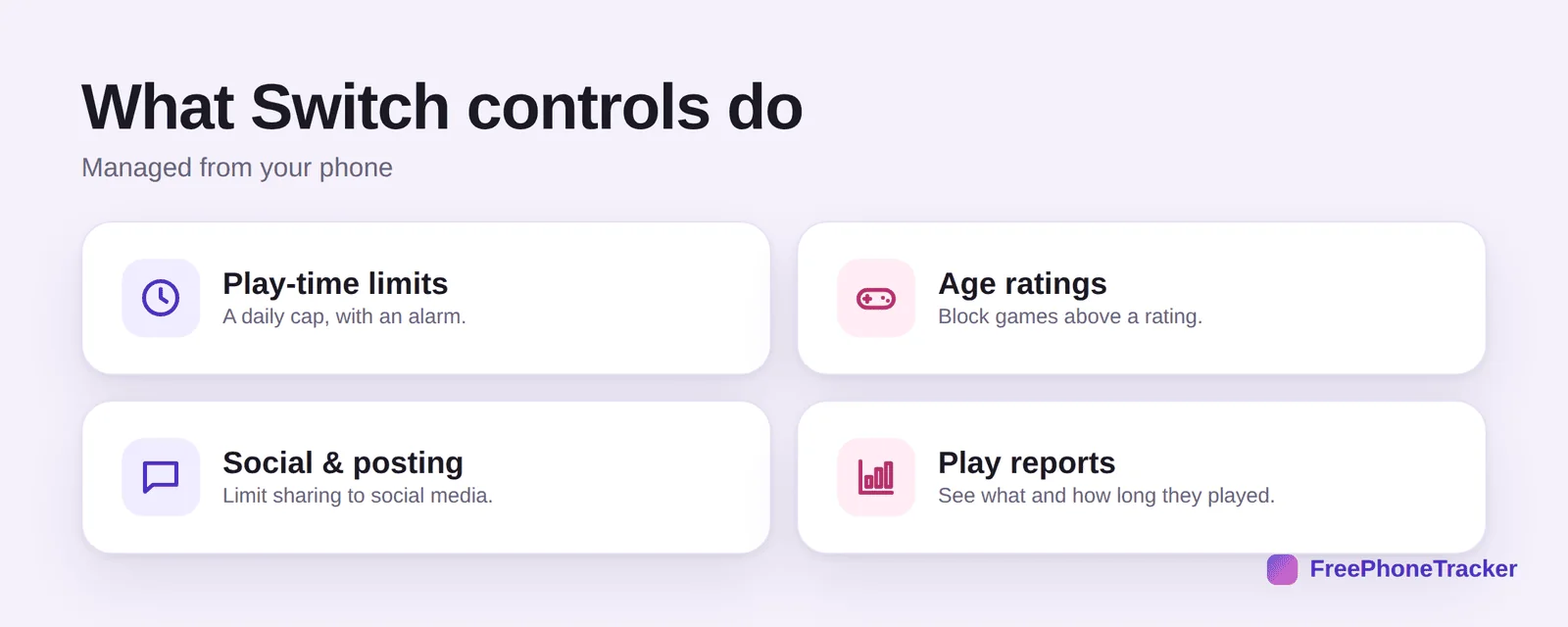
Play-time limits — a daily cap, with an alarm when time’s up. Age ratings — block games above a chosen rating. Social and posting — limit sharing to social media. And play reports — a summary of what they played and for how long.
Set up Switch controls
Grab the app, link it to the console, then set your limits.
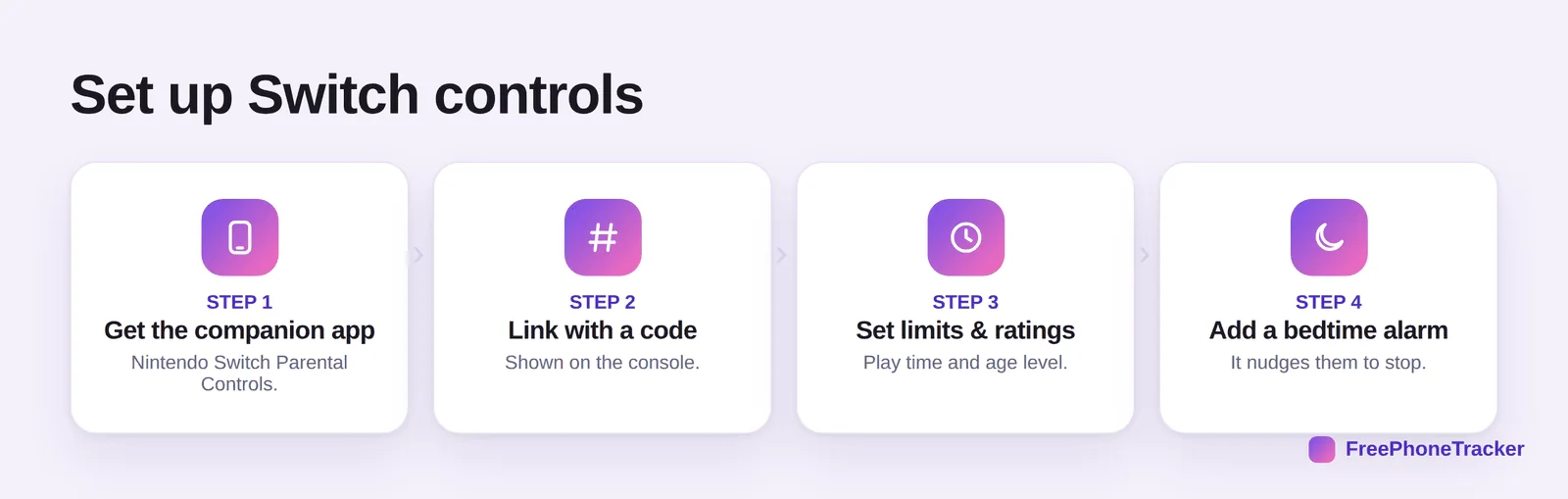
Get the companion app — Nintendo Switch Parental Controls, free on your phone. Link with a code shown on the console. Set limits and ratings — play time and age level. And add a bedtime alarm that nudges them to stop at a set hour.
Get the most from it
A few habits make the console controls actually stick.
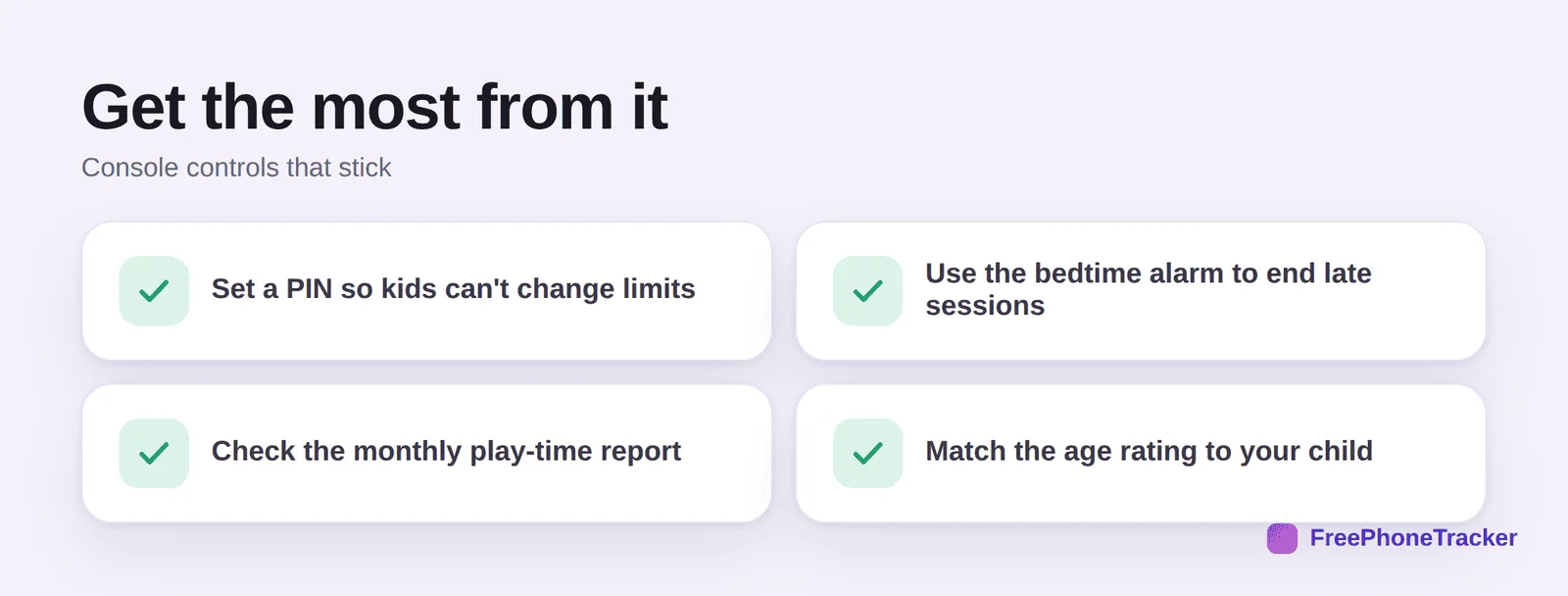
Set a PIN so kids can’t change the limits themselves. Use the bedtime alarm to end late sessions. Check the monthly play-time report to see if the limits are working. And match the age rating to your child rather than leaving it open.
Common questions
Do I need the phone app for Switch parental controls?
It’s the easiest way by far. There are basic settings on the console itself, but the free Nintendo Switch Parental Controls app is where you set play-time limits, get reports and manage everything remotely.
Can I set a daily time limit on the Switch?
Yes. In the app you set a daily play-time cap, and the console shows an alarm when time’s up. You can allow play to continue past the alarm or have it suspend the software.
How do I stop my child playing at night?
Set a bedtime alarm in the app — after that hour the console reminds them to stop, and you can have it suspend software. Combine it with the daily limit for full coverage.
Will age ratings block games in the eShop?
Yes. The age level you set filters both the games that can be launched and what shows in the eShop, so it’s worth matching to your child’s age rather than leaving it open.
Can kids get around the limits?
Set a PIN and they can’t change the settings. Without one, an older child may find the menu, so the PIN is the piece that makes the limits reliable.
The Switch makes this easy — a free app, a quick link, and you’ve got play-time limits, age filters and a monthly report from your phone. Set a PIN, use the bedtime alarm, and check the reports now and then. Get started free, and read our guides to PlayStation parental controls and Roblox parental controls.