Roblox is huge with younger kids, and it’s really a platform of millions of games made by other users — with chat, spending and content that ranges widely. The good news: it has solid parental controls, most of them lockable with a parent PIN. This guide covers what they cover, how to set them, and a few extra safeguards.
- Set your child’s age honestly — it drives the content filters.
- Restrict or turn off chat, and cap or disable spending.
- Lock it all with a parent PIN so settings can’t be changed.
- Talk about not sharing personal info in games.
What Roblox controls cover
Four settings do most of the work. Here’s what each one locks down.
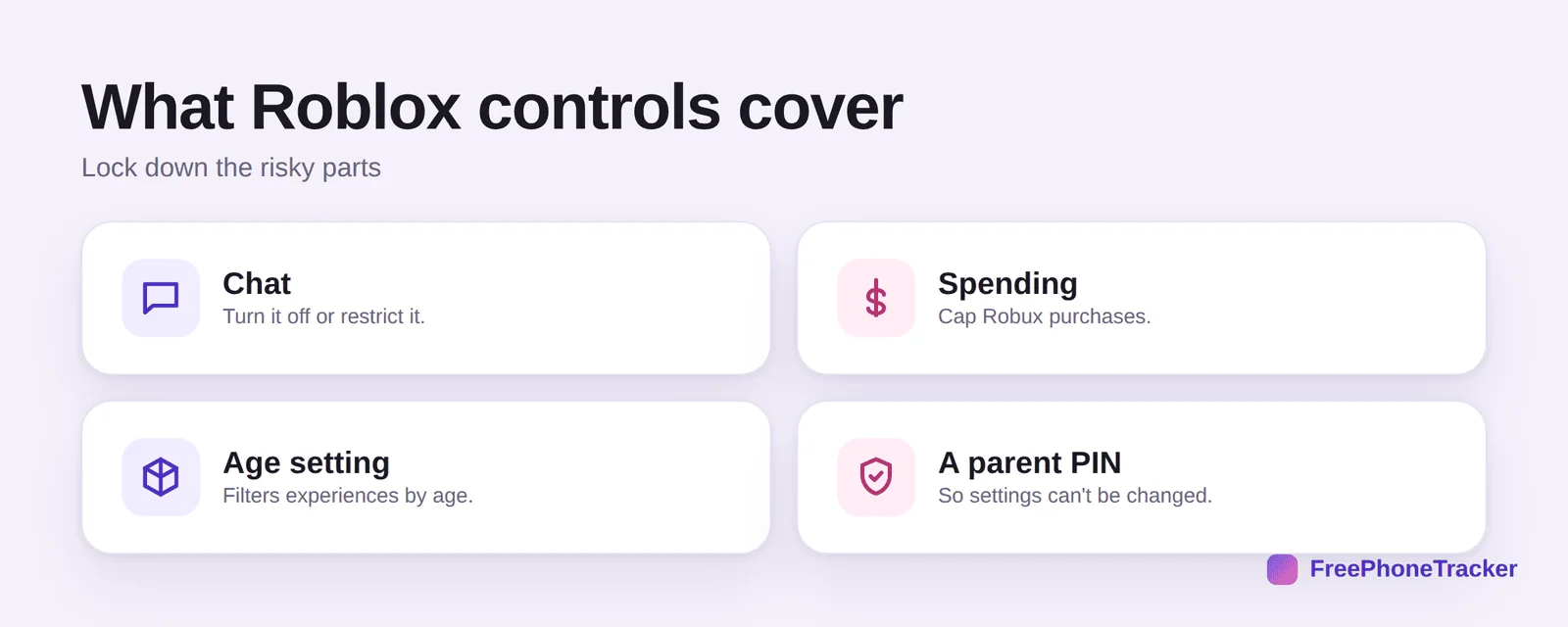
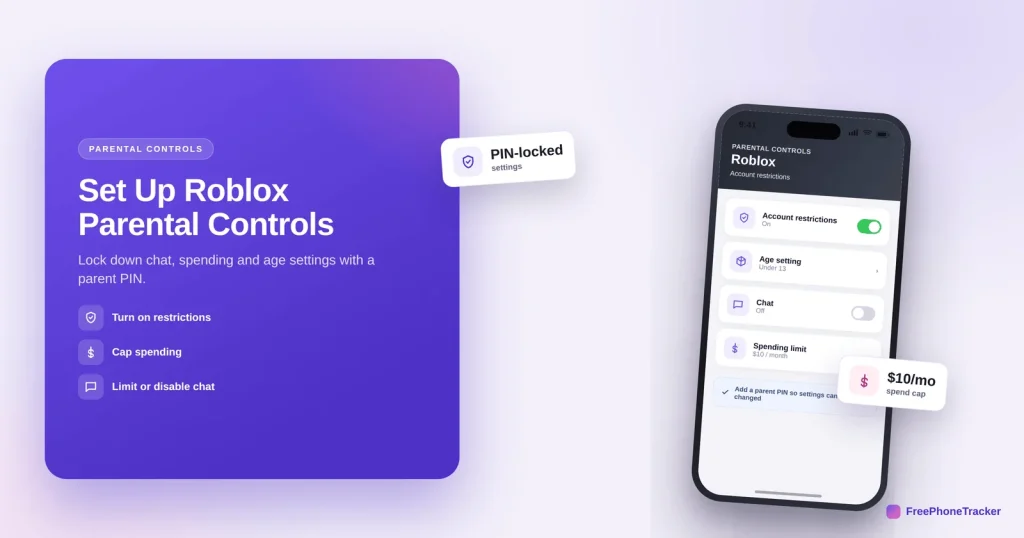
Chat — turn it off entirely or restrict who can message. Spending — cap or disable Robux purchases. The age setting filters which experiences your child can play. And a parent PIN locks the lot, so your child can’t quietly change them back.
Set up Roblox parental controls
Everything lives in the account’s settings. Do these four in order.
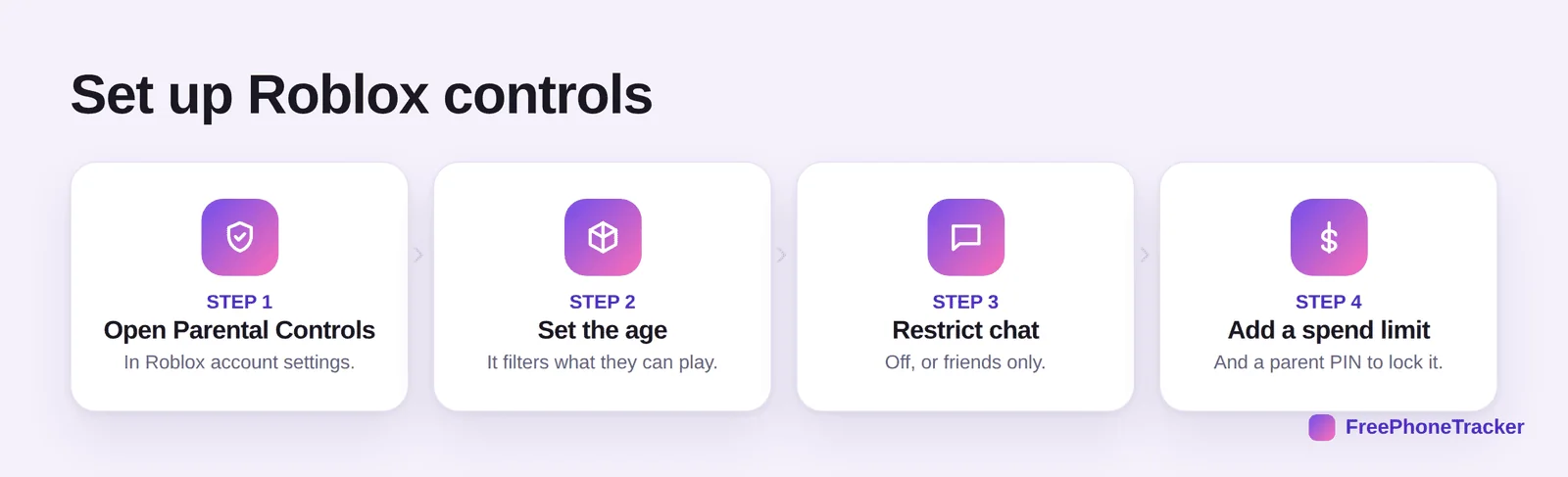
Open Parental Controls in the Roblox account settings. Set the age honestly — it filters what they can play. Restrict chat — off, or friends only. Add a spend limit, then set a parent PIN to lock it all in place.
Keep Roblox safe
A few extra habits close the gaps the settings leave.
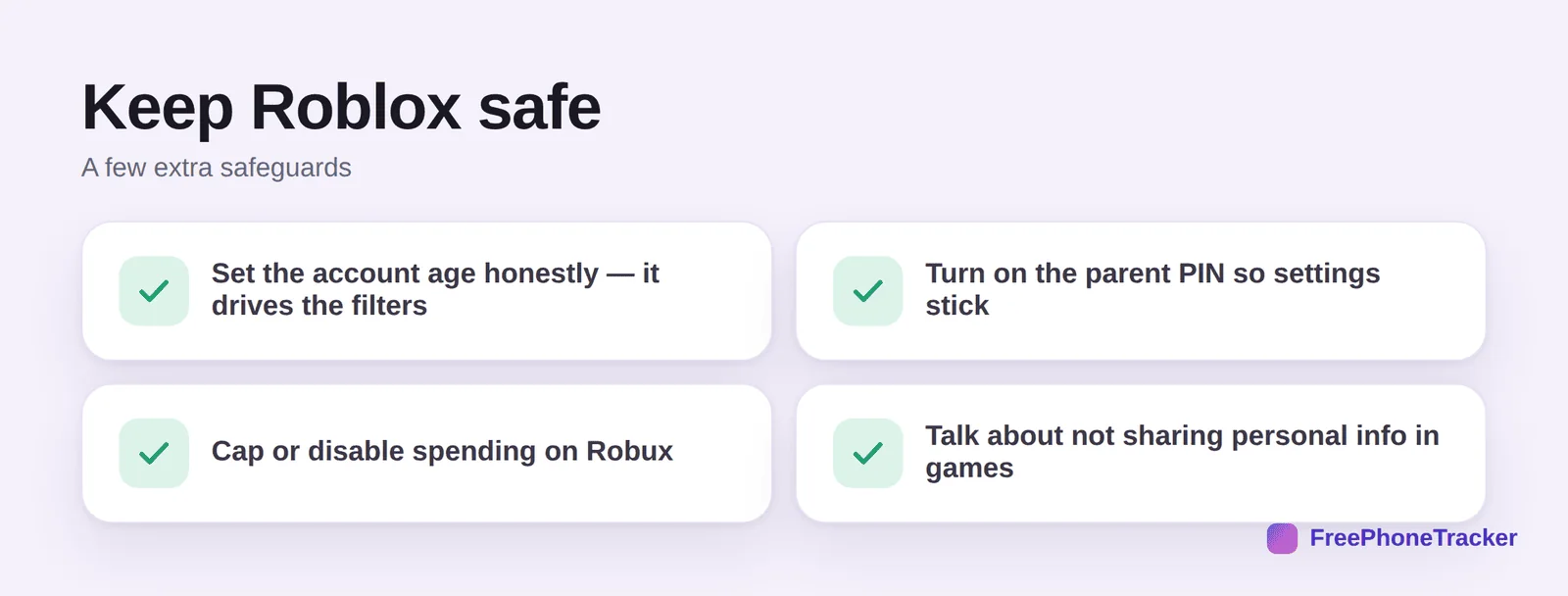
Set the account age honestly — it drives the filters, so a fudged age unlocks the wrong content. Turn on the parent PIN so settings actually stick. Cap or disable spending on Robux to avoid surprise charges. And talk about not sharing personal info in games, since chat is where most risk lives.
Common questions
How do I turn off chat on Roblox?
In the account’s Privacy settings, set chat to “No one” to turn it off, or “Friends” to limit it. Lock the change with a parent PIN so it can’t be switched back.
What is a Roblox parent PIN?
A four-digit PIN that locks the account’s settings. Once it’s on, no one can change the age, chat or spending settings without entering it — so your child can’t undo your changes.
Can I stop my child spending money on Roblox?
Yes. You can avoid saving a payment method, set a monthly spend limit, or disable purchases. Robux is the in-game currency, and uncapped spending is a common surprise, so cap it early.
Does the age setting really matter?
A lot. Roblox filters experiences and chat by the account’s age, so setting it honestly is what makes the other controls work. An inflated age unlocks content meant for older players.
Is Roblox safe for young kids?
With chat restricted, spending capped and the age set right, it’s much safer — but the user-made content and chat still warrant a conversation. See our guide on whether Roblox is safe for your child.
Roblox gives you real control — chat, spending and age filters, all lockable behind a parent PIN — so a few minutes of setup goes a long way. Set the age honestly, lock it with a PIN, and keep talking about safe habits. Get started free, and read our guides to Roblox safety and Discord Family Center.