Passwords leak constantly, in breaches you’ll never hear about. Two-factor authentication is the single setting that makes a stolen password useless on its own: even with your password, an attacker still needs a code only you have. This guide shows how to turn it on everywhere, the right way.
- 2FA adds a second step — a code or tap — on top of your password.
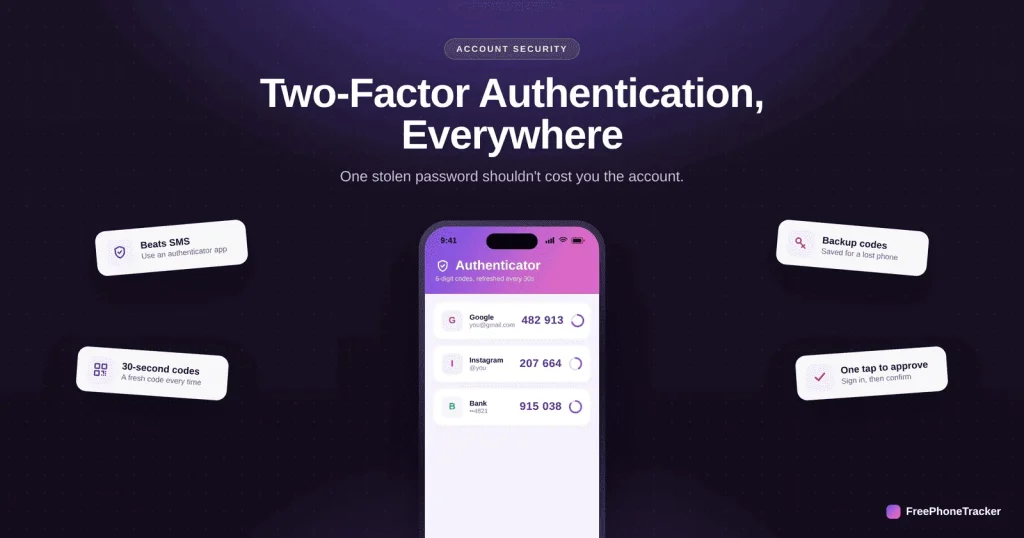
- Use an authenticator app rather than SMS where you can.
- Turn it on for your email first; it protects everything else.
- Save backup codes in case you lose your phone.
Why 2FA matters
A password is a single point of failure. 2FA turns it into two, and the second one is much harder to steal.
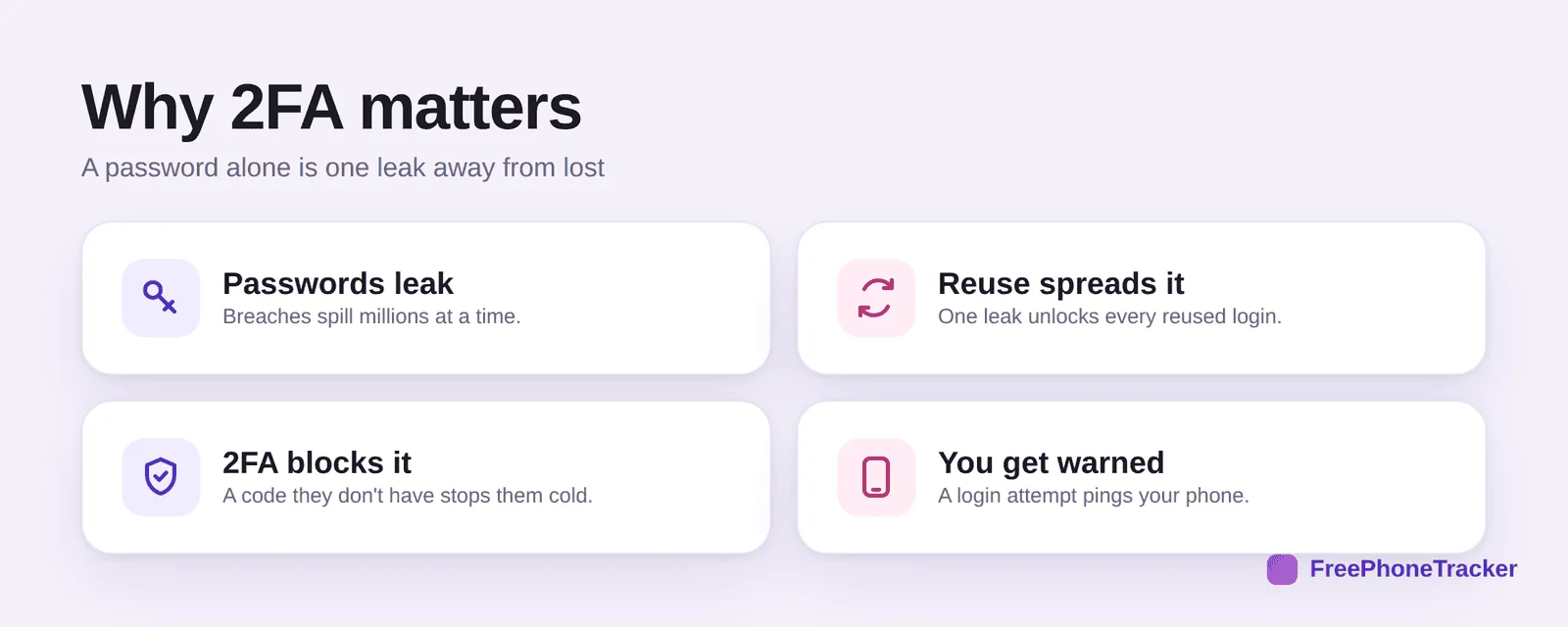
Breaches spill passwords by the million. If you reuse one, a single leak unlocks every account that shares it. 2FA blocks the login because the attacker doesn’t have your code, and you often get warned when someone tries. It’s the highest-value five minutes in account security.
Turn it on
The steps are nearly identical across services. Do email first, then work outward.
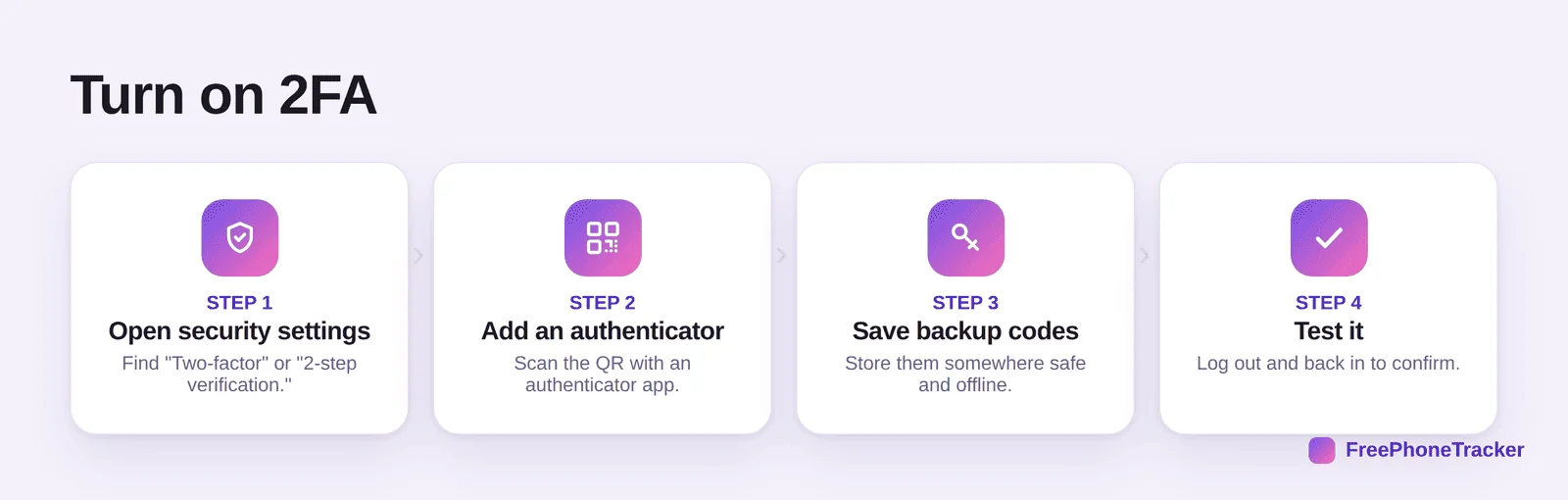
Open security settings and find “Two-factor” or “2-step verification.” Add an authenticator app by scanning the QR code. Save the backup codes somewhere safe and offline. Then test it by logging out and back in. Once you’ve done it once, every other account feels familiar.
Do it right
A few choices make 2FA stronger and less annoying.
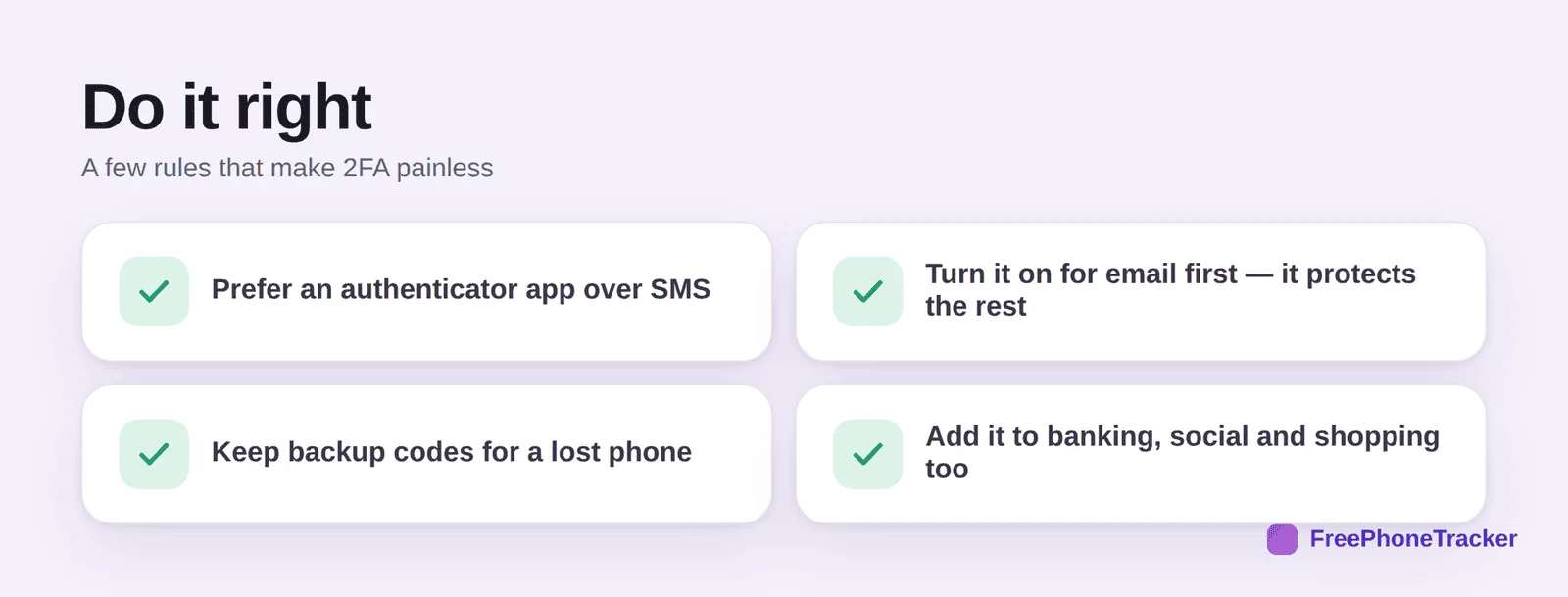
Prefer an authenticator app over SMS, texted codes can be intercepted or SIM-swapped. Protect your email first, since it can reset everything else. Keep backup codes for a lost or broken phone. And extend it to banking, social and shopping, not just one account.
On a child’s phone
2FA is just as important for kids, whose accounts are common targets. It also helps you spot trouble early.
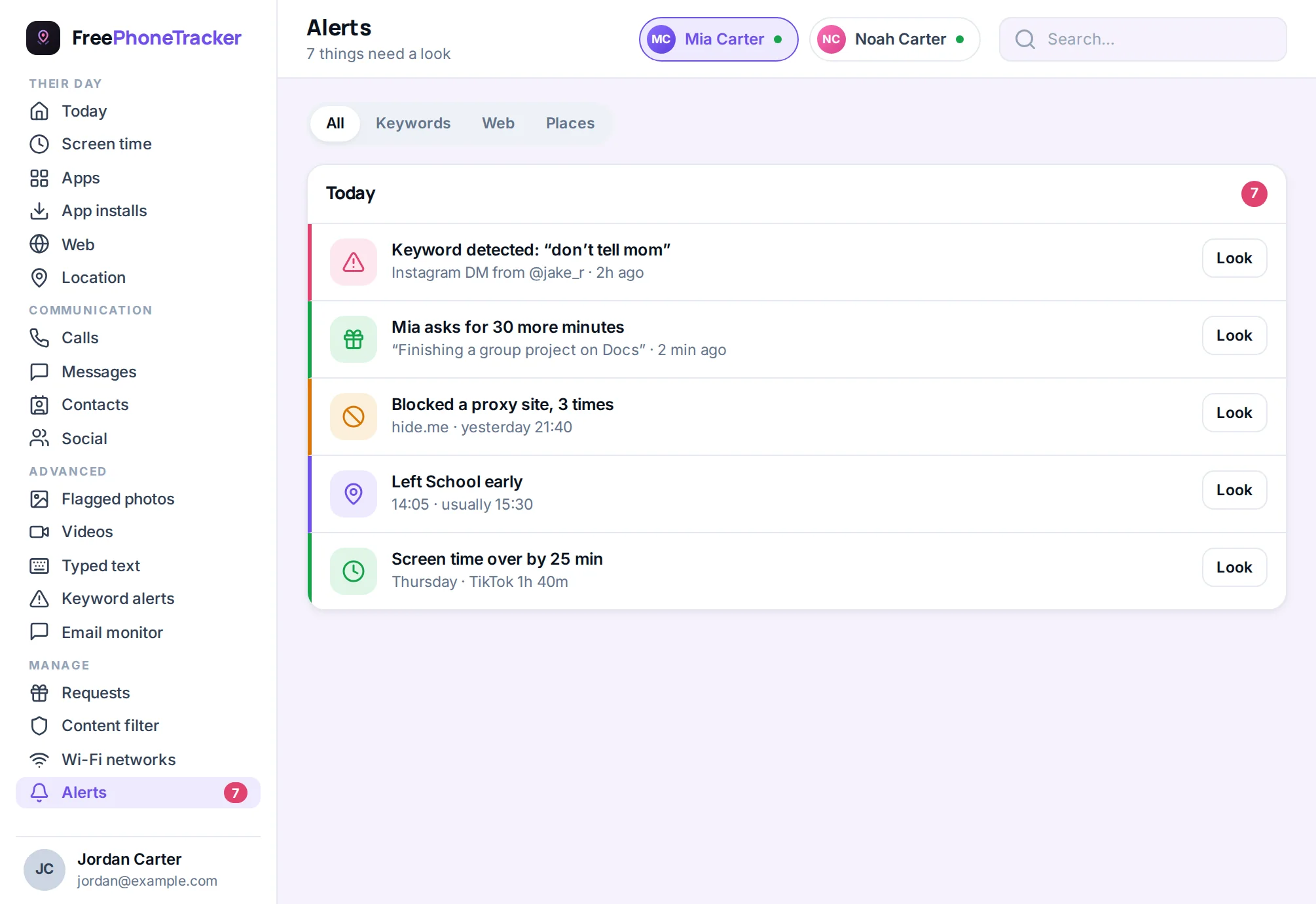
Set up 2FA on your child’s email and social accounts together, and it becomes a small lesson in security. If you monitor a younger child’s phone, a single activity view also surfaces the odd behavior that signals a compromise, useful alongside our account-recovery guides.
Common questions
Is an authenticator app really better than SMS?
Yes. SMS codes can be intercepted or stolen via SIM-swapping. An authenticator app generates codes on your device, with nothing to intercept.
What if I lose my phone with the authenticator on it?
That’s what backup codes are for, save them when you set up 2FA. Many authenticator apps also offer an encrypted cloud backup you can restore.
Which accounts should I protect first?
Email, then anything financial, then social. Email first because it can reset the others, so it’s the master key worth guarding most.
Does 2FA make logging in slow?
Barely. Most services remember trusted devices, so you only enter a code occasionally, on a new device or after a while. The tiny friction is worth it.
My child’s account was hacked — will 2FA have stopped it?
Usually, yes, it blocks logins without the code. Recover the account first, then turn on 2FA. See our email and Instagram recovery guides.
Two-factor authentication is the rare security step that’s both easy and hugely effective, turn it on for email first, use an app over SMS, and keep backup codes. Do it once and repeat across your accounts. Get started free, and pair it with strong, unique passwords.