Your kid has a phone. Behind that little screen is the whole world. Their friends, their homework, their music. Also strangers, group chats, and everything else the internet throws at a ten-year-old. Child phone monitoring keeps a hand on the situation. You don’t have to hover over their shoulder all day. This guide covers what monitoring is, what you can see on iPhone versus Android, how to set it up, and how to do it without wrecking your kid’s trust.
- Monitoring is three jobs: where they are, what they’re doing, and how the phone is used.
- Android gives the deepest access. iPhone covers the basics but locks down messages and social.
- Set it up with your child, not behind their back. It works better and keeps their trust.
- You can be thorough and honest at once. That’s the idea behind FreePhoneTracker.
What child phone monitoring is
People hear “monitoring” and picture a parent reading every text at 2am. That’s not it. Good monitoring is a safety net, not a spycam. It’s the same instinct that made you hold their hand crossing the road. You’re not controlling them. You’re making sure that if something goes wrong, you’ll know in time to help.
In practice, monitoring does three jobs. A good setup does all three. First, tracking. Know where the phone is and where it’s been. Second, monitoring in the narrow sense. See the calls, the messages, the apps kids actually talk on. Third, control. Shape how the phone is used, with screen-time limits, app blocking, and a content filter. Miss any one and you have a blind spot.
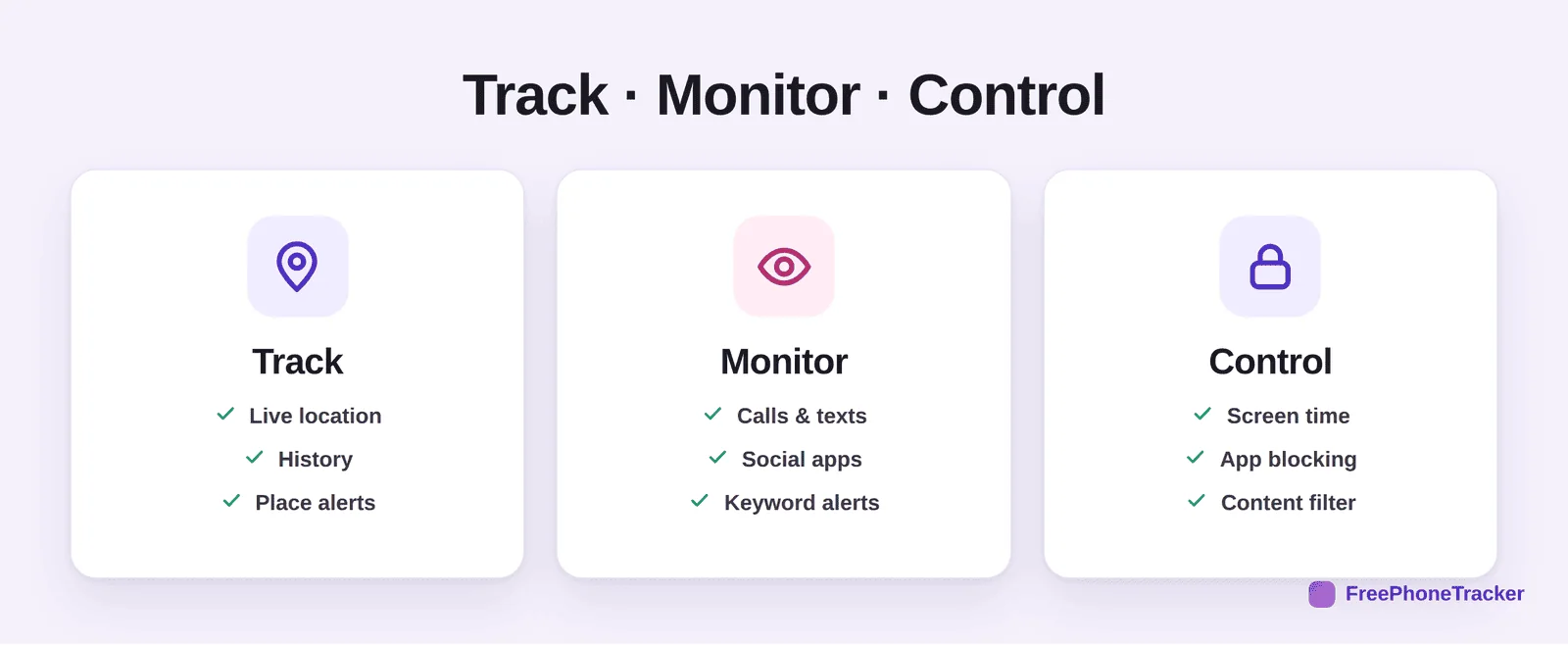
Here’s why that matters. Parents who install only a screen-time timer get blindsided later. A timer tells you how long the phone was used. It says nothing about what happened on it. Parents who only read messages miss that their kid walked home a different way, or that a new app appeared overnight. The three layers cover each other.
iPhone vs Android: what you can see
This is the question that trips up most parents. So let’s be blunt. The two platforms are not equal for monitoring. The difference is how each company handles app permissions.
Android is open. With the phone in your hands for two minutes and your child’s permission, an app can see calls, texts, the content of many social and chat apps, typed text, location, and installed apps. This is why nearly every serious tool, including FreePhoneTracker, does the most on Android.
iPhone is locked down. Apple limits what any third-party app can read. That’s great for privacy and frustrating for parents. You can still do a lot. Location, screen time, web and content filtering, and app limits all work well. They run through a mix of the app and Apple’s own Screen Time and Family Sharing. What you usually can’t get on iOS is deep message and social content the way you can on Android.
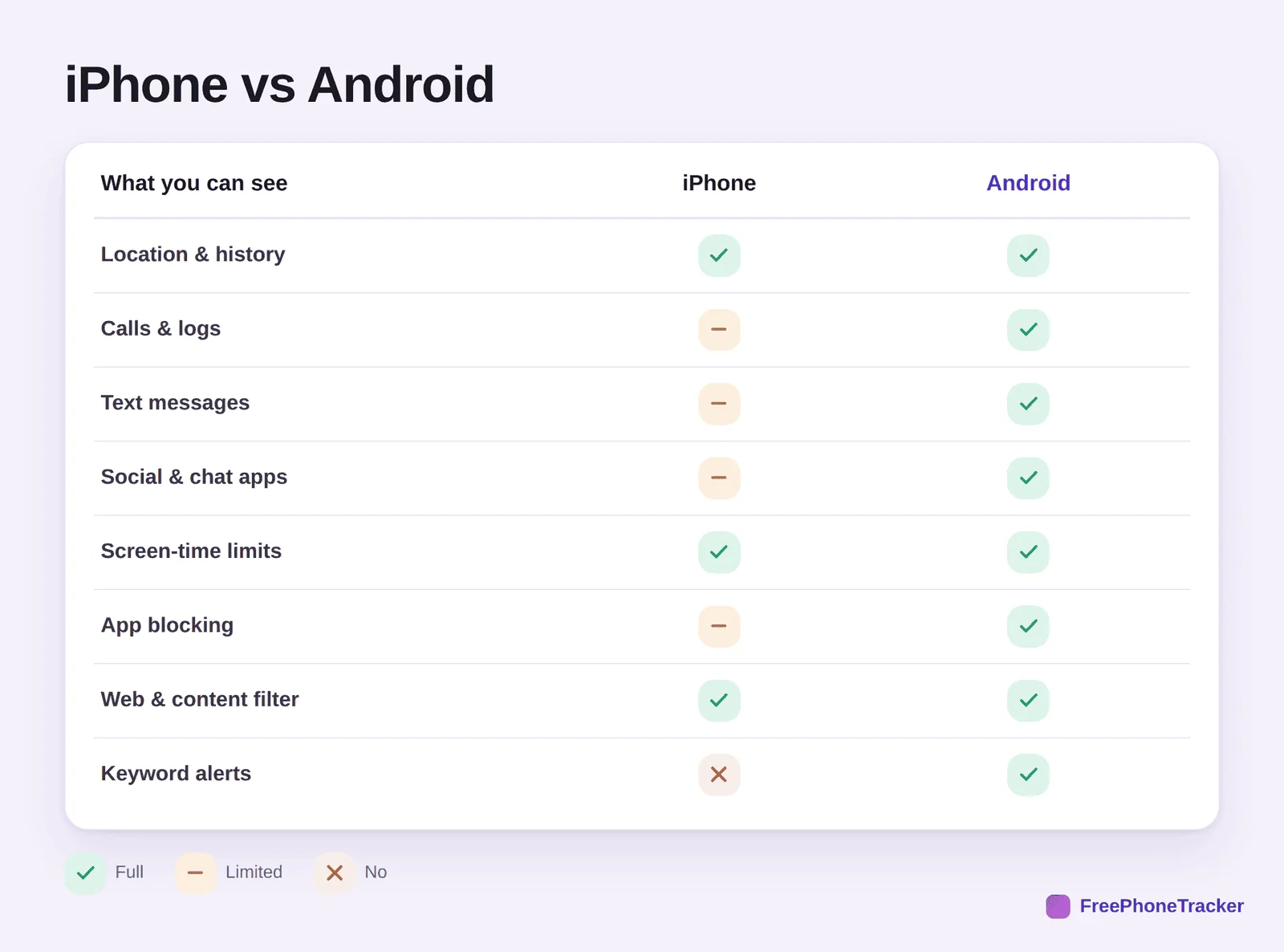
The takeaway is simple. Buying a first phone and care most about monitoring? An Android gives you more to work with. Already have an iPhone? Don’t worry. Location, screen time and content filtering all work well, and Apple’s Family Sharing pairs nicely with a dedicated tracker for the rest.
How to set it up in two minutes
Setup sounds technical. It isn’t. A good tool lets a busy parent do it between dinner and homework. Here’s the flow with FreePhoneTracker. Any good app works much the same way.
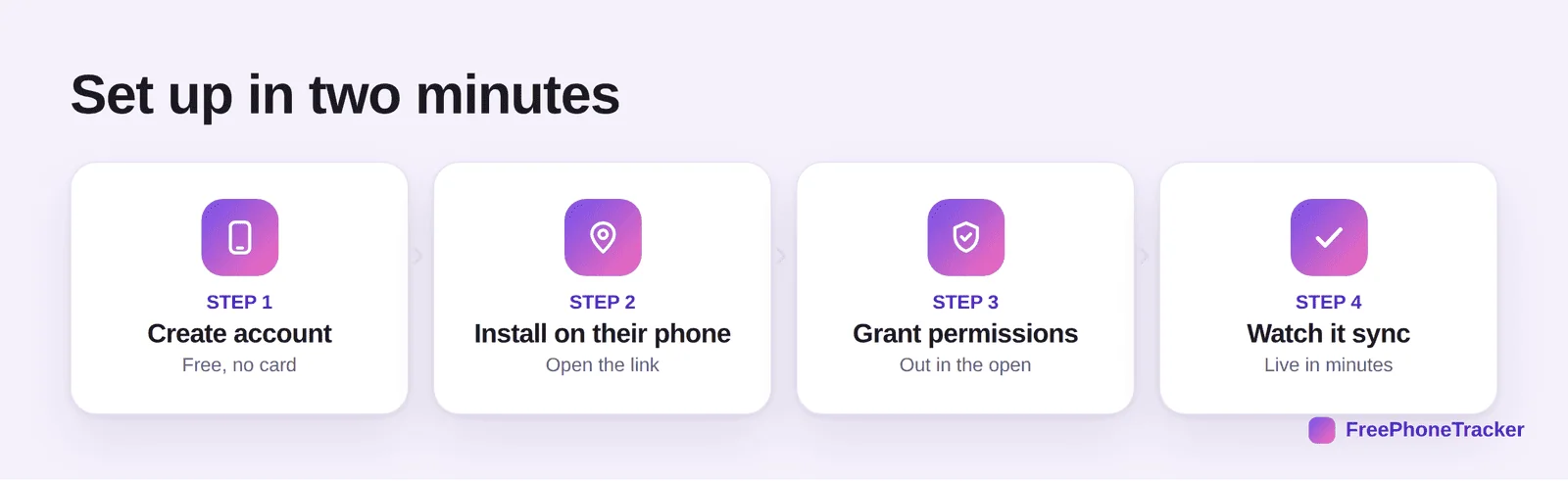
Create a free account on your own phone or computer. No card needed. On your child’s phone, open the download link and install the app. Grant the permissions it asks for. On Android, this is where you switch on the access that makes calls, location and app data flow. Within minutes, your dashboard lights up with the first data.
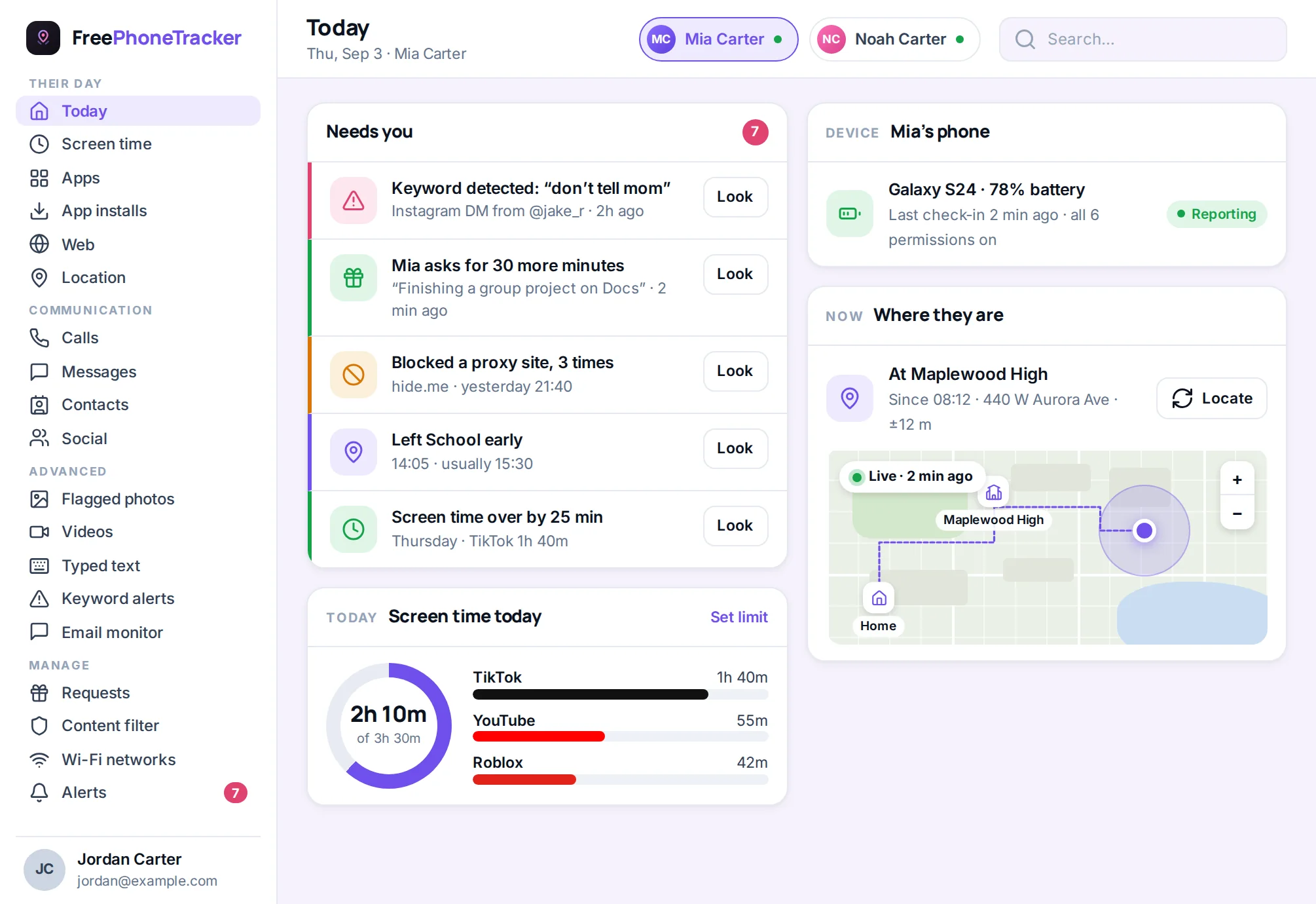
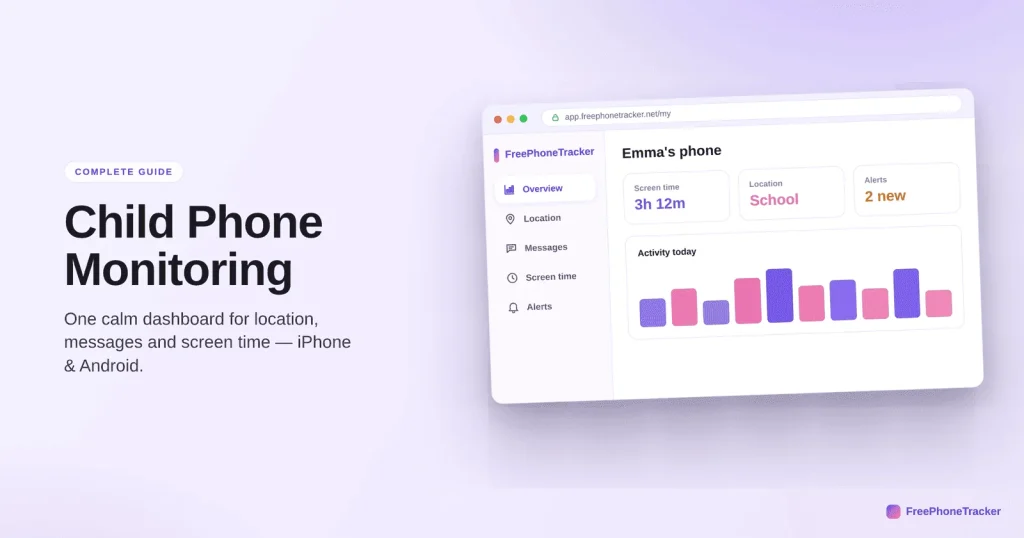
Look at what that dashboard does. It pulls location, calls, messages and screen time into one view. You don’t dig through five screens to answer the only question you have: is everything okay? That’s the difference between a tool you check for ten seconds a day and one you stop opening after a week.
The features that matter most
Not every feature is worth turning on for every child. A few earn their place for almost everyone. Here’s how to think about the big ones.
Location tracking
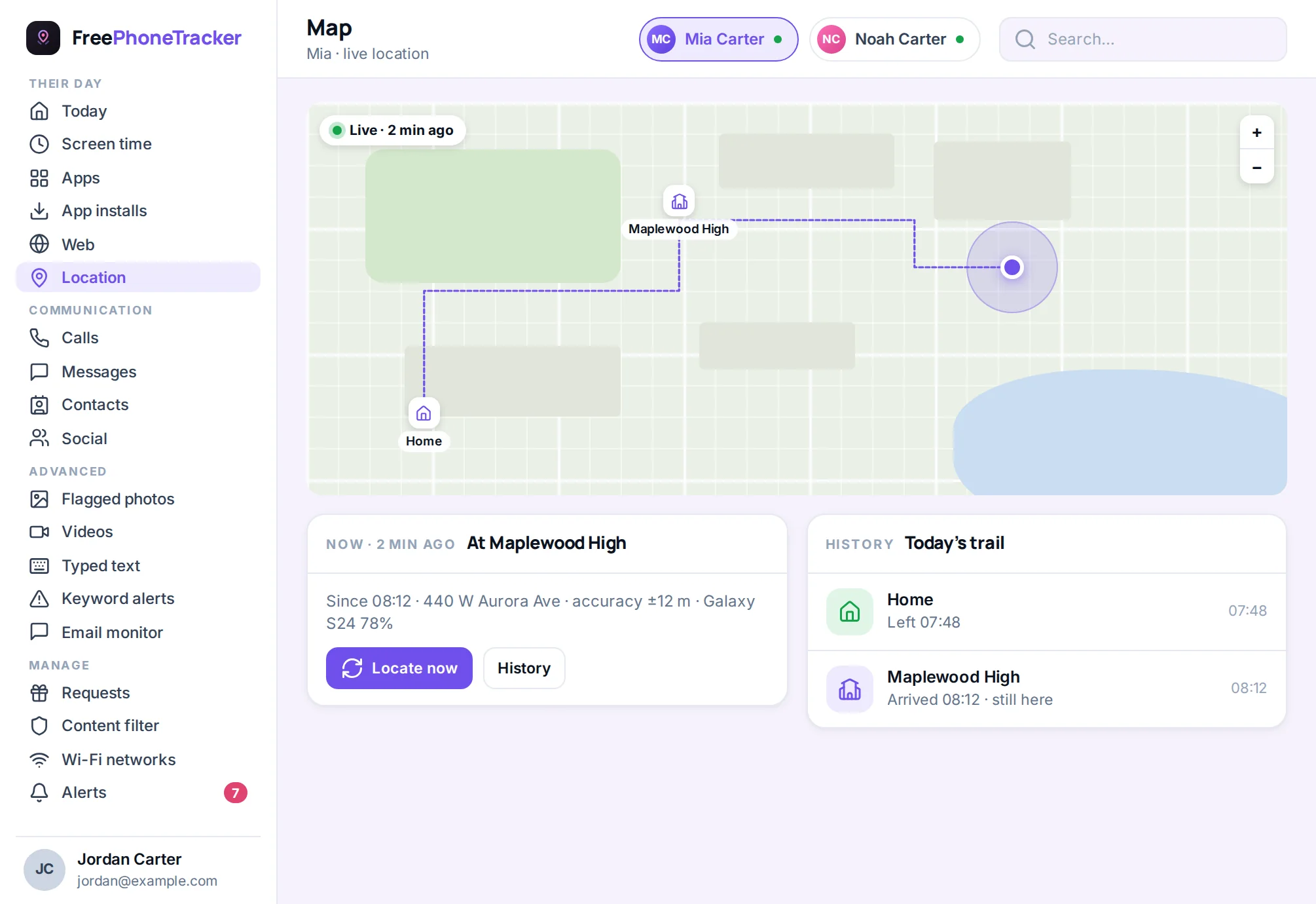
Most parents install monitoring for this first. It answers “did they get to school?” without a single anxious text. A good location tracker shows a live map. It keeps a history you can scroll. And it lets you set named places, like home or school, that ping you when your child arrives or leaves.
Calls and messages
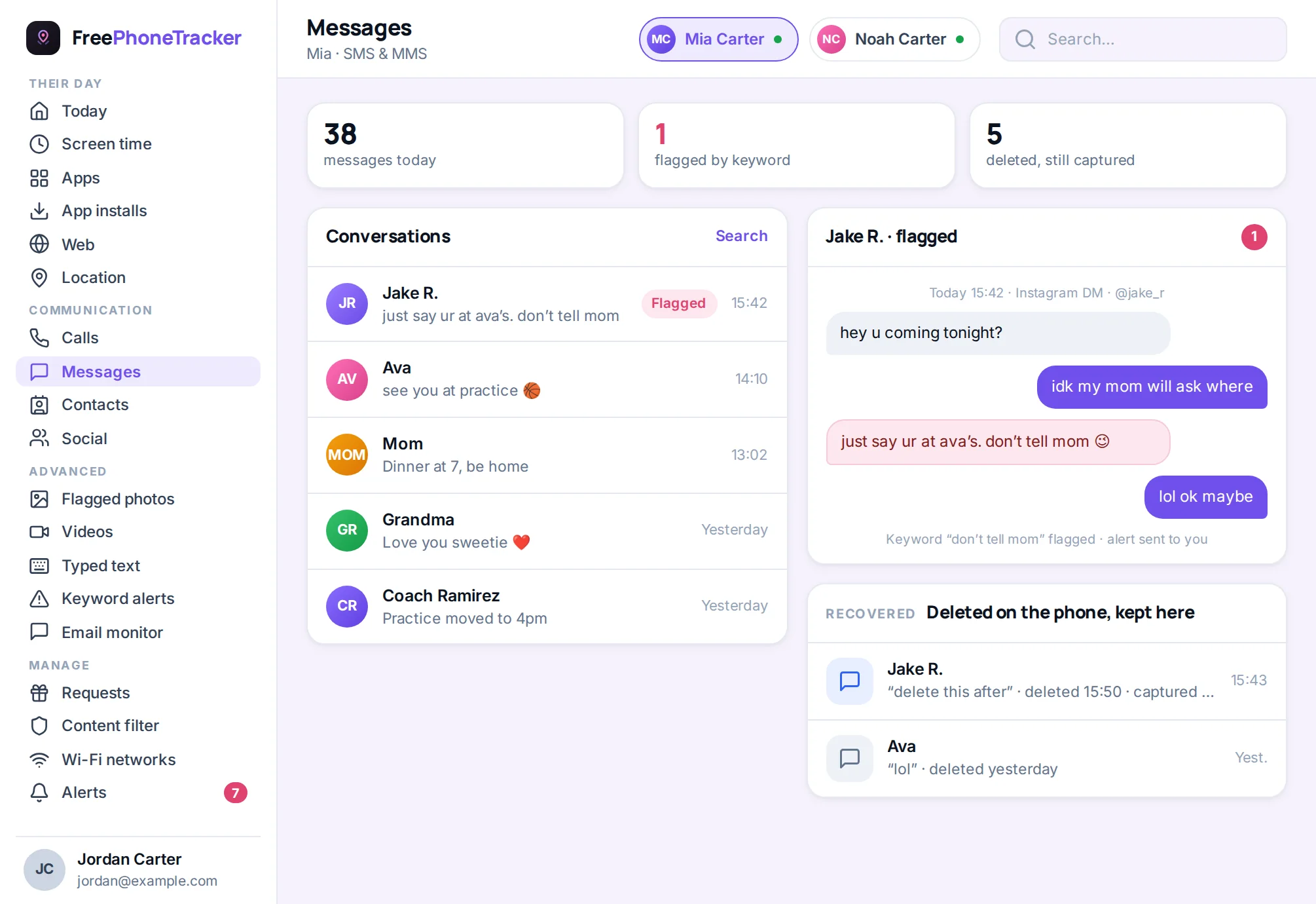
On Android, you can see the call log. Who, when, how long. You can read the SMS threads too. The call tracker and SMS tracker aren’t about snooping on every “lol.” They’re about spotting the number that calls at odd hours, or the thread that’s turned into bullying. Most days you won’t look. The value is that you can.
Social media and keyword alerts
Problems usually start in the social apps. Instagram, Snapchat, WhatsApp, TikTok. Social monitoring gives you a window into that activity. Pair it with keyword alerts so you’re not reading everything. You get pinged the moment a phrase like “meet me alone” or a self-harm term shows up. The app watches the handful of things that matter and leaves the rest alone.
Screen time and app control
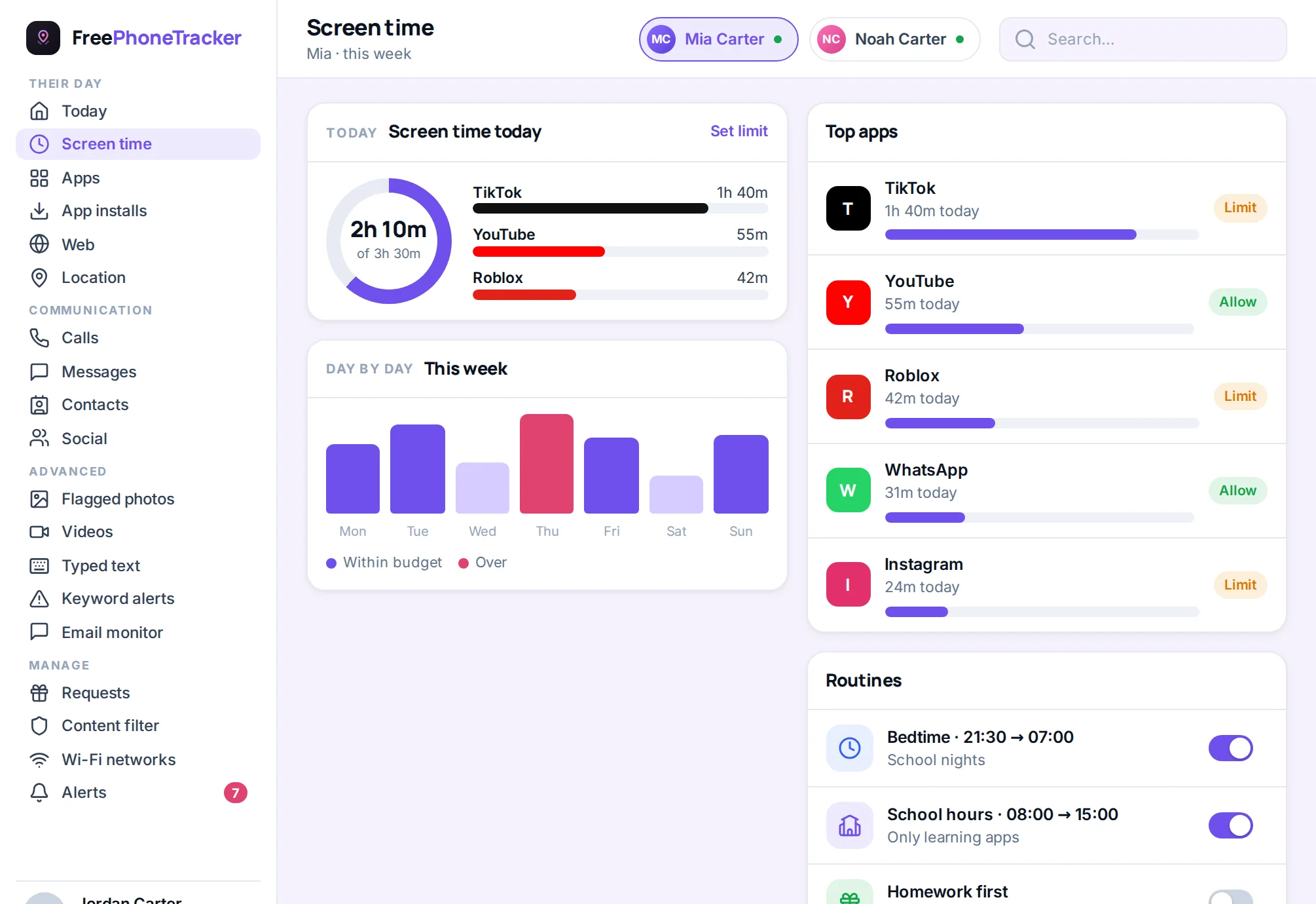
Tracking tells you what’s happening. Control lets you act. Screen-time limits, bedtimes and homework hours keep the phone from eating the evening. The app blocker and content filter keep what’s on the phone age-appropriate.
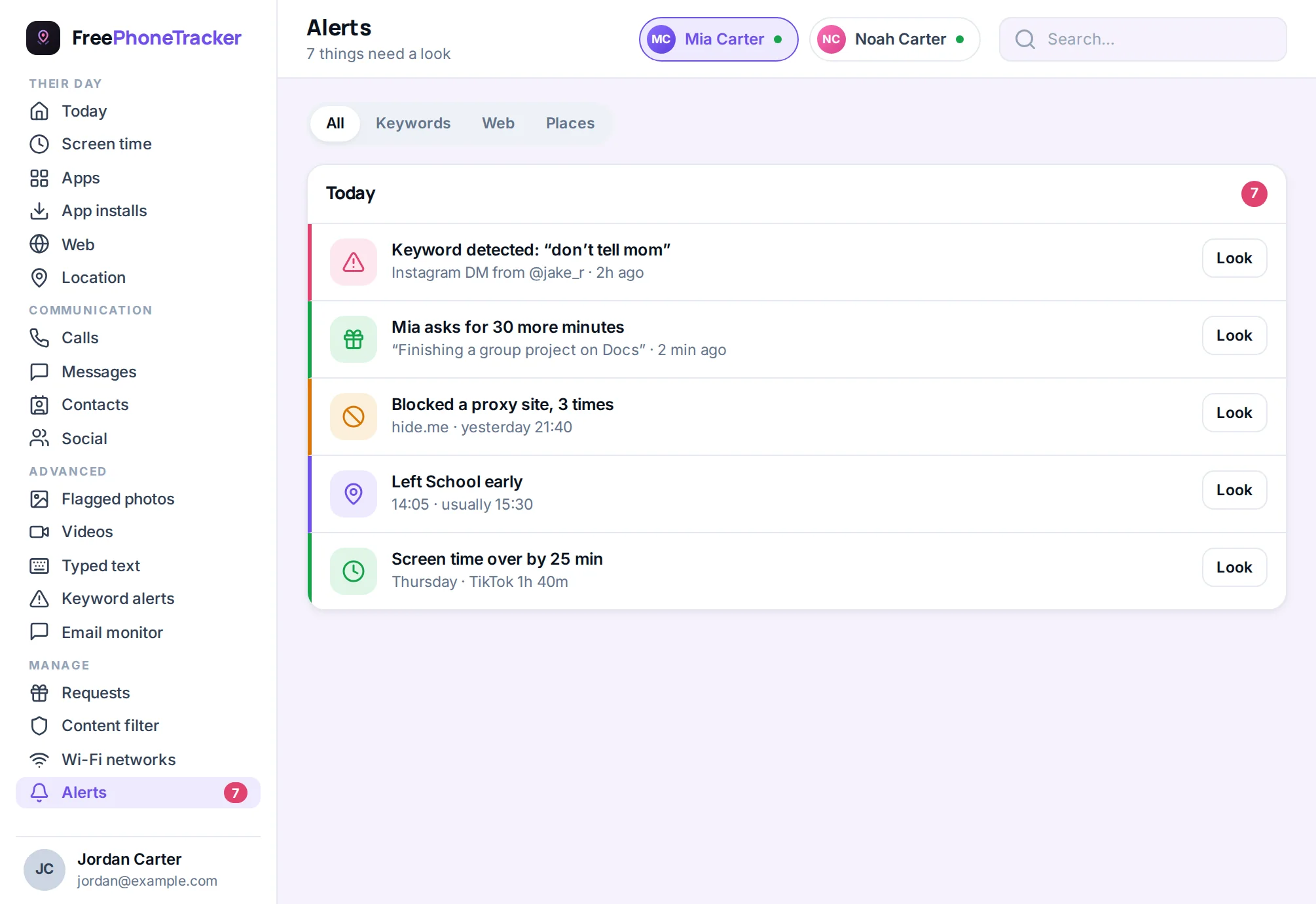
One more feature earns its keep: the alerts feed. Instead of checking each screen, you get everything worth your attention in one list. A new app installed. A flagged keyword. An arrival at school. It’s the closest thing to the phone tapping you on the shoulder only when it matters.
Monitoring without breaking trust
Most guides skip this part. The technology is easy. The relationship is hard. Get the relationship wrong and the best app in the world backfires. Kids who feel spied on get better at hiding, not safer.
The biggest choice you’ll make: monitor openly or secretly. For your own minor child, go open. Tell them the app is there. Show them what it sees. Explain why. Not “because I don’t trust you.” Say “it’s my job to keep you safe, and this helps me do that without breathing down your neck.” That framing changes everything.
Do
- Tell your child the app is installed
- Explain what it monitors, and why
- Loosen the reins as they earn it
- Use alerts so you’re not reading everything
- Revisit the rules as they get older
Don’t
- Install it in secret and hope they never find out
- Read every private message “just because”
- Use it to win arguments about their friends
- Keep the same rules at 16 as at 10
- Confront them with something you weren’t meant to see
This is why FreePhoneTracker is transparent on the device by design. Your child can open the app and read exactly what’s shared. Nothing runs until the phone is paired and permissions are granted. Being honest about it isn’t a weakness. It’s what keeps the arrangement working as your child grows. Got a teenager? That deserves its own conversation. We wrote one: The Complete Guide to Monitoring a Teen Respectfully.
Is child phone monitoring legal?
For your own minor child, in almost every country: yes. Parents have the right, and arguably the duty, to supervise how their under-18 children use devices the parent owns or pays for. That’s firm ground.
The line you can’t cross is monitoring someone you have no legal right to monitor. Another adult. A partner. An employee on a personal device. That’s not parenting. It’s surveillance, and in many places it’s a crime. Every reputable tool, including FreePhoneTracker, is built for parents monitoring their own children and devices they own or have consent to monitor. Unsure about your situation? This is general information, not legal advice. Check the rules where you live.
Common questions
Will my child know the app is installed?
With FreePhoneTracker, yes. That’s intentional. The app is visible and the child can see what it shares. Open monitoring is more ethical and more effective for your own kids. Our about page lays out the reasoning.
Does it drain the battery?
A well-built app sips power. It reports location every few minutes, not every second, and leans on Wi-Fi indoors. You’ll barely notice it. Apps that hide from the system are the ones that drain the battery, fighting to stay invisible.
How much does it cost?
FreePhoneTracker is free to start. No card required. Unlock advanced features and extra days by completing simple tasks, or with optional Premium. The full breakdown is on the pricing page.
What age should I start?
When they get their first phone. A younger child usually needs just location, screen time and a content filter. The heavier monitoring can wait. Match the tools to the age. Our guide to screen time by age is a good companion.
Can I monitor an iPhone and an Android at once?
Yes. Plenty of families have a mix. You’ll get deeper data from the Android and the essentials from the iPhone, all in one panel. See the full features list for what’s on each.
Done right, monitoring isn’t about control or suspicion. It’s the safety net that lets your kid explore a connected world with room to grow. And it lets you sleep at night. Start with the basics. Be honest about it. Loosen your grip as they earn it. That’s the whole playbook.