Focus modes are Do Not Disturb grown up. Instead of one blanket “silence everything,” your iPhone can behave like a different phone for work, sleep and downtime, showing only the apps and people that fit the moment, and switching automatically. This guide shows how to set them up so your phone matches your day.
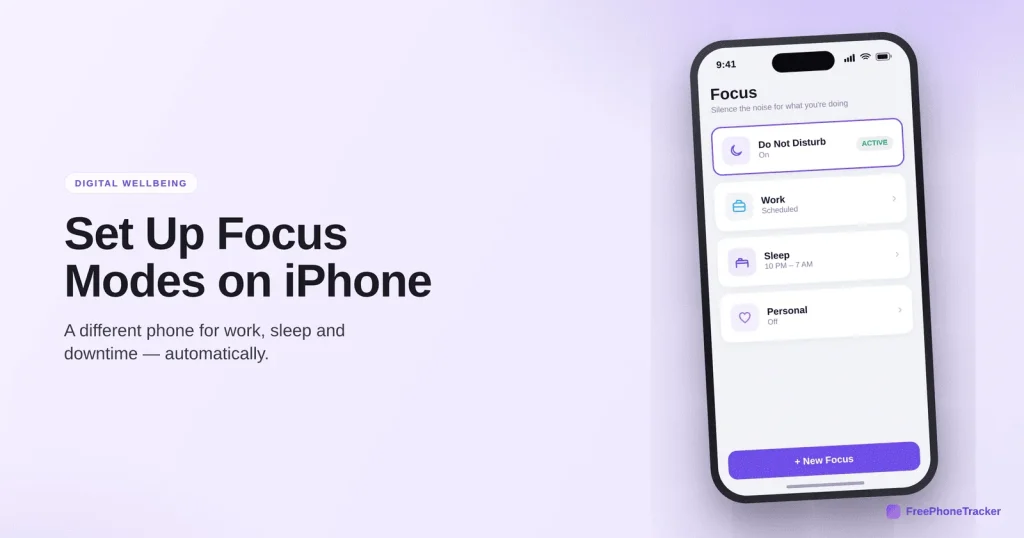
- Focus modes let you make several profiles: Work, Sleep, Personal and custom ones.
- Each can allow different people, apps and even a different home screen.
- They switch automatically by time, place or app.
- Sleep Focus is one of the best bedtime tools your phone has.
What Focus modes do
They go well beyond silencing notifications, they reshape the phone around what you’re doing.
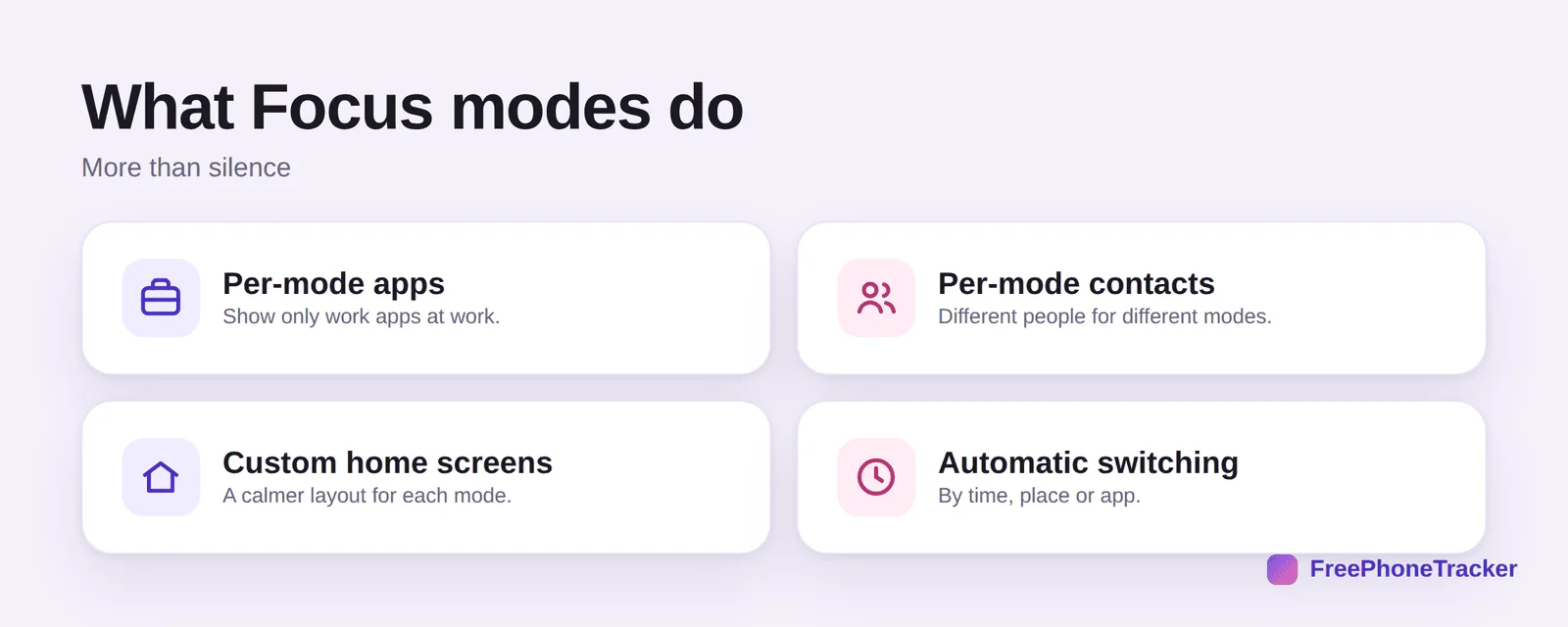
Per-mode apps, show only work apps during work. Per-mode contacts, different people can reach you in different modes. Custom home screens, a calmer layout for each. And automatic switching by time, place or app, so you don’t manage it manually.
Set up a Focus
Start with one, and you’ll want more once you feel the difference.
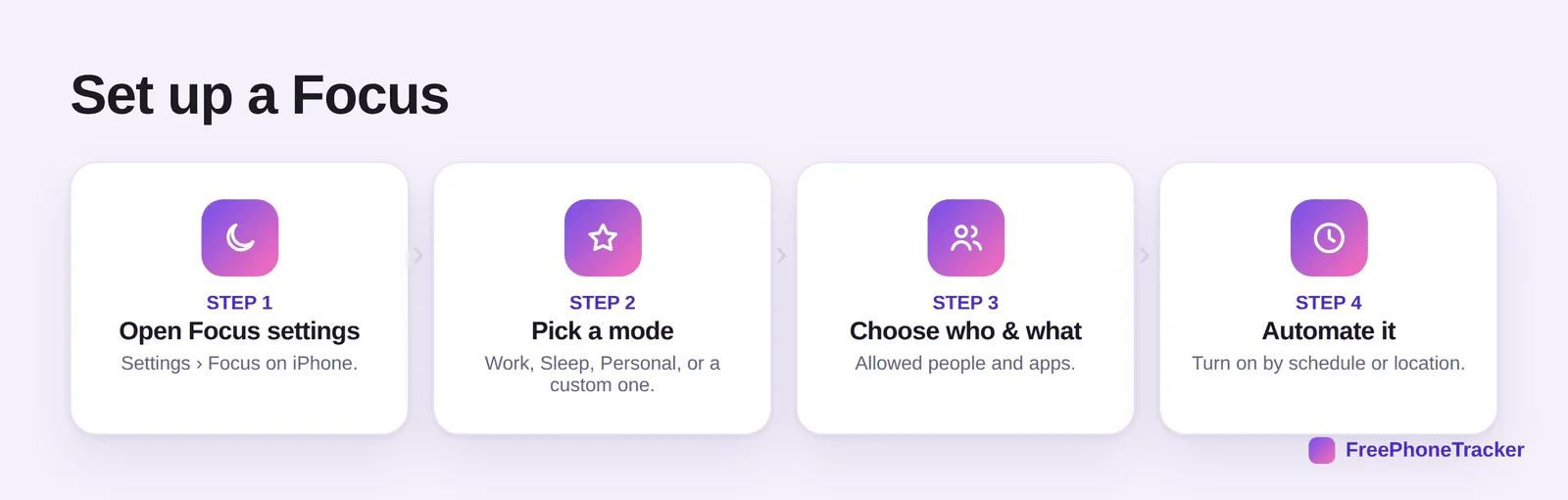
Open Settings › Focus. Pick a mode, Work, Sleep, Personal or a custom one. Choose who and what is allowed, people and apps. Then automate it so it turns on by schedule or when you arrive somewhere.
Make Focus work for you
A few choices make Focus modes stick instead of getting ignored.
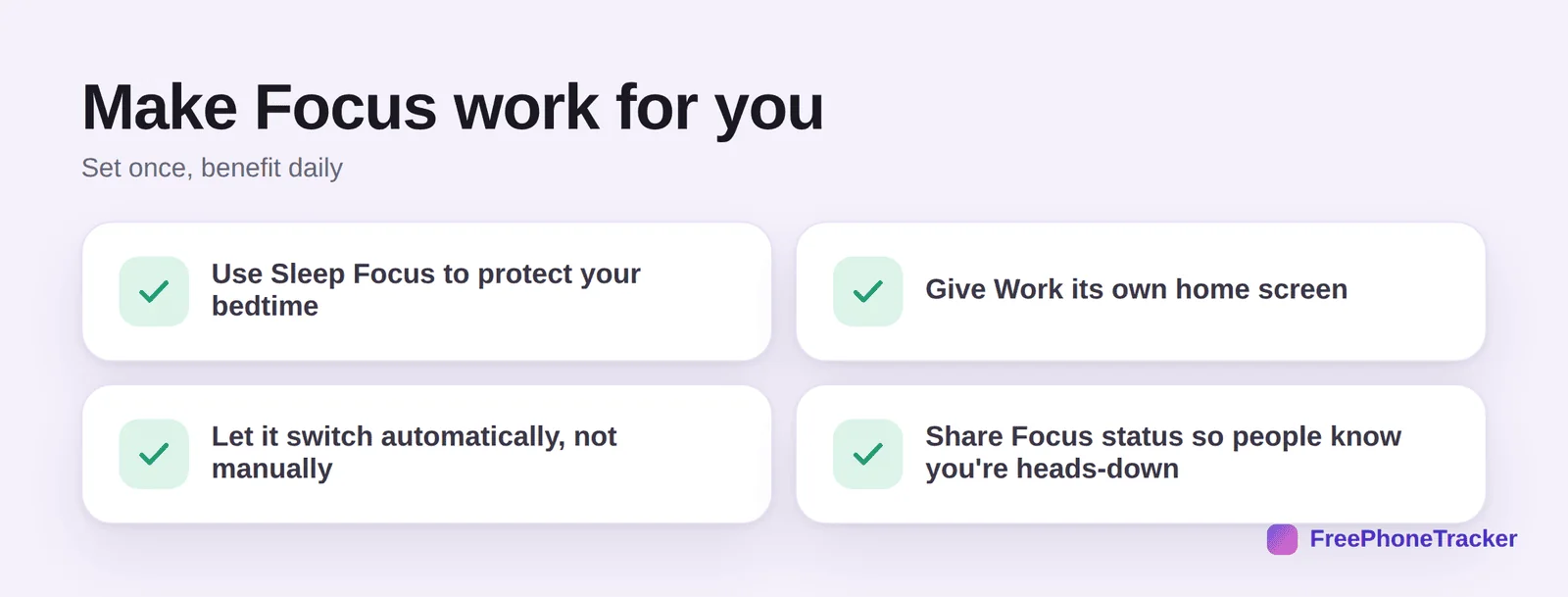
Use Sleep Focus to protect your bedtime. Give Work its own home screen so social apps aren’t a tap away. Let it switch automatically, not manually, that’s the whole point. And share your Focus status so people see you’re heads-down (and messages can nudge them to reach you only if urgent).
Three Focus modes that cover most lives
You do not need a Focus for every situation; three well-built ones do the work. A Work Focus that allows only work apps and a handful of people, scheduled for your working hours and, if you like, tied to your work location. A Sleep Focus that silences everything except Favourites and repeated calls, starts an hour before bed and turns the lock screen dim and plain. And a Family Focus for evenings and weekends that lets family and close friends through and mutes work email and Slack entirely.
The details that make them feel effortless: turn on Focus Status so people who message you see that you are away rather than ignoring them, allow Time Sensitive notifications for things like delivery and calendar alerts, and give each Focus its own home-screen page with only the relevant apps. Set them to switch on automatically by time or location, and you will rarely think about them again.
Common questions
What’s the difference between Focus and Do Not Disturb?
Do Not Disturb is a single Focus. Focus modes let you create several tailored profiles, each with its own people, apps and screen, and switch between them automatically. See our Do Not Disturb guide.
Can Focus modes turn on by themselves?
Yes. Set them to activate by time, by location (arriving at work), or when you open a specific app. Automatic switching is what makes them genuinely useful.
Will people know I’ve silenced them?
Optionally. You can share your Focus status so senders see you have notifications silenced, they can still break through if it’s urgent. It sets expectations without cutting you off.
Does Sleep Focus really help me sleep?
It helps a lot, it dims the lock screen, silences notifications and pairs with a wind-down routine. Combine it with keeping the phone out of reach for best results.
Do Android phones have Focus modes?
Android has its own versions, Focus mode in Digital Wellbeing, plus Bedtime mode. See our Android Bedtime mode guide.
Focus modes turn one phone into the right phone for each part of your day, work, sleep, downtime, without the constant tug of everything at once. Set up Sleep Focus first, then build from there. Get started free, and read our guides to Do Not Disturb and reducing notifications.