The average phone throws dozens, sometimes hundreds, of notifications a day, and most of them aren’t news you need, they’re apps competing for your attention. Turning off the noise is the single best thing you can do for focus. This guide shows how to cut notifications down to what actually matters.
- Most apps turn every notification on by default — you can turn them off.
- Keep the essentials (calls, messages, calendar); silence the rest.
- Use a scheduled summary to batch non-urgent notifications.
- Turn off badges to stop the “unread” pull.
Why notifications pile up
It’s not you, it’s design. Every app is built to pull you back.
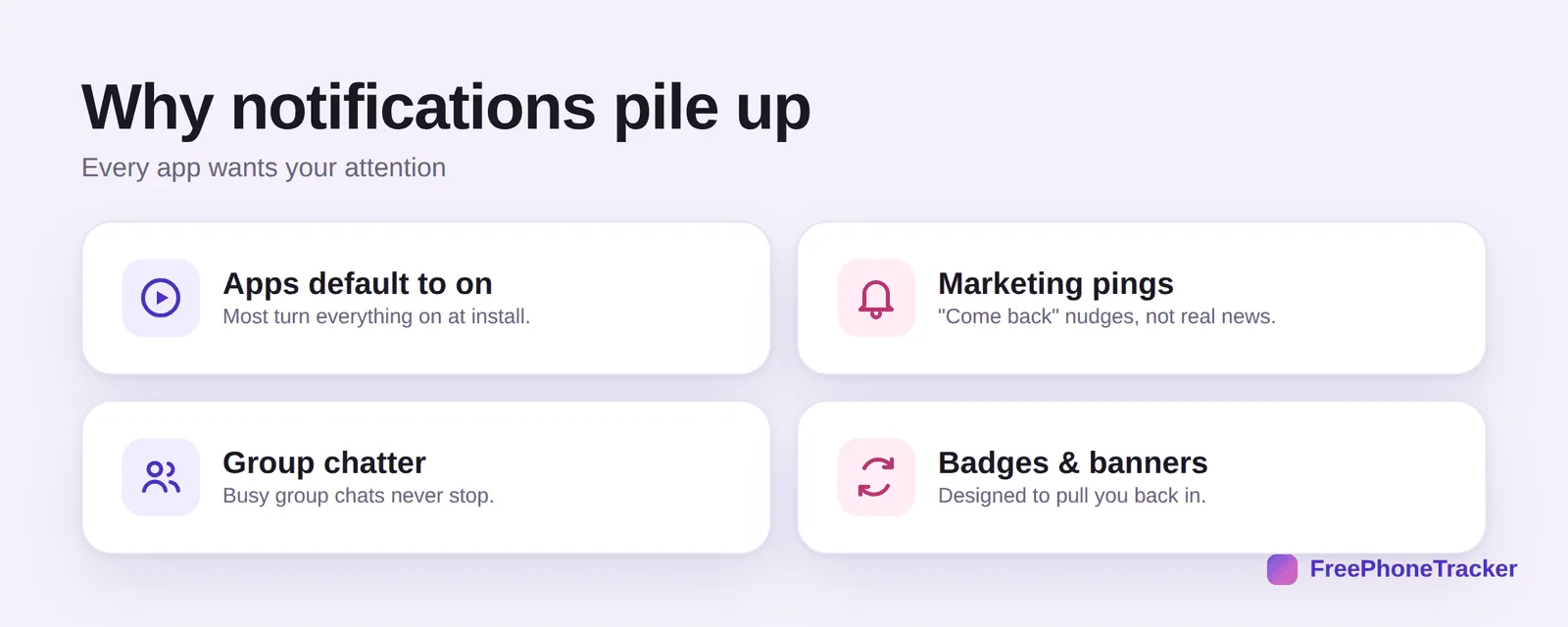
Apps default to on, switching everything on at install. Many send marketing pings, “come back” nudges dressed up as news. Group chats never stop. And badges and banners are engineered to pull you back in. Once you see it as a system working against you, turning it off feels easy.
Cut the notifications
A quick pass through your settings does most of the work.
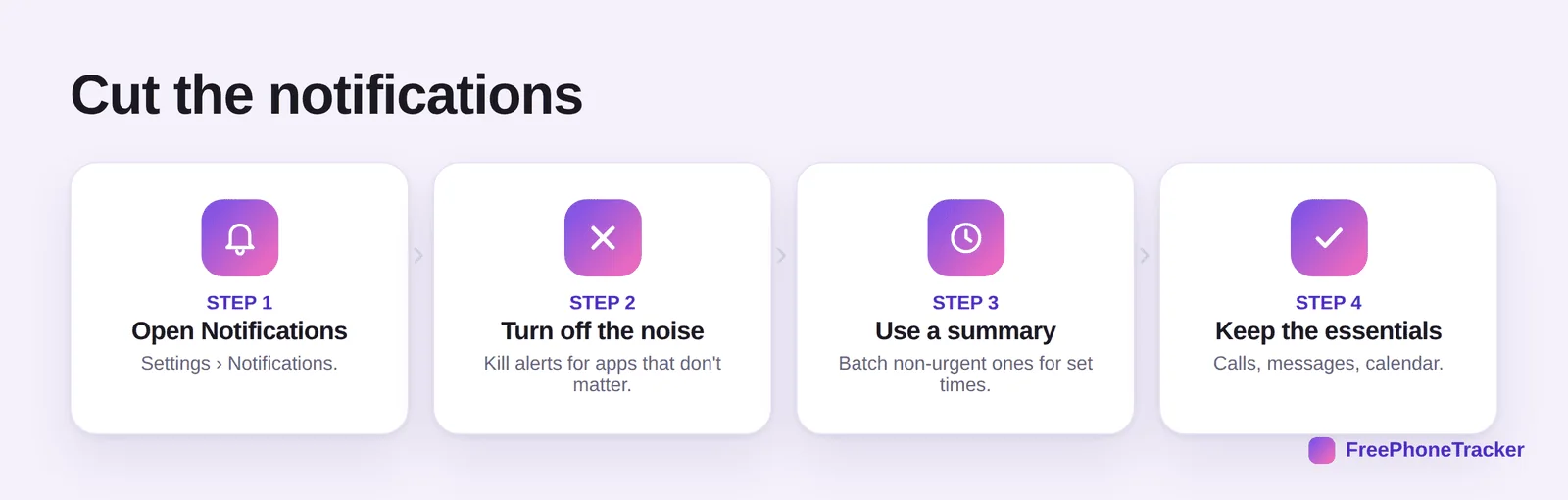
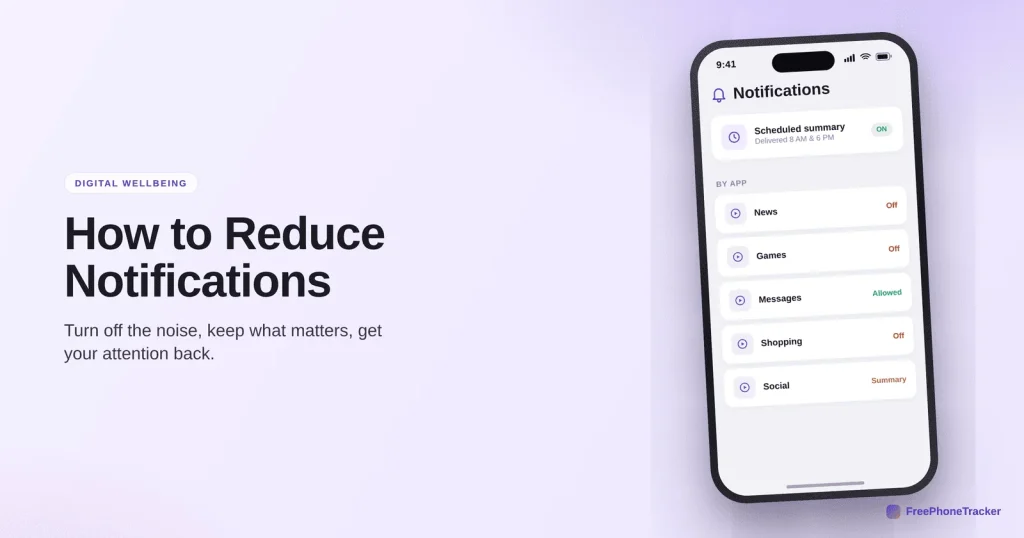
Open Settings › Notifications. Turn off the noise, kill alerts for apps that don’t matter. Use a scheduled summary to batch non-urgent ones into set times. And keep the essentials, calls, messages and calendar.
Keep your attention
A few rules keep the noise from creeping back.
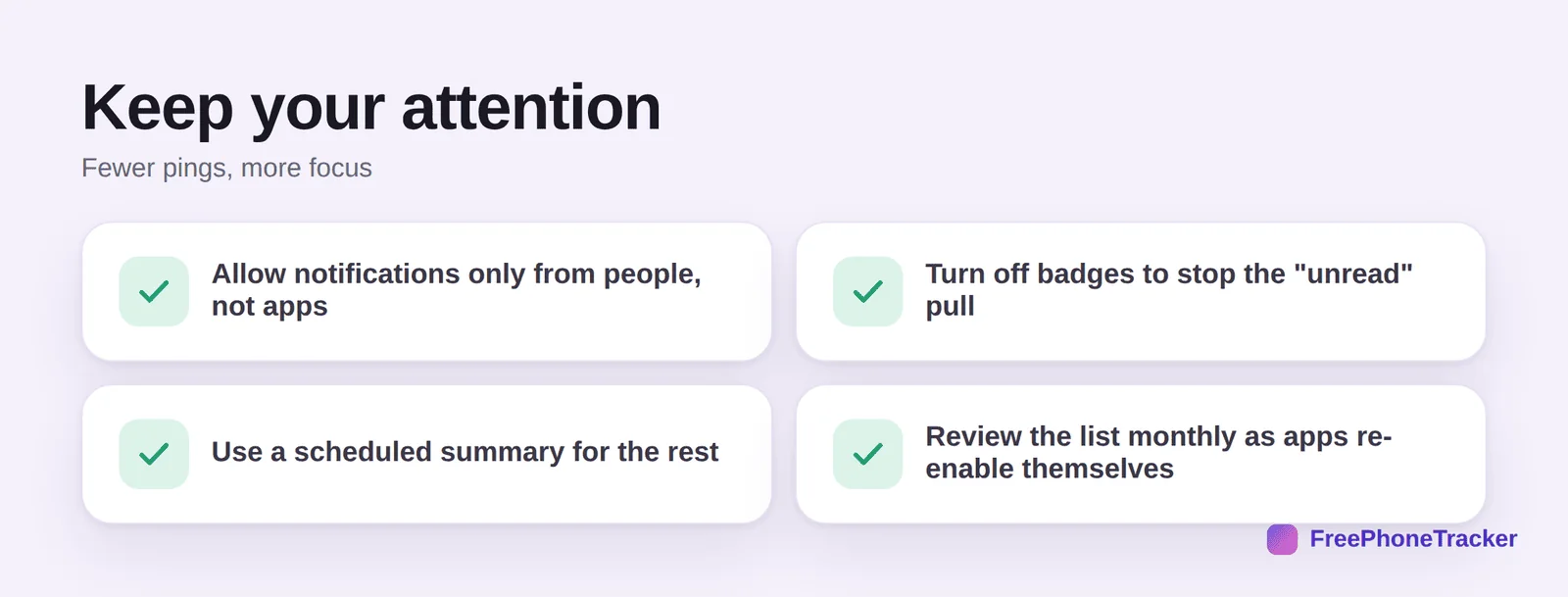
Allow notifications only from people, not apps. Turn off badges to stop the “unread” pull. Use a scheduled summary for the rest. And review the list monthly, since apps love to re-enable themselves after updates.
A weekend reset that actually holds
The quickest way to tame notifications is a one-off audit rather than swatting them one by one. On Android, open Settings → Notifications → App notifications and scroll the whole list with one question in mind: “would I want this to interrupt dinner?” Turn off everything that fails the test. On iPhone the same list lives under Settings → Notifications; tap each app and switch off Allow Notifications, or downgrade it to appear only in Notification Centre so it never lights the lock screen.
Then use the built-in bundling. Android’s Notification history and iPhone’s Scheduled Summary both let low-priority apps deliver in a batch at times you choose — shopping, news and games belong there, messages from real people do not. Finally, change the sounds: give people a sound and give apps silence. Within a day your phone stops feeling like it is shouting, and the alerts you do hear mean something again.
Common questions
Will turning off notifications make me miss things?
Not the important things, if you keep calls, messages and calendar on. Most of what you silence is marketing and app chatter you won’t miss at all.
What is a notification summary?
A feature that collects non-urgent notifications and delivers them at set times (say 8 AM and 6 PM) instead of all day. It keeps you informed without the constant interruptions.
Should I turn off notification badges?
Try it. Those little red numbers are designed to nag you into opening apps. Without them, you check apps on purpose rather than on impulse.
Why do my notifications come back after an update?
Some apps re-enable notifications (or add new categories) after updates. A quick monthly review keeps them in check.
How does this help with kids’ phones?
Fewer notifications means fewer interruptions to homework and sleep. For enforced limits and downtime, combine it with screen-time controls.
Cutting notifications is the highest-impact focus change you can make in five minutes, keep the essentials, silence the rest, and batch the in-between into a summary. Your attention is worth protecting. Get started free, and read our guides to Do Not Disturb and Focus modes.