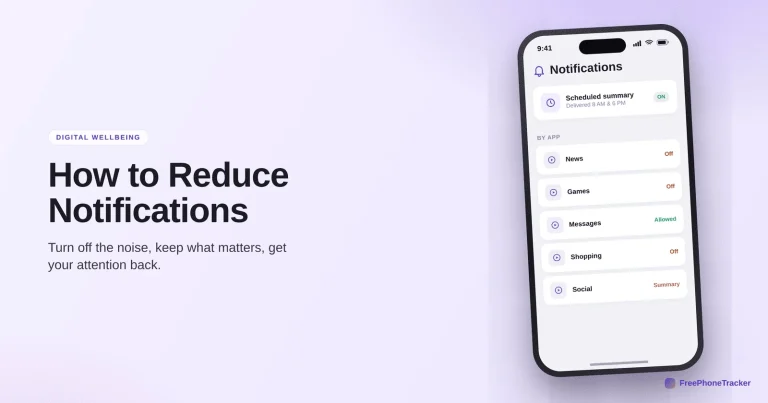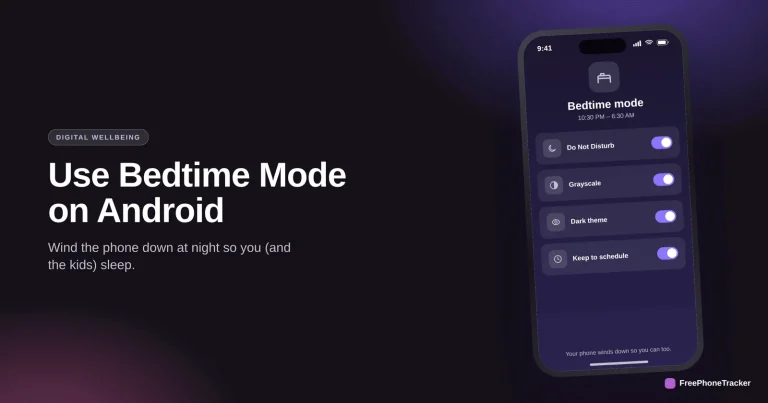
Do Not Disturb is the fastest way to reclaim your attention, but most people avoid it for one reason: they’re scared of missing something important. The good news is you can silence the noise and still let the right people through. This guide shows how to set up Do Not Disturb so it’s quiet and safe.
- Do Not Disturb silences alerts without cutting you off.
- Allow favorites and repeated calls so emergencies still reach you.
- Schedule it for bedtime, work, or focus hours automatically.
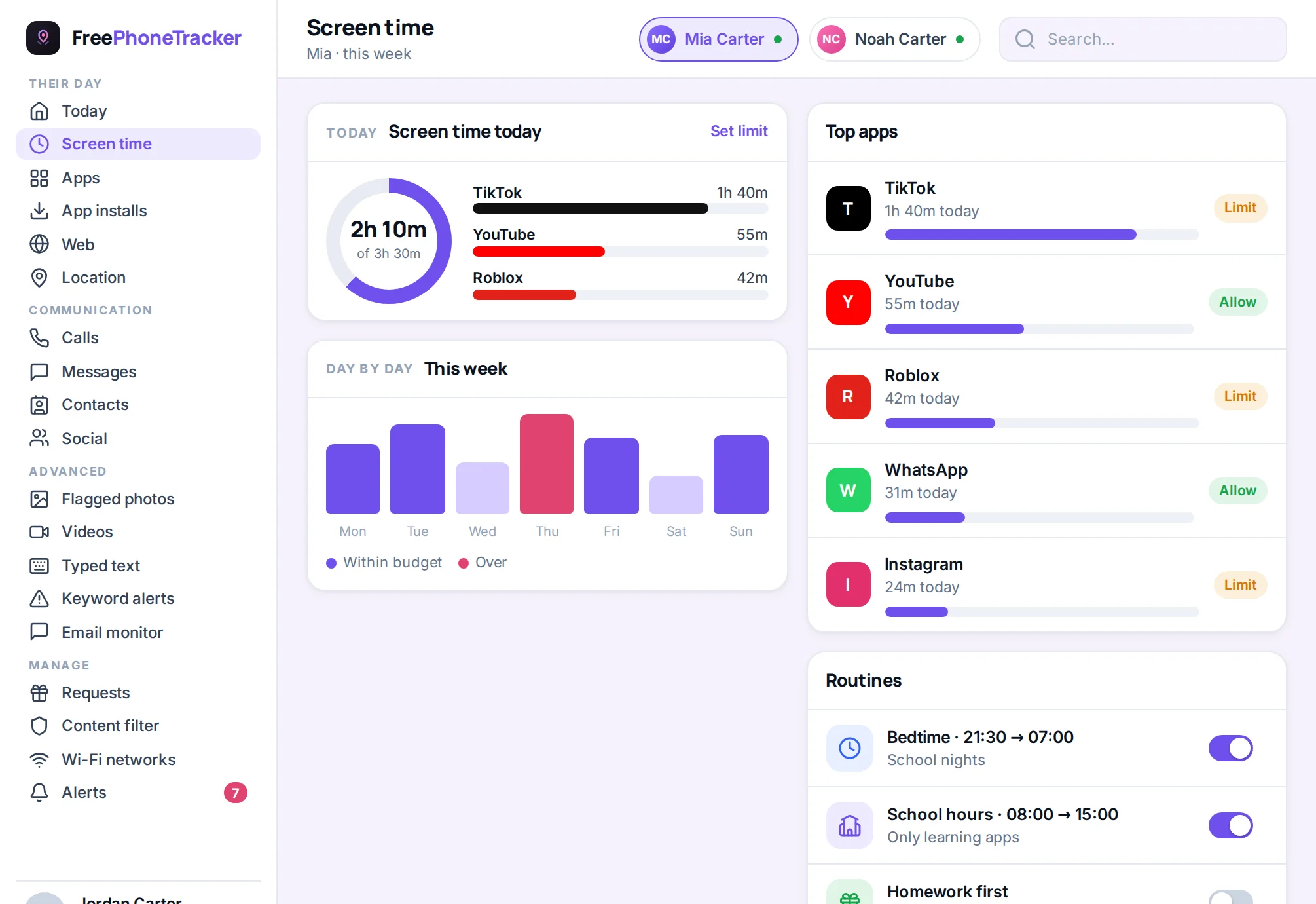
- For kids, pair it with an enforced screen-time limit they can’t just switch off.
What Do Not Disturb does
It’s not an on/off switch for your phone, it’s a smart filter you control.
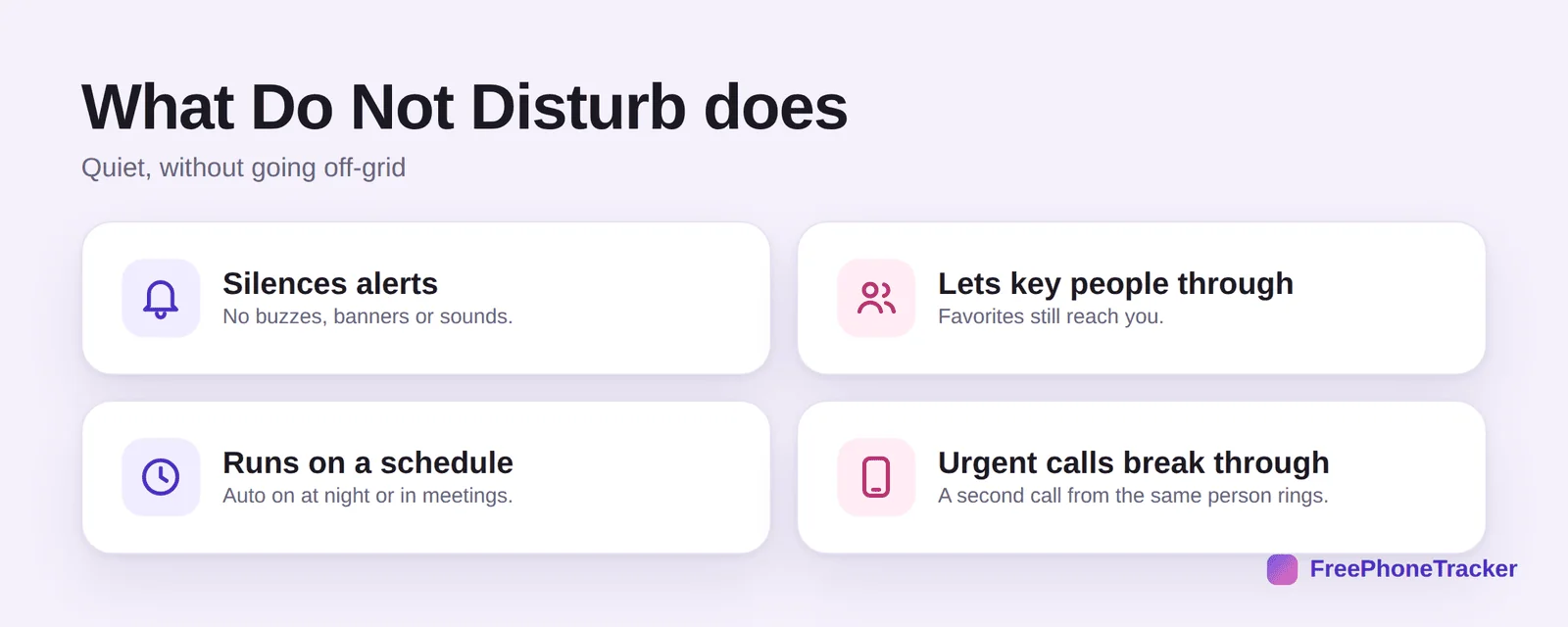
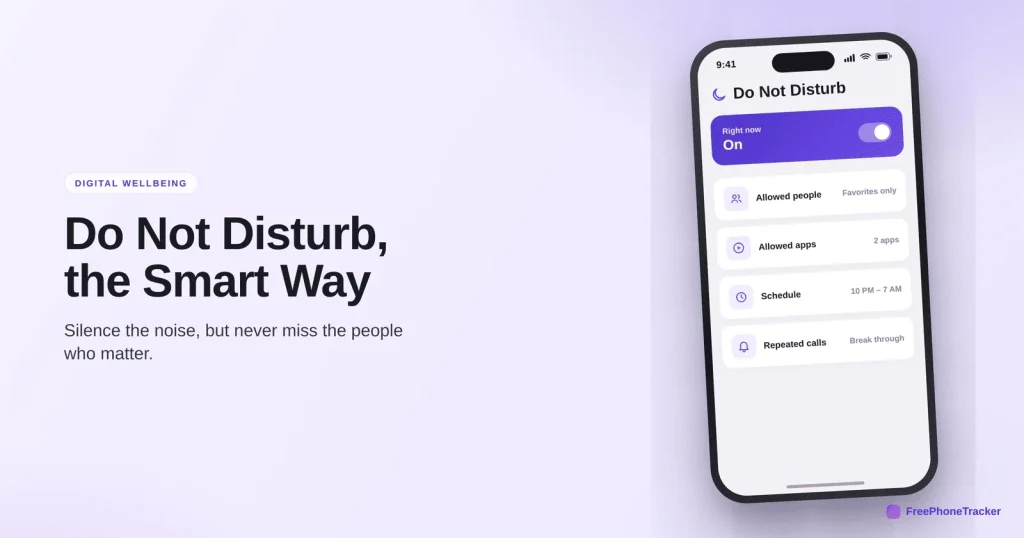
It silences alerts, no buzzes, banners or sounds. It lets key people through, your favorites still reach you. It runs on a schedule, turning on at night or during meetings. And urgent calls break through, a second call from the same person within a few minutes rings, so a real emergency isn’t missed.
Set it up
The whole thing takes a minute, and then it runs itself.
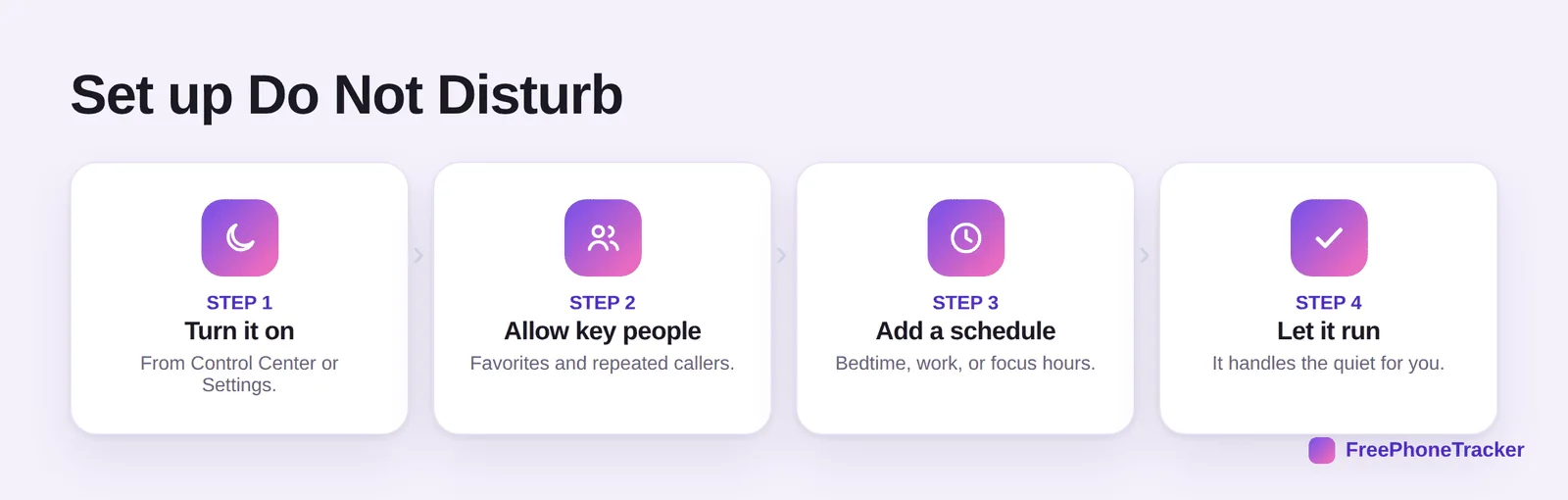
Turn it on from Control Center or Settings. Allow key people, favorites and repeated callers. Add a schedule for bedtime, work, or focus hours. Then let it run, it handles the quiet without you thinking about it.
Use it without missing out
A few settings make it genuinely worry-free.
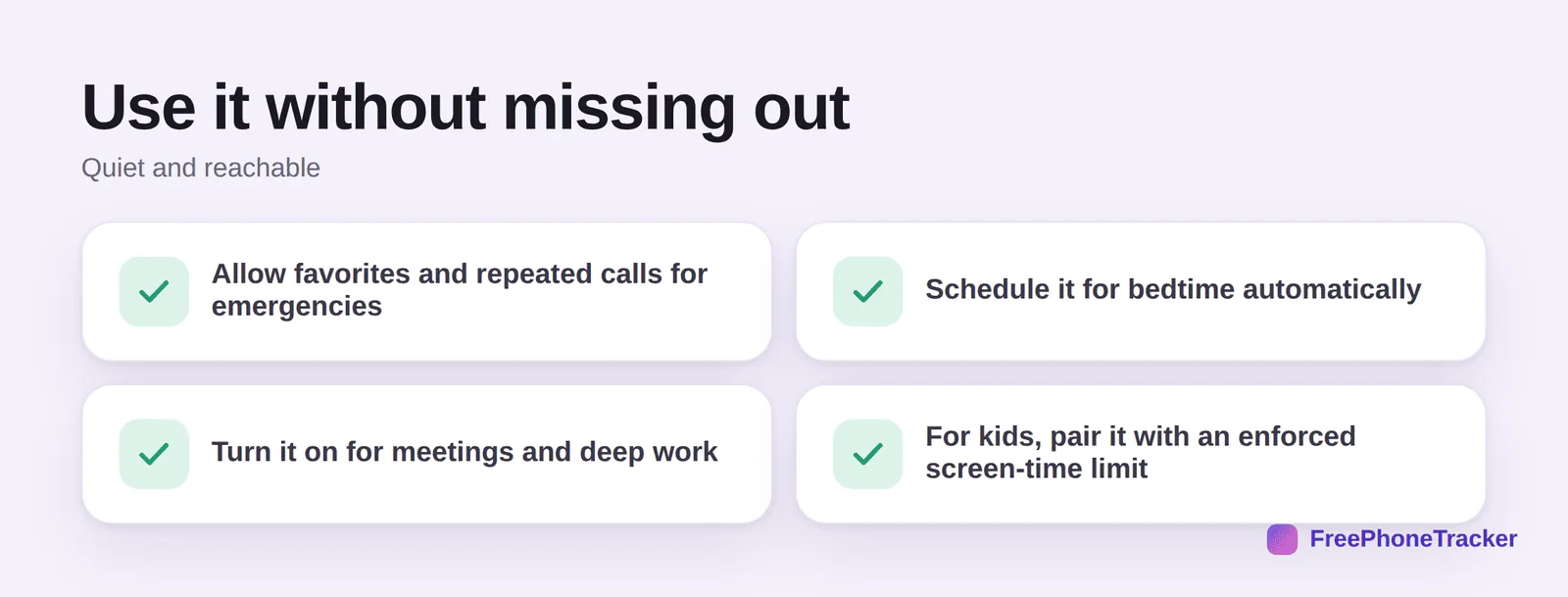
Allow favorites and repeated calls for emergencies. Schedule it for bedtime automatically. Turn it on for meetings and deep work. And for kids, remember Do Not Disturb is easy to turn off, so pair it with an enforced screen-time limit, per our screen time by age guide.
Common questions
Will I miss an emergency with Do Not Disturb on?
Not if you set it up right. Allow your favorites and enable “repeated calls” so a second call from the same person within three minutes rings through. Real emergencies get past it.
What’s the difference between Do Not Disturb and a Focus mode?
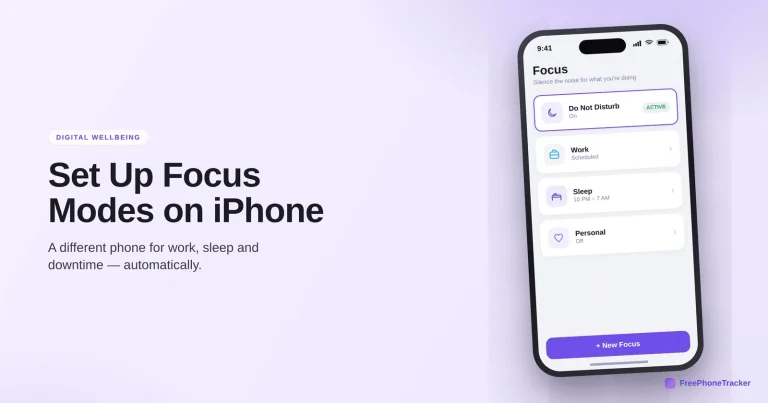
Do Not Disturb is one Focus. On iPhone, Focus modes let you make several, Work, Sleep, Personal, each with its own rules. See our Focus modes guide.
Can I schedule Do Not Disturb automatically?
Yes. Set hours (like 10 PM to 7 AM) and it turns on and off on its own. You can also trigger it by location or when you open certain apps.
Does Do Not Disturb stop alarms?
No. Your alarms still sound. It silences notifications and calls (except those you allow), not your alarm clock.
My teen just turns off Do Not Disturb, what can I do?
That’s the limit of a voluntary setting. For real bedtime boundaries, use an enforced downtime schedule they can’t disable, see our iPhone and Android control guides.
Do Not Disturb gives you quiet without going dark, silence the noise, allow the people who matter, and schedule it for the times you need focus or sleep. It’s the simplest attention upgrade there is. Get started free, and read our guides to Focus modes and reducing notifications.