Android gives parents more to work with than any other platform, but the controls are spread across Google’s Family Link app, the phone’s own settings, and the Play Store. This guide pulls it all together: how to set up Family Link step by step, what it covers, and where a dedicated app adds the deeper monitoring Android is uniquely good at. Budget about ten minutes.
- Google Family Link is the free backbone: app approval, screen time, filters, location.
- Install it on both phones and link your child’s Google account to yours.
- Android’s openness means a dedicated app can add calls, texts, social and alerts.
- Set it up openly with your child, and loosen the reins as they grow.
Start with Google Family Link
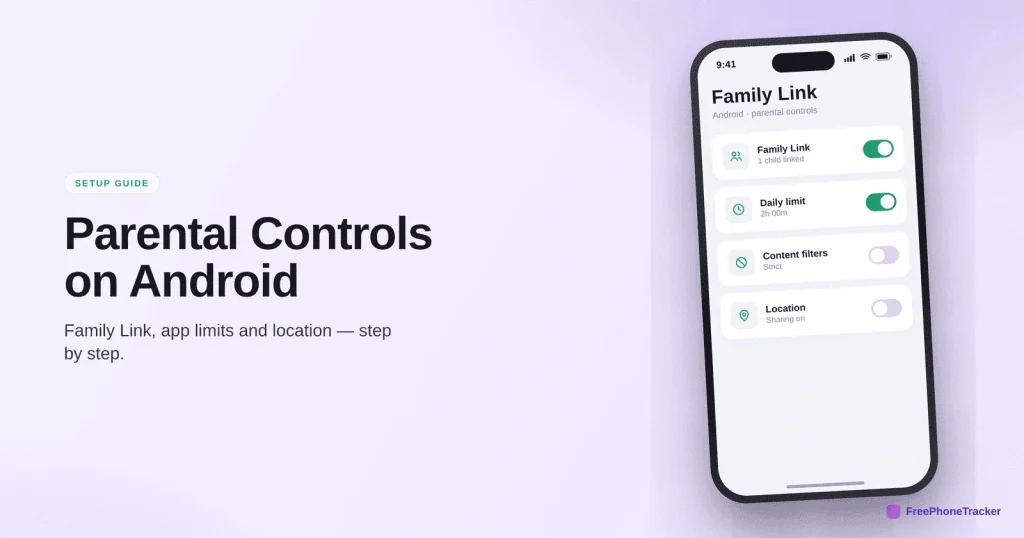
Family Link is Google’s free parental-controls app, and it’s the foundation of any Android setup. You install it on your phone to manage things, and it pairs with your child’s Google account on their phone. If your child is under 13, you’ll create a supervised Google account for them; if they’re older, you can still add supervision to their existing account.
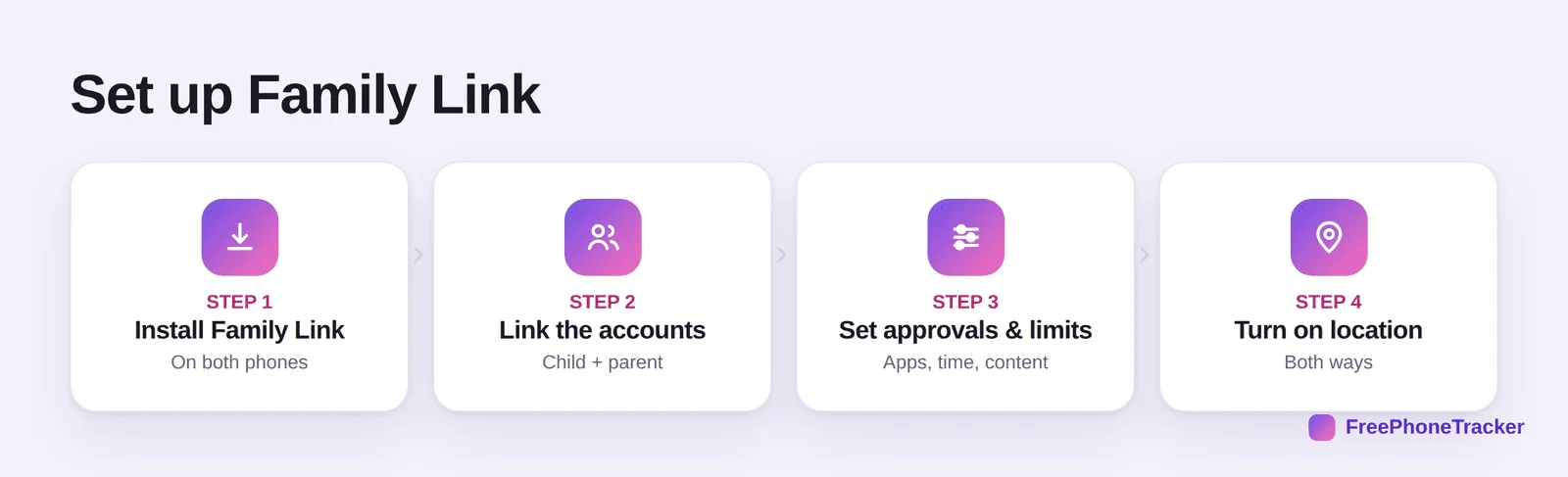
The flow is simple: install Family Link on both phones, link the accounts (child and parent), set your approvals and limits for apps, screen time and content, and turn on location so you can see where they are. Once it’s linked, you manage everything from your own phone, no need to keep borrowing theirs.
What Family Link covers
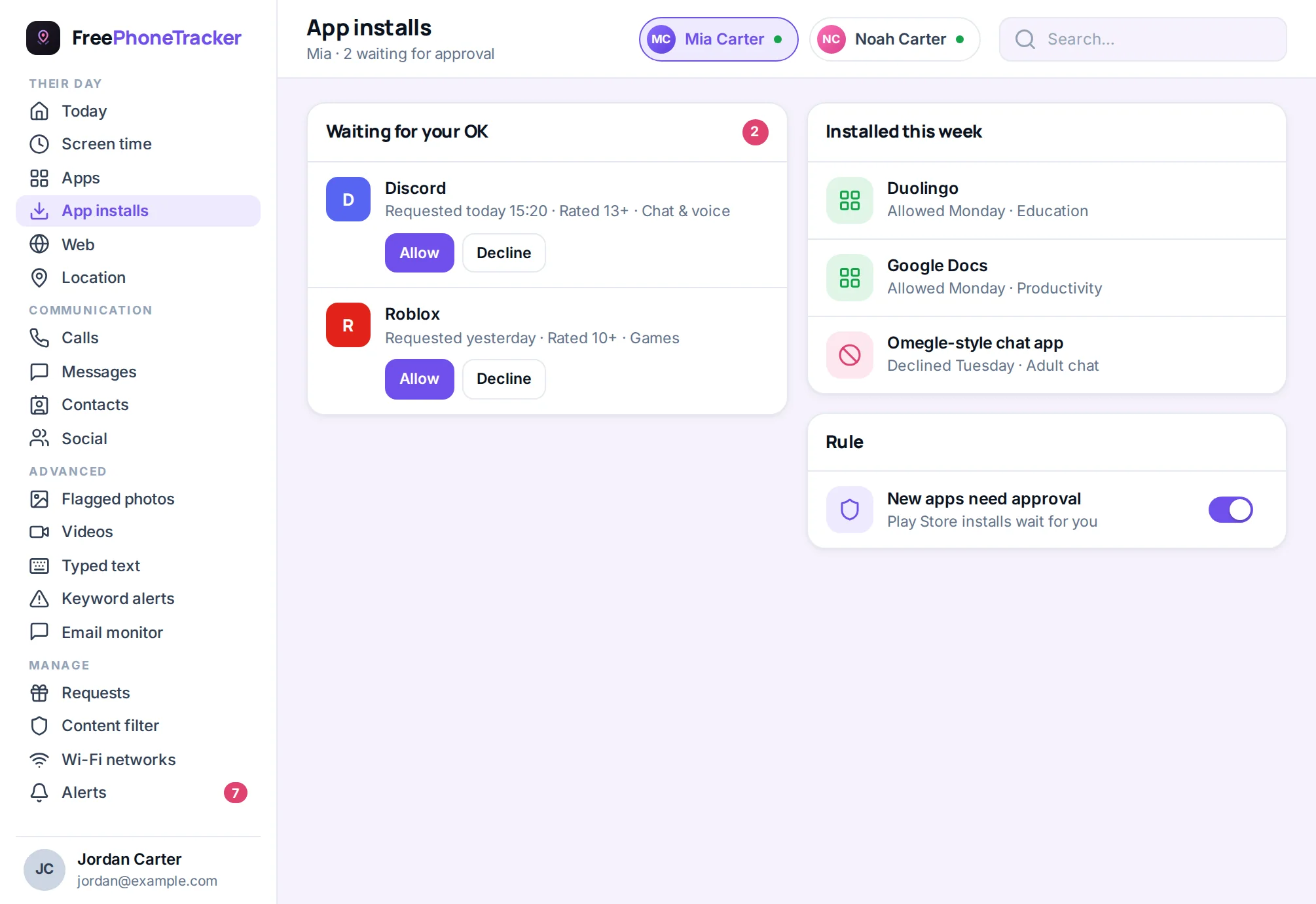
Google’s built-in controls cover the core parental jobs well.
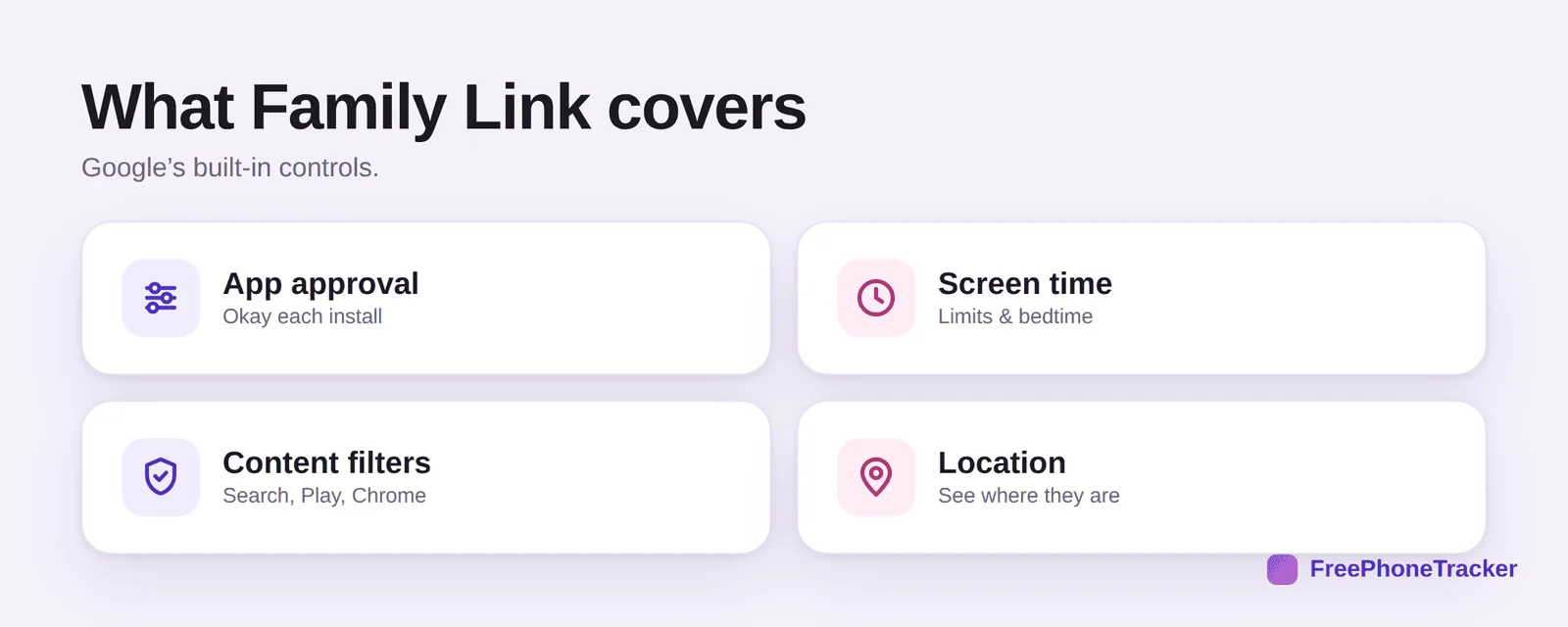
App approval lets you okay (or block) every install and purchase. Screen time sets daily limits and a bedtime that locks the device. Content filters apply to Google Search (SafeSearch), the Play Store (age ratings) and Chrome (site blocking). And location shows you where the phone is. For a young child, that combination is a complete, gentle setup.
Where Android really shines
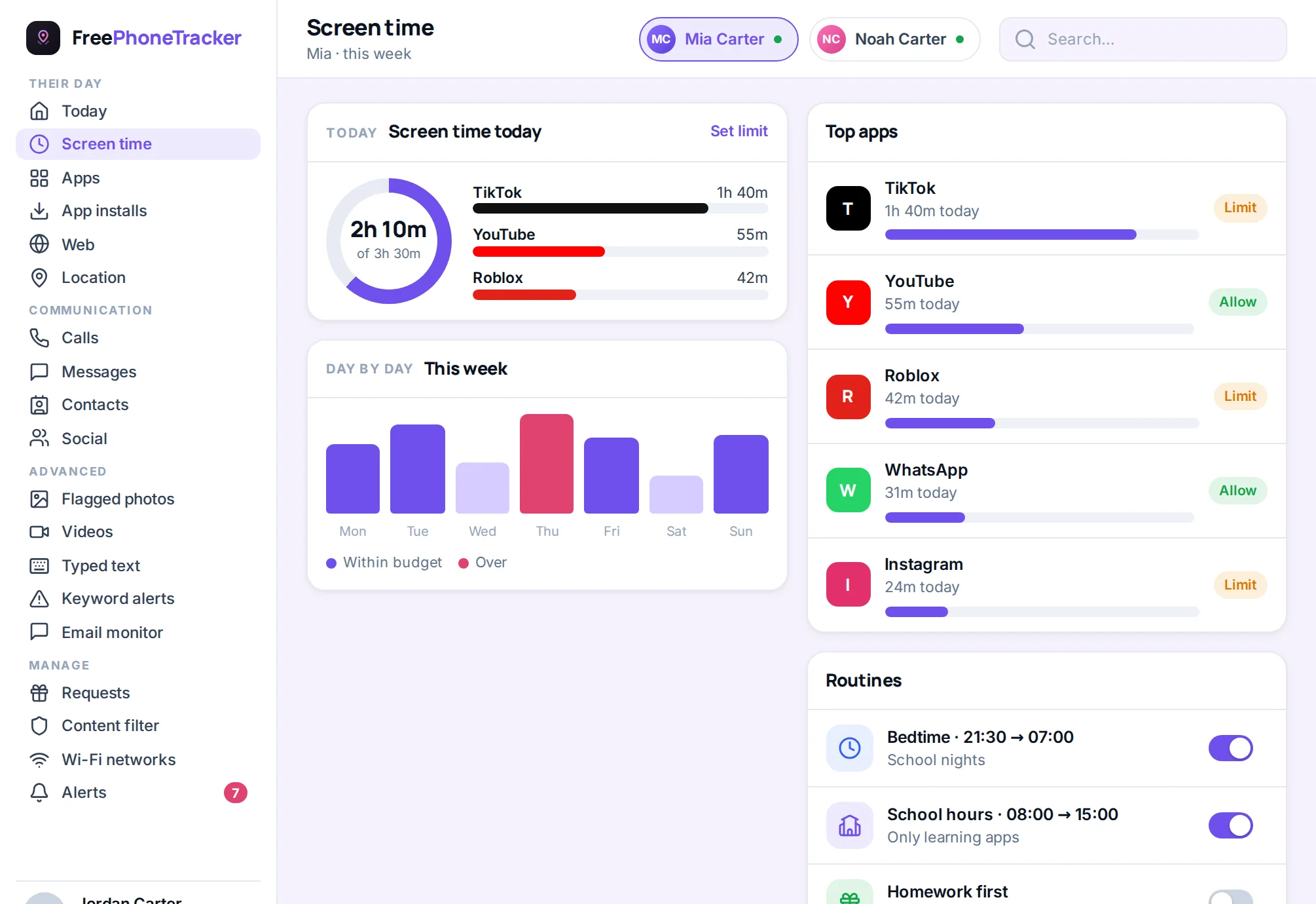
Here’s what sets Android apart. Because the system is more open than iOS, a dedicated monitoring app can see far more than Family Link, or anything on an iPhone, allows. That’s a double-edged thing (it’s also why Android needs good controls), but for parents it means real depth.
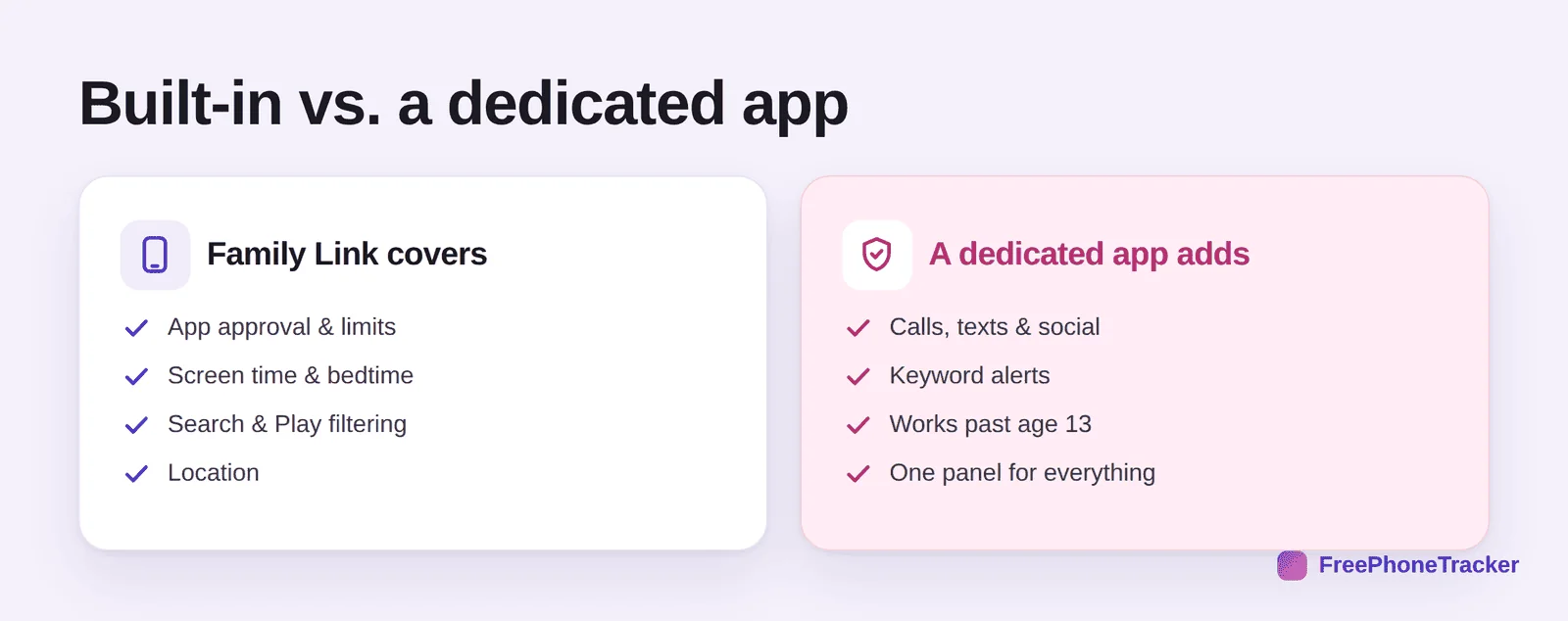
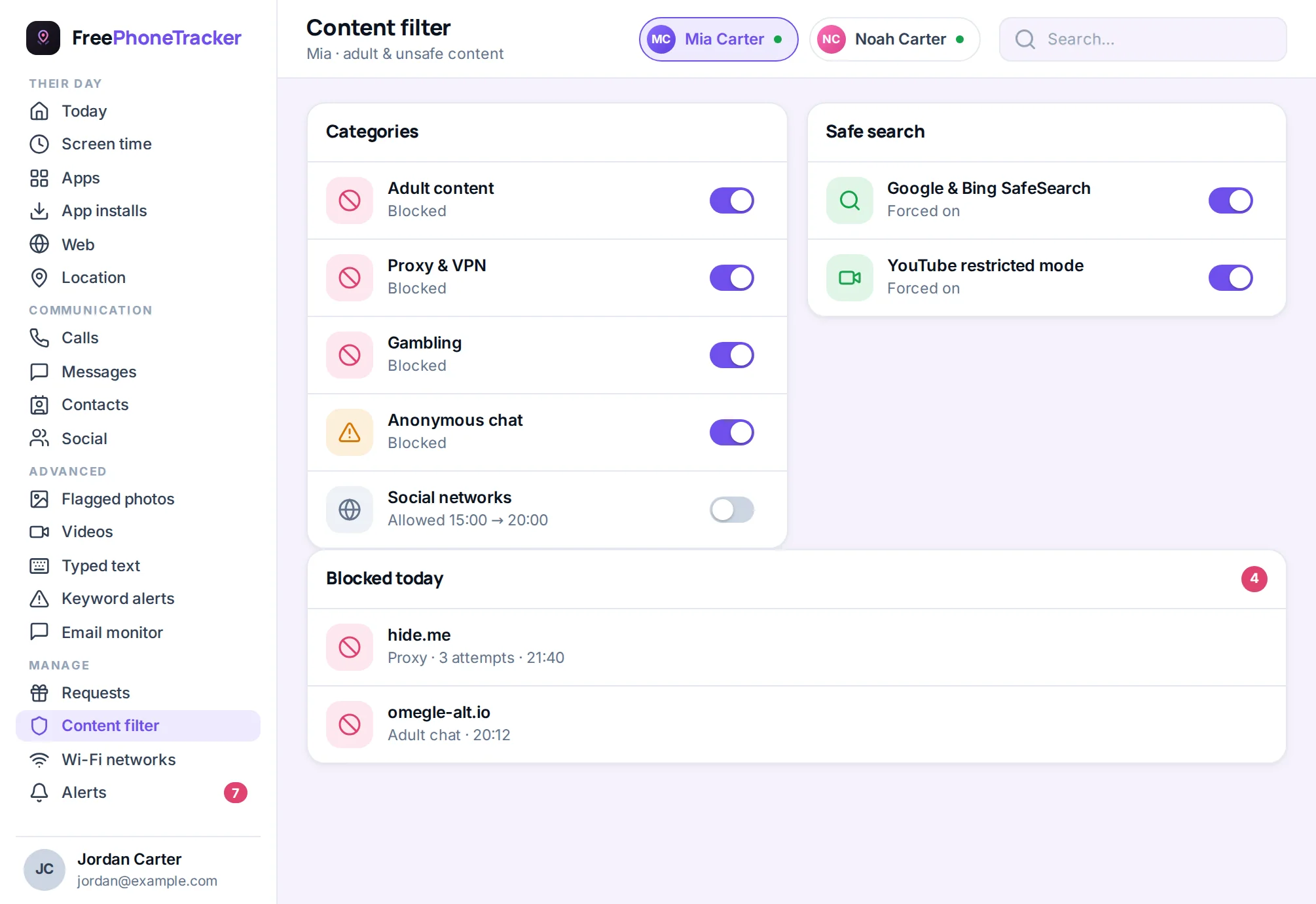
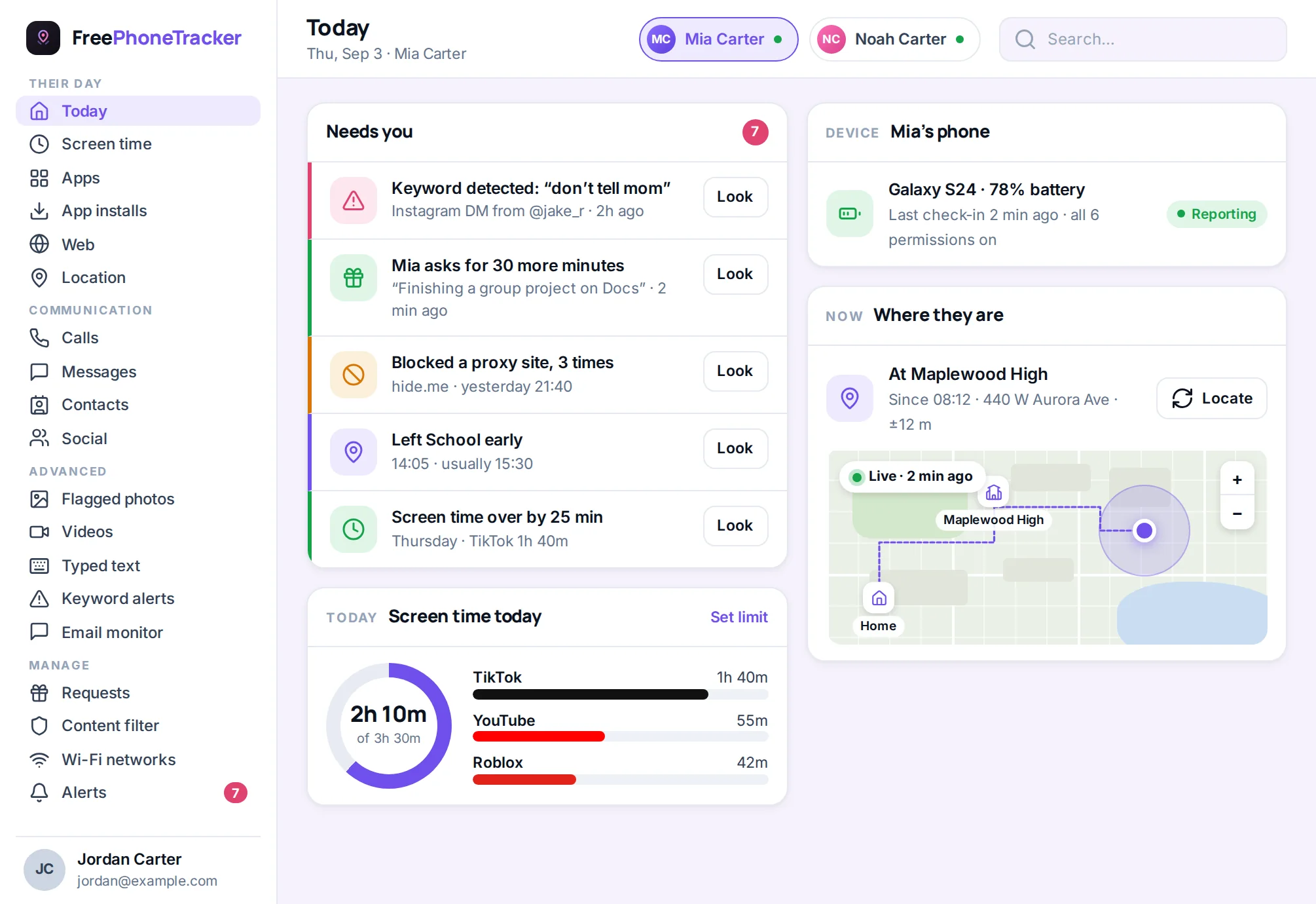
Family Link won’t show you calls, text messages, or what happens inside social apps, and it stops supervising once a teen turns 18 (or removes supervision at 13 in some regions). A dedicated tool like FreePhoneTracker adds call and message visibility, social monitoring, and keyword alerts, the monitoring layer that matters most in the teen years. Match the depth to your child’s age, as our screen time by age guide suggests.
What changes as they get older
Android’s built-in supervision has an age wrinkle worth planning for. In many regions, once a child turns 13 they can choose to remove Family Link supervision from their own account, and at 18 it ends automatically. That’s by design, but it can leave a gap right when the teen years get riskiest. This is one reason a separate, openly-agreed tool matters for older kids: it isn’t tied to the account age the way Family Link is, so your safety net doesn’t vanish on a birthday. Frame it with your teen as a trust arrangement that loosens over time, not a permanent leash, exactly the approach in our guide to monitoring a teen respectfully.
Getting it right
A few pointers. Set it up openly, tell your child what’s on and why; secret setup backfires. Use a strong parent PIN so settings can’t be changed. On Samsung and other brands, check the manufacturer’s own “Digital Wellbeing” or “Kids Mode” features too, they layer on top of Family Link. And revisit the settings a couple of times a year, since what fits a ten-year-old won’t fit a thirteen-year-old. Our beginner’s guide to parental controls covers the wider approach.
Common questions
Is Family Link free?
Yes, completely. It’s Google’s own app and covers app approval, screen time, content filters and location at no cost. A dedicated tool adds the deeper monitoring on top.
Can my teen just delete Family Link?
Not without your permission, removing supervision requires the parent’s approval. At 13, in some regions, a teen can choose to stop supervision, which is one reason a separate, agreed tool helps for older kids.
Does this work on Samsung phones?
Yes, Family Link works on all Android phones. Samsung also has its own Digital Wellbeing and Kids Mode features you can layer on top.
How is Android different from iPhone for monitoring?
Android is more open, so a dedicated app can see messages, calls and social activity that iOS blocks. Our monitoring guide breaks down the differences.
What age should I start?
From the first phone. Young kids need just app approval, screen time and filters; add the deeper monitoring as they grow into social apps and messaging.
Android gives you the free foundation of Family Link plus, uniquely, the openness for a dedicated app to go deeper when you need it. Install Family Link, set your approvals, limits and filters, then add the monitoring layer that fits your child’s age. Set it up openly, keep it current, and you’ve got the most capable parental-controls setup of any platform. Get started free, and see our iPhone guide if your family runs a mix.