Setting up parental controls phone by phone, device by device, gets old fast, especially in a house full of tablets, laptops, consoles and smart TVs. Your home Wi-Fi router can filter all of them at once, from a single setting. This guide explains how network-level controls work, how to set them up, and the important gaps they leave, so you know what your router can and can’t do.
- Router-level filtering blocks unwanted sites for every device on your home Wi-Fi.
- Set it up in your router’s app or settings, or point it at a family-safe DNS.
- Add schedules to pause Wi-Fi at bedtime for kids’ devices.
- The catch: it only works at home, not on mobile data, and a VPN can bypass it.
How Wi-Fi filtering works
Network-level controls do their job at the router, the box all your home devices connect through, rather than on each device. That’s the appeal: set it once, and it covers phones, tablets, laptops, consoles and TVs together.
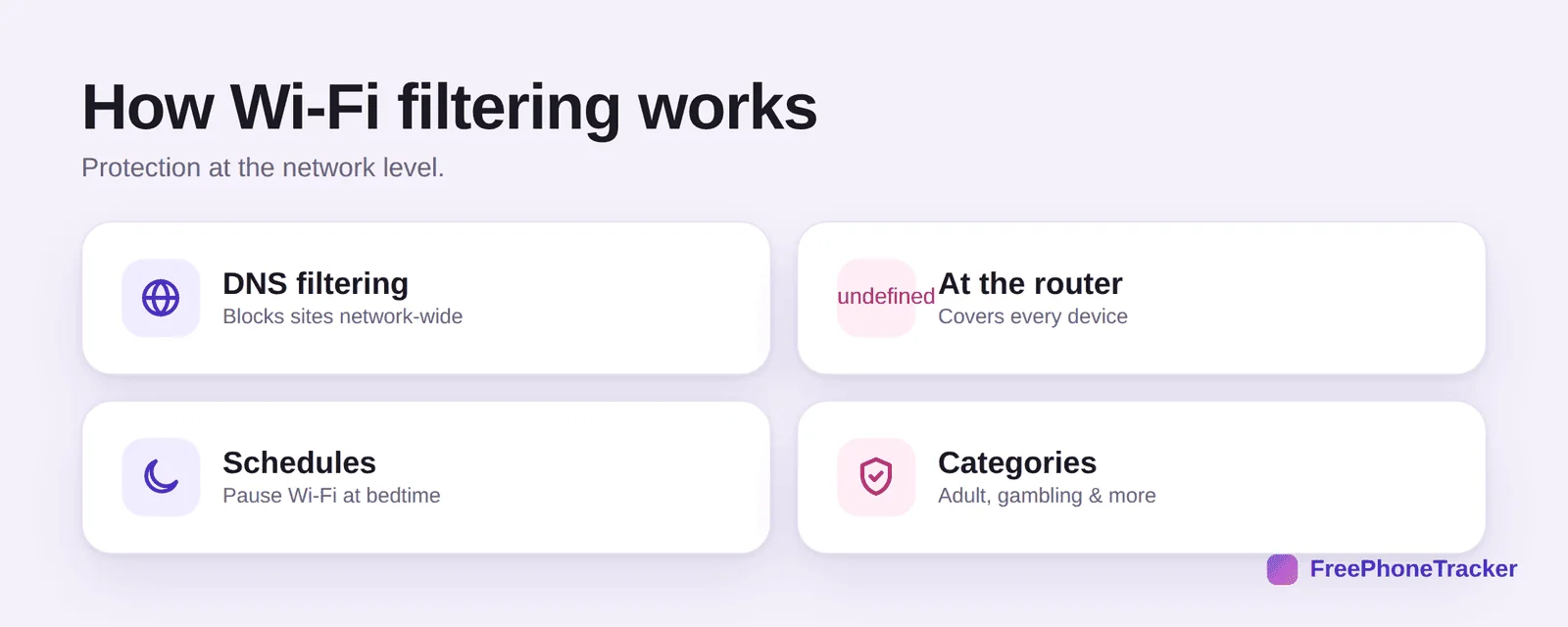
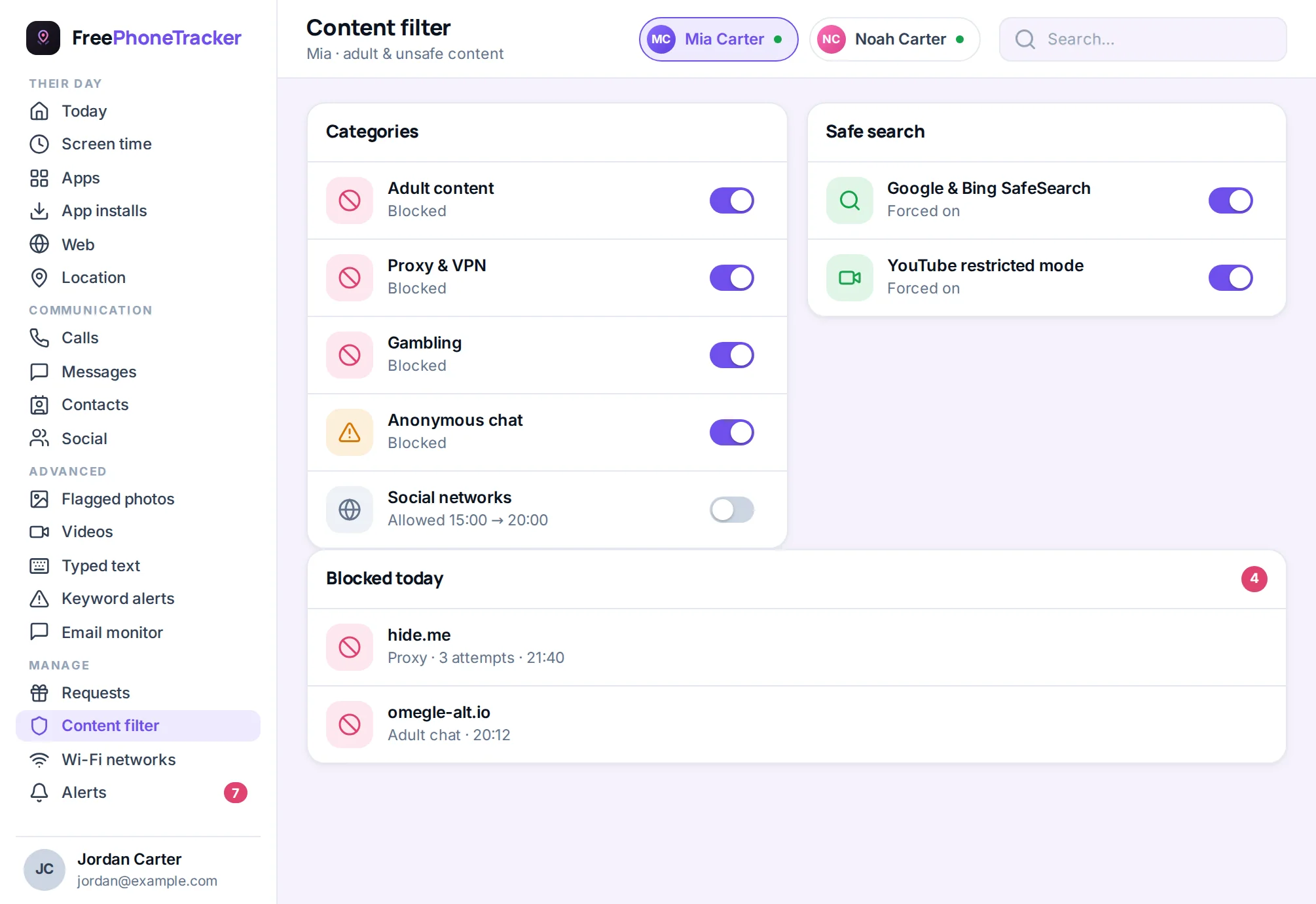
Most of it runs on DNS filtering: when a device asks “where is this website?”, the router (or a safe DNS service) simply refuses to answer for blocked sites. Because it works at the router, it covers every connected device. Many routers add schedules (pause the Wi-Fi for kids’ devices at bedtime) and category blocking (adult, gambling, and so on). It’s the widest net you can cast in one move.
How to set it up
There are two routes, depending on your router. Either way, it’s about a five-minute job.
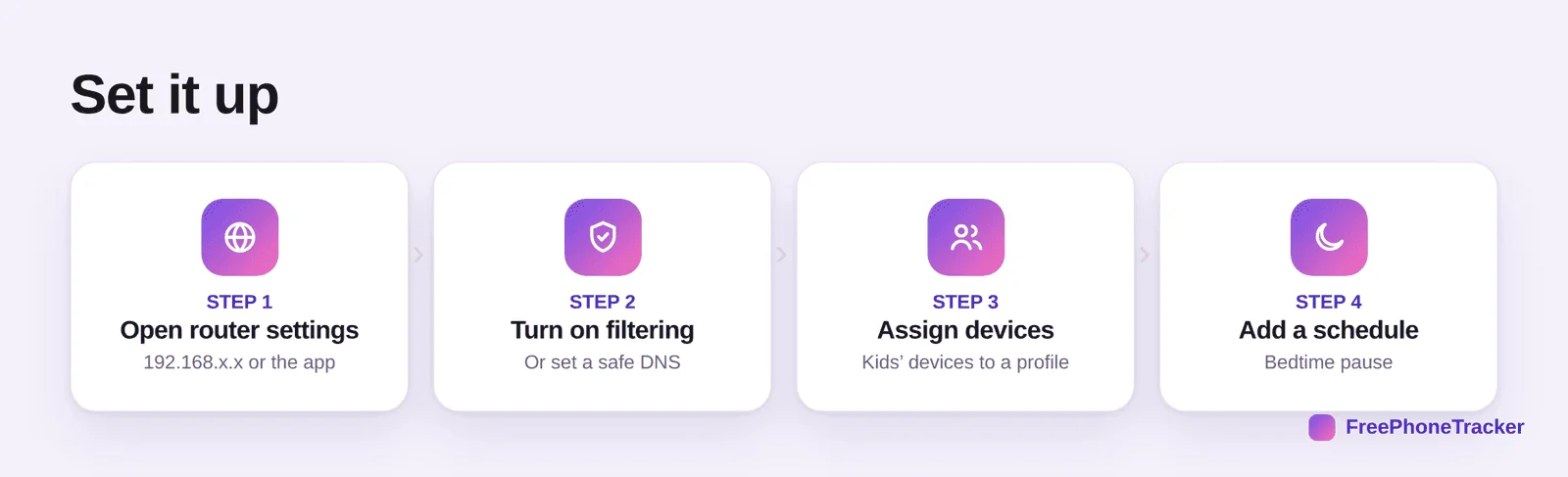
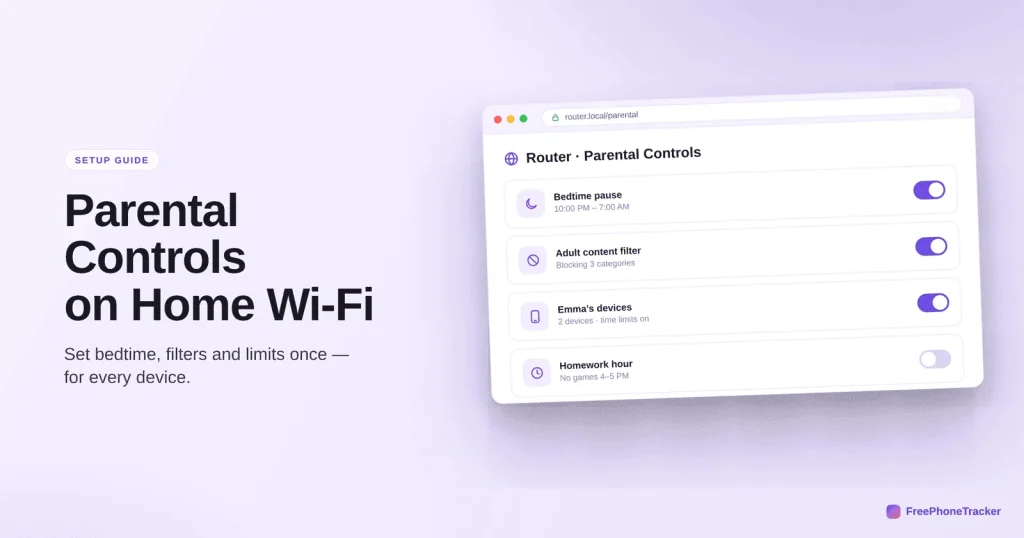
Open your router settings, either the manufacturer’s app (Google Nest, eero, TP-Link and others have good ones) or the web address on the router’s label, usually something like 192.168.0.1. Turn on the built-in filtering if your router has it, or set the router’s DNS to a family-safe service. Assign your kids’ devices to a profile so the rules apply to them and not the whole house. And add a schedule to pause their Wi-Fi at bedtime. A quick tip: a “family-safe DNS” is the easiest option if your router lacks built-in controls, you just change one setting.
What Wi-Fi controls can’t do
This is the part most guides skip, and it’s the most important. Router filtering is powerful but has real blind spots. Rely on it alone and you’ll have a false sense of security.
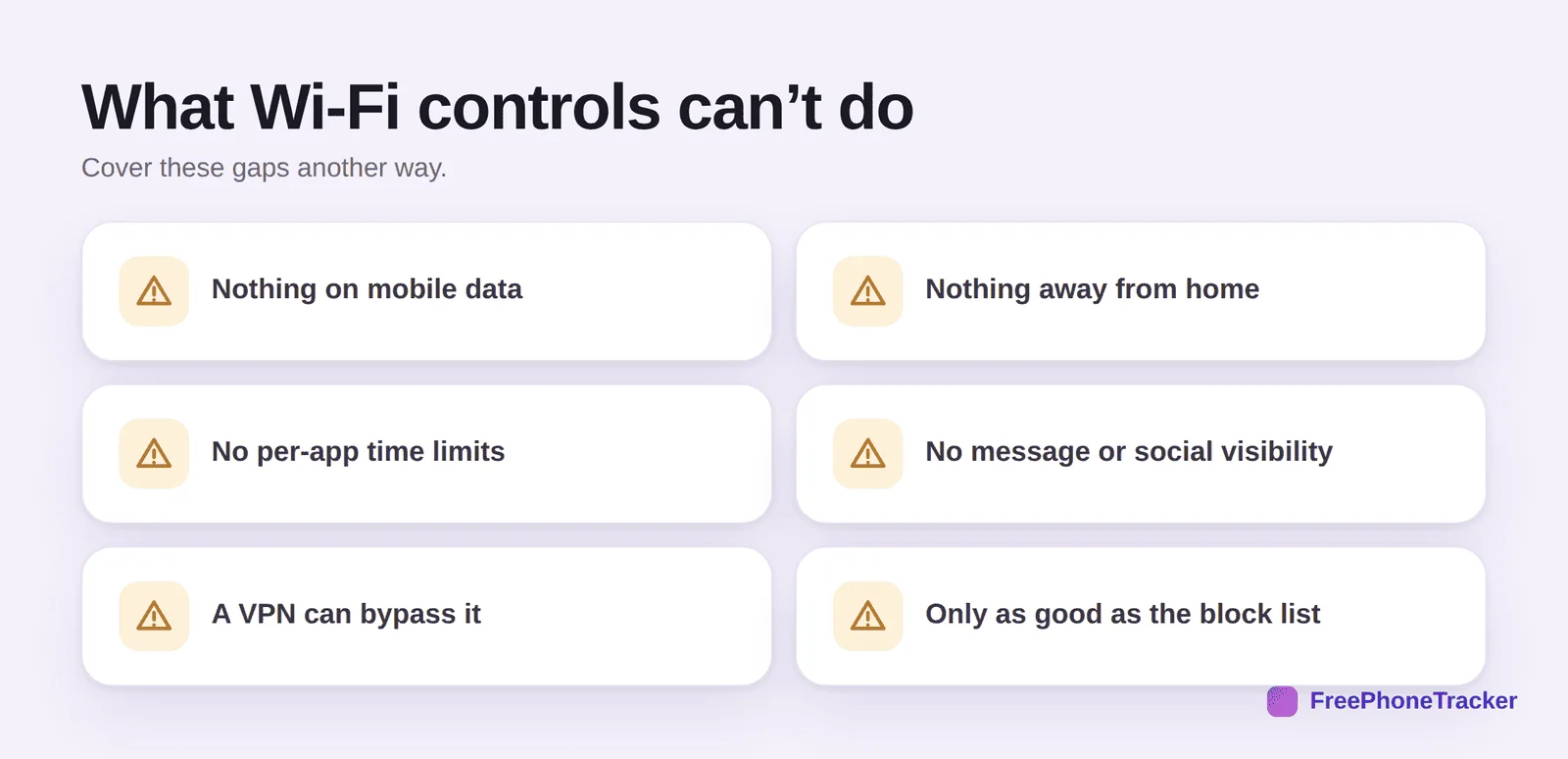
The moment a phone leaves your Wi-Fi and switches to mobile data, your router controls do nothing. They don’t apply away from home at all. They can’t set per-app time limits, or show you messages and social activity. And a determined teen can bypass them with a VPN. Wi-Fi filtering is a great first layer for the whole household, especially younger kids and shared devices, but it’s a layer, not the whole answer.
See what’s being blocked
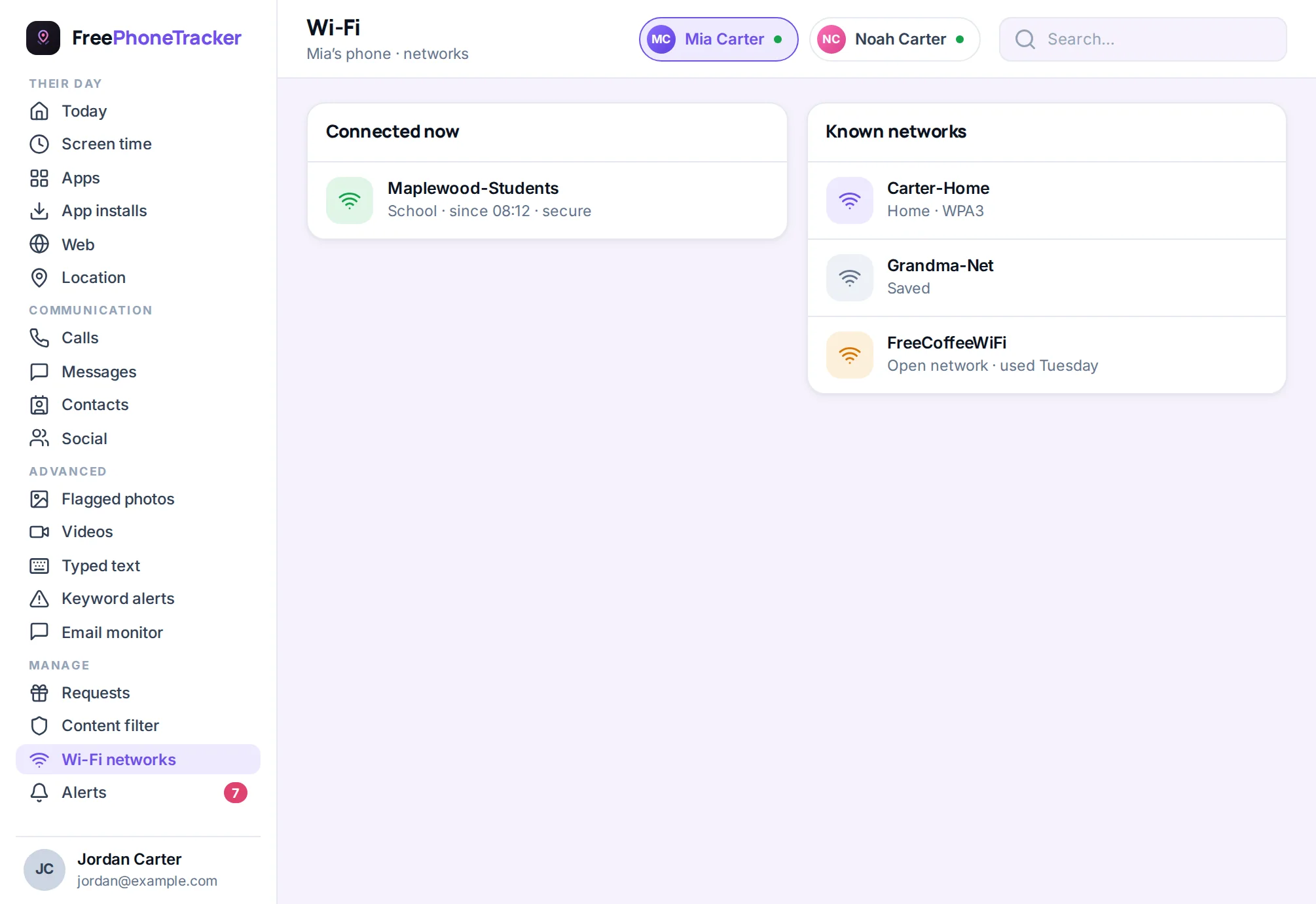
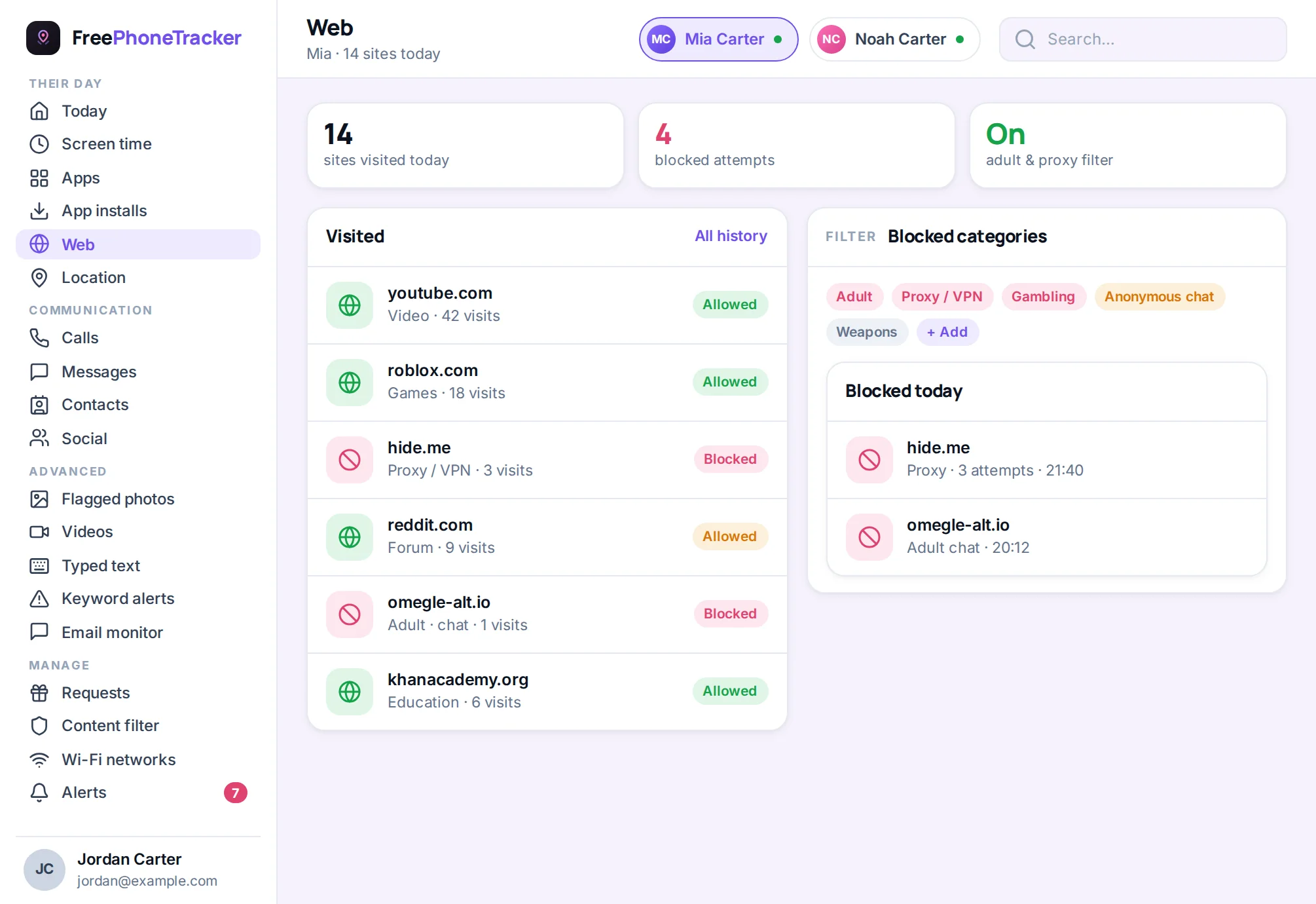
Most router controls, and any decent content filter, keep a log of blocked attempts. It’s worth glancing at now and then, not to police every click, but because it tells you two useful things. First, that the filter is actually working, blank logs sometimes mean it’s misconfigured. Second, it surfaces patterns worth a gentle conversation: repeated attempts to reach a certain kind of site, or a sudden spike, is information, not just a block count. Pair the network’s log with a phone-level view and you get the full picture, home and away, in one place rather than digging through router menus.
Combining the layers
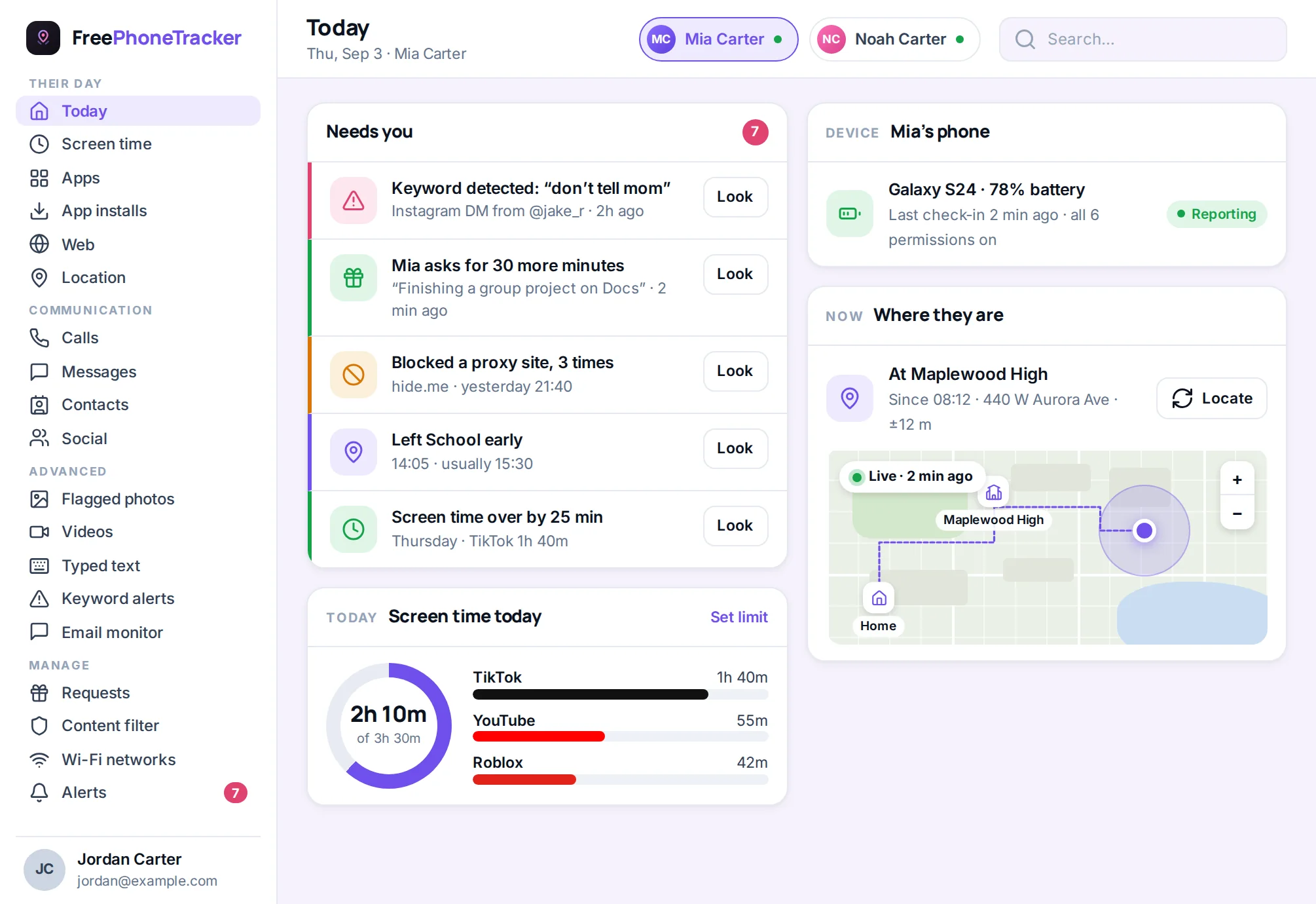
The strongest setup uses the router for the whole house and on-device controls for the phone that leaves it. Router filtering handles the TV, the console and the tablet in the living room; a content filter and screen-time limits on the phone itself carry the protection onto mobile data and out the door. Together they close each other’s gaps. Our beginner’s guide to parental controls explains how the three layers, device, network and app, fit together.
Common questions
Do I need a special router for this?
Not necessarily. Many modern routers have parental controls built in. If yours doesn’t, switching to a family-safe DNS gives you filtering on almost any router with one setting change.
Will Wi-Fi filtering slow my internet?
Barely, if at all. DNS filtering adds a negligible delay. You won’t notice it in normal use.
Can my kid get around it?
On your network, only really with a VPN, so watch for VPN apps appearing on their phone. Off your network, on mobile data, the router controls don’t apply at all, which is why you also need on-device controls.
Does it cover mobile data?
No. This is the key limitation. Router controls only work while the device is on your home Wi-Fi. For everywhere else, use a device-level filter.
Is this enough on its own?
For a shared living-room tablet or a young child at home, often yes. For a phone that travels with an older kid, no, combine it with on-device controls.
Your home Wi-Fi is the most efficient place to protect every device at once, one setting, whole house. Set up router filtering or a safe DNS, schedule bedtime pauses, and enjoy the coverage. Just remember its walls end at your front door, so pair it with on-device controls for the phone that goes everywhere. Get started free to cover the mobile-data gap, and see our guide on blocking adult websites on every device.