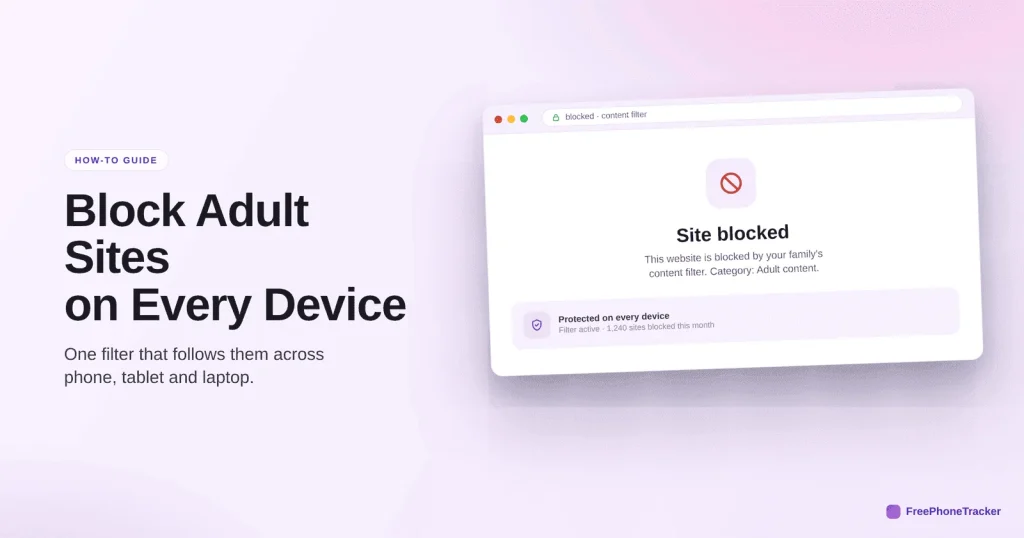
Blocking adult content is the single most common thing parents want to set up, and the good news is it’s very doable. The catch is that no single switch covers everything: kids move between phones, home Wi-Fi and mobile data, and between browsers and apps. The reliable approach uses three layers together. This guide shows you exactly how to block adult websites on every device your child uses.
- Use three layers: on the device, on your network, and in a dedicated app.
- On the phone: iPhone’s “Limit Adult Websites” or Android’s Family Link filters.
- On the network: router filtering or a family-safe DNS for the whole house.
- Turn on SafeSearch everywhere, and a content-filter app to catch the rest.
Why one setting isn’t enough
Parents often flip one switch, assume they’re done, and are surprised later. The reason is coverage: a phone setting doesn’t protect the living-room tablet, a router setting doesn’t work on mobile data, and a browser filter doesn’t touch a different browser. Adult content can slip through any gap you leave. So the goal isn’t one perfect setting, it’s overlapping layers that cover each other.
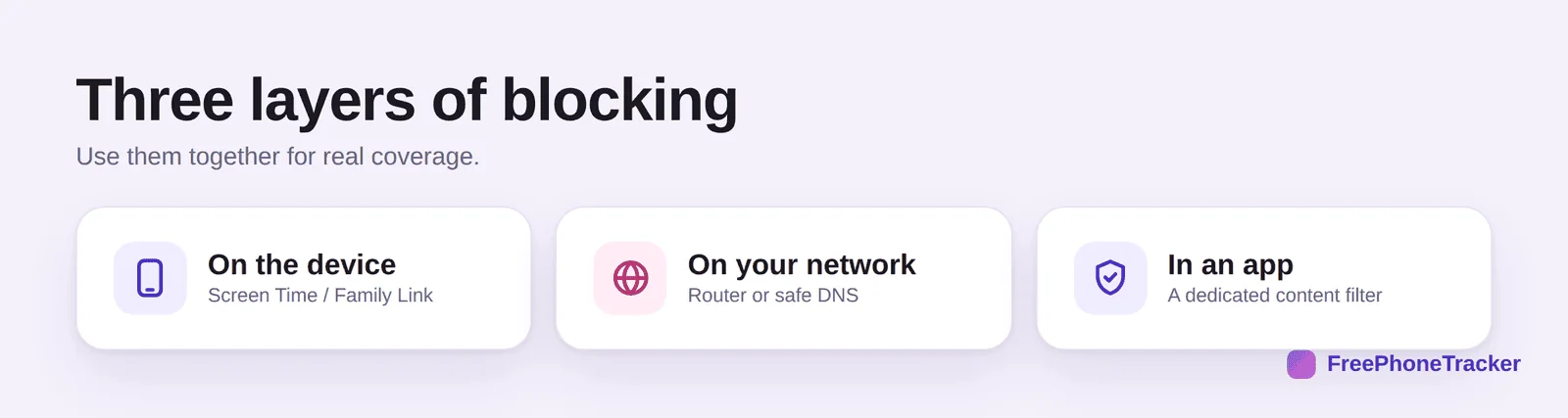
The three layers are: on the device (the phone or tablet’s own settings), on your network (the home Wi-Fi router), and in a dedicated app (a content filter that travels with the phone). Set up all three and there’s very little room left for anything to get through.
Block on the phone
Start with the device itself, because it’s the one that leaves the house. The steps differ by platform.
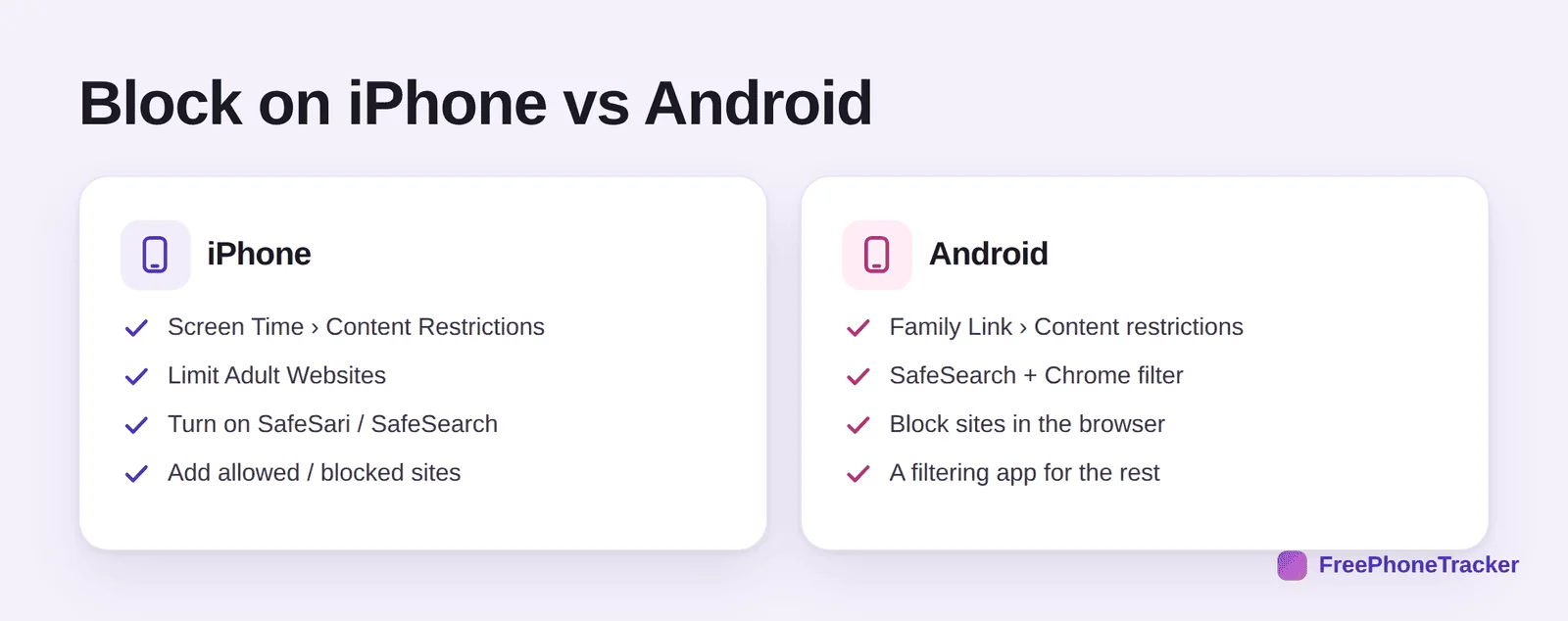
On iPhone, go to Settings › Screen Time › Content & Privacy Restrictions › Content Restrictions › Web Content, and choose Limit Adult Websites. On Android, use Family Link’s content restrictions plus SafeSearch and Chrome’s site settings. On both, turn on SafeSearch so explicit results are filtered out of Google, and set age-appropriate app and media ratings. Our platform guides walk through each in detail: iPhone and Android.
Block on your network
Next, cover every device at home in one move. In your router’s app or settings, turn on content filtering, or point the router at a family-safe DNS service, which refuses to load adult sites for anything on your Wi-Fi. This catches the TV, the console, the tablet, and any device you might forget. Our home Wi-Fi guide has the full walkthrough. Remember its limit, it only works at home, which is exactly why you also did the device layer.
Add a content-filter app
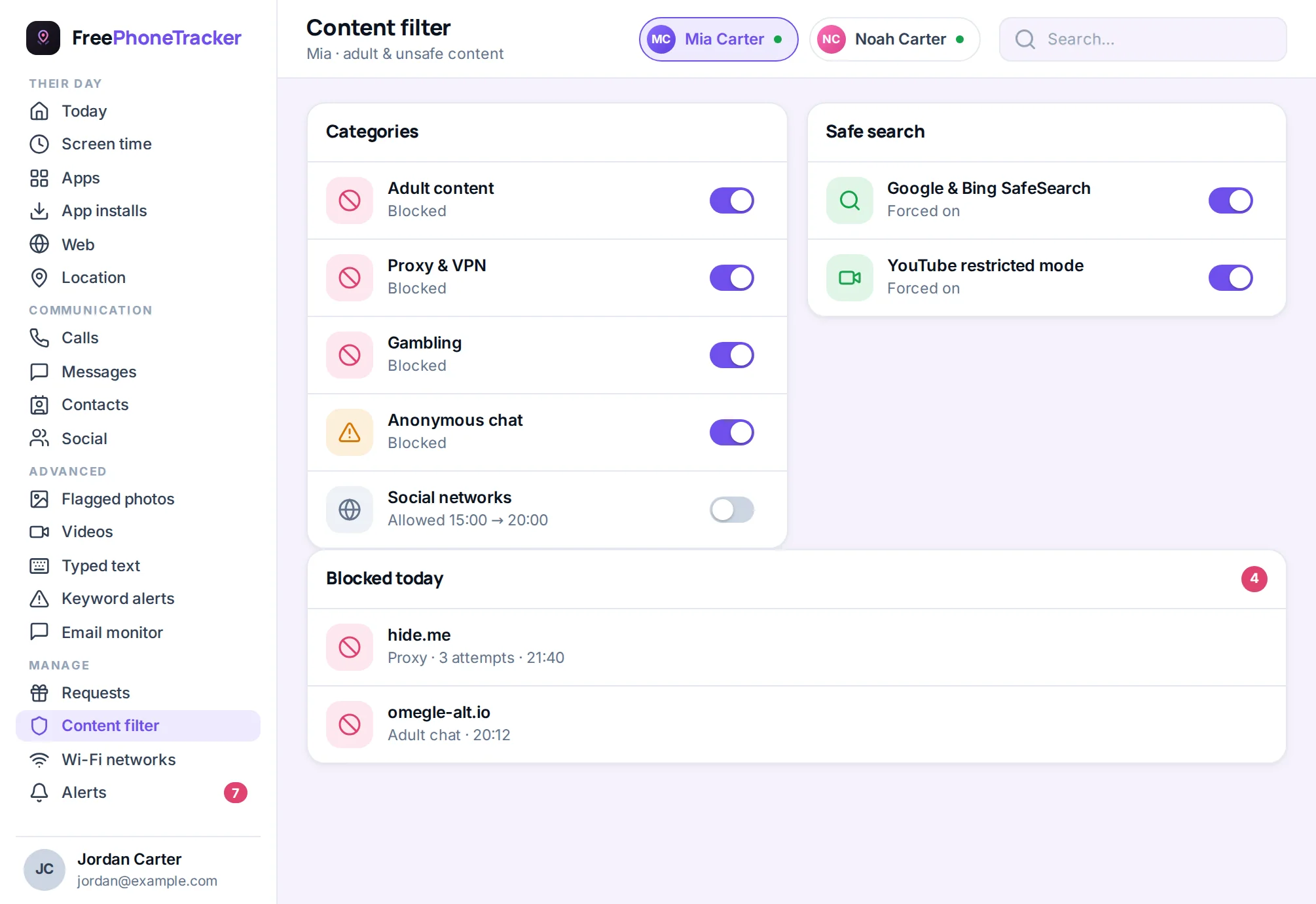
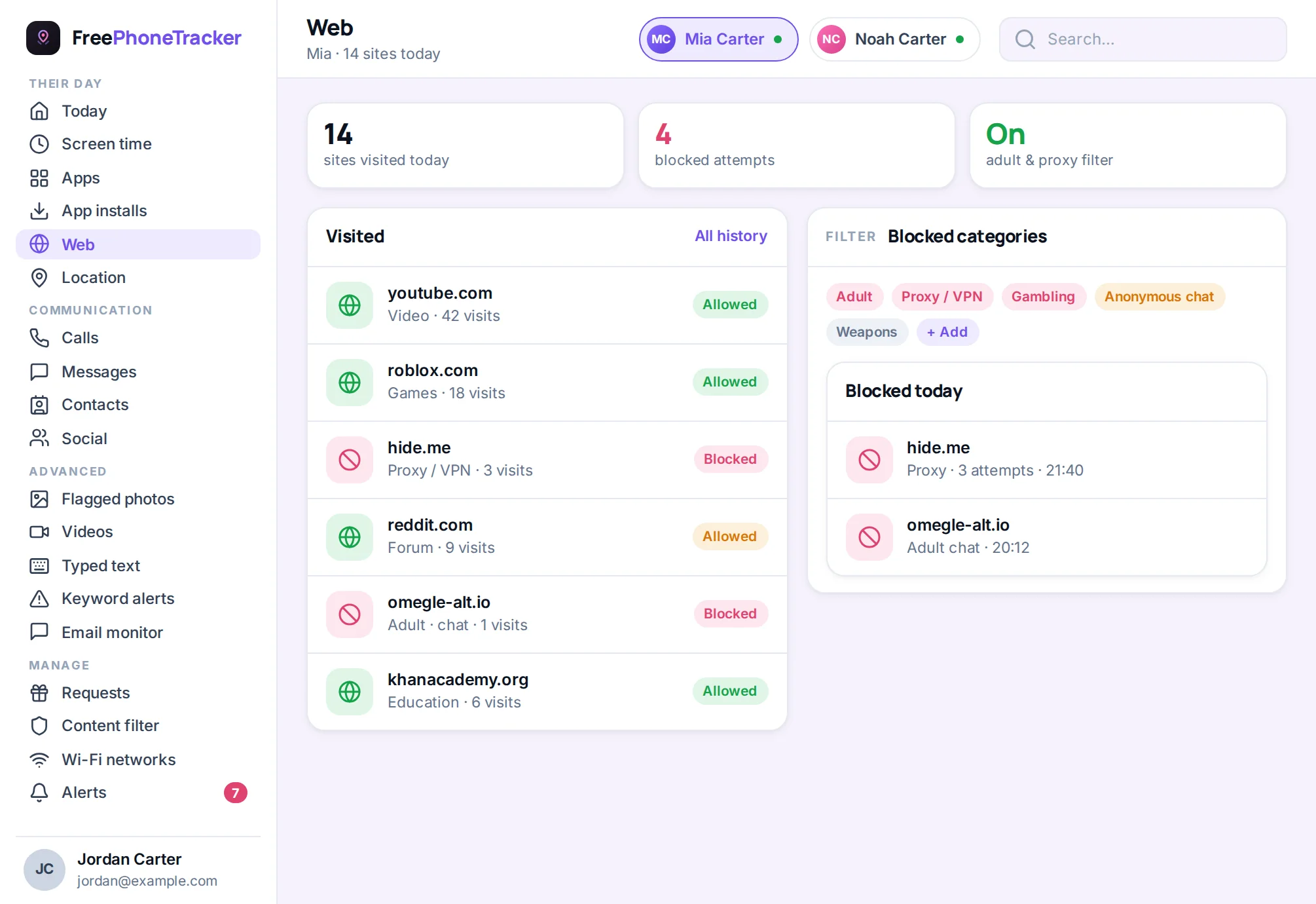
The third layer travels with the phone. A dedicated content filter app blocks adult and unsafe categories on the device itself, so protection follows your child onto mobile data and away from home, closing the router’s biggest gap. It also holds across different browsers, where a single browser’s setting wouldn’t.
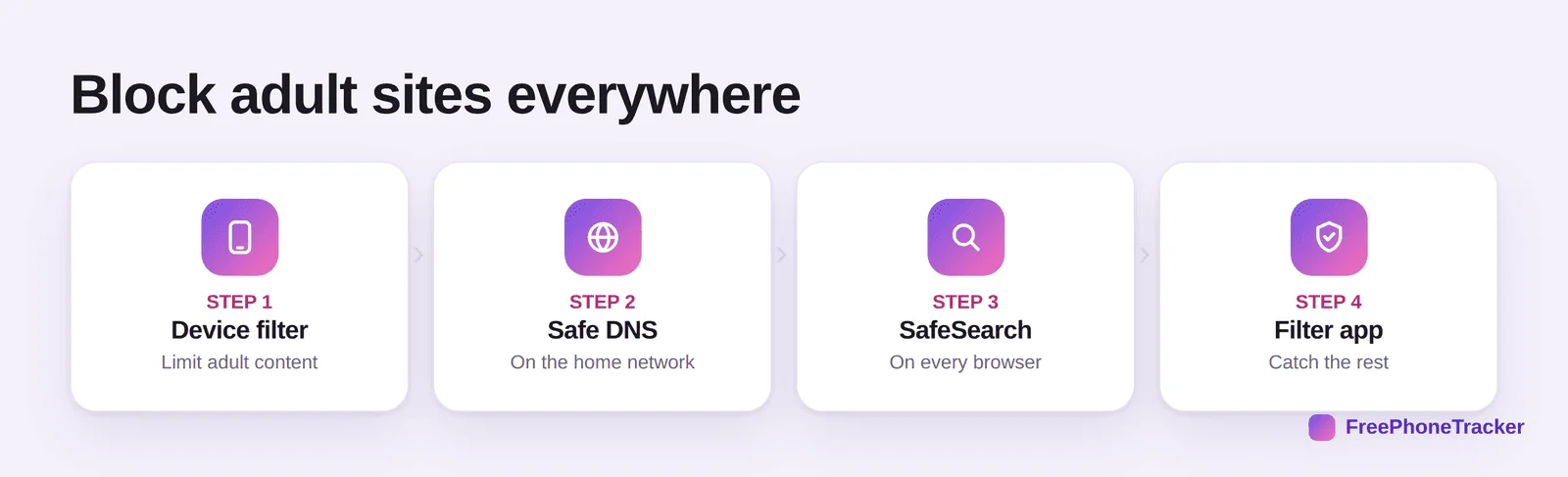
Put together, the recipe is: device filter on each phone and tablet, safe DNS on the home network, SafeSearch on every browser, and a content-filter app to catch whatever slips past. It sounds like a lot, but each step is a few minutes, and you only do it once.
Don’t forget consoles and TVs
Phones and tablets get all the attention, but the living room is full of unfiltered doorways to the open web: game consoles, smart TVs, streaming sticks, even some smart speakers have browsers. Each has its own parental controls worth switching on, and this is exactly where network-level filtering earns its keep, because it covers all of them at once without you hunting through six different settings menus. Do a quick inventory of everything in the house that connects to the internet, and make sure each is behind at least one of your three layers. The device a kid reaches for when the phone is filtered is often the one nobody thought to lock down.
A realistic word on limits
No filter is perfect, and it’s worth being honest with yourself and your child about that. A determined teen can find a VPN, a proxy, or an unfiltered browser. That’s why the layers matter (they cover each other), why install alerts help (they flag the workarounds), and why, ultimately, the filter is a safety net rather than a wall. The real protection is the combination of decent technical blocking and an ongoing, judgment-free conversation about why some content isn’t okay, and that your child can always come to you if they see something upsetting. Our guide on keeping kids safe online covers that side.
Common questions
What’s the easiest single step?
Switching your home router to a family-safe DNS, it protects every device at home with one change. But pair it with a device filter for phones that leave the house.
Does “Limit Adult Websites” block everything?
It blocks a great deal automatically, but not literally everything. Layer SafeSearch and a content-filter app on top for stronger coverage.
Can my child bypass these with a VPN?
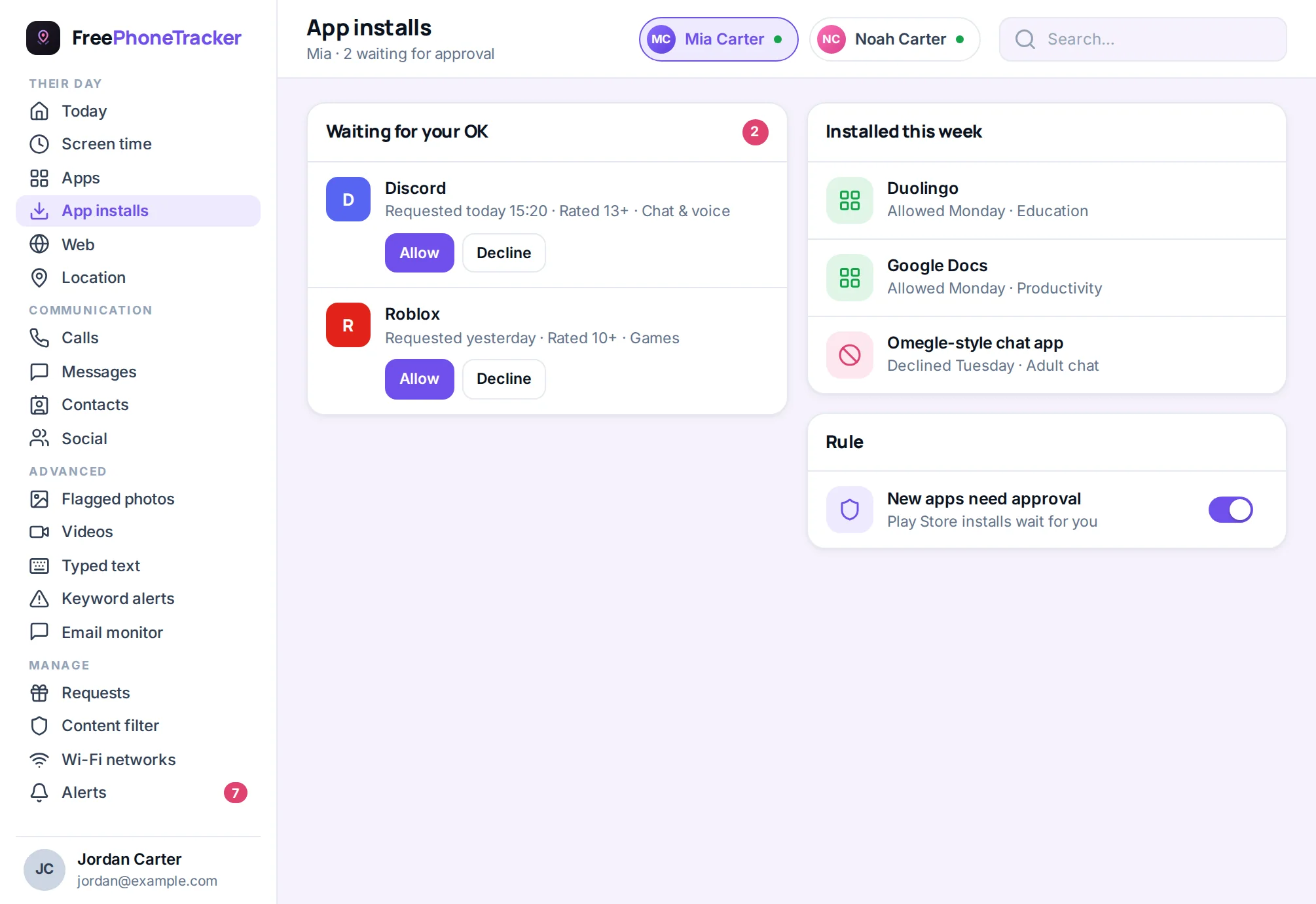
Potentially, yes, a VPN can route around network and some device filters. Watch for VPN apps appearing, and consider blocking app installs without approval for younger kids.
Do I need to do all three layers?
For thorough coverage, yes, each closes a gap the others leave. At minimum, do the device layer (it travels) plus SafeSearch.
Will this block adult content in apps too?
Website filtering covers browsers. In-app content (like a social feed) is handled by that app’s own settings and by monitoring, see our social media safety guide.
Blocking adult websites well isn’t about one magic setting, it’s three overlapping layers: the device, the network, and a filter app that travels. Set each one up once, turn on SafeSearch everywhere, and keep the conversation going alongside the technical blocks. Do that and you’ve made the open web genuinely safer for your child, at home and away. Get started free to add the filtering layer that follows the phone.