Apple builds a genuinely good set of parental controls right into every iPhone, and they’re free. The problem is they’re buried in Settings, scattered across a few menus, and easy to set up halfway. This guide walks you through the whole thing, step by step, so you can lock down your child’s iPhone properly in about ten minutes, and shows where the built-in tools stop and a dedicated app takes over.
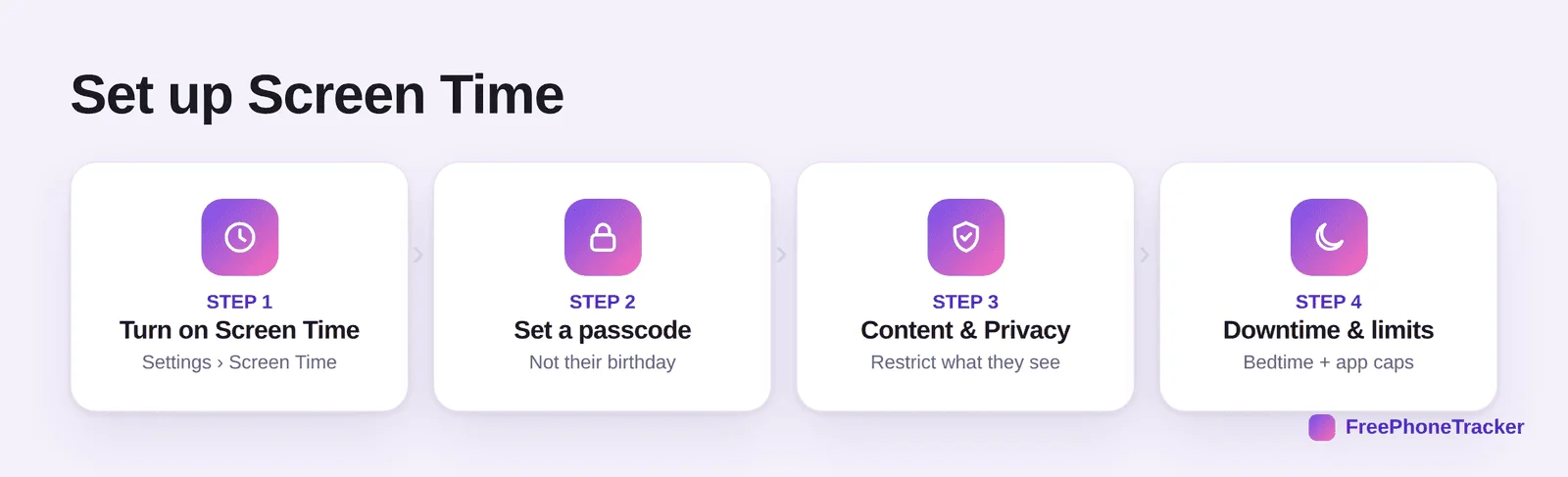
- It’s all under Settings › Screen Time. Set a passcode your child can’t guess.
- Cover four things: downtime, app limits, content restrictions, and communication.
- Turn on “Limit Adult Websites” and SafeSearch for basic web filtering.
- Screen Time handles the basics; a dedicated app adds messaging and social visibility.
Where it all lives: Screen Time
Almost every parental control on an iPhone sits in one place: Settings › Screen Time. If you set it up on your child’s device, choose “This is My Child’s iPhone” during setup, or manage it remotely through Family Sharing from your own phone. The single most important step is setting a Screen Time passcode that’s different from the phone’s unlock code and impossible for your child to guess, without it, they can simply switch everything back off.
The four things to set up
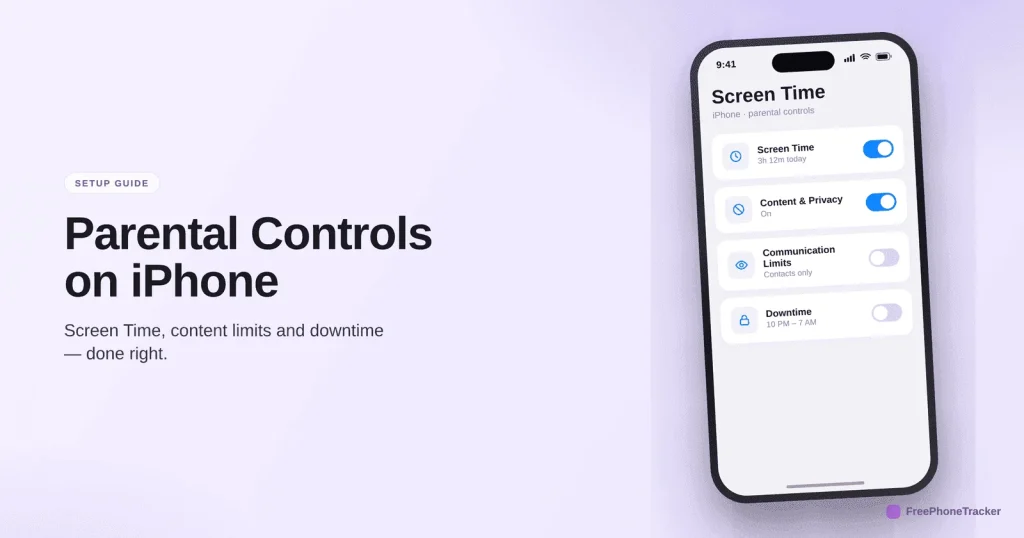
Screen Time does four jobs. Set all four and you’ve covered the essentials.
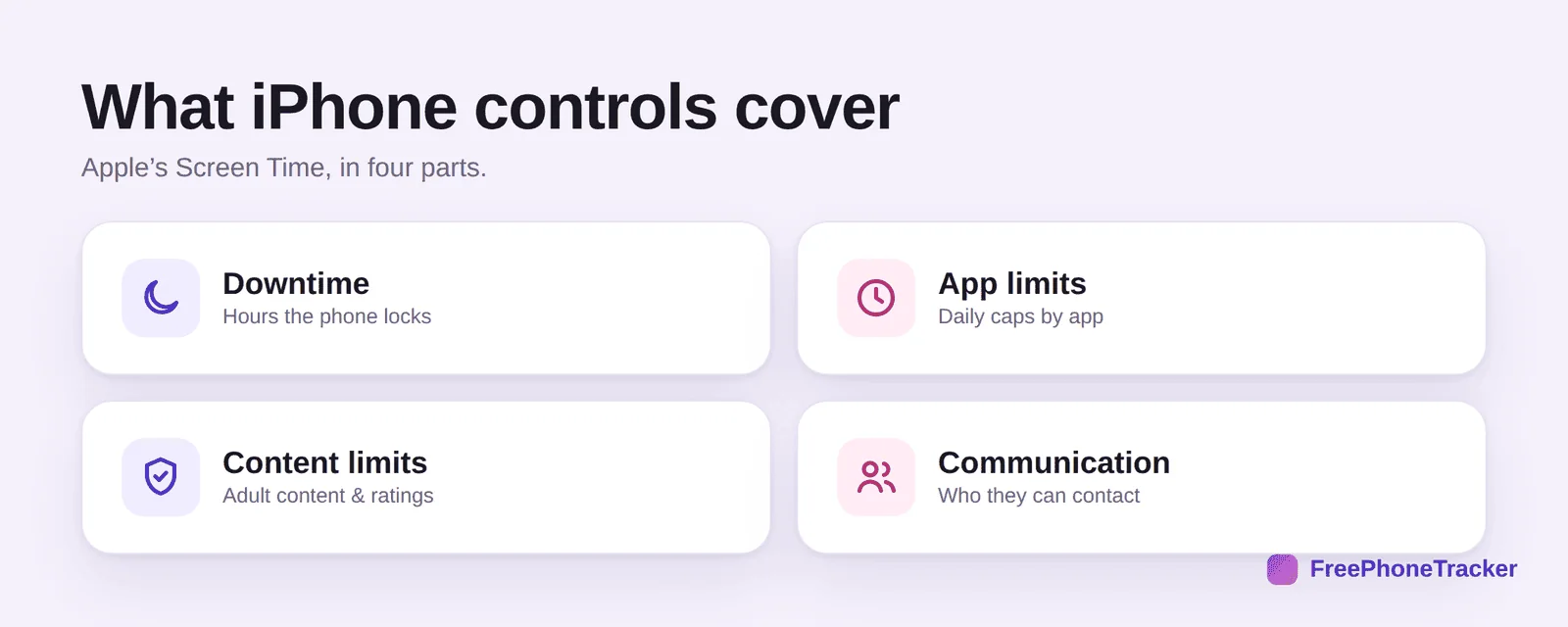
Downtime schedules hours when only the apps you allow will work, perfect for bedtime and school. App Limits set daily caps by app or category (say, two hours of games). Content & Privacy Restrictions is the big one, it blocks adult websites, sets age ratings for apps, music and films, and stops changes to privacy settings. And Communication Limits control who your child can call and message during the day and downtime.
Blocking adult content on iPhone
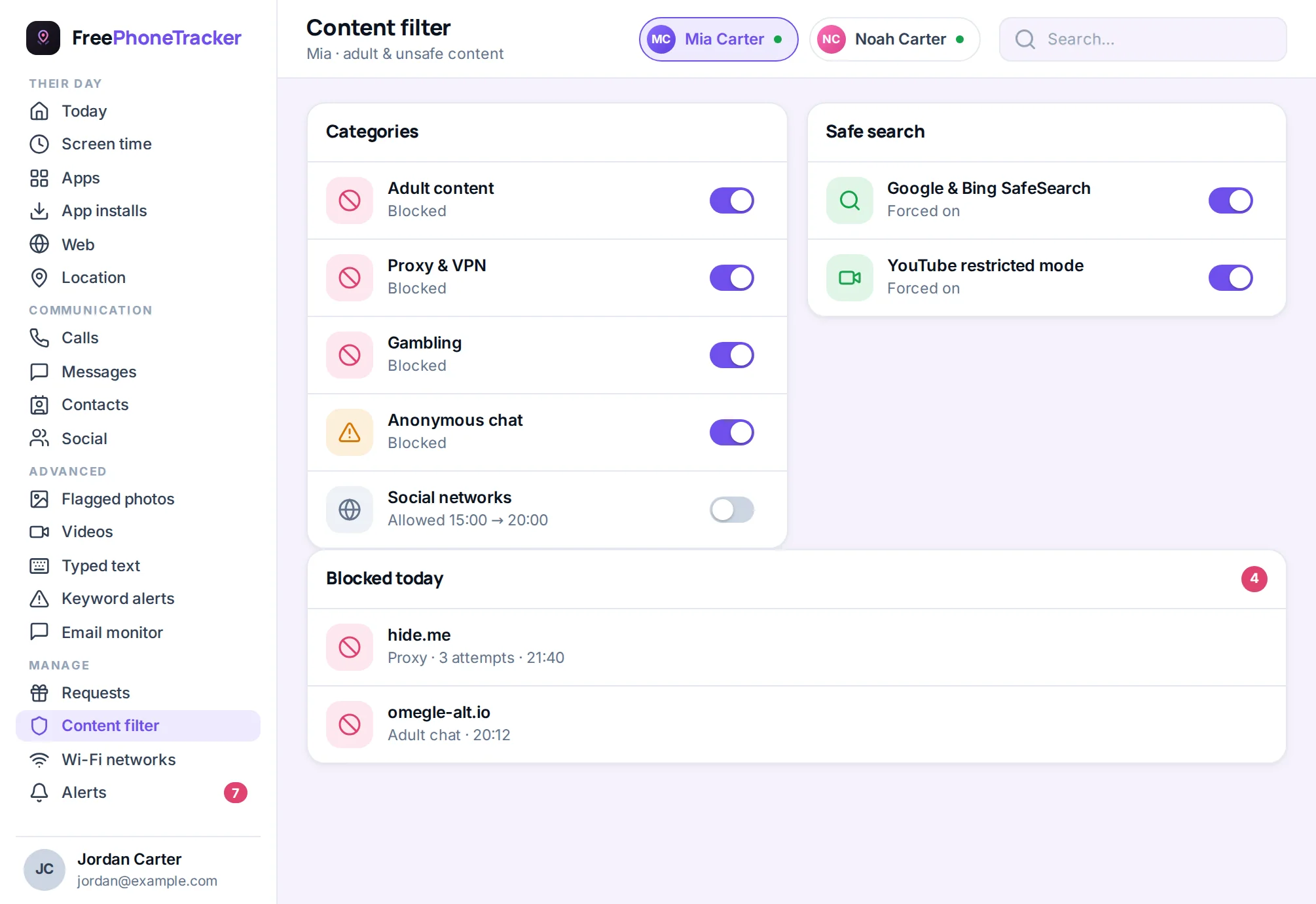
This is the setting most parents actually come for. Under Content & Privacy Restrictions › Content Restrictions › Web Content, choose Limit Adult Websites. That filters out the worst of it automatically, and you can add specific sites to always-allow or never-allow lists. While you’re there, turn on SafeSearch in your browsers and set age-appropriate ratings for apps and media. For a fuller job across the whole phone, pair it with a content filter.
Where Screen Time stops
Apple’s tools are strong on limits and filtering, and deliberately weak on monitoring, that’s the privacy trade-off of iOS. It’s worth being clear about the gap so you’re not surprised.
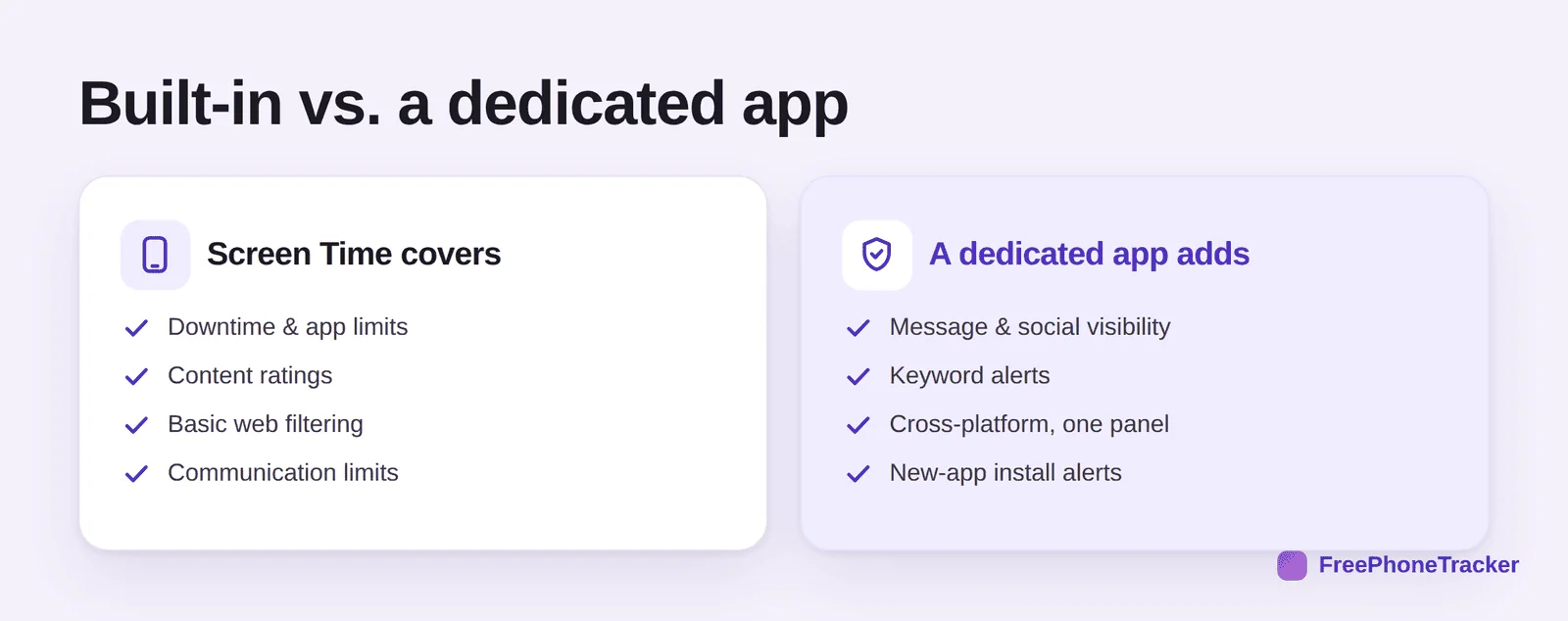
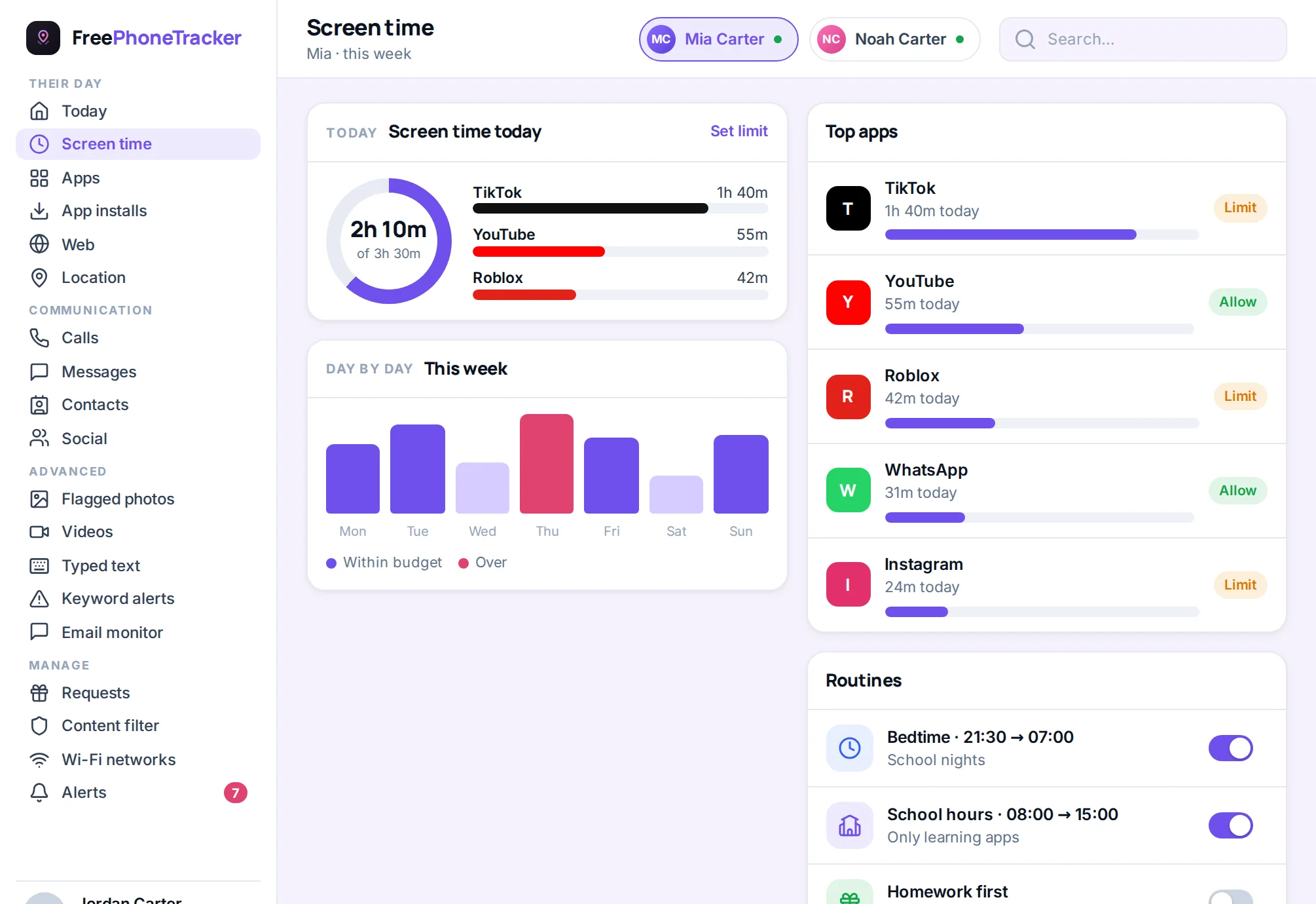
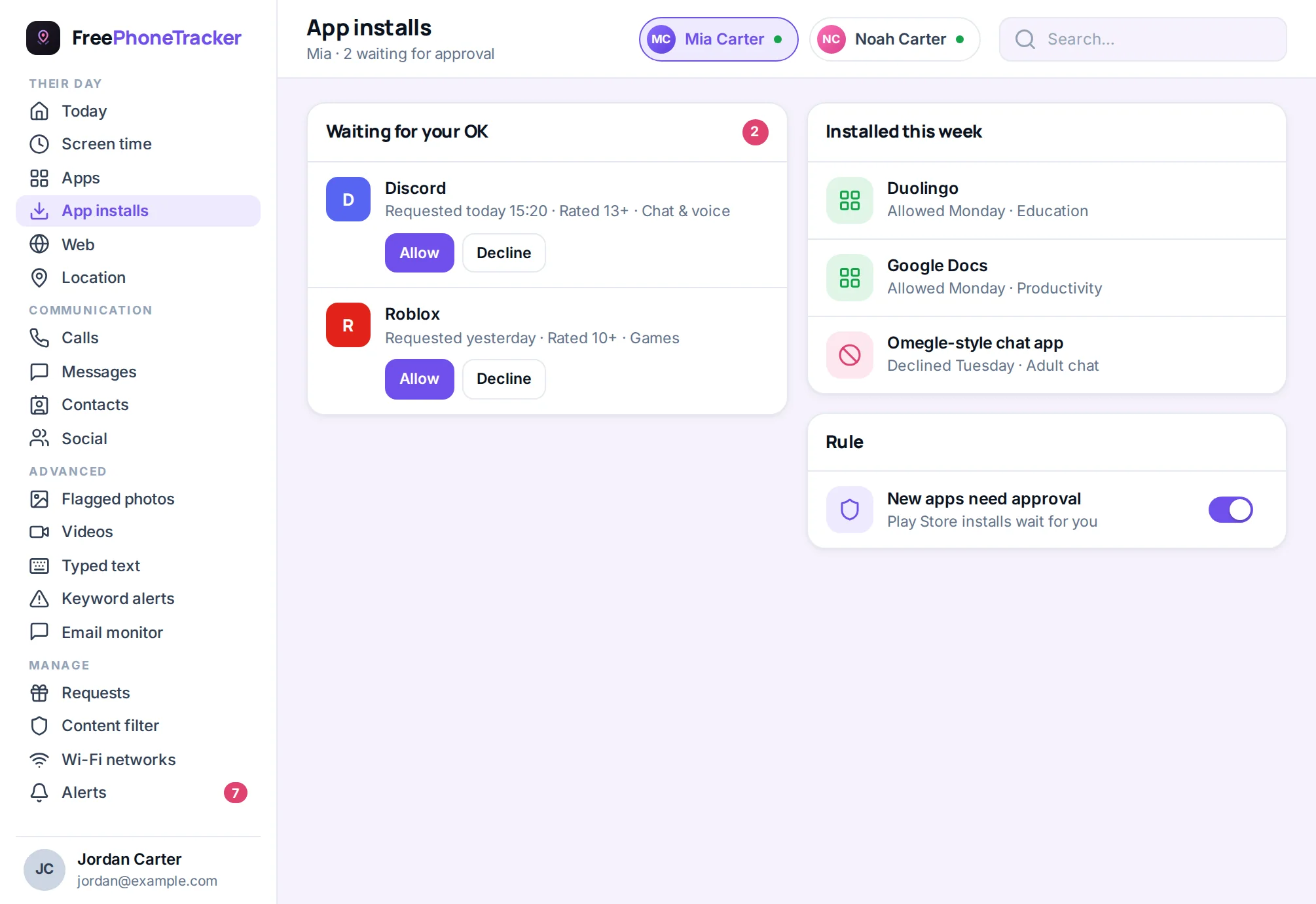
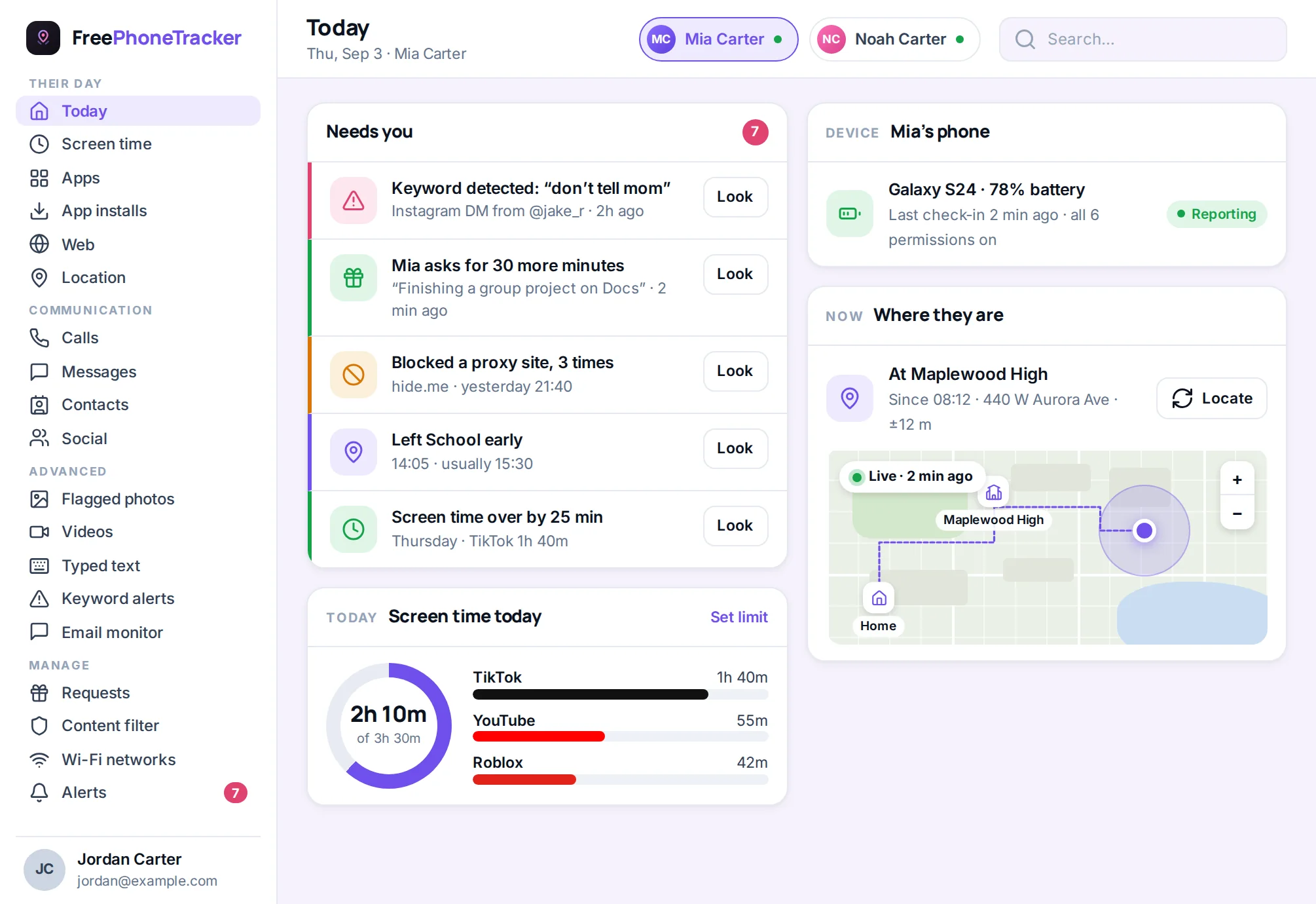
Screen Time won’t show you your child’s messages or social activity, won’t flag concerning keywords, and won’t tell you when a new app appears. For younger kids, that’s usually fine, limits and filtering are what matters most. As kids get older and move onto social apps, a dedicated tool like FreePhoneTracker adds the visibility Apple leaves out, and covers Android devices in the same panel. Our monitoring guide explains what’s possible on iOS versus Android.
Turn on Communication Safety
One iPhone feature worth switching on specifically: Communication Safety, under Screen Time › Communication Safety. It automatically detects and blurs nude images in Messages, AirDrop and other apps, warning your child before they view or send one, all handled on the device, privately. It’s a genuinely useful safety net for the exact risk parents worry about most, and it works quietly in the background without you seeing anything. On a child’s account it can be locked on. Combined with adult-website filtering, it closes one of the bigger gaps in a young person’s day-to-day phone use, and it costs nothing.
Getting it right
A few things make the difference between controls that hold and controls your child bypasses. Set the Screen Time passcode to something random, not a birthday or the unlock code. Use Family Sharing so you can adjust things from your own phone without borrowing theirs. Start a little stricter and loosen as they earn it, it’s easier than clawing settings back. And talk about it: controls your child understands are ones they’ll accept, as our beginner’s guide to parental controls explains.
Common questions
Can my child turn off Screen Time?
Not without the Screen Time passcode. That’s why setting a strong, private one is the most important step. If they know it, they can undo everything.
Do I need Family Sharing?
It’s not required, but it’s much easier, it lets you manage your child’s controls, approve downloads, and see reports from your own iPhone. Set it up under Settings › your name › Family Sharing.
Does Screen Time work on an iPad too?
Yes, identically. If your child has both an iPhone and an iPad on the same Apple ID, Family Sharing lets you manage them together.
Will “Limit Adult Websites” block everything bad?
It catches a lot automatically, but no filter is perfect. Add SafeSearch, and for stronger, category-based blocking across the phone, add a dedicated content filter.
What about monitoring messages on iPhone?
Apple restricts this heavily, so it’s the one area iOS can’t match Android. If deep monitoring matters, our monitoring guide covers what each platform allows.
Apple’s Screen Time is a genuinely capable, free starting point, once you actually finish setting it up. Lock it behind a strong passcode, cover downtime, limits, content and communication, and turn on adult-site filtering. Then, as your child grows into social apps, add the monitoring layer iOS leaves out. Get started free to complete the picture, and see our Android setup guide if you have a mix of devices.