PlayStation’s parental controls are set per child, through Family Management, so each kid gets limits that fit their age. You can cap play time, control spending, restrict chat and set an age level that filters games automatically. This guide covers what they do and how to set them up.
- Give each child their own family account.
- Set play-time limits with daily hours and schedules.
- Set an age level to filter games and apps automatically.
- Control spending and restrict chat for younger kids.
What PlayStation controls cover
Four settings, applied per child across the family.
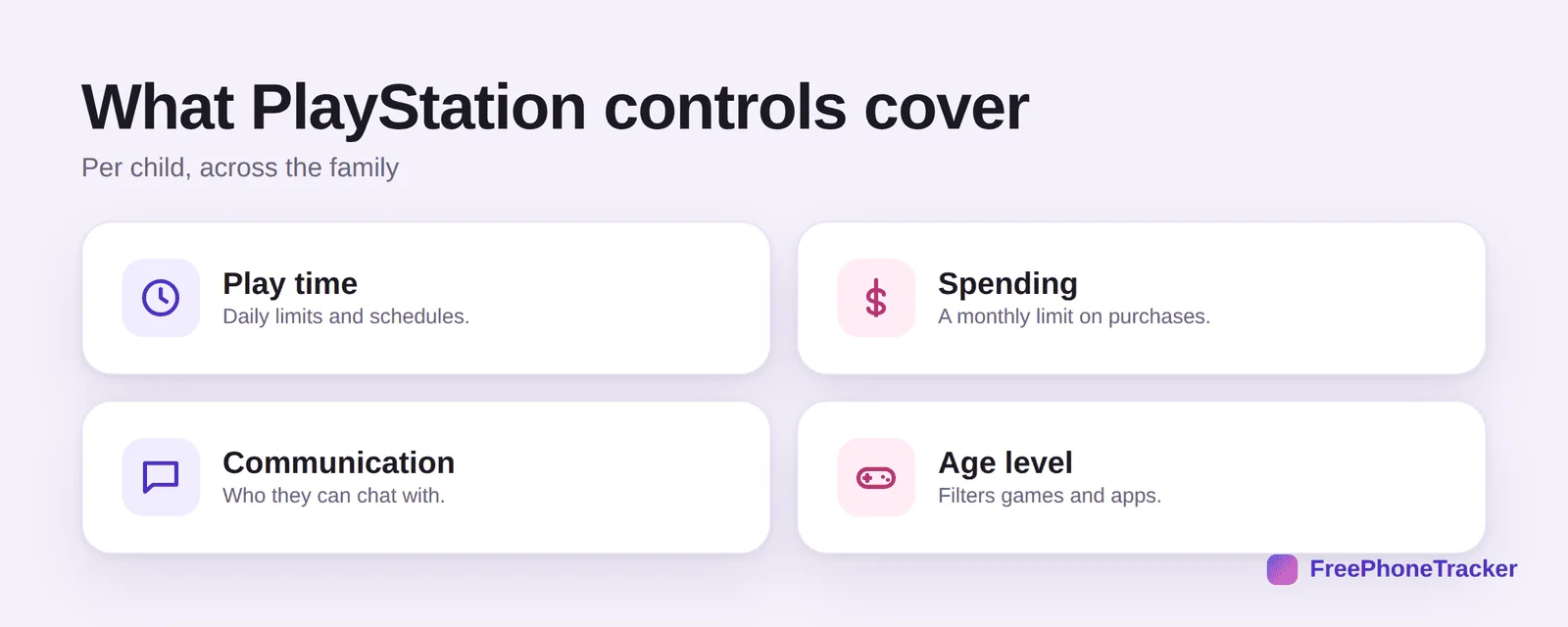
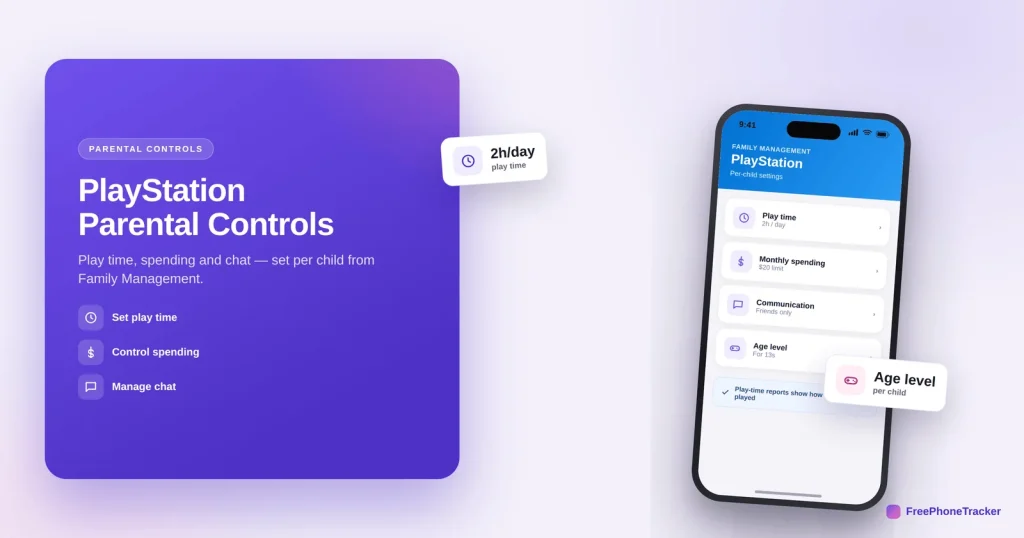
Play time — daily limits and schedules. Spending — a monthly limit on purchases. Communication — who they can chat with. And an age level that filters games and apps to what’s suitable for each child.
Set up PlayStation controls
It all runs through Family Management, online or on the console.
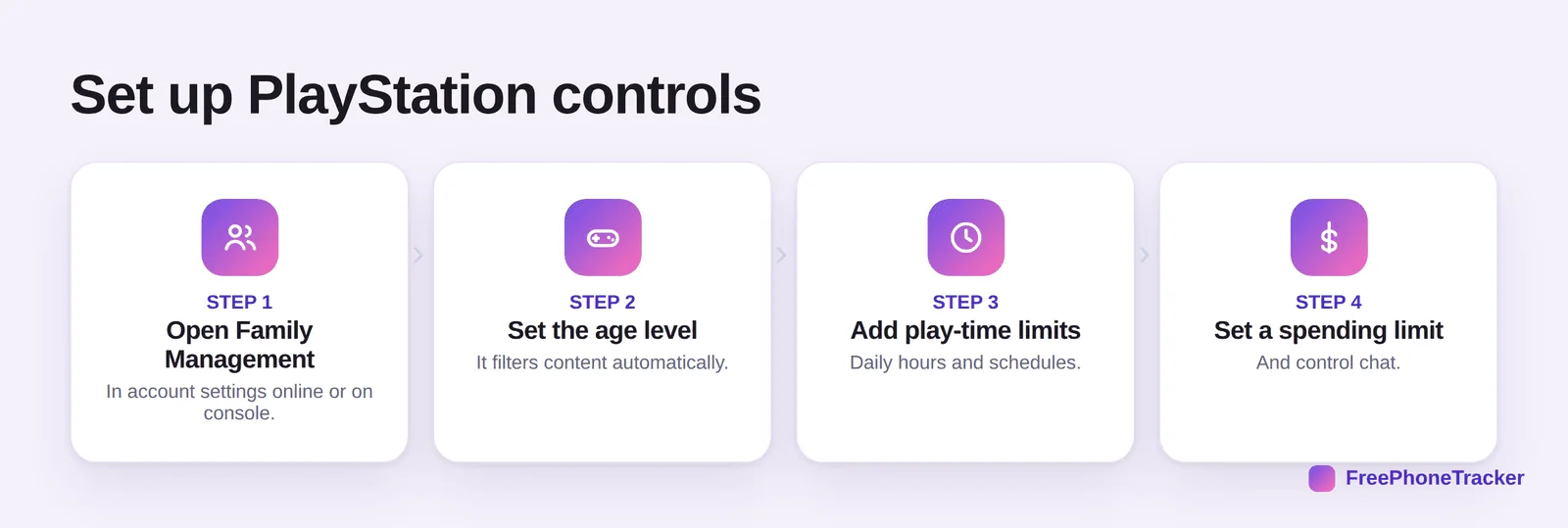
Open Family Management in your account settings online or on the console. Set the age level — it filters content automatically. Add play-time limits — daily hours and schedules. And set a spending limit to control purchases.
PlayStation safety tips
A few habits keep it fair and effective for each child.
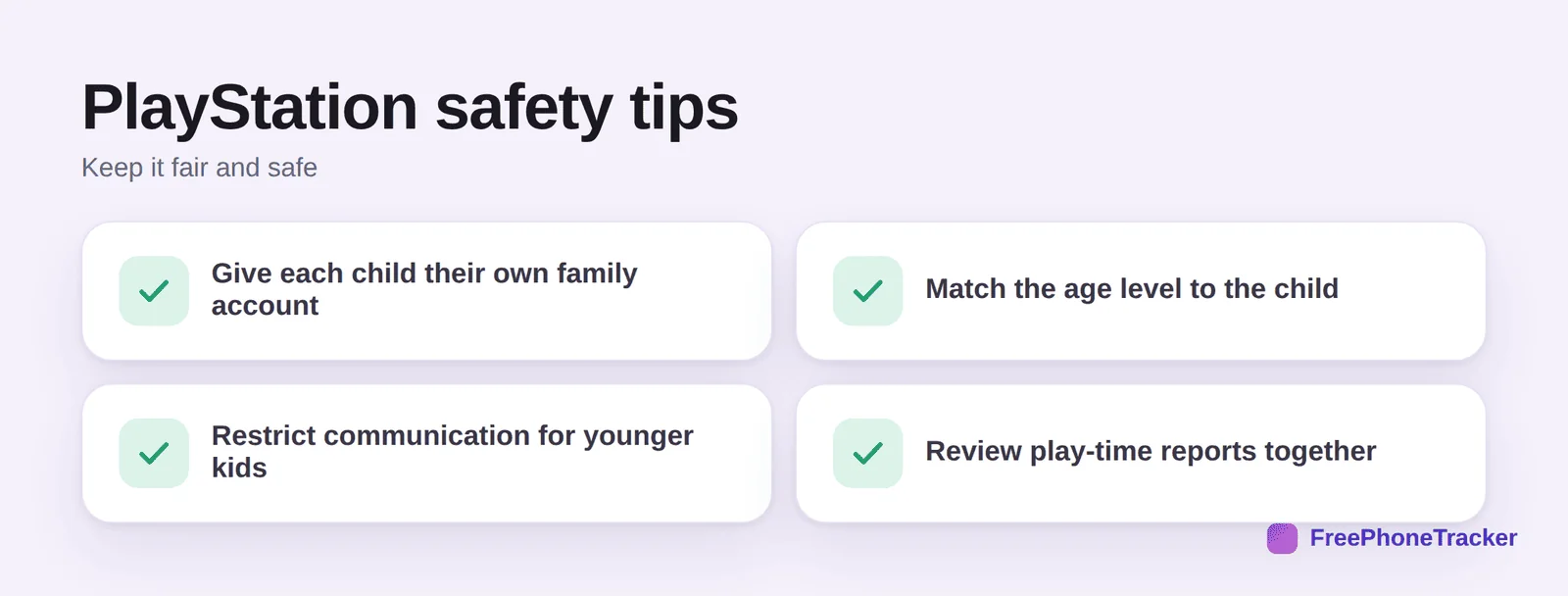
Give each child their own family account so limits fit their age. Match the age level to the child rather than leaving it open. Restrict communication for younger kids, where chat is the main risk. And review play-time reports together so limits feel fair, not imposed.
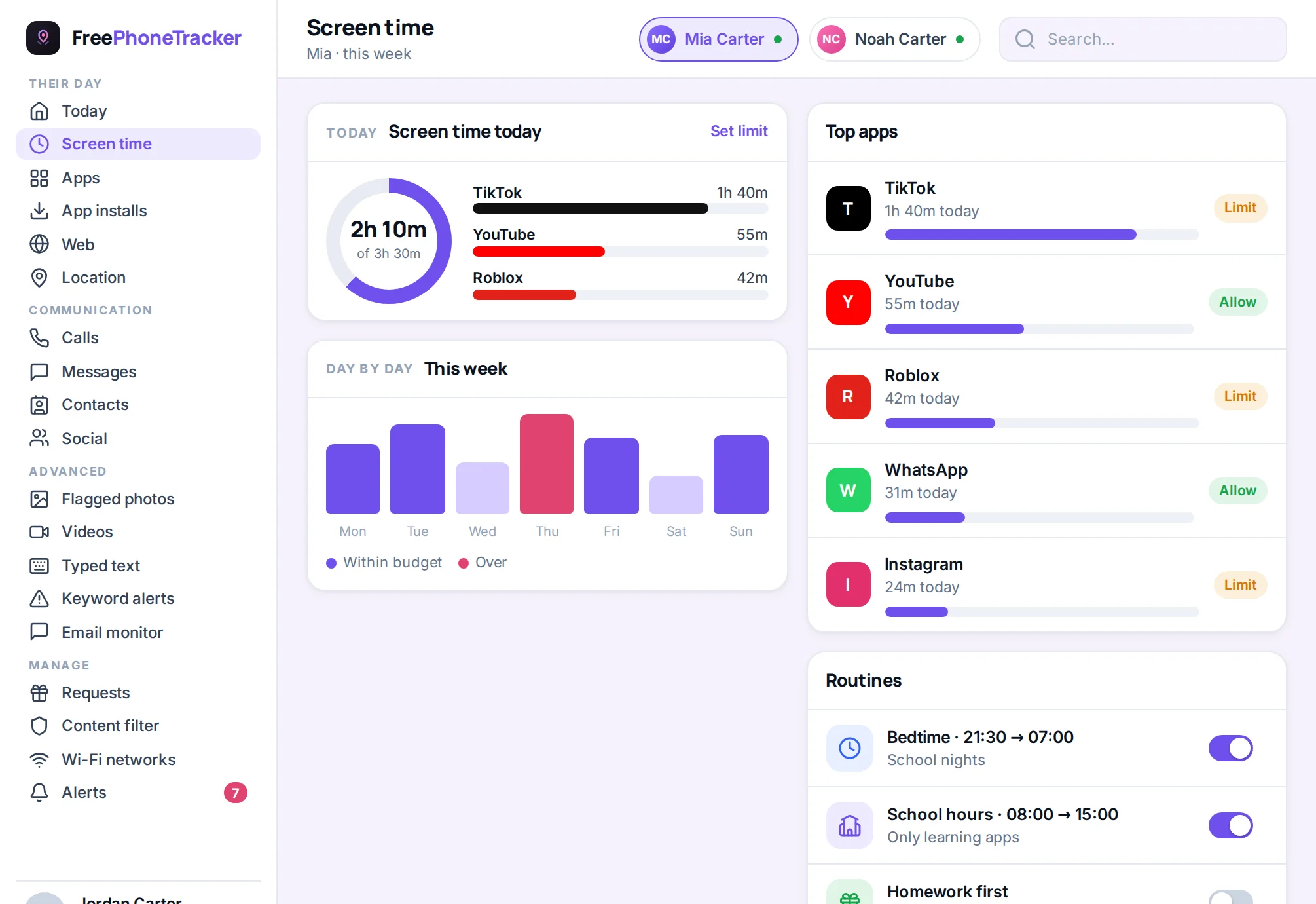
Spending, chat and play time in practice
The three controls most families actually use are spending limits, communication settings and daily play time, and all three live in the parent’s account rather than the child’s. From the PlayStation app or console, open Family Management, pick the child, and set a monthly spending limit — including zero, which turns every purchase into a request you approve. Under Communication and User-Generated Content you can restrict messages and voice chat to friends only, or turn them off for younger children.
Play-time limits can be set per day of the week, with a warning before time runs out and a choice between “notify only” and “log out when time is up”. A schoolnight limit of an hour with a hard stop, and a looser weekend setting, is a common starting point. The child sees a countdown, which avoids the “one more match” argument — and they can send a request for more time from the console, which you approve or decline from your phone.
Common questions
How do I set play-time limits on PlayStation?
In Family Management, pick the child’s account and set daily hours or a schedule. The console warns them as time runs low and can log them out when the limit’s reached.
Can I control what my child buys?
Yes. Set a monthly spending limit per child, and require your approval for purchases. That prevents surprise charges on games and in-game items.
What does the age level do?
It automatically filters games, apps and web content to what’s suitable for that child’s age, so you don’t have to block titles one by one. Match it to the child for it to work well.
Can I restrict who my child chats with?
Yes. Communication settings let you limit messages and voice chat, or restrict them to friends only — worth tightening for younger children.
Do the limits work across multiple children?
Yes — that’s the point of Family Management. Each child gets their own account with limits set to their age, all managed from your parent account.
PlayStation’s controls shine when you set them per child — age-right filters, play-time limits and spending caps that fit each kid, all from Family Management. Match the age level, restrict chat for the younger ones, and review reports together. Get started free, and read our guides to Nintendo Switch parental controls and Discord Family Center.