One bar, a call that keeps dropping, a message that won’t send — a weak cell signal is one of the most frustrating phone problems because it strikes exactly when you need your phone most. The causes range from where you’re standing to a simple phone glitch, and most have quick fixes. This guide covers what actually helps, and the one setting that can rescue you when there’s barely any signal at all.
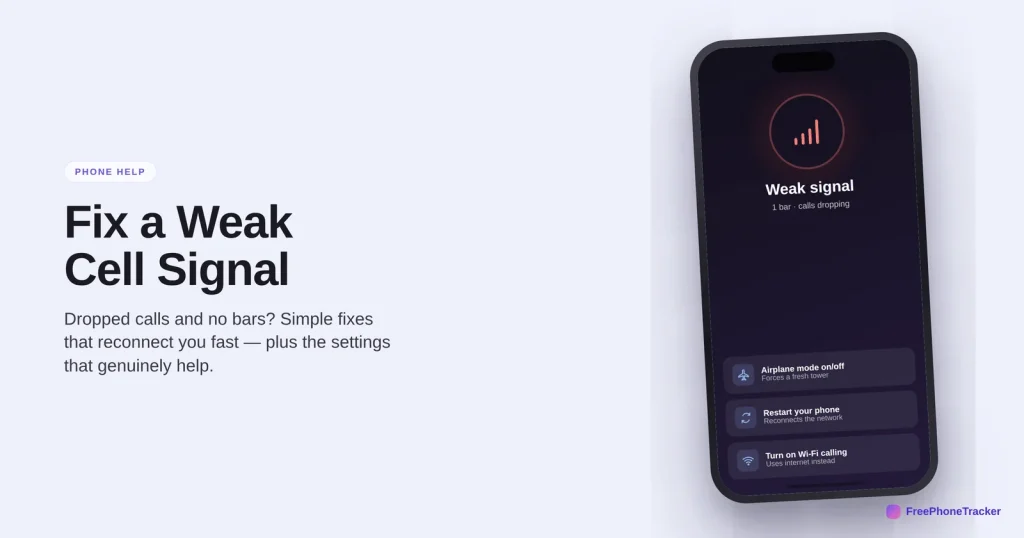
- Toggle airplane mode on and off to grab a fresh tower.
- Restart your phone if the bars won’t come back.
- Turn on Wi-Fi calling to call over the internet instead.
- Move near a window or outside — walls block signal.
Why your signal is weak
A few things explain almost every dead zone.
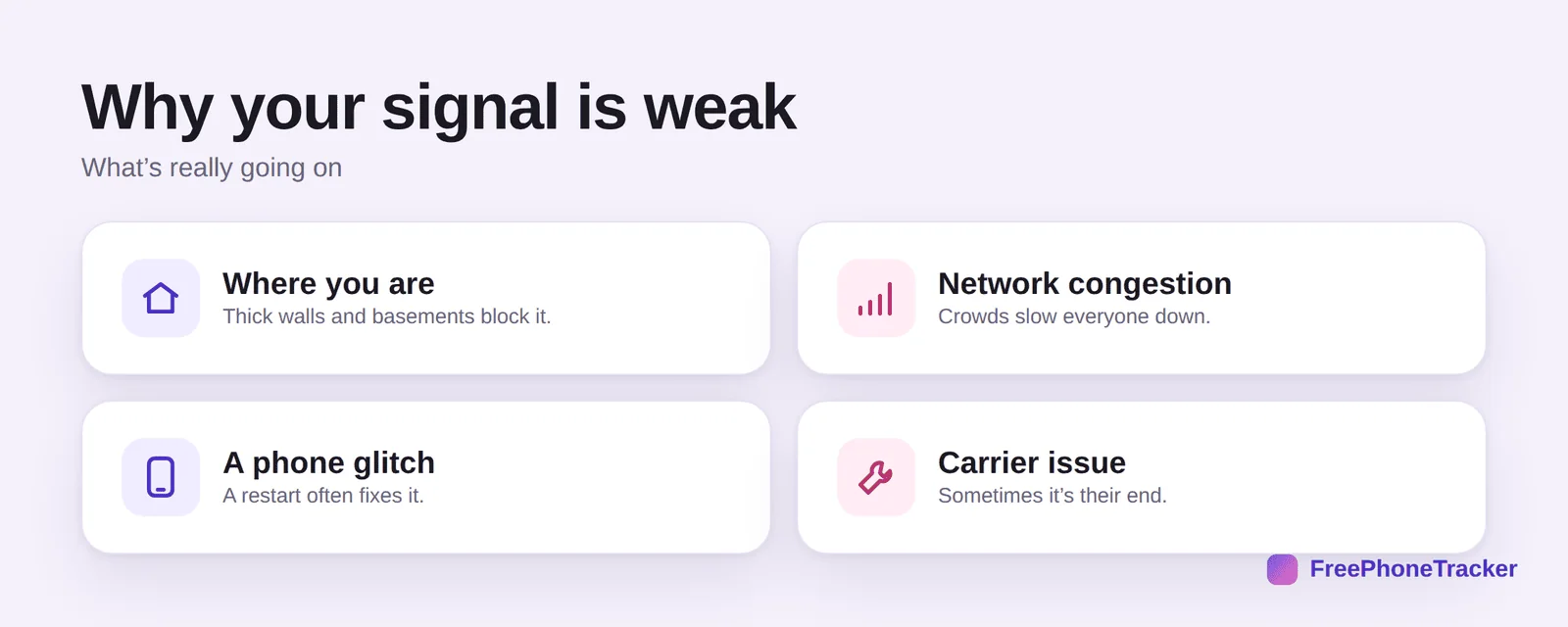
Where you are matters most — thick walls, basements and rural areas block signal. Network congestion slows everyone down in a crowd. A phone glitch can drop the connection, and a restart often fixes it. And sometimes it’s a carrier issue on their end, not yours.
Boost a weak signal
These fixes reconnect you fast.
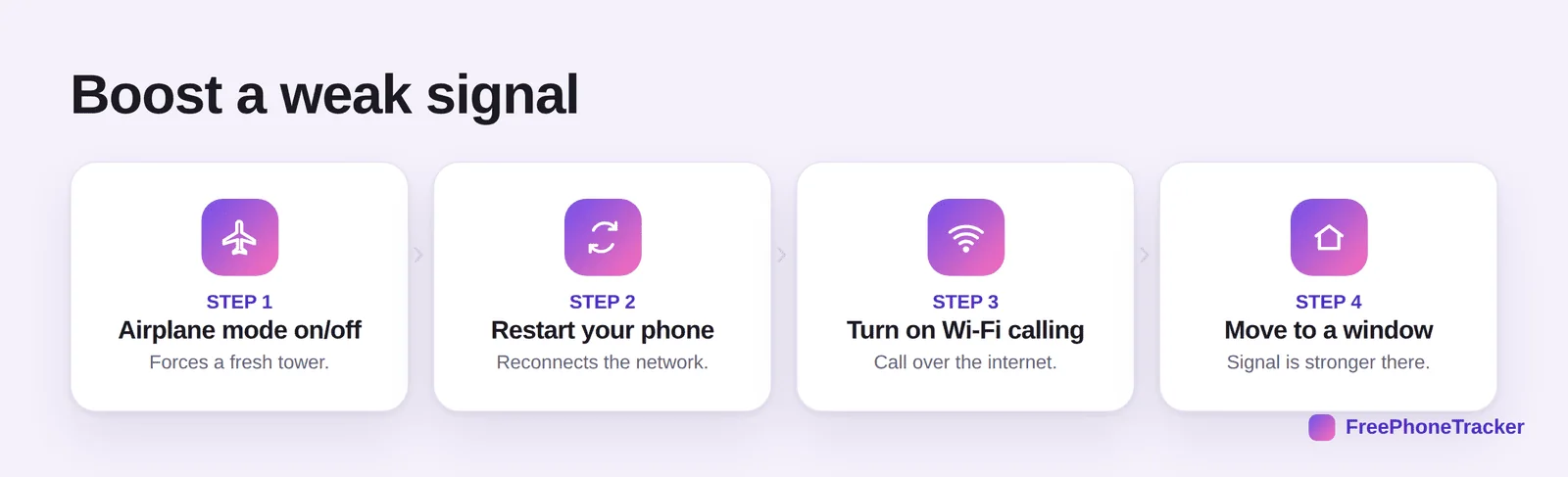
Airplane mode on and off forces your phone to find a fresh tower. Restart your phone to reconnect to the network cleanly. Turn on Wi-Fi calling to route calls over the internet when there’s no signal. And move to a window or step outside — signal is far stronger there.
Stronger signal, fewer drops
Small habits that keep you connected.
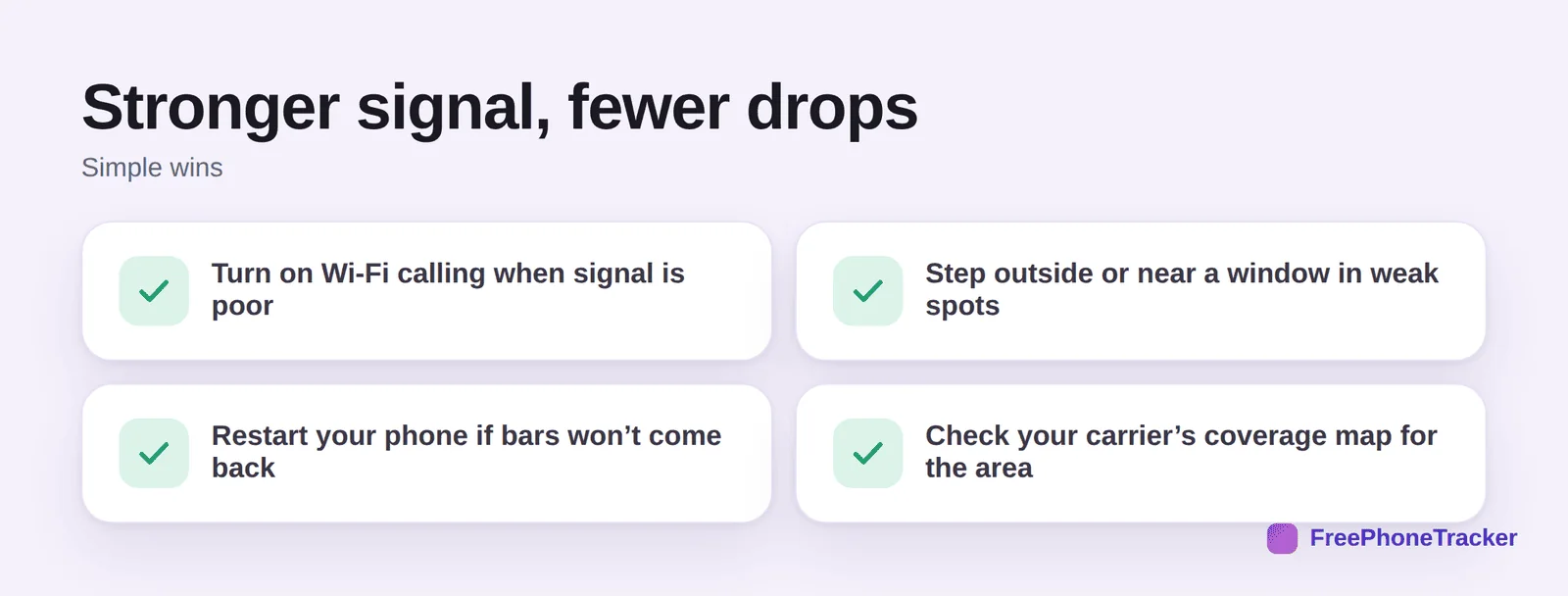
Turn on Wi-Fi calling whenever signal is poor but you have Wi-Fi. Step outside or near a window in weak spots. Restart your phone if the bars won’t come back on their own. And check your carrier’s coverage map to know whether an area is a genuine dead zone.
Common questions
What’s the fastest way to fix no signal?
Toggle airplane mode on for ten seconds, then off. This forces your phone to disconnect and reconnect to the nearest, strongest tower, and it’s the quickest fix for a phone that’s stuck showing no bars. If that doesn’t work, a full restart is the next step.
What is Wi-Fi calling and should I use it?
Wi-Fi calling lets your phone make and receive regular calls and texts over a Wi-Fi network instead of the cell tower — perfect for homes or offices with poor reception. It’s free on most plans, works seamlessly, and you turn it on in your phone’s cellular or phone settings. If you often have weak signal indoors, switch it on.
Do signal booster apps actually work?
No — apps can’t strengthen a radio signal, and many “booster” apps are junk or even scams. What genuinely helps is physical: moving to a window, using Wi-Fi calling, or a hardware signal booster (a real device, not an app) for a home with chronically poor coverage.
Why is my signal strong but data still slow?
Full bars show your connection to the tower, not how busy that tower is. In crowds — events, rush hour, city centers — many people share the same tower and everyone’s data slows. It usually improves as the crowd thins; toggling airplane mode can also nudge you to a less busy tower.
When is weak signal my carrier’s fault?
If several people on the same network in the same place all have problems, or an area that’s normally fine suddenly drops out, it’s likely a carrier outage or tower maintenance. Check their status page or coverage map. Persistent poor coverage where you live may be worth raising with them — or a reason to compare carriers.
A weak signal rarely means a broken phone: reset the connection with airplane mode or a restart, lean on Wi-Fi calling indoors, and know your carrier’s real coverage. Those four moves handle nearly every dropped call. Get started free, and read our guides to fixing Wi-Fi that won’t connect and keeping your phone connected while traveling.