Android backs up more than most people realize, but only if it’s switched on and pointed at the right account. Get it set up once and a lost or replaced phone restores itself onto the new one. This guide covers backing up with Google One, keeping your photos safe, and making sure it actually runs.
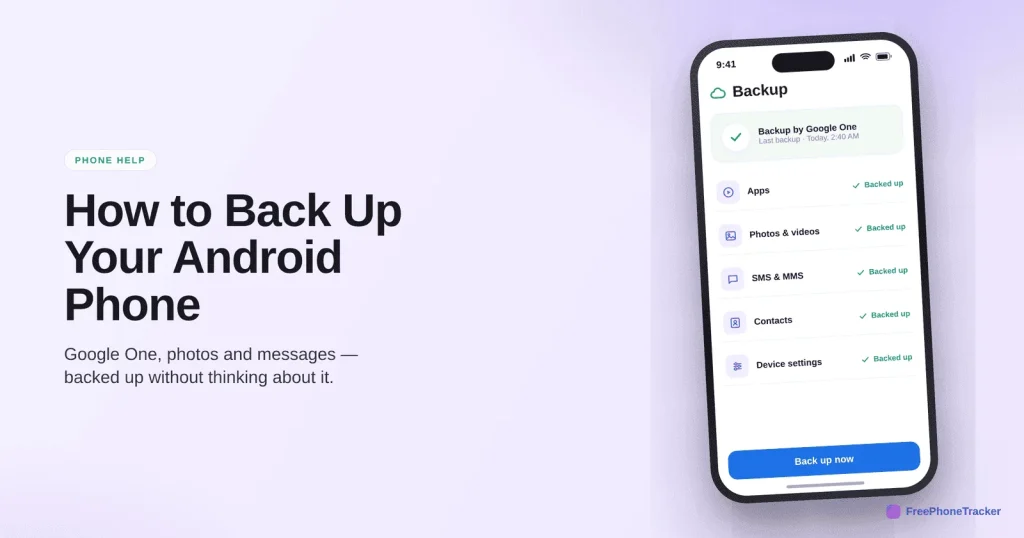
- Turn on Backup by Google One in Settings › Google › Backup.
- It runs automatically on Wi-Fi and power.
- Turn on Google Photos backup separately for your pictures.
- Tap “Back up now” before a reset or a switch.
What Google backs up
A Google backup covers most of what makes your phone yours, tied to your Google account rather than the device.
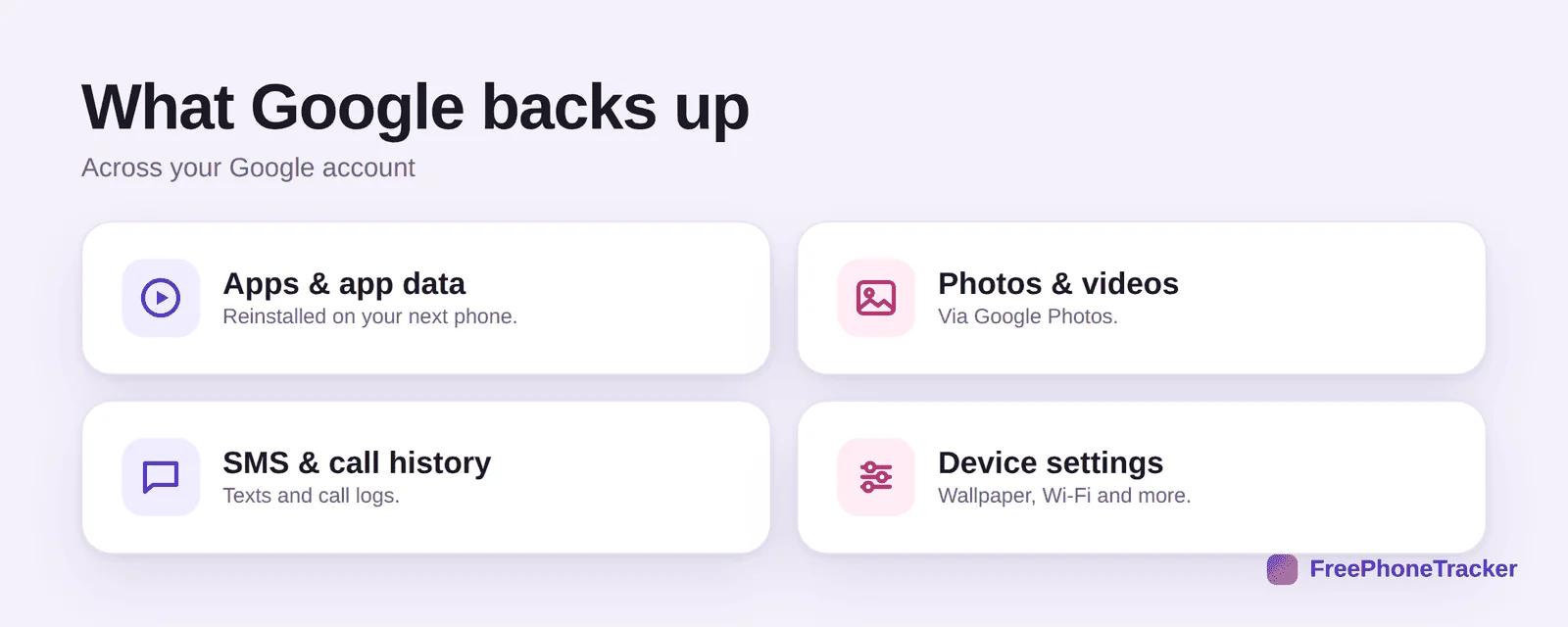
It backs up your apps and app data (reinstalled automatically on your next phone), photos and videos via Google Photos, your SMS and call history, and device settings like wallpaper and Wi-Fi. Sign in on a new phone and most of it flows back.
Back up your Android
The steps vary slightly by brand, but the path is close on every phone.
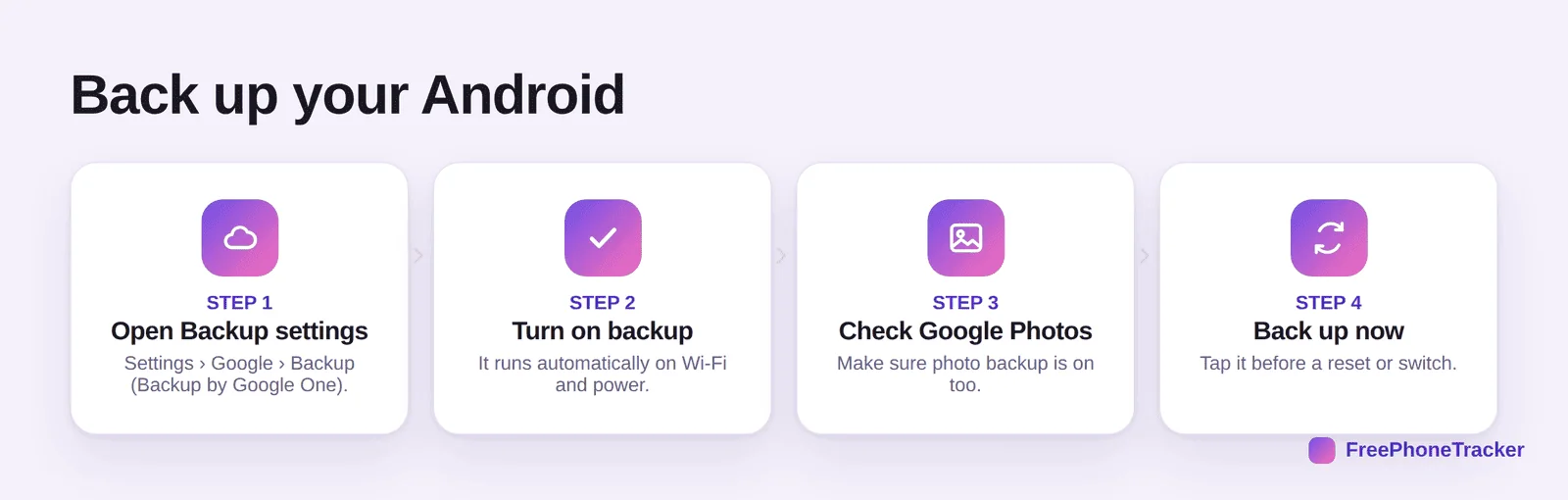
Open Settings › Google › Backup (Backup by Google One). Turn on backup, so it runs automatically on Wi-Fi and power. Check Google Photos backup is on too, it’s separate. And tap Back up now before a reset or switch, so the latest is captured.
Keep it reliable
A backup you never check is a backup you can’t trust. These keep it dependable.
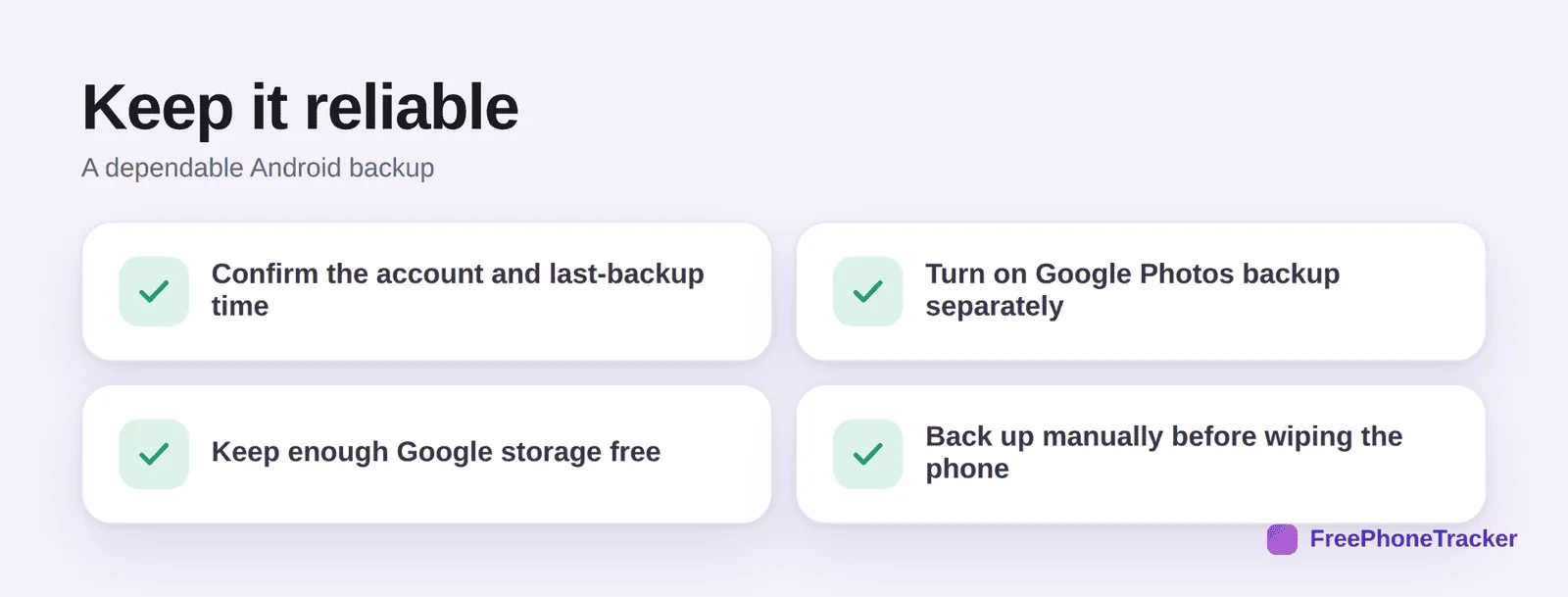
Confirm the account and the last-backup time. Turn on Google Photos backup separately. Keep enough Google storage free (the free 15 GB fills fast). And back up manually before wiping the phone.
One more copy
The whole point of a backup is never losing what matters, the same reason a live copy of messages can help.
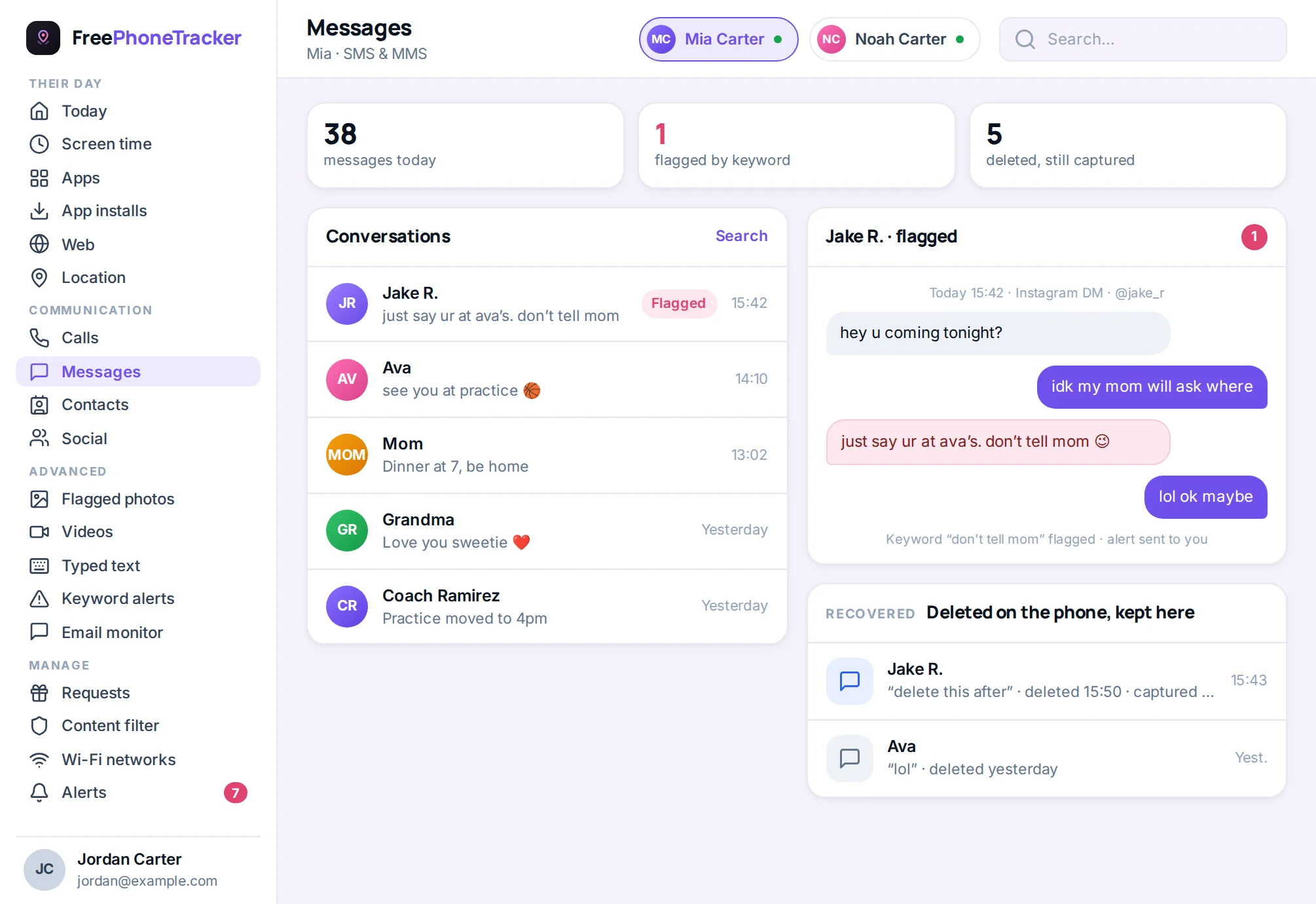
Google’s backup is a periodic snapshot. A message tracker saves texts continuously, so a message deleted before the next backup is still there, see our Android text recovery guide for the comparison.
Common questions
Does Google back up my text messages?
Yes, SMS and call history are included in a Google One backup, and Google Messages can back up to Google Drive too. Confirm it’s enabled before you rely on it.
Are my photos backed up automatically?
Only if Google Photos backup is on, it’s a separate toggle from the device backup. Turn it on so new photos are saved as you take them.
How much Google storage do I need?
The free 15 GB is shared across Gmail, Drive and Photos, so it fills quickly. A Google One plan gives you room for a full backup and photo library.
Will my apps come back on a new phone?
Yes, signing in restores your apps and much of their data automatically. Some apps store data in their own cloud and may need a separate sign-in.
Can I recover a deleted text from a backup?
If the backup predates the delete, yes, though restoring reverts the whole phone to that point. See our recover deleted texts guide.
Android’s backup is powerful once it’s switched on, enable Backup by Google One, turn on Google Photos, and back up manually before any big change. Then a new phone is just a sign-in away. Get started free, and read our guides to backing up iPhone and moving to a new phone.