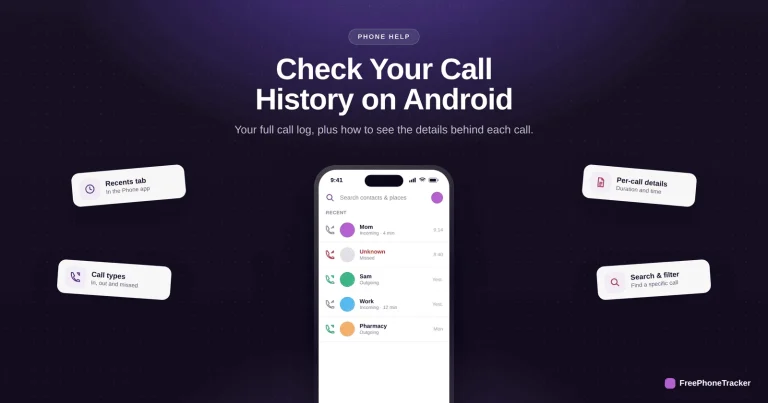
Your iPhone keeps a running log of every call, incoming, outgoing and missed, in one place. Checking it is simple, but there’s more detail available than most people realize, and a few limits worth knowing. This guide covers how to read your call history and get the most out of it.
- Open the Phone app and tap Recents to see your call history.
- The Missed tab filters just the calls you didn’t answer.
- Tap the info button for time, duration and number.
- The on-device list is limited — use a backup for older calls.
What the call log shows
Recents is more than a list of names, each entry carries real detail.
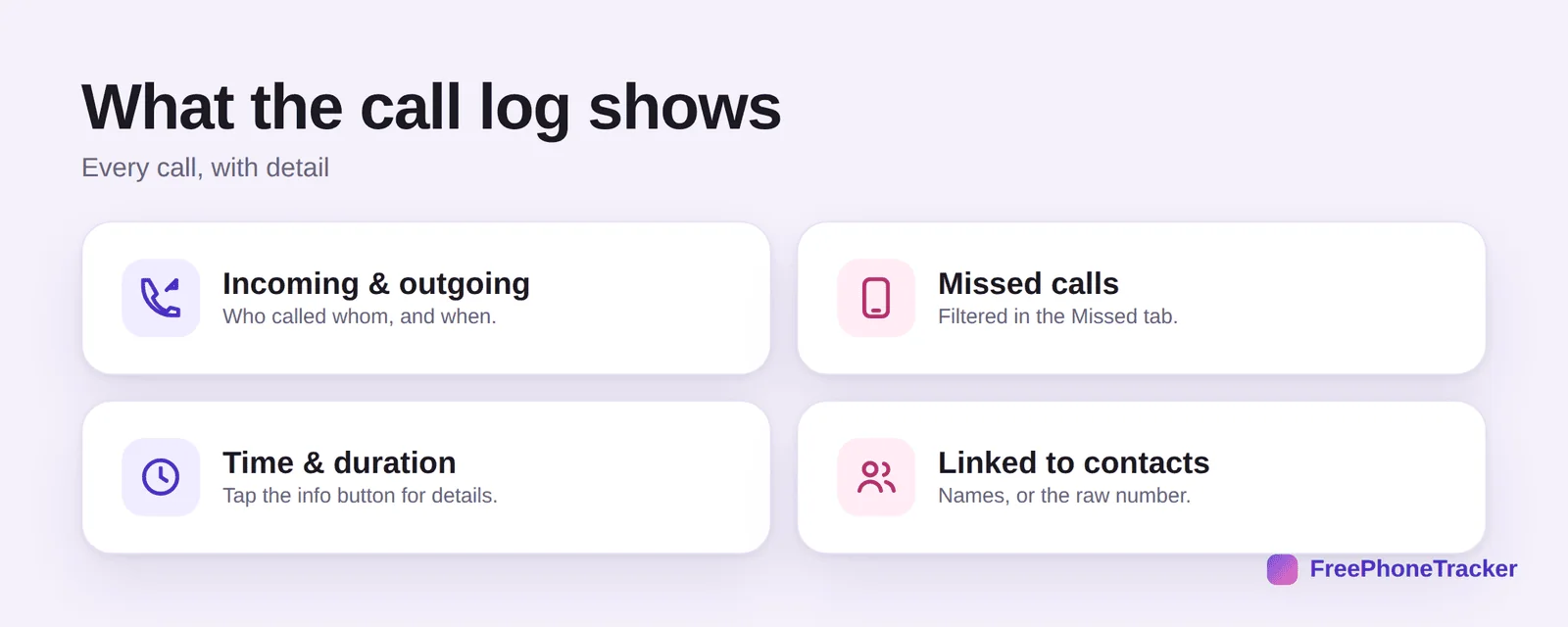
It shows incoming and outgoing calls, missed calls (filtered in their own tab), the time and duration when you tap the info button, and everything linked to your contacts, names where you have them, raw numbers where you don’t.
Check call history on iPhone
It’s a few taps, and the details are one tap deeper.
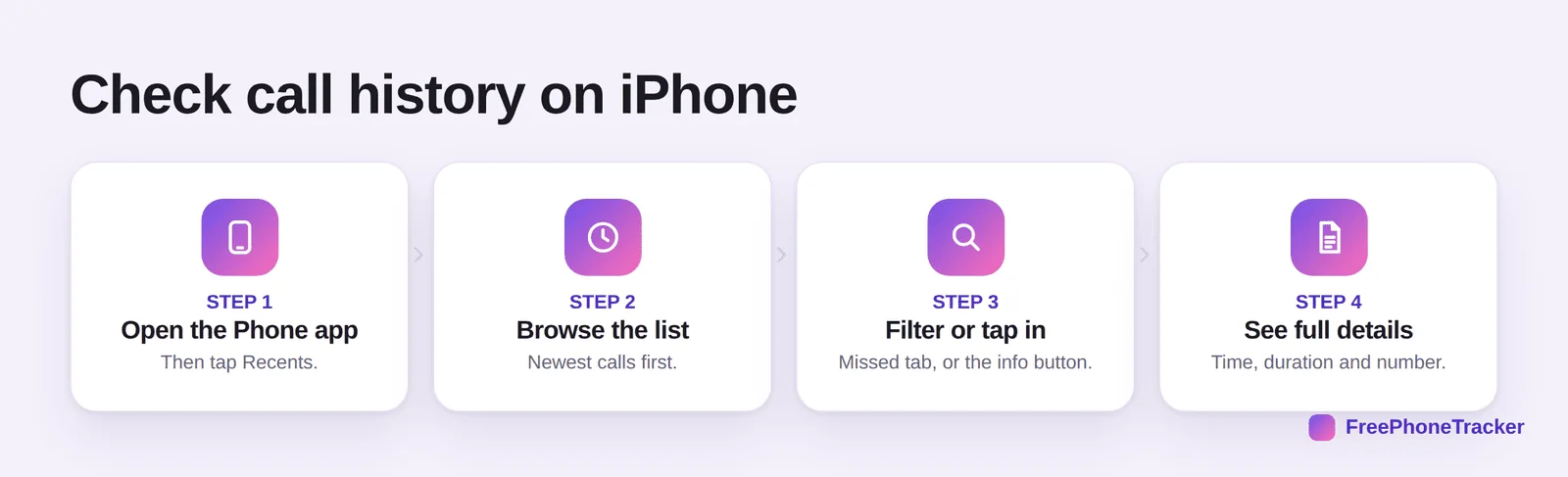
Open the Phone app and tap Recents. Browse the list, newest first. Filter or tap in, use the Missed tab, or tap the (i) button. And see full details, time, duration and the exact number.
Get more from Recents
A few tricks make the call log more useful, and reveal its limits.
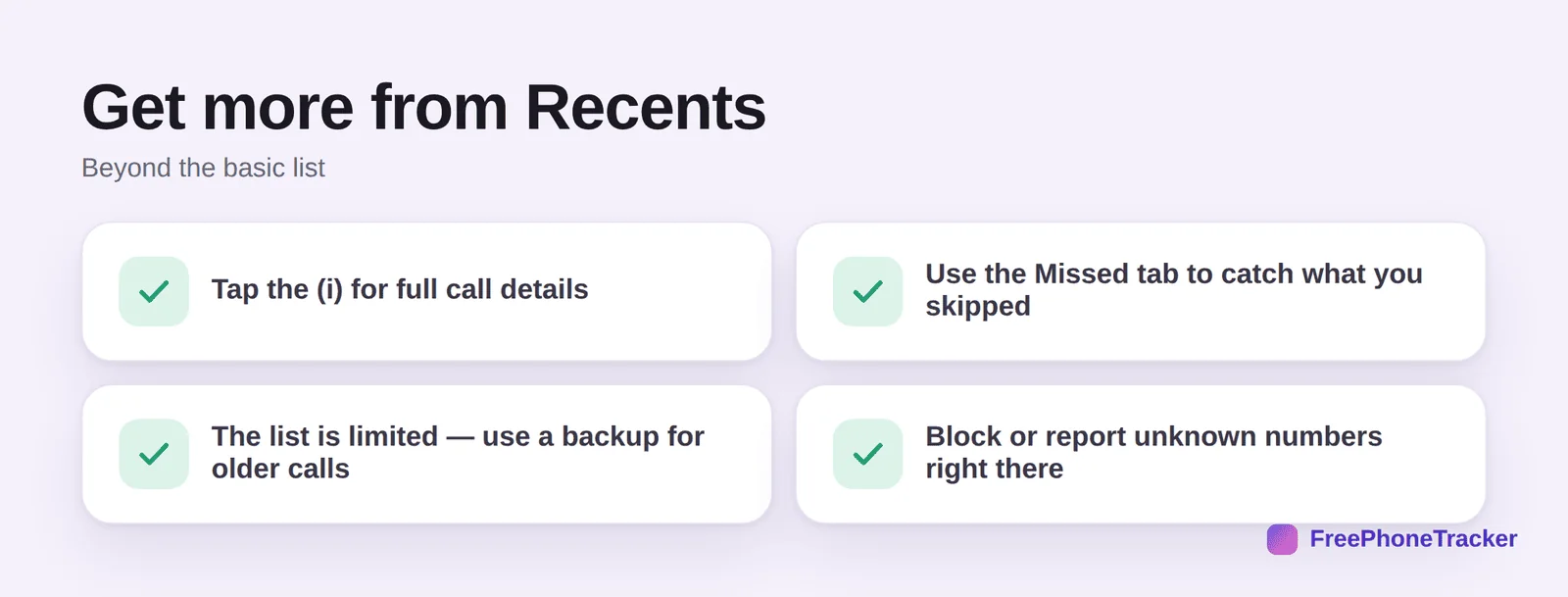
Tap the (i) for full details. Use the Missed tab to catch what you skipped. Remember the list is limited (older calls drop off, so use a backup for history). And block or report unknown numbers right from the log, handy with our spam-call guide.
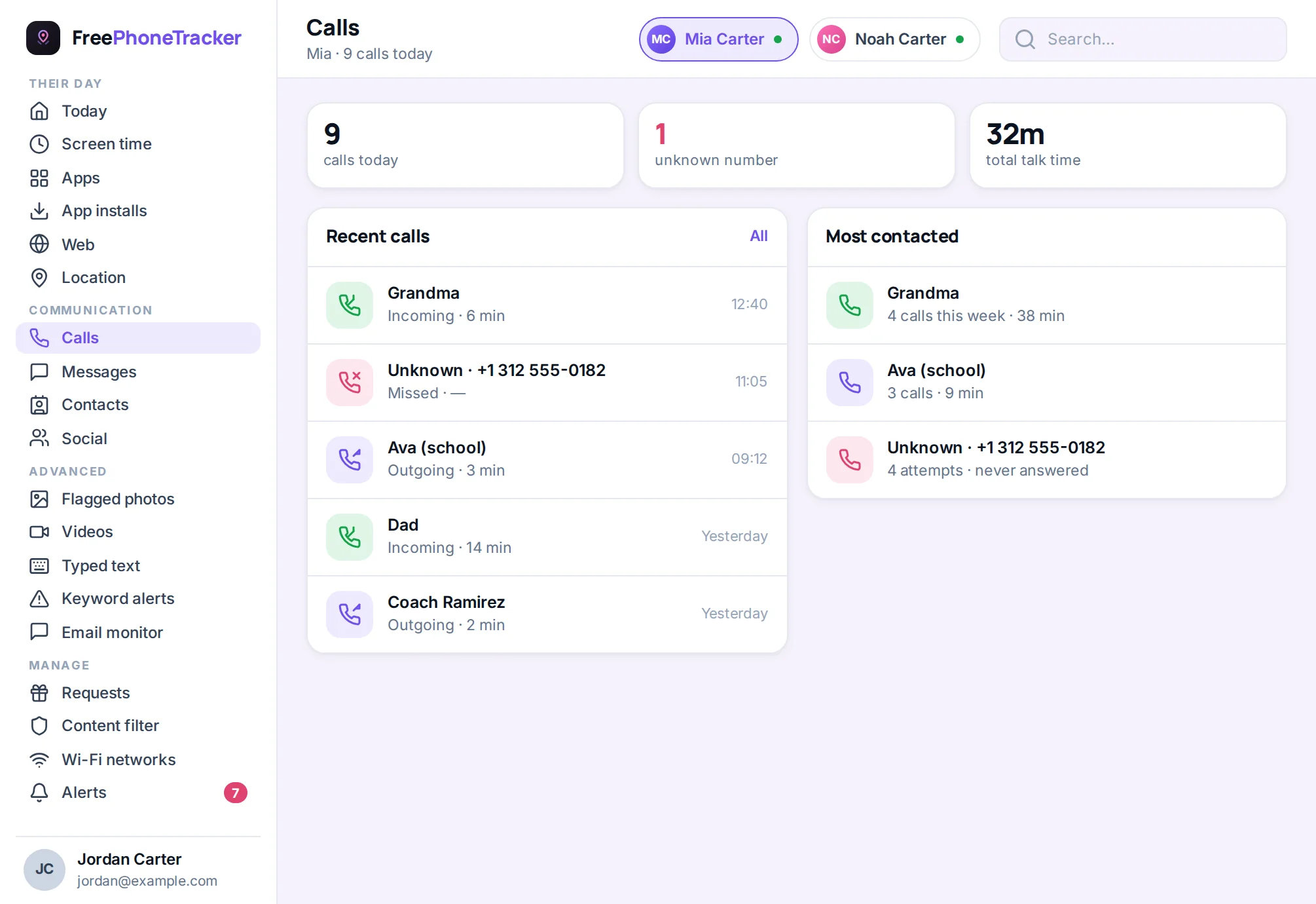
Finding older calls and calls from other apps
The Recents tab shows only the last hundred or so calls, which surprises people who scroll back looking for something from last month. For older history, use the carrier: most account apps show months of call detail, including calls made while the phone was on another SIM. If the phone syncs with iCloud, calls placed on a linked iPad or Mac also appear in Recents, which can make the list look longer than the phone’s own activity.
Calls through FaceTime appear in the FaceTime app and in Recents, but WhatsApp, Messenger and other app calls stay inside those apps — check their Calls tabs separately. To see a single number’s full history, tap the ⓘ next to any entry; it shows every call with that contact and lets you block or report the number. And remember that swiping an entry deletes it permanently, so a tidy Recents list on a teenager’s phone is not the same as a quiet week.
Common questions
How far back does iPhone call history go?
The Recents list holds a limited number of recent calls (roughly the last hundred or so, depending). Older calls drop off, so for a longer history, rely on a backup or a call log.
Can I see the duration of a call?
Yes. Tap the info (i) button next to a call in Recents to see its exact time and duration.
Why do some calls show a number instead of a name?
Because that number isn’t in your contacts. Save it as a contact and it’ll show the name next time. Unknown numbers may also be labeled “Scam Likely” by carrier filtering.
Can I recover a deleted call from Recents?
Not from the phone once it’s cleared. Check an iCloud backup or your carrier. See our cleared call history guide.
How do I keep a longer call history?
Back up your iPhone regularly, or use a call tracker that keeps a complete log. See our export guide too.
Your iPhone call history lives in Phone › Recents, with full details one tap away, just remember the on-device list is limited. For a longer record, lean on a backup or a call log. Get started free, and read our guides to seeing cleared calls and checking history on Android.