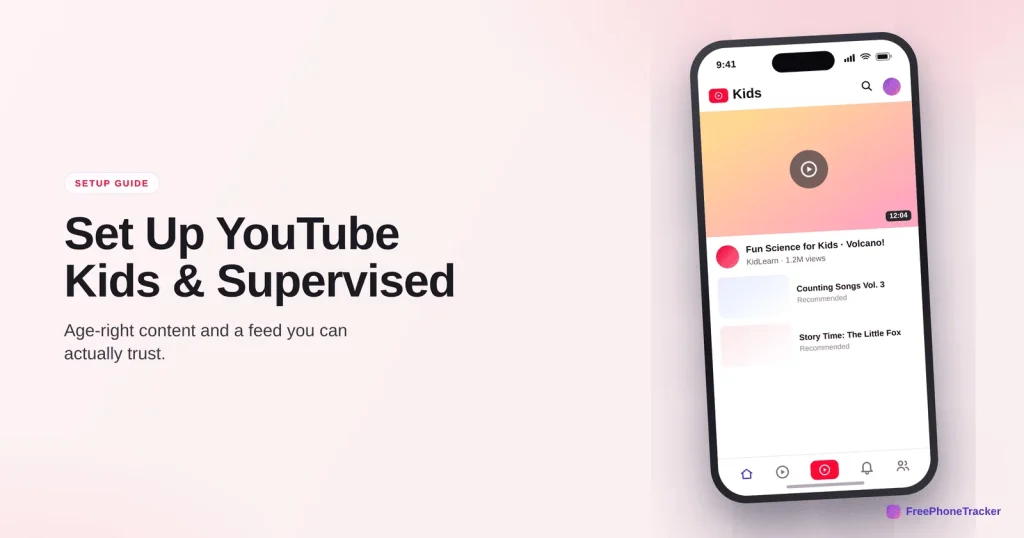
YouTube is the default babysitter for a lot of families, and the autoplay rabbit hole is the whole problem. YouTube gives you two real tools depending on age: YouTube Kids for younger children, and a supervised Google account for older ones. This guide walks through choosing between them and setting the controls that keep the feed age-right.
- Under 13: use YouTube Kids with a content level and a timer.
- 13 and up: use a supervised account to pick a content setting on the main app.
- Both are free and built in — set up through the Family Link app.
- These filter content; a dedicated app adds screen-time limits and cross-app visibility.
Kids or Supervised — which one
Start by matching the tool to the age. YouTube Kids is a separate, walled app for younger children. A supervised account brings light controls to the regular YouTube app for tweens and teens who’ve outgrown Kids but aren’t ready for the open version.
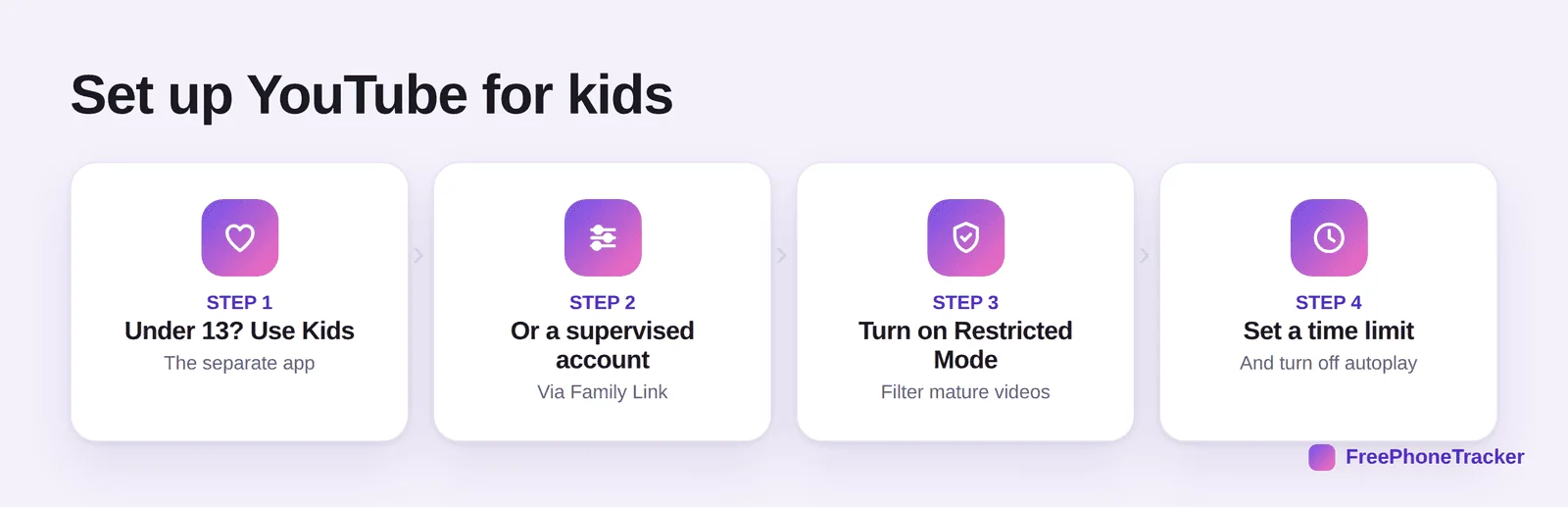
The flow: open Family Link, choose your child, and either set up YouTube Kids or turn on a supervised experience for the main app. Then pick a content level and, on Kids, set a timer. You manage it from your own phone.
What you can control
The controls are simpler than the app-pairing tools, but they hit the two things that matter most: what shows up and how long it plays.
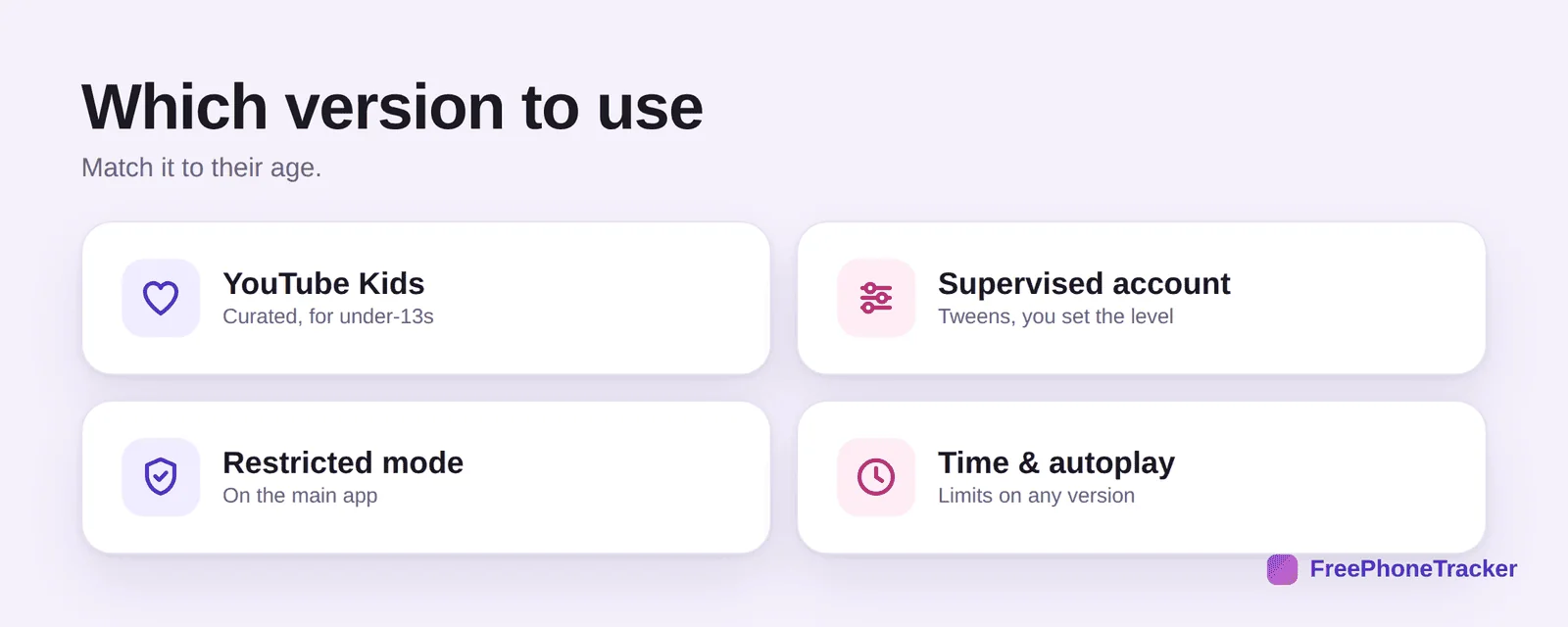
Pick a content level so the feed matches their age. Turn search off for younger kids so they stay inside approved videos. Set a timer in YouTube Kids to end the session cleanly. And turn autoplay off to stop one video becoming twenty. Together these tame the rabbit hole from our Is YouTube safe? guide.
Where YouTube’s controls stop
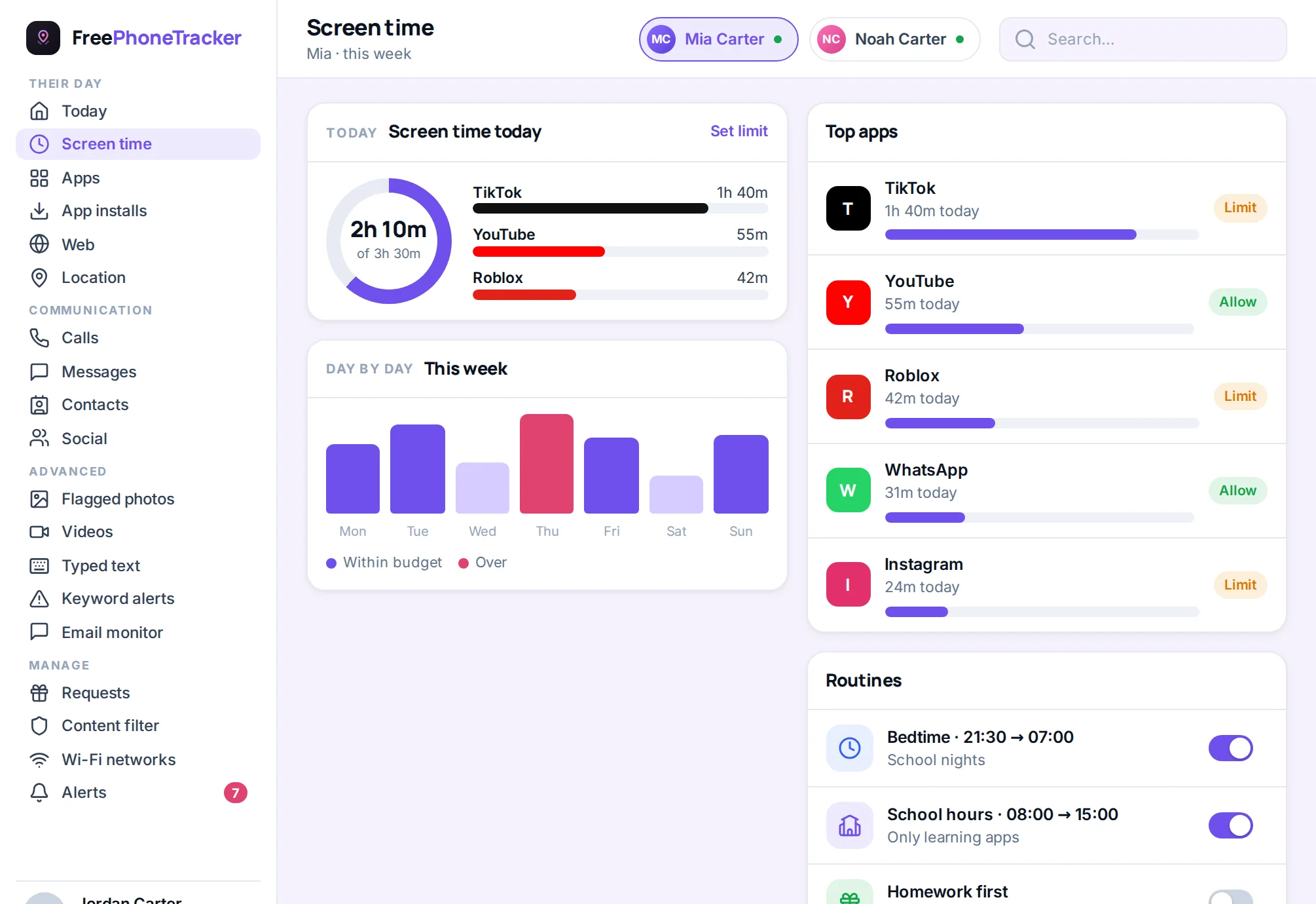
YouTube’s tools filter well, and they don’t watch over your shoulder. No filter is perfect, and a determined tween finds the edges.
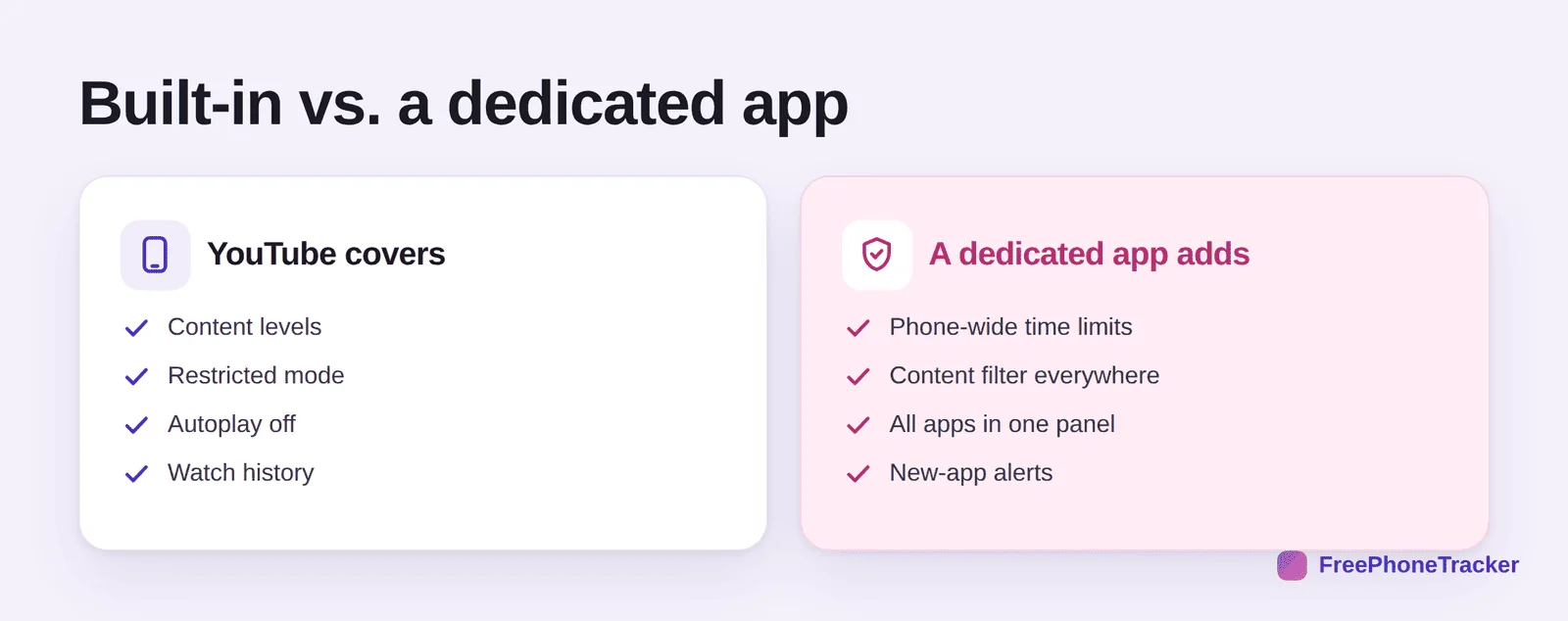
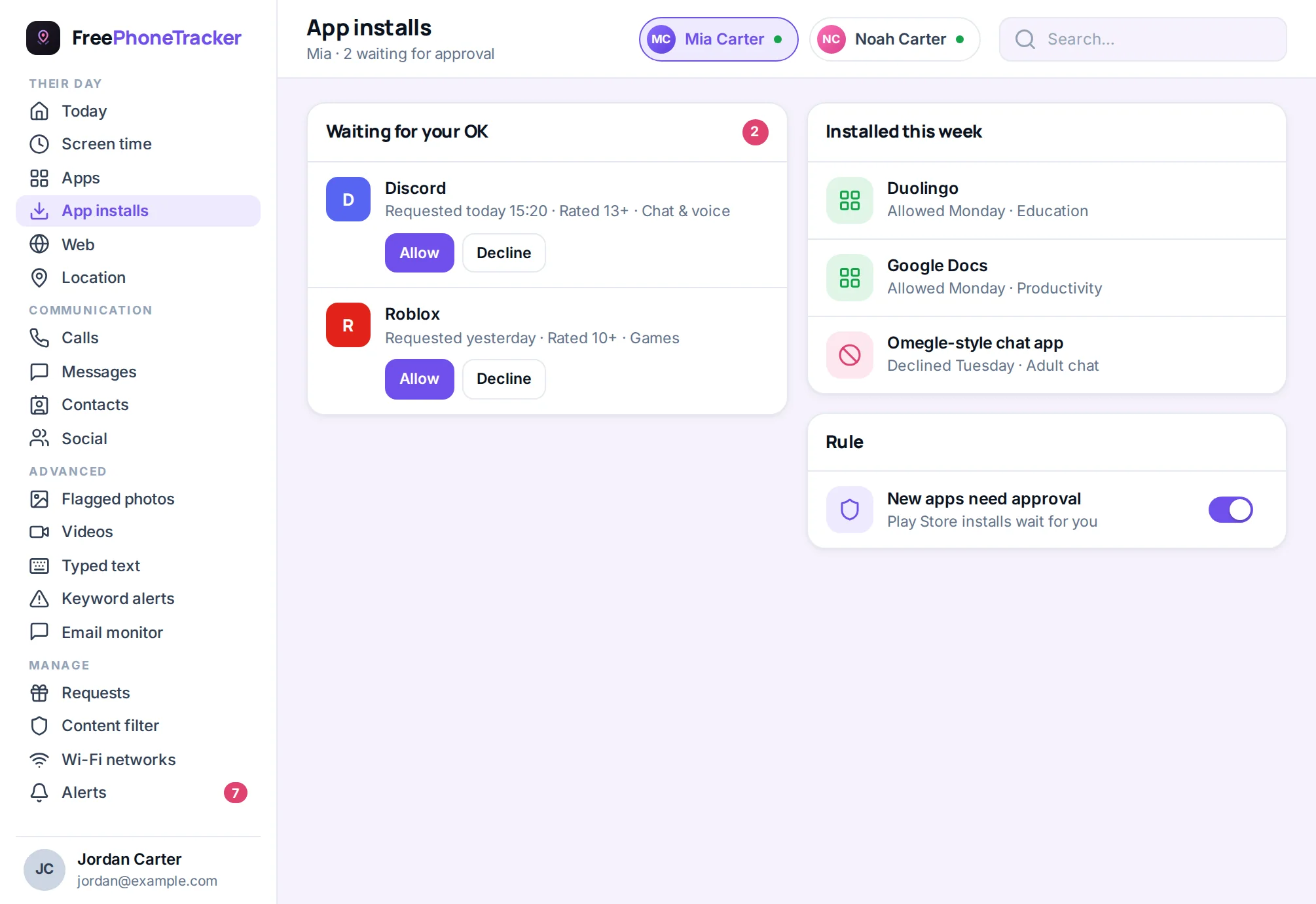
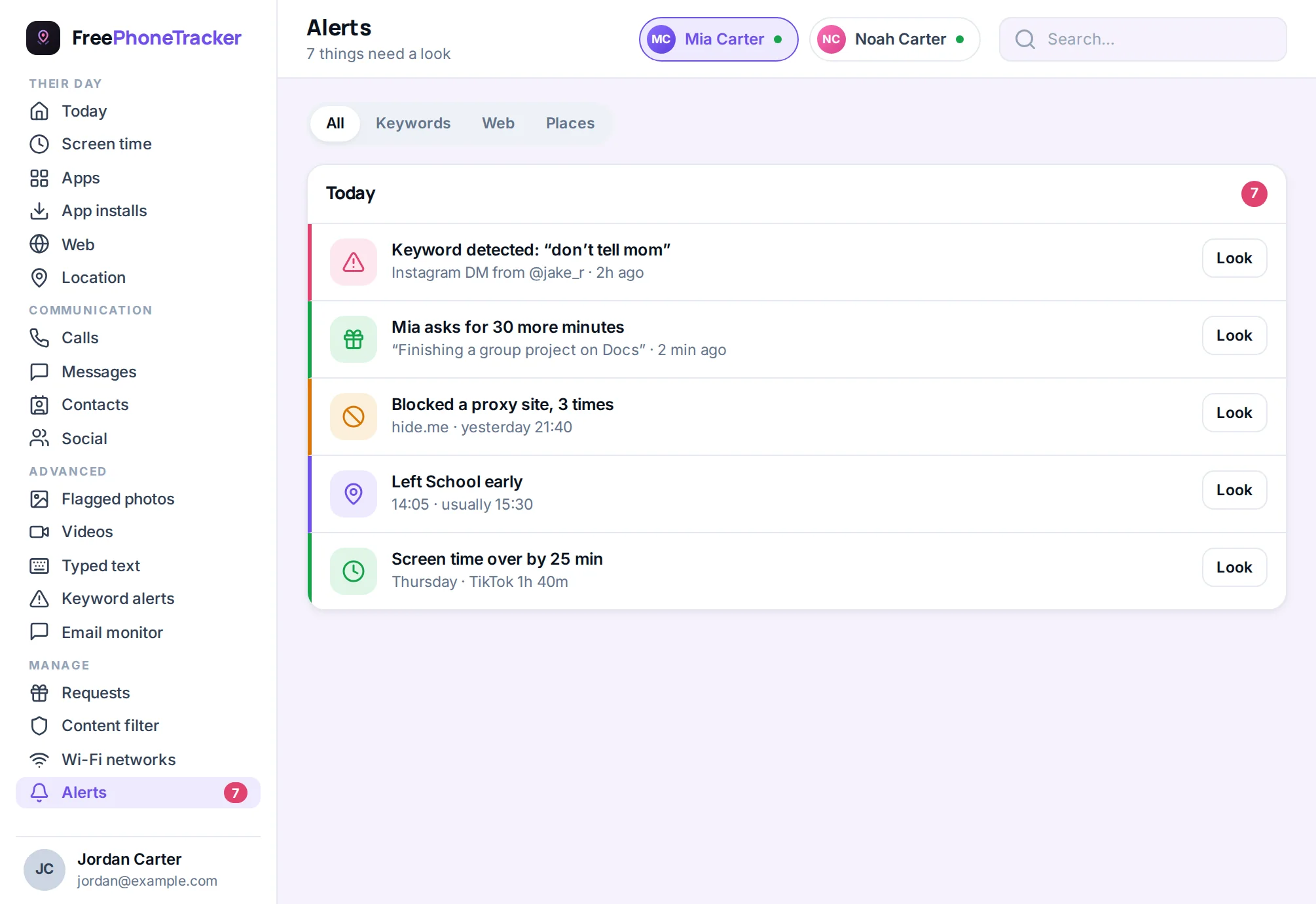
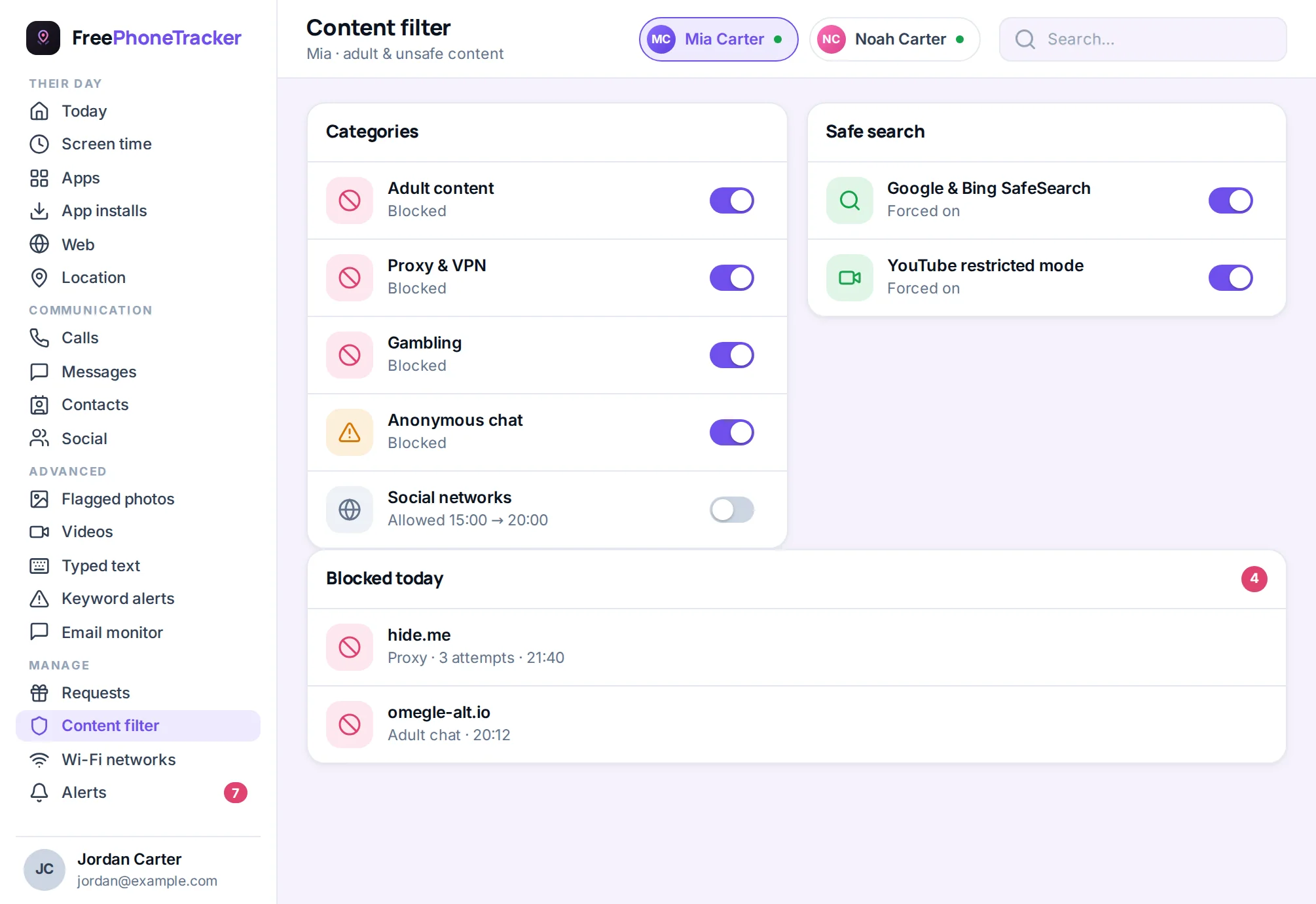
Its controls won’t enforce a whole-phone time limit, won’t show what they’re doing in other apps, and won’t flag a worrying comment or message. For a young child, Kids plus a timer is often enough. For an older one across many apps, a dedicated tool like FreePhoneTracker adds a real content filter and one panel for every app.
Getting it right
A few tips. Match the tool to the age, and move from Kids to a supervised account when they’ve clearly outgrown it. Turn off autoplay, it’s the single biggest fix for the rabbit hole. Watch together sometimes so you know what the feed actually serves. And revisit the settings as they grow, the way our screen time by age guide suggests.
Common questions
Is YouTube Kids free?
Yes, both YouTube Kids and supervised accounts are free. Set them up through the Family Link app.
What age is YouTube Kids for?
It’s designed for under-13s. Older tweens usually do better on a supervised account on the main app. Our Is YouTube safe? guide covers the age question.
Can I block specific channels or videos?
In YouTube Kids you can block and approve content, and even switch to an approved-only mode. On the main app the controls are broader, a content level rather than a channel list.
Does turning off autoplay really help?
A lot. Autoplay is what turns one video into an hour. Switching it off is the easiest single change you can make today.
Do I still need a monitoring app?
For a young child on Kids, maybe not. For an older one across many apps, a dedicated app adds whole-phone limits and a single view YouTube can’t. See our social media safety guide.
YouTube’s tools are a strong, free foundation, pick Kids or Supervised by age, choose a content level, and turn off autoplay. For a child across many apps, add the whole-phone limits and single-panel view a dedicated tool provides. Match the age, keep watching together, and the rabbit hole gets a lot shallower. Get started free to add the monitoring layer, and read Is YouTube safe for my child? for the bigger picture.