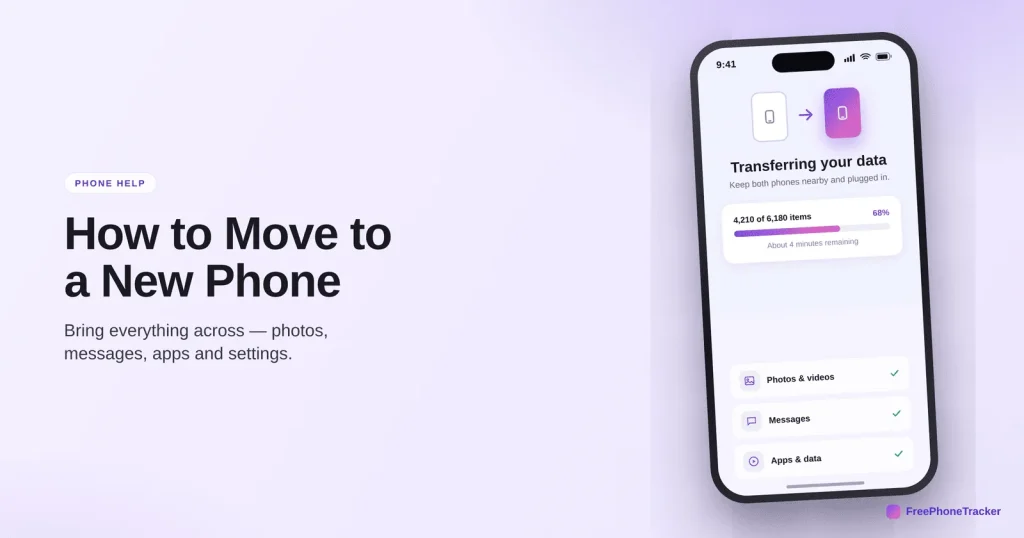
A new phone should feel like your old one, only faster, not like starting over. Modern transfer tools move your photos, messages, apps and settings across in one go. This guide covers the ways to do it, the steps that work, and the few things people always forget to bring over.
- Back up the old phone first — a fresh backup captures everything.
- During setup, choose “transfer” or “restore” and keep both phones close.
- Switching platforms? Apple and Google both have transfer apps.
- Don’t forget authenticator codes, WhatsApp, and your SIM/eSIM.
Ways to move your data
There’s more than one route. Pick whichever fits your phones and how much you’re moving.
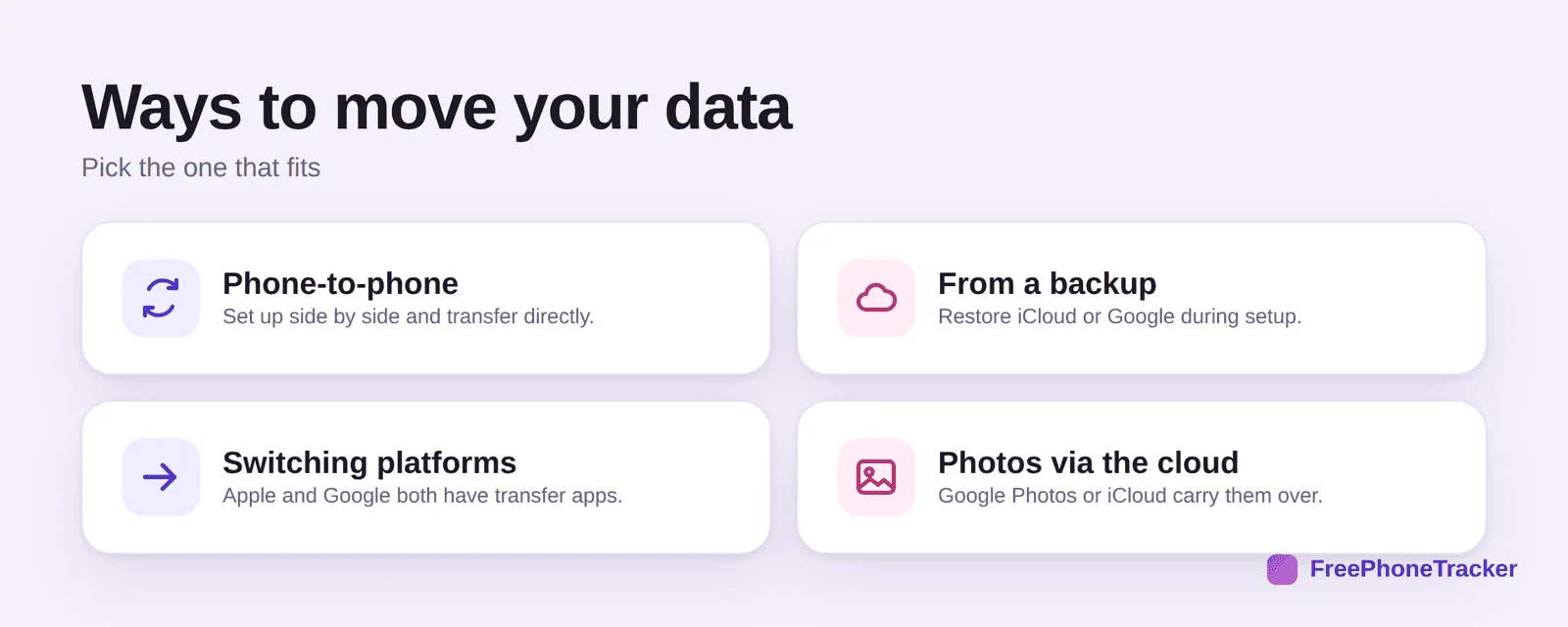
Phone-to-phone sets the two up side by side and copies directly. From a backup restores your iCloud or Google backup during setup. Switching platforms (iPhone to Android or back) uses Apple’s or Google’s dedicated transfer app. And your photos via the cloud come across automatically if they’re in Google Photos or iCloud.
Move to a new phone
Whatever method you choose, the flow is similar, and starting from a fresh backup makes it painless.
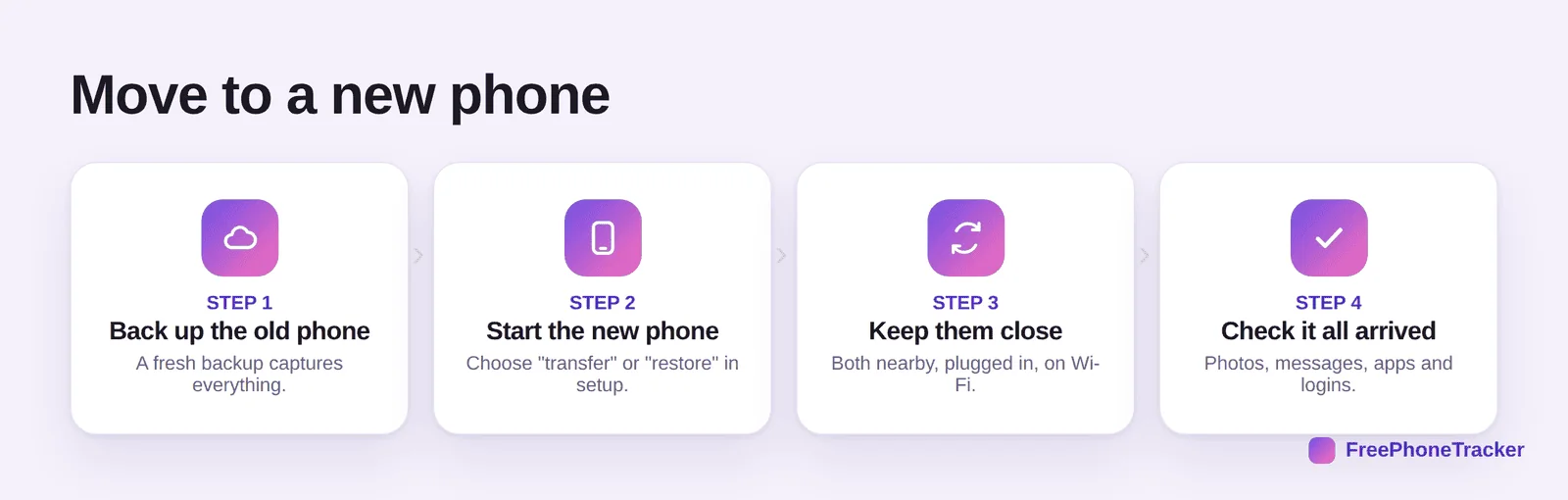
Back up the old phone so nothing’s missed. Start the new phone and choose “transfer” or “restore” in setup. Keep them close, both nearby, plugged in and on Wi-Fi. Then check it all arrived, photos, messages, apps and logins, before you retire the old one.
Don’t leave anything behind
A few things don’t move automatically, and they’re the ones that hurt most to lose.
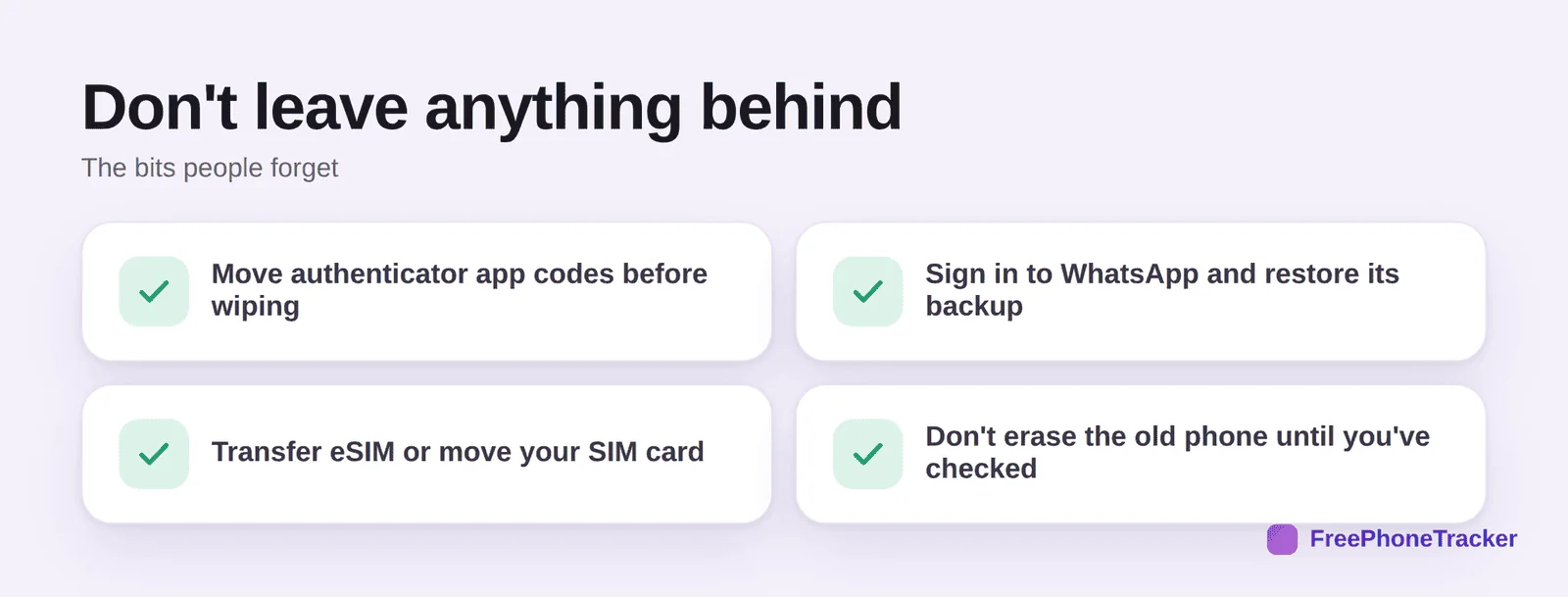
Move your authenticator app codes before wiping the old phone, or you’ll get locked out of accounts, see our 2FA guide. Sign in to WhatsApp and restore its backup. Transfer your eSIM or move the physical SIM. And don’t erase the old phone until you’ve confirmed everything made it.
The things that never move by themselves
Even a perfect transfer misses a few items, and knowing them in advance saves a panicked afternoon. Authenticator apps must be moved deliberately — Google Authenticator and Microsoft Authenticator have an export or cloud-sync option, and you should do it while you still have the old phone. WhatsApp needs its own backup and restore, and moving between Android and iPhone uses a special transfer during setup. Banking apps usually require re-registering with a code sent to your number, so keep the old SIM active until that is done.
Two-factor codes sent by text will go to whichever phone holds the SIM, so swap the SIM (or transfer the eSIM) before you rely on the new phone. Saved Wi-Fi passwords, Bluetooth pairings and some app logins need re-entering. Keep the old phone charged and un-wiped for a week; the moment you erase it, anything you forgot is gone for good.
Common questions
How long does a phone transfer take?
Usually 15 minutes to an hour, depending on how much data and whether you’re on Wi-Fi or a cable. Keep both phones plugged in and close together.
Can I move from iPhone to Android (or back)?
Yes. Google’s “Switch to Android” and Apple’s “Move to iOS” apps handle photos, contacts, messages and more. Some app data won’t cross platforms and needs a fresh sign-in.
Will my WhatsApp chats come across?
On the same platform, restore its backup during setup. Across platforms, WhatsApp has a specific transfer flow, do it before you wipe the old phone.
What about my authenticator codes?
Move them first. Many authenticator apps offer a transfer or cloud sync, do it before erasing the old phone, or you may lose access to 2FA accounts.
Should I erase my old phone right away?
No, wait until you’ve confirmed everything transferred. Then, especially if selling it, erase it fully. See our reset guide.
Moving to a new phone is mostly automatic now, back up the old one, choose transfer or restore, and keep both phones close. Just remember the manual bits: authenticator, WhatsApp and your SIM. Get started free, and read our guides to iPhone and Android backups.