Parental controls sound complicated. They’re not. At their heart, they’re just a few settings that keep a phone age-appropriate. The trick is knowing which ones matter, in what order to turn them on, and how to do it without a fight. This is the beginner’s guide. No jargon. Just what to switch on today, and why.
- Controls come in three layers: built-in, a dedicated app, and your network.
- Start small. Location, a screen-time limit, and a content filter cover most families.
- Set them with your child, not in secret. Explain the why.
- Loosen the rules as they get older. Controls should shrink, not stay frozen.
What parental controls actually do
Parental controls do three jobs. They limit how long and when the phone is used. They filter what your child can see and reach. And they tell you what’s going on, so you can step in early. That’s it. Everything else is detail.
The goal isn’t to lock the phone down until it’s useless. A phone your kid resents is a phone they’ll work around. The goal is a sensible fence. Wide enough to let them explore. Firm enough to keep them safe. Good controls fade into the background. You set them once, and the day runs itself.
The three layers
There’s no single “parental controls” switch. There are three layers, and they work best together. Skip one and you leave a gap.
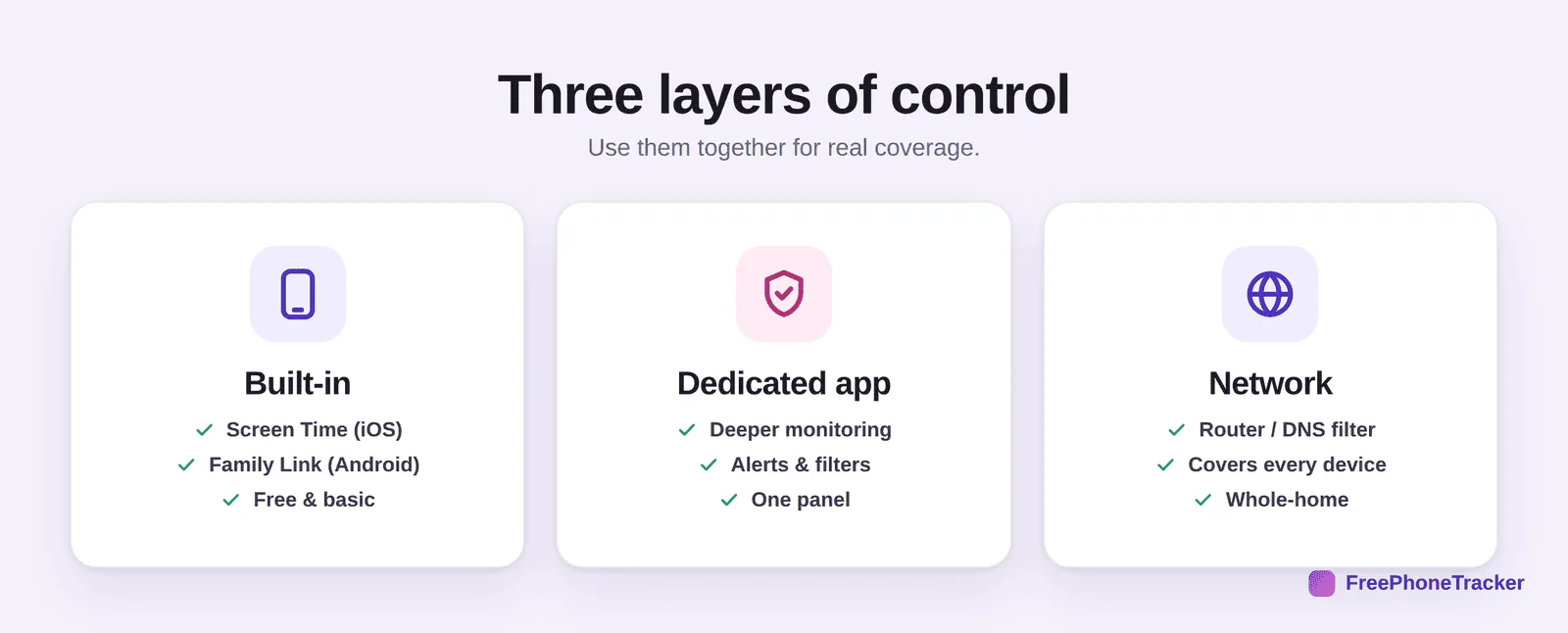
Built-in controls come free with the phone. Apple’s Screen Time and Google’s Family Link handle limits, app approval and basic filtering. Turn these on first. They’re the foundation, and they cost nothing.
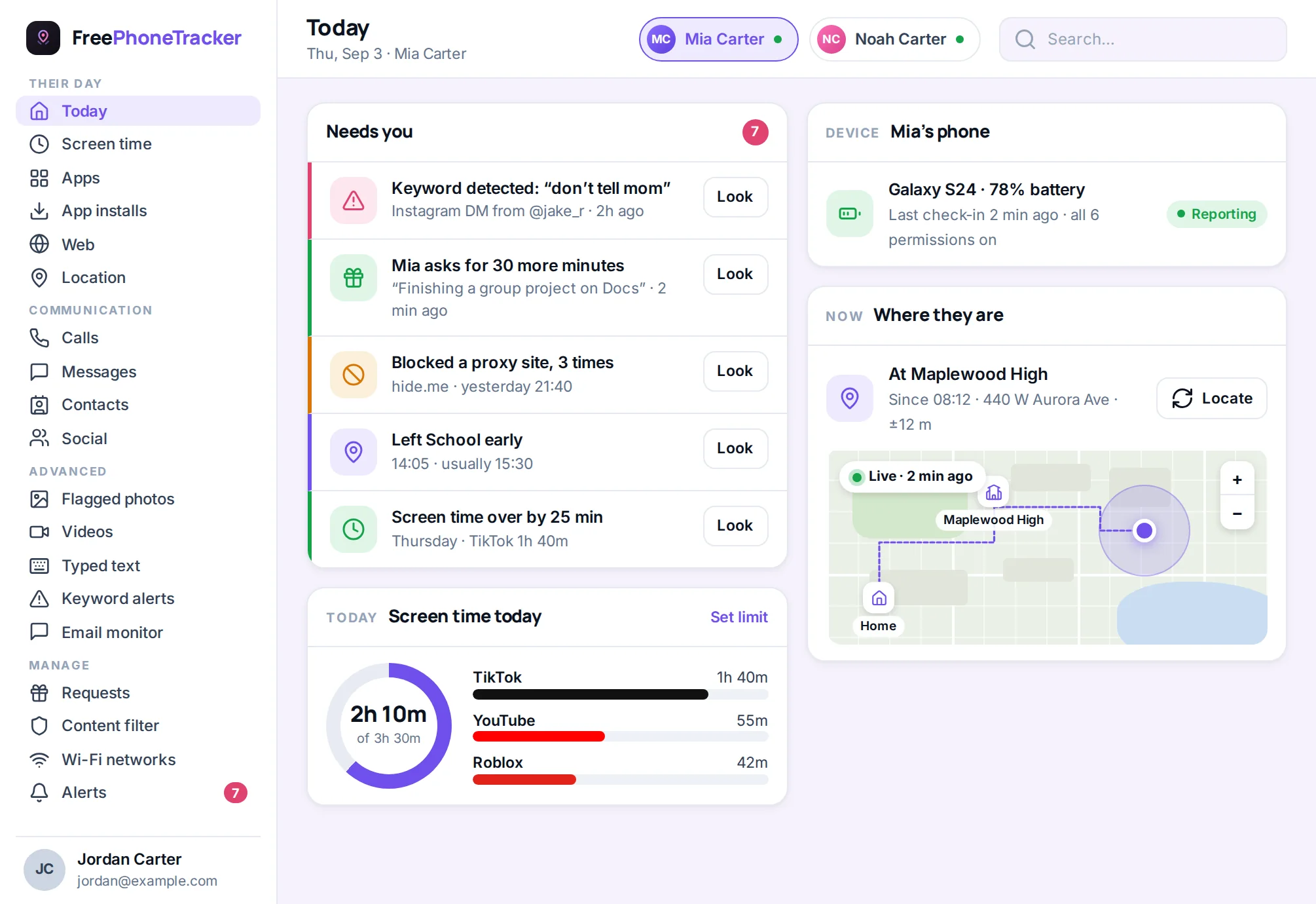
A dedicated app goes deeper. It adds proper monitoring, keyword alerts, and one panel that covers everything, on both iPhone and Android. This is where FreePhoneTracker lives. It fills the gaps the built-in tools leave, especially around messages, social apps and alerts.
Network controls work at the router or DNS level. They filter every device on your home Wi-Fi at once. Handy for younger kids and shared tablets. The catch: they only cover your home network, not mobile data. So they’re a supplement, not the whole answer.
Your starter checklist
Feeling unsure where to begin? Start here. These five settings cover most families, and you can turn them all on in about ten minutes.
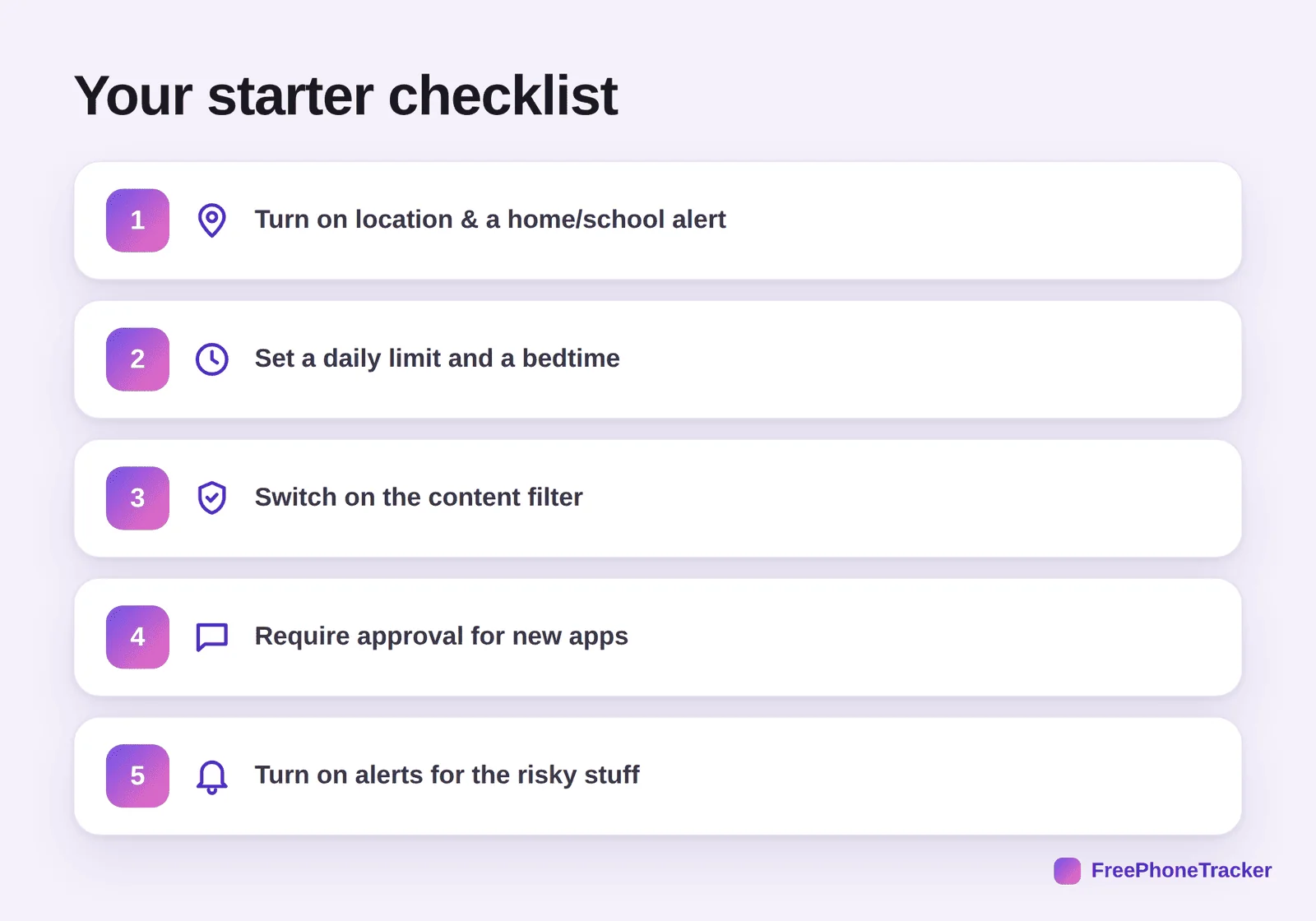
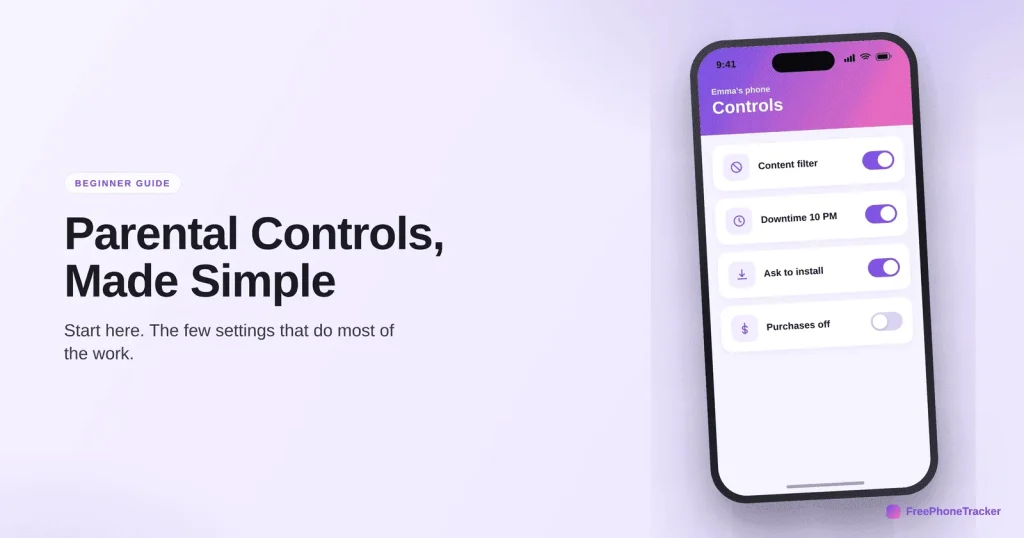
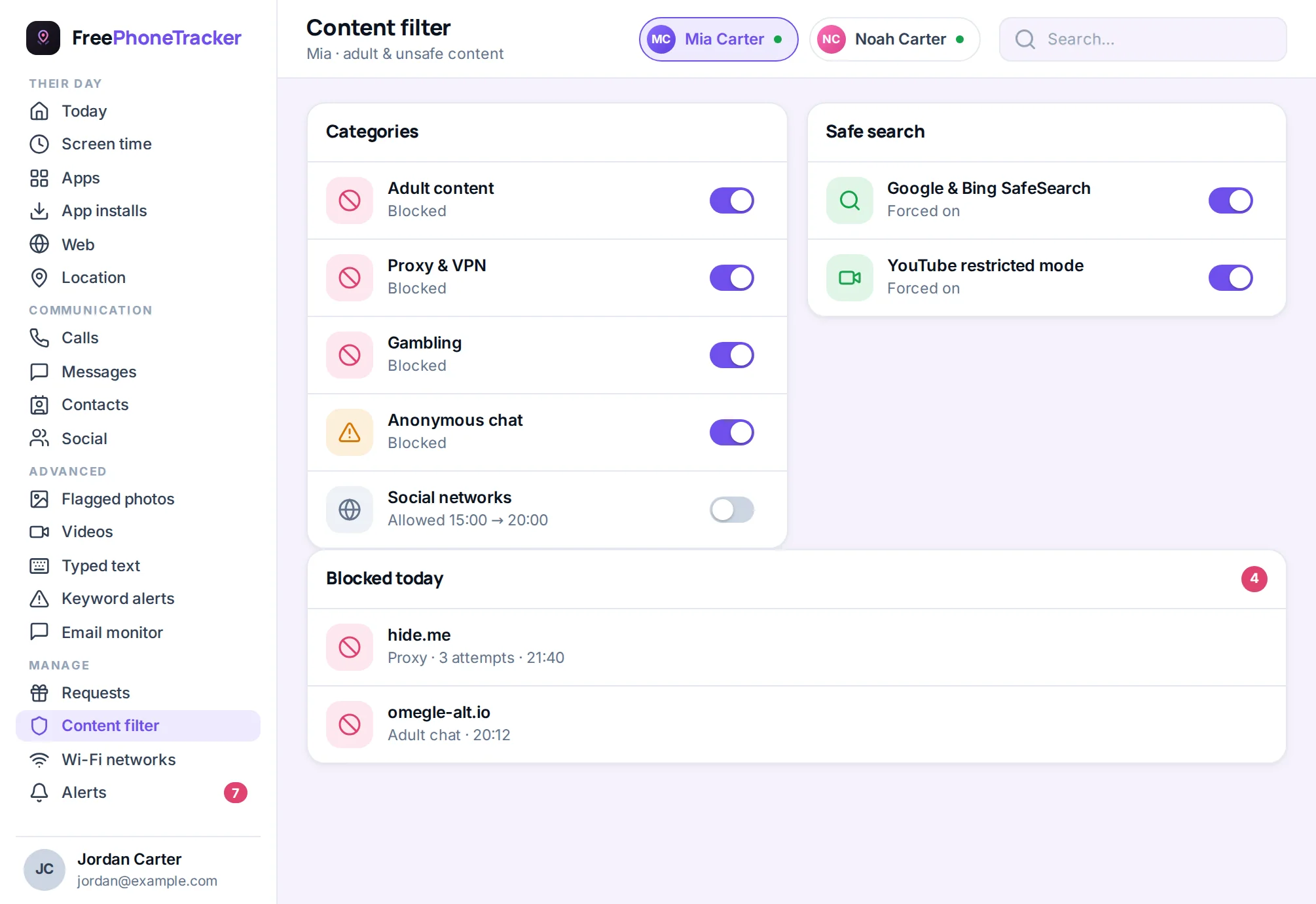
First, turn on location and add an alert for home and school. That answers “did they get there?” without a text. Second, set a daily screen-time limit and a bedtime. Third, switch on the content filter to block adult and unsafe sites. Fourth, require your approval before new apps install. Fifth, turn on alerts for the risky stuff, so you hear about a flagged word or a new app without checking all day.
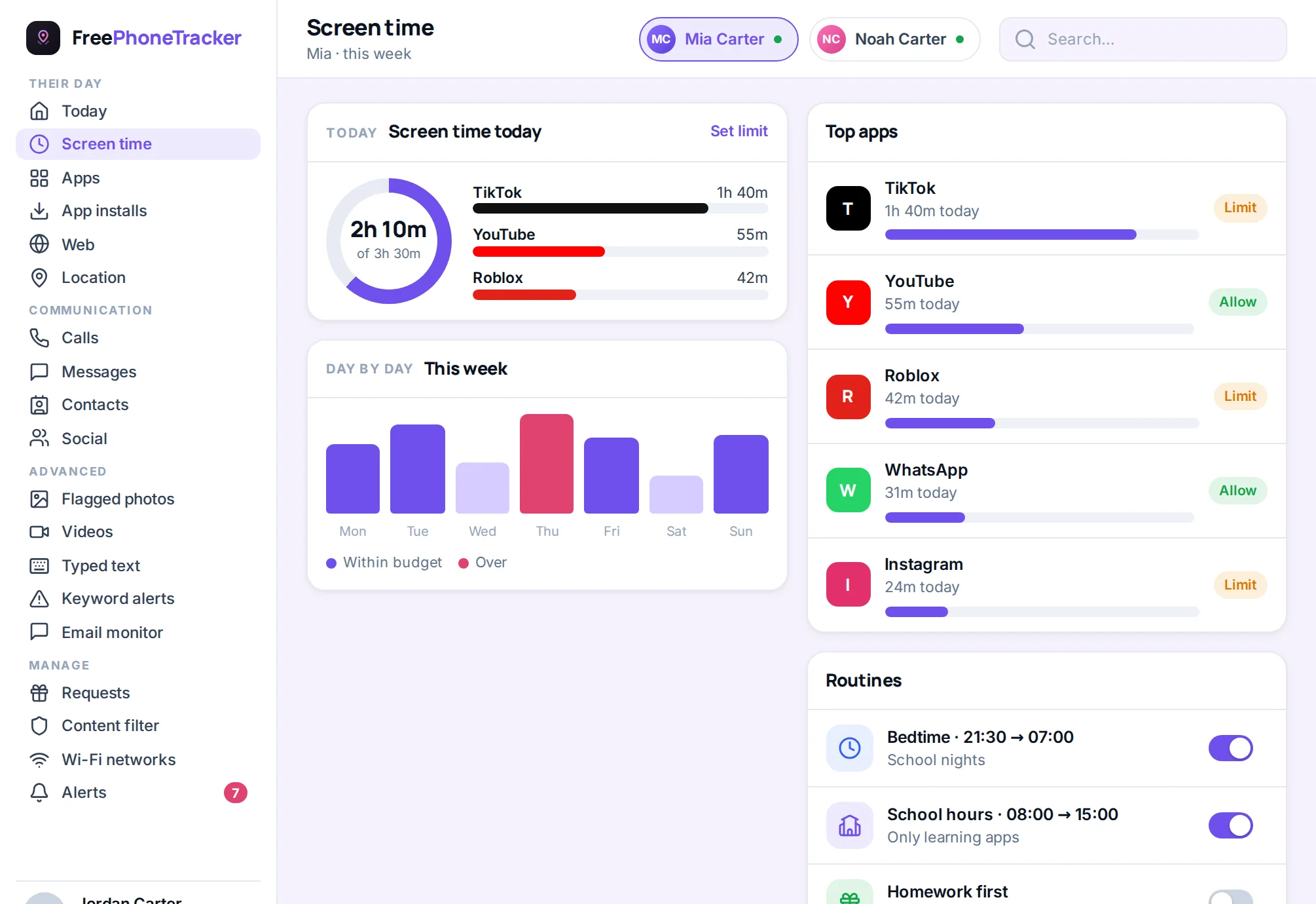
Notice what’s not on the list. You don’t need to read every message or record every call on day one. Start with the basics. Add more only when a real concern calls for it. A light touch that you actually keep up beats a heavy setup you abandon in a week.
What to set, by age
The right controls change as your child grows. Match them to the age, and revisit as they get older.
A first phone (around 10–11). Keep it simple. Location, screen-time limits, a content filter, and app approval. That’s a complete, gentle setup for a young child. It keeps them safe without crowding them.
Tween or young teen (12–14). Add the communication layer. Call and message visibility, social monitoring, and keyword alerts. This is the age when their world widens and the risks appear. Lean on alerts so you’re not reading everything.
Older teen (15–17). Pull back. Drop the message reading. Keep location, alerts, and the content filter as a safety net. Your job now is coaching, not controlling. If you want the full playbook, read our guide on monitoring a teen respectfully.
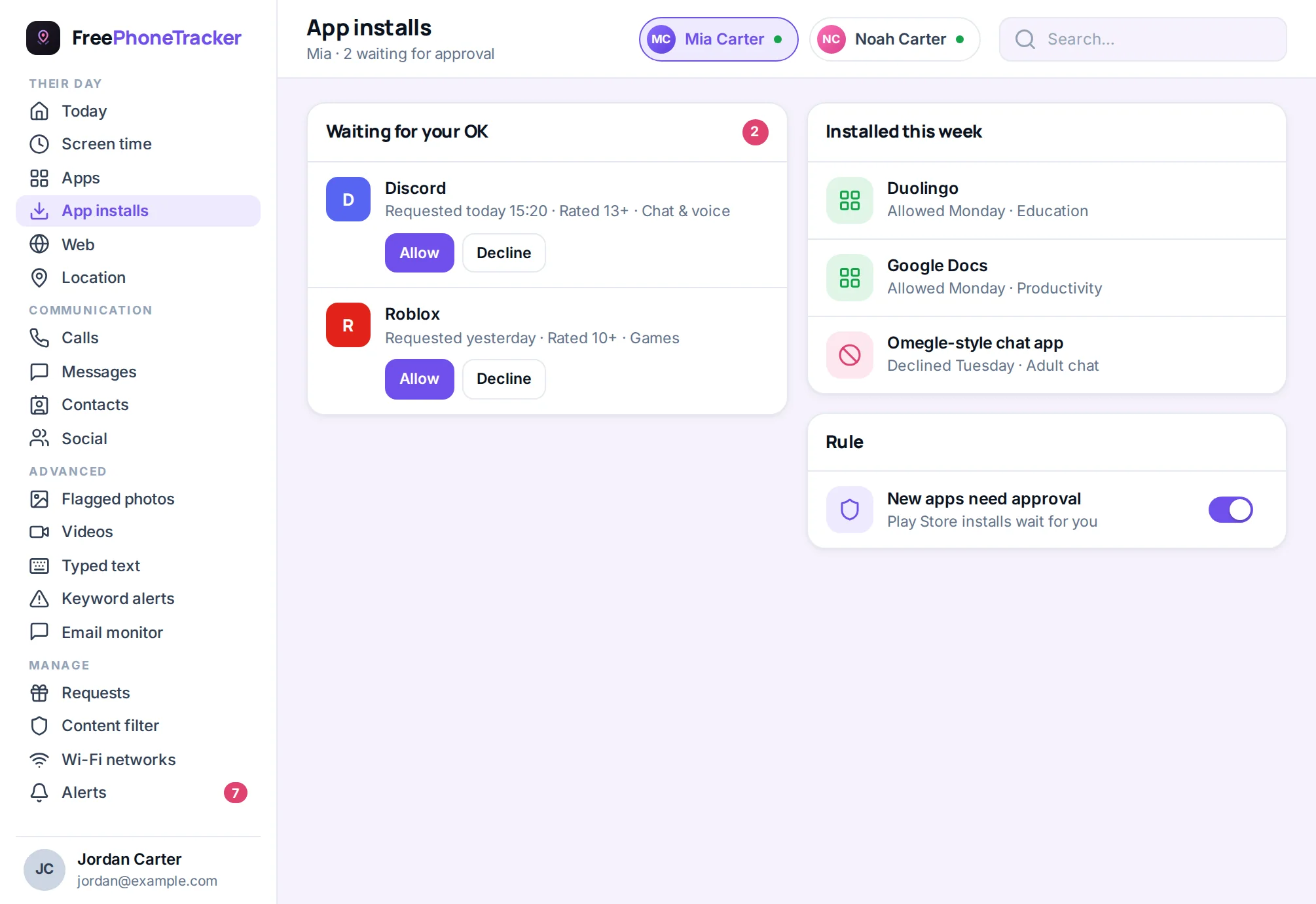
The app blocker is worth a special mention here. It lets you cap or block a specific app and get told the moment a new one is installed. For younger kids, that alone prevents most surprises. For screen time specifically, our screen time by age guide has the age-by-age detail.
Free or paid: what you really need
You don’t have to spend money to protect a phone. The built-in tools are free and cover a lot. For a young child, they may be all you need. So start there, and only add a paid tool when you hit a real gap.
Where do the gaps show up? Usually around messages, social apps and alerts. The built-in tools are thin here, especially on the things teens actually use. That’s when a dedicated app earns its place. It reads across apps, flags keywords, and puts everything in one panel instead of three. FreePhoneTracker is free to start, and you unlock the deeper features by completing simple tasks or with optional Premium. The point: match the spend to the need. A ten-year-old rarely needs more than the basics. A fourteen-year-old on five social apps is a different story.
What controls can’t do
Be honest with yourself about the limits. No setting raises a child. Controls buy you time and visibility. They don’t replace the conversations that actually shape how your kid behaves online.
A determined teen can find workarounds. A friend’s phone. A school computer. A second account. If your whole strategy is technical, you’ll always be one step behind. The families who do this well treat controls as a backstop, not the front line. The front line is talking. Ask what they’re into. Explain your worries plainly. Make it safe for them to come to you when something goes wrong. Do that, and the controls become what they should be: a quiet safety net, not a cage your kid is trying to escape.
Mistakes to avoid
Most parental-control problems come from a few predictable slip-ups. Dodge these and you’re most of the way there.
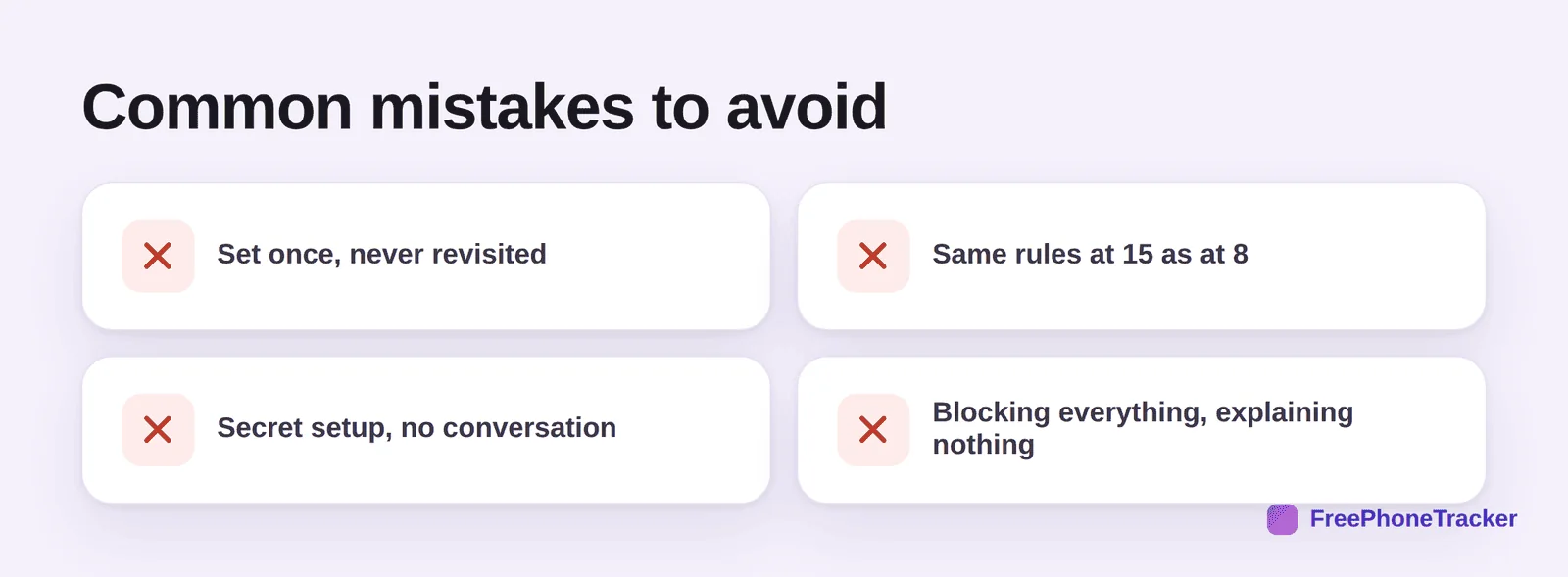
The first mistake is set and forget. Controls that fit a nine-year-old don’t fit an eleven-year-old. Revisit them a couple of times a year. The second is the same rules forever. If a fifteen-year-old lives under the same lockdown as when they were eight, they’ll rebel, and rightly. The third is secret setup. Installing controls behind your child’s back teaches them to hide, and it backfires the day they find out. The fourth is blocking everything and explaining nothing. A control your child understands is a control they’ll accept. A wall with no reason is a challenge to climb.
Common questions
Are free parental controls enough?
For a young child, often yes. The built-in tools plus a content filter cover a lot. As kids get older and move onto social apps, a dedicated tool like FreePhoneTracker fills the gaps, and it’s free to start too.
Do parental controls work on iPhone and Android?
Both. The built-in tools differ, and Android allows deeper monitoring than iOS. Our complete guide to child phone monitoring breaks down exactly what you can do on each.
Will my child just turn them off?
Not if they’re set up properly. Controls are protected by your passcode, and a good app alerts you if the phone is tampered with. But the real safeguard is trust. A kid who understands the why is far less likely to fight the how.
What age should I start?
The day they get their first phone. Start light. Add more as they grow and as real concerns appear. There’s no benefit to waiting.
How long does setup take?
About ten minutes for the basics. Create a free account, install the app, grant permissions, and work through the checklist above.
Parental controls aren’t about locking down a phone. They’re about drawing a sensible line, then moving it as your child earns more room. Start with the five basics. Be honest about it. Revisit as they grow. Do that, and you’ve got the hard part handled. Get started free and set up your first control today.