A factory reset wipes everything, which is exactly what you want before selling or fixing a phone, and exactly what you don’t want if you skipped a step. A five-minute checklist stands between you and accidentally erasing something you needed. This guide is that checklist.
- Make a fresh backup today, and confirm it actually worked.
- Sign out of iCloud or your Google account to avoid an activation lock.
- Save your authenticator codes and back up WhatsApp.
- Move your SIM/eSIM so you can still receive 2FA codes.
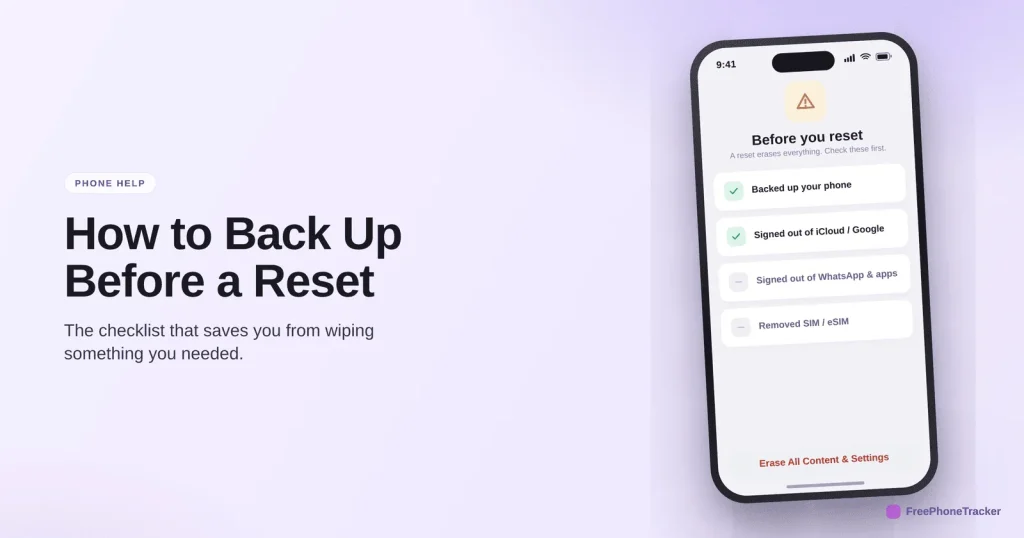
Before you reset
Run through these before you touch “Erase.” A reset is irreversible, so a minute of checking saves a lot of regret.
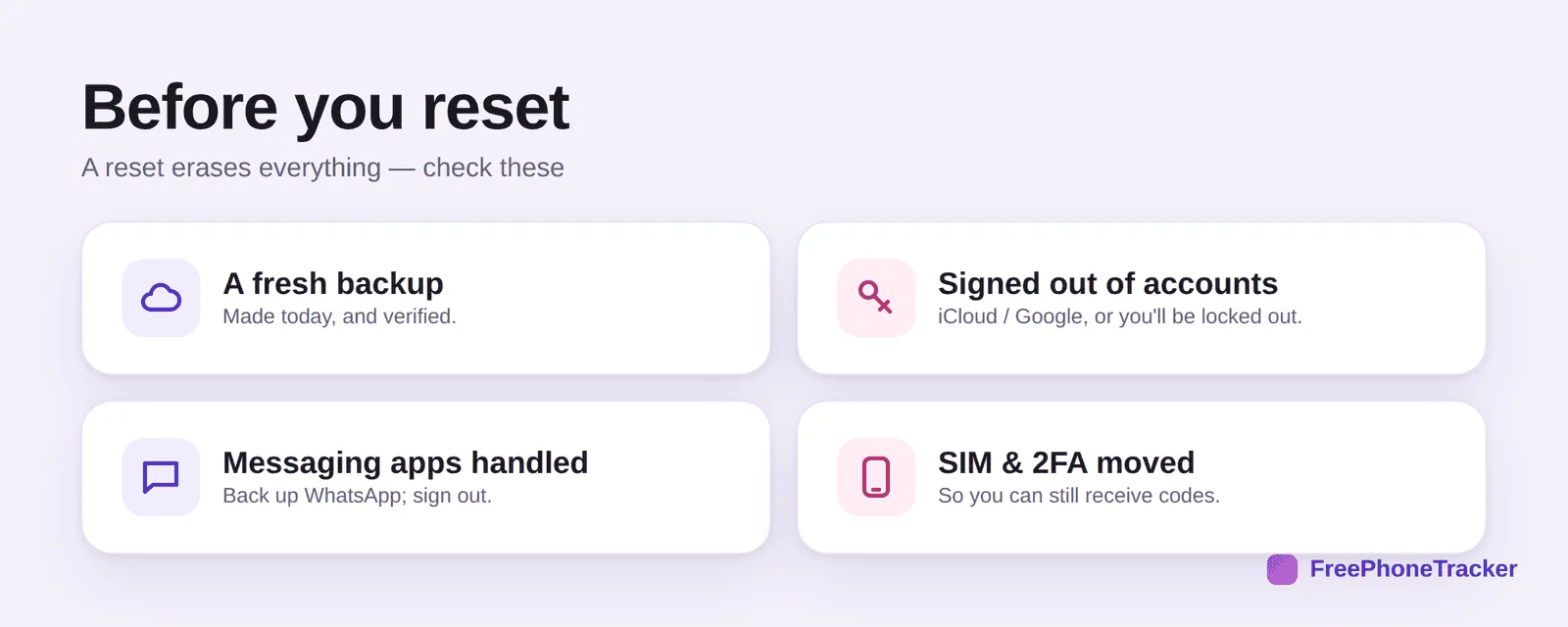
Make sure you have a fresh backup, made today and verified. Be signed out of your accounts (iCloud or Google), or activation lock can leave the phone unusable, for you or a buyer. Handle messaging apps, back up WhatsApp and sign out. And move your SIM and 2FA so you can still receive codes.
Reset the safe way
Do it in this order and nothing gets stranded.
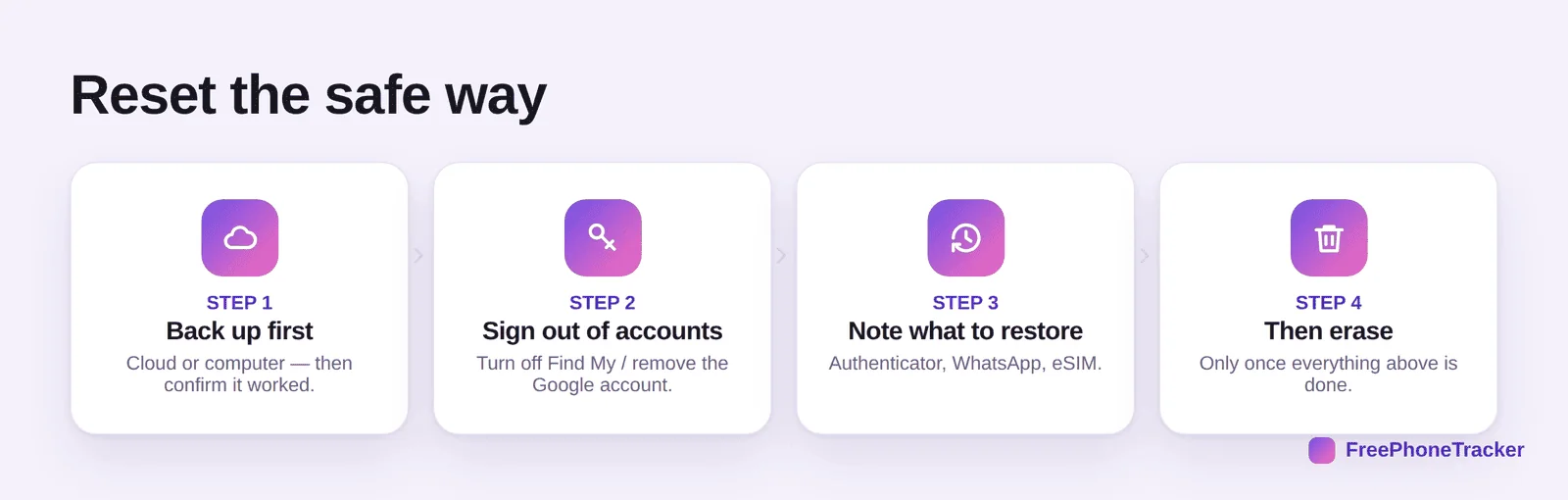
Back up first, cloud or computer, then confirm it worked. Sign out of your accounts, turn off Find My or remove the Google account. Note what to restore, authenticator, WhatsApp, eSIM. And only then erase, once everything above is genuinely done.
Avoid the classic mistakes
These are the ones that turn a routine reset into a real headache.
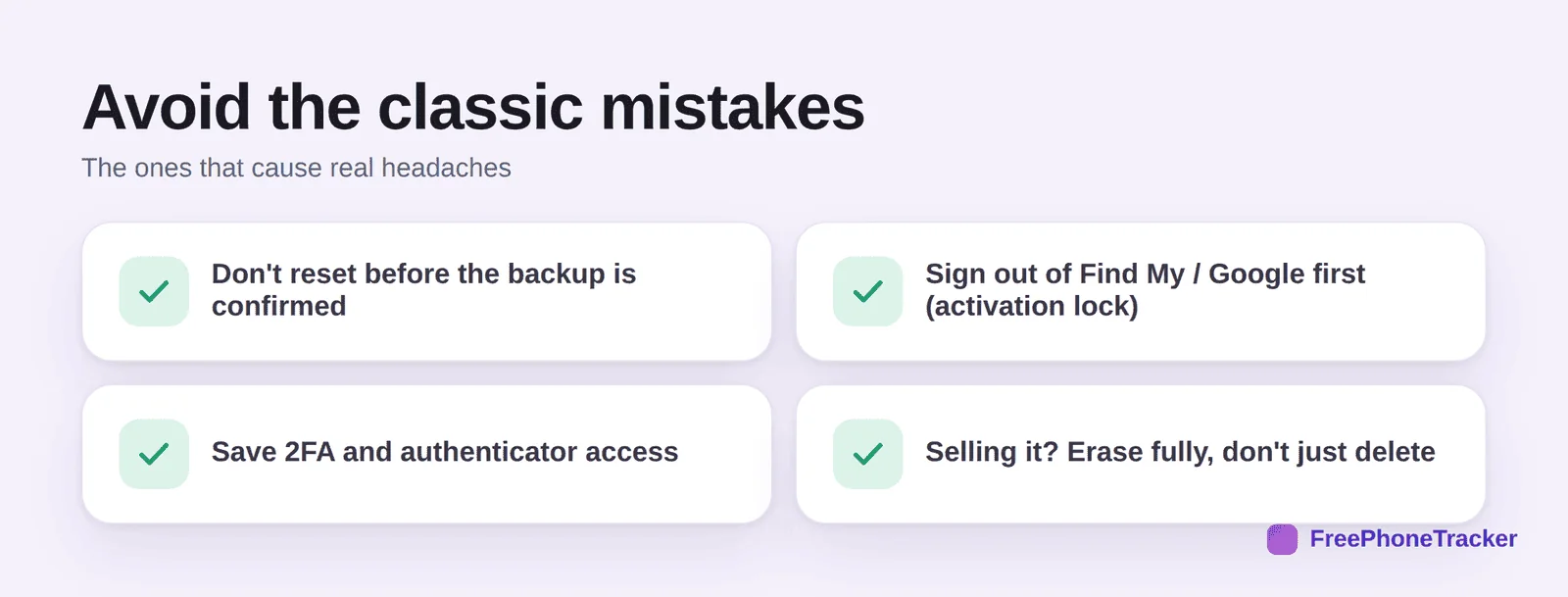
Don’t reset before the backup is confirmed. Sign out of Find My or Google first, or activation lock will block the next setup. Save your 2FA and authenticator access. And if you’re selling the phone, erase it fully, don’t just delete files, so none of your data goes with it.
Common questions
Does a factory reset delete everything?
Yes, that’s the point, it returns the phone to its out-of-box state. That’s why a confirmed backup first is non-negotiable.
What is activation lock, and how do I avoid it?
It ties the phone to your Apple or Google account so a thief can’t reuse it. Sign out of iCloud (turn off Find My) or remove your Google account before resetting, or the phone stays locked to you.
Will resetting remove spyware or a stubborn problem?
A full factory reset removes almost all software issues, including most hidden apps. Back up first, and don’t restore a backup that might carry the problem back. See our spyware guide.
I’m selling my phone — is deleting my files enough?
No. Do a full factory reset after signing out of your accounts, that clears your data properly. Simply deleting files can leave recoverable traces.
What do I need to set up 2FA again afterwards?
Your authenticator app’s transfer or backup, and access to your recovery methods. Sort this out before you wipe. See our 2FA guide.
A factory reset is safe and useful, as long as you back up, sign out, and save your 2FA first. Run the checklist, then erase with confidence. Get started free, and read our guides to iPhone and Android backups before you do.